Feature Summary
File Upload is used to collect files in various formats, such as documents, images, audio, and video. Respondents can drag and drop or paste files into the upload area. It supports setting file type limits, file naming methods, and creating categorized folders.
Feature Description
| Feature Dimension | Description |
|---|---|
| Membership Limit | No membership limit |
| Version Limit | No membership limit |
Steps
Add File Upload
Feature Entry
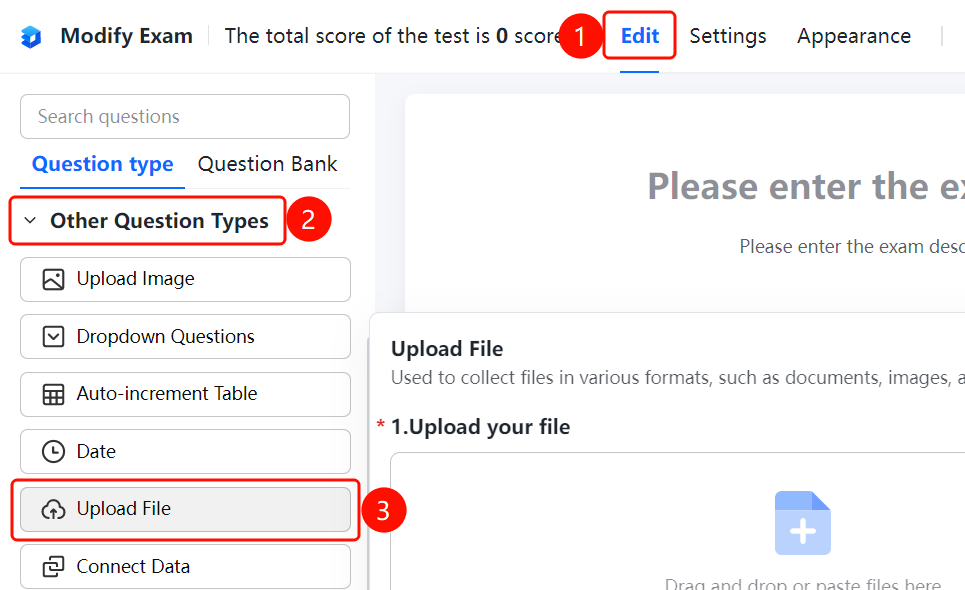
"Edit" tab > "Other Question Types" > "File Upload" button
- Click the "Edit" tab at the top.
- In the left panel, expand the "Other Question Types" area.
- Click the "File Upload" button to add file upload to the exam.
- Respondents can drag and drop or paste files into the upload area, or click the "Upload File" button.
- Current settings: Up to 1 file can be uploaded, and a single file must be within 10 MB.
Set File Type Limits
Feature Entry
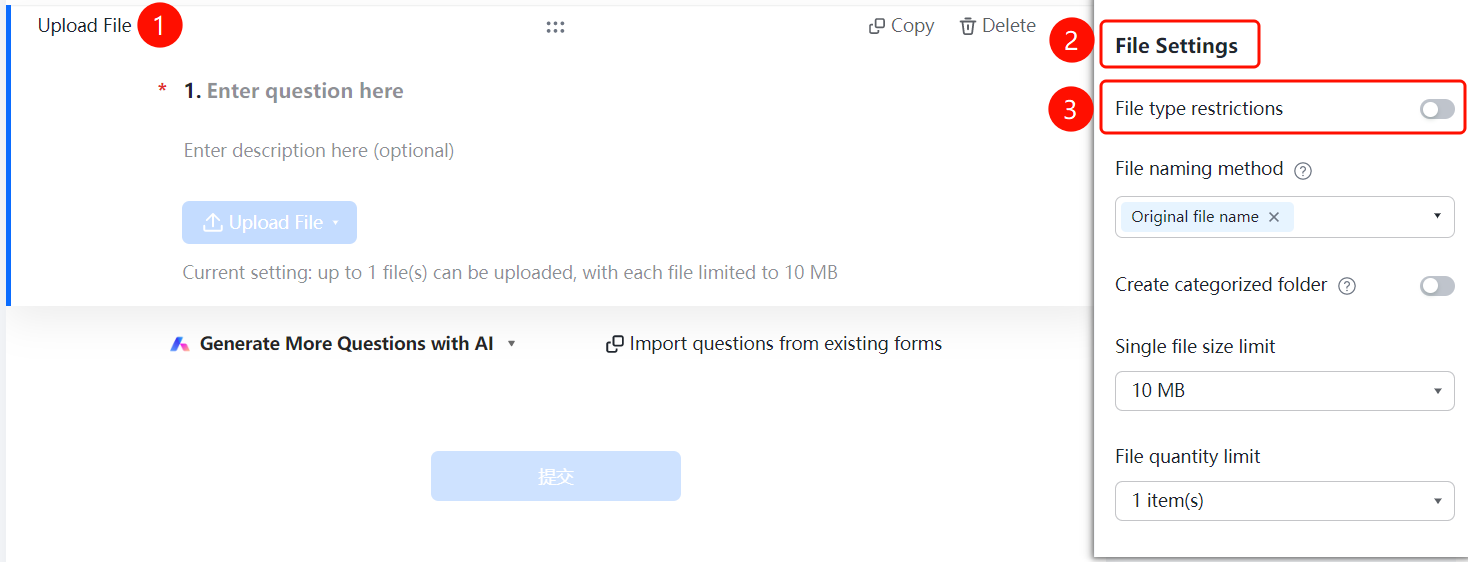
File Upload > "File Settings" > "File Type Limit" switch
- Click the added file upload.
- In the "File Settings" panel on the right, turn on the "File Type Limit" switch.
- Once enabled, you can set the allowed file types.
Set File Naming Method
Feature Entry
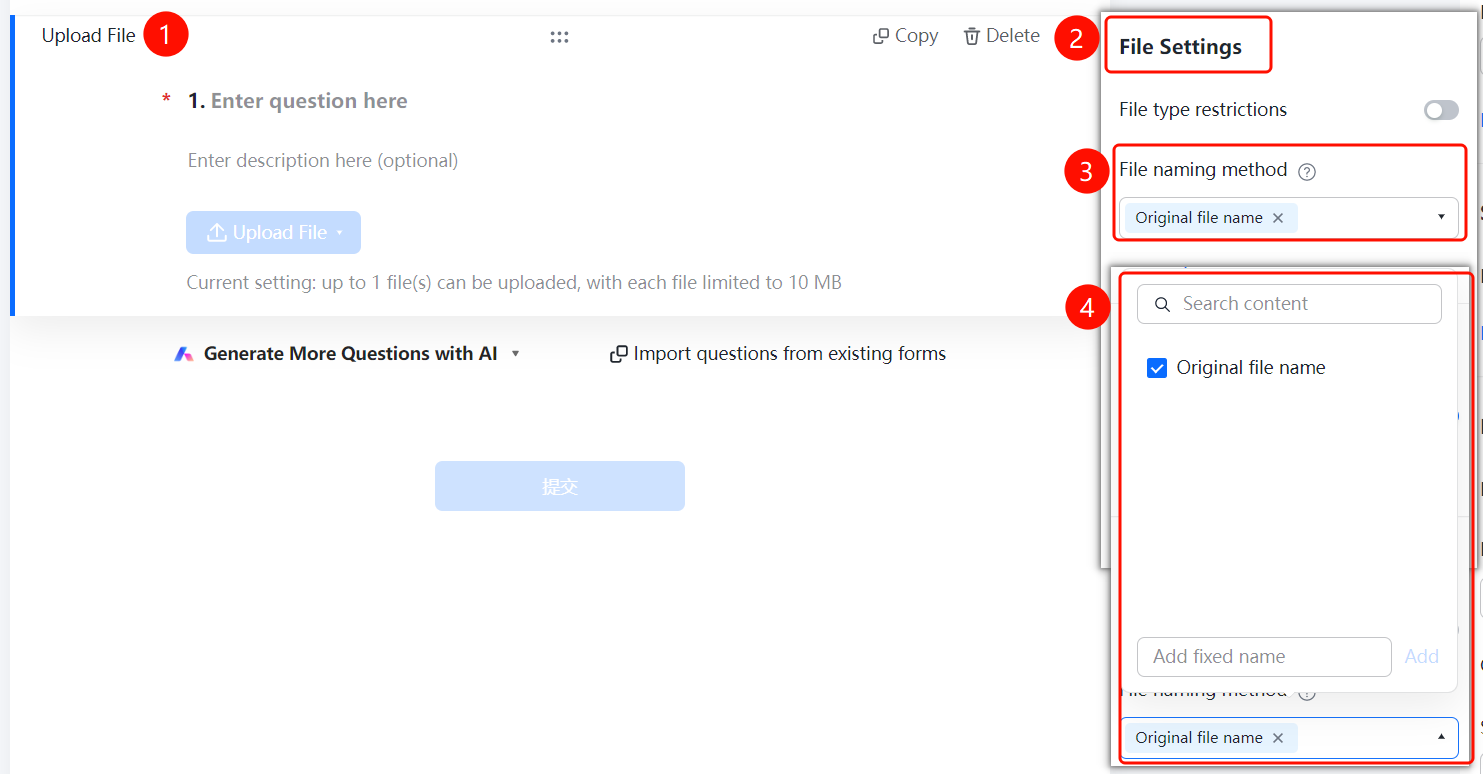
File Upload > "File Settings" > "File Naming Method" option
- Click the added file upload.
- In the "File Settings" panel on the right, click the "File Naming Method" drop-down list (currently "Original File Name ×").
- Select a naming method or click "Add Custom Fixed Name" to add a custom rule.
Create Categorized Folders
Feature Entry
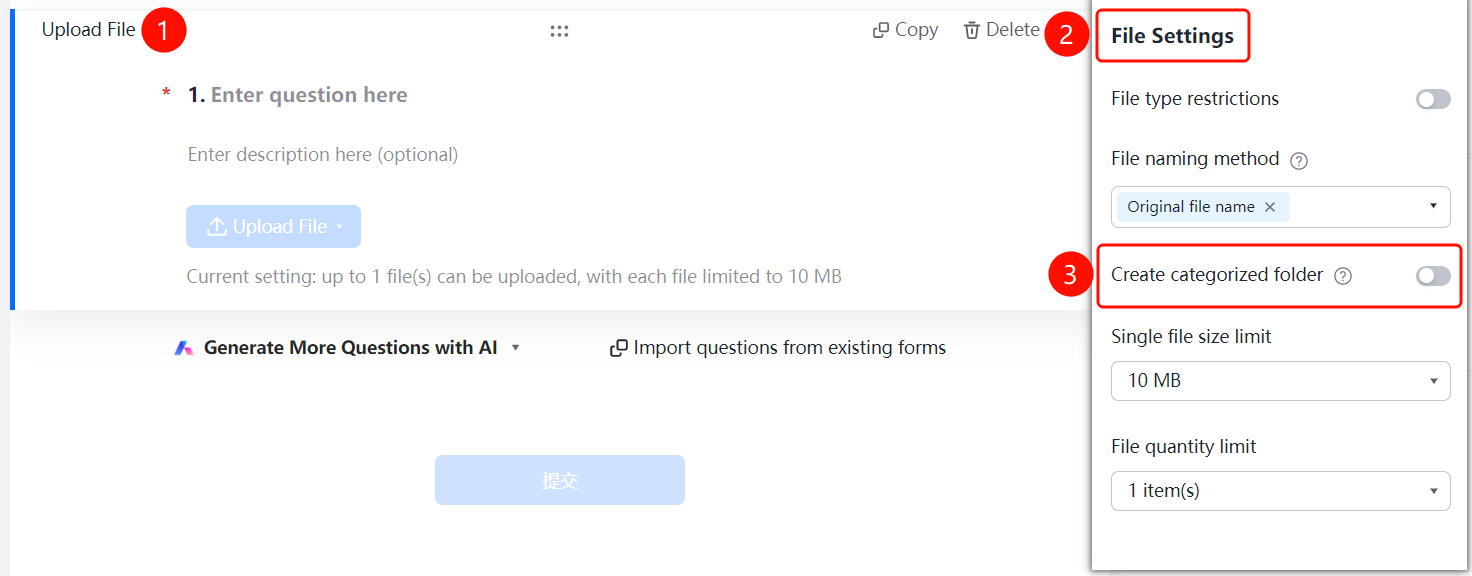
File Upload > "File Settings" > "Create Categorized Folders" switch
- Click the added file upload.
- In the "File Settings" panel on the right, turn on the "Create Categorized Folders" switch.
- Once enabled, folders will be automatically created according to the folder naming method, and the collected files will be categorized and summarized.
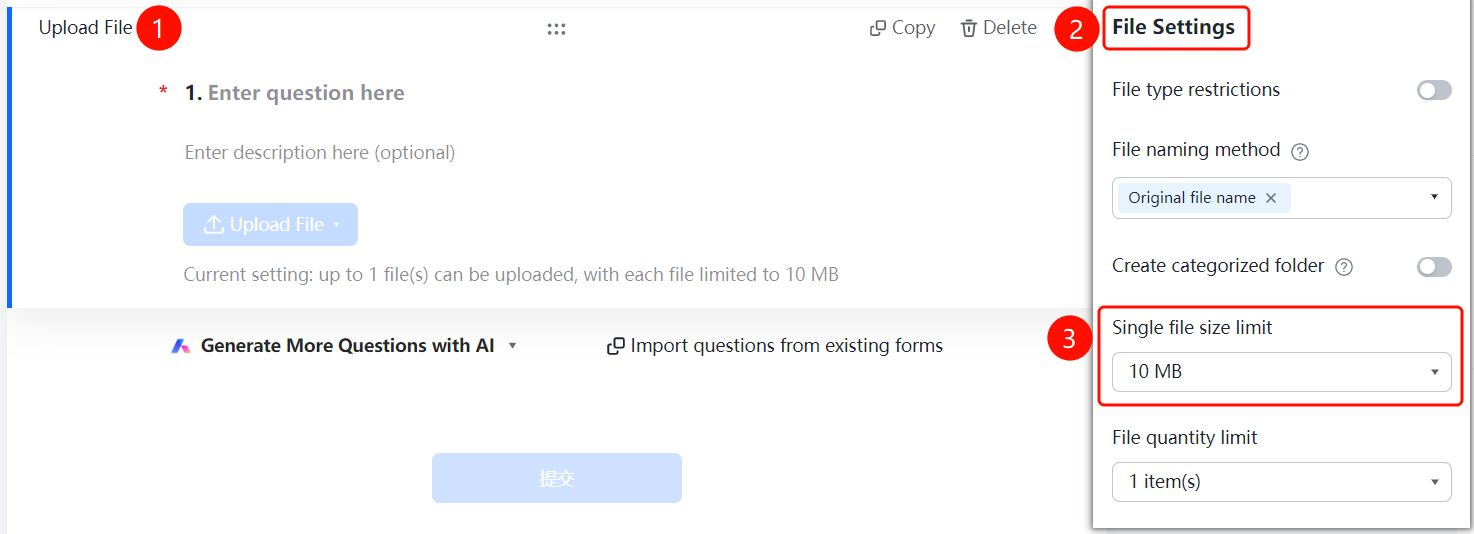
Set Single File Size Limit
Feature Entry
File Upload > "File Settings" > "Single File Size Limit" option
- Click the added file upload.
- In the "File Settings" panel on the right, click "Single File Size Limit" (currently "10M").
- Select the allowed file size limit.
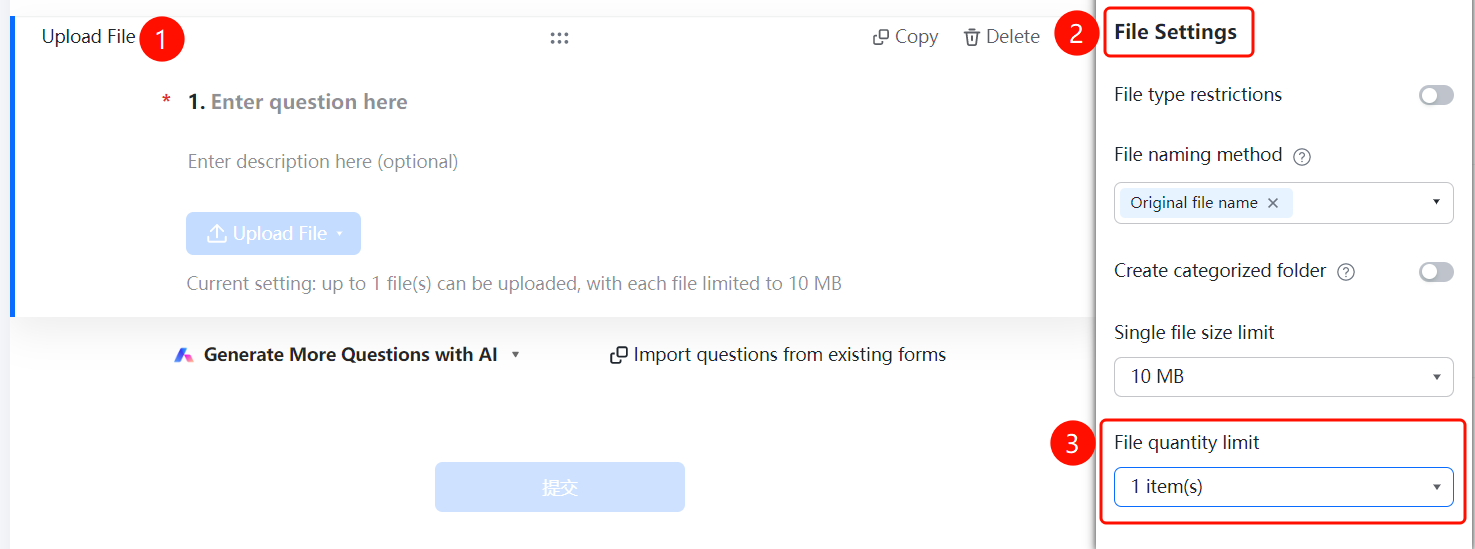
Set File Quantity Limit
Feature Entry
File Upload > "File Settings" > "File Quantity Limit" option
- Click the added file upload.
- In the "File Settings" panel on the right, click "File Quantity Limit" (currently "1").
- Select the allowed number of uploaded files.
FAQ
Question 1: What file types are supported for file upload?
- Solution: It is used to collect files in various formats, such as documents, images, audio, and video. You can set this in "File Settings" > "File Type Limit".
Question 2: How do I limit file size and quantity?
- Solution: Click the file upload, and set "Single File Size Limit" and "File Quantity Limit" respectively in "File Settings".
Question 3: How do I categorize and manage collected files?
- Solution: Click the file upload, and turn on "Create Categorized Folders" in "File Settings". The system will categorize and summarize files according to the folder naming method.
Notes
- File upload is suitable for scenarios such as material collection and attachment submission.
- We recommend setting reasonable file type and size limits.