Summary
Single-choice exam questions are used to set up single-choice questions. Candidates choose one correct answer from multiple options, and the system automatically scores the exam. This feature is suitable for various exam scenarios.
Feature Description
| Feature Dimension | Description |
|---|---|
| Member Restrictions | No member restrictions |
| Version Restrictions | No version restrictions |
Steps
Add Single-Choice Exam Questions
Feature Entry
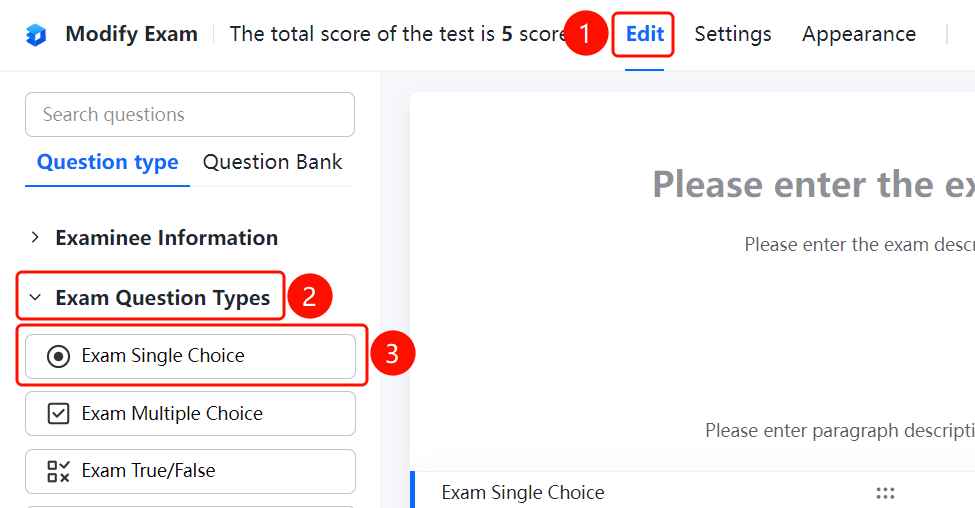
Edit tab > Exam Question Types > Single-Choice Exam button
- Click the Edit tab at the top.
- Expand the Question Types area in the left panel.
- Click the Single-Choice Exam button to add it to the form.
- Enter the question content and options, such as A, B, C, and D.
Set Correct Answers
Feature Entry
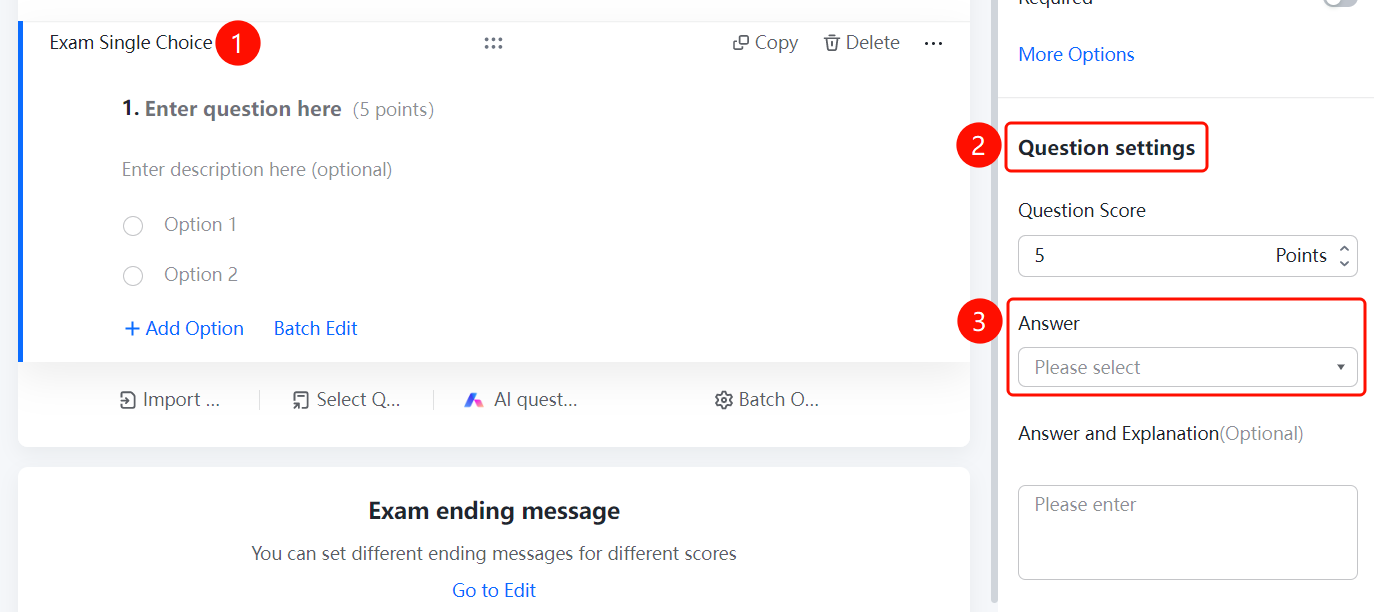
Single-choice exam question > Answer Settings > Set Correct Answer
- Click the added single-choice exam question.
- Mark the correct answer in the right panel.
- The correct answer is marked in green.
Set Scores
Feature Entry
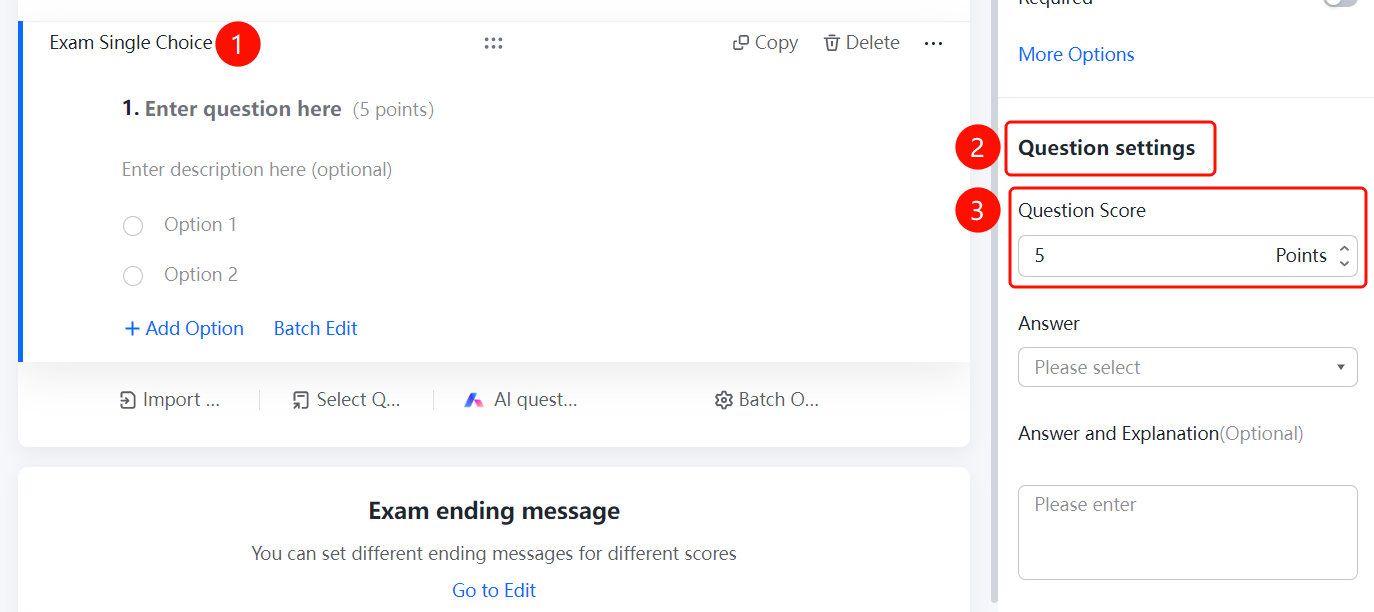
Single-choice exam question > Answer Settings > Set Score
- Click the added single-choice exam question.
- Set the question score in the right panel.
Set Answer Explanations
Feature Entry
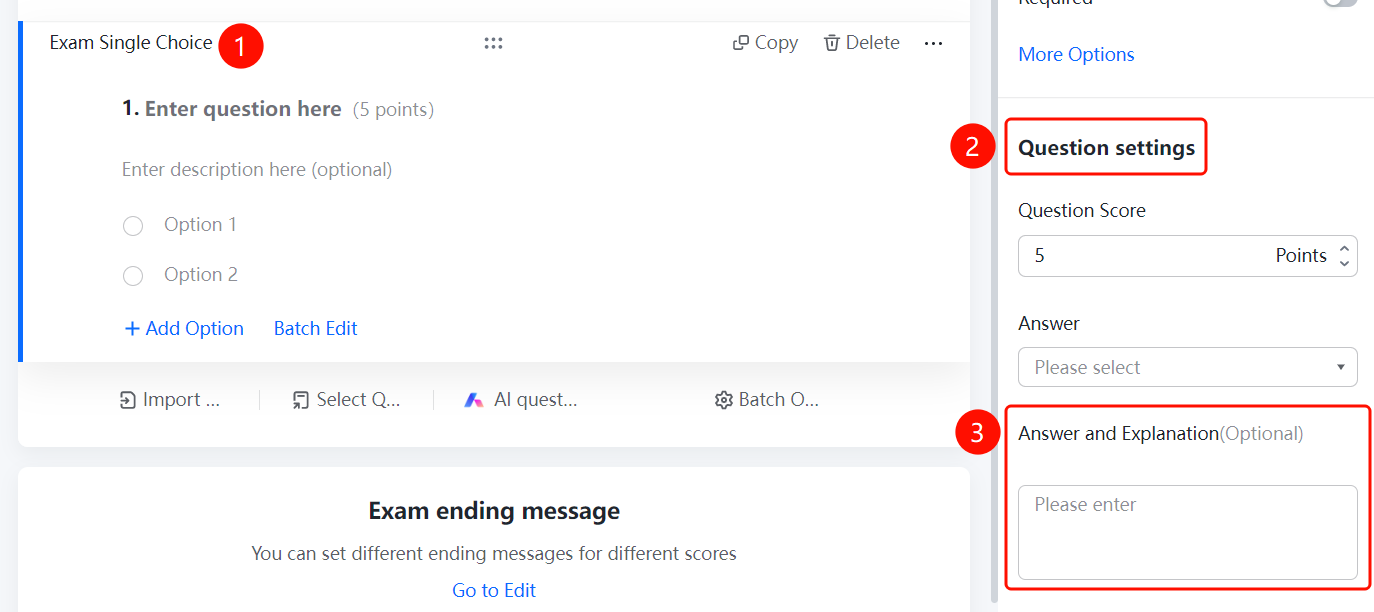
Single-choice exam question > Answer Settings > Set Answer Explanation
- Click the added single-choice exam question.
- Enter the answer explanation in the right panel.
FAQs
Question 1: How do I set the correct answer for a single-choice exam question?
- Solution: Click the single-choice exam question, and mark the correct answer in the right panel. The correct answer is marked in green.
Question 2: How do I set the score for a single-choice exam question?
- Solution: Click the single-choice exam question, and set the question score in the right panel. Candidates get points for correct answers and no points for incorrect answers.
Question 3: How do I set the answer explanation?
- Solution: Click the single-choice exam question, and enter the answer explanation in the right panel. Candidates can view it after submitting.
Notes
- Single-choice exam questions are dedicated to exams, and the system automatically scores them.
- The correct answer is marked in green for easy identification.