Feature Summary
Exam Image is one of the question types in the "Exam" scenario of Forms, allowing candidates to upload images as answers. Admins can flexibly configure the number, size, watermark, and compression of images, making it suitable for scenarios such as art exams and design work submissions.
Feature Description
| Feature Dimension | Description |
|---|---|
| Premium Limitation | No premium limitation |
| Version Limitation | No version limitation |
Steps
Add an Exam Image Question
Feature Entry
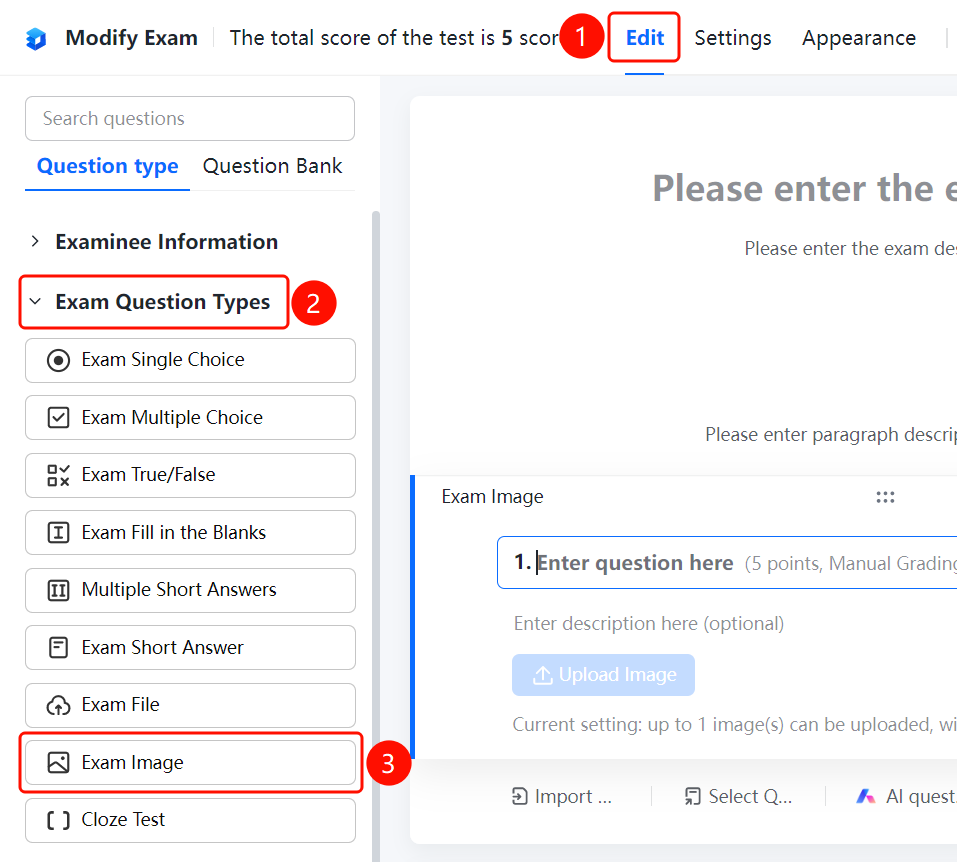
"Edit" tab → "Exam Question Types" → "Exam Image" button
- Click the Edit tab at the top.
- Expand the Exam Question Types area in the left panel.
- Click the Exam Image button to add the image question to the form.
- The image settings panel will be displayed on the right, where you can configure various parameters.
Set Question Score
Feature Entry
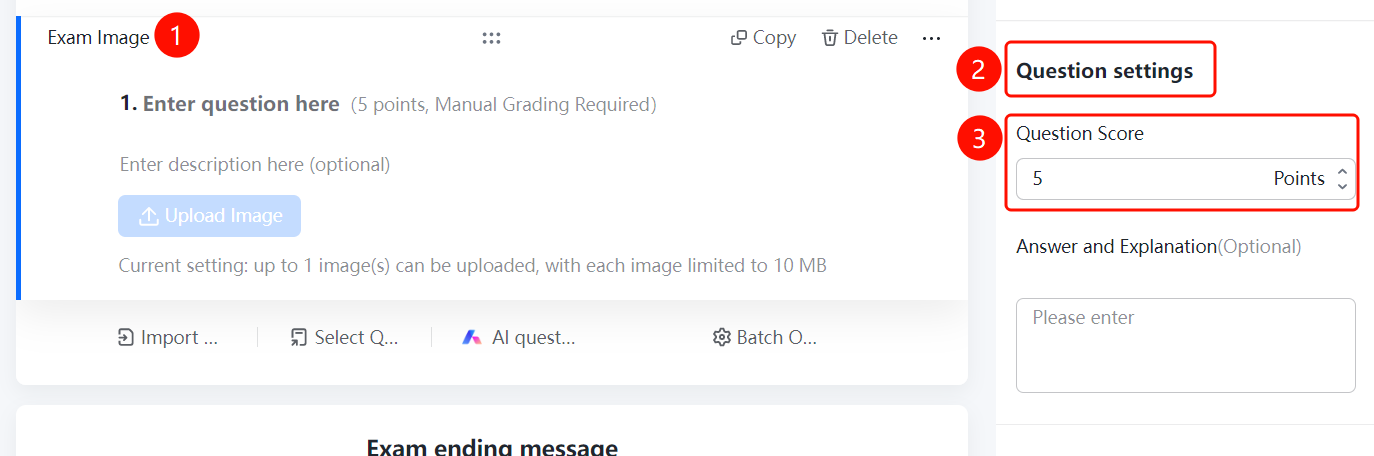
Exam Image question → "Question Settings" → "Question Score" input box
- Click the added Exam Image question.
- In the Question Settings panel on the right, click the Question Score input box.
- Enter the score for this question. The system will allow teachers to manually grade the question based on the images submitted by candidates.
Set Single Image Size Limit
Feature Entry
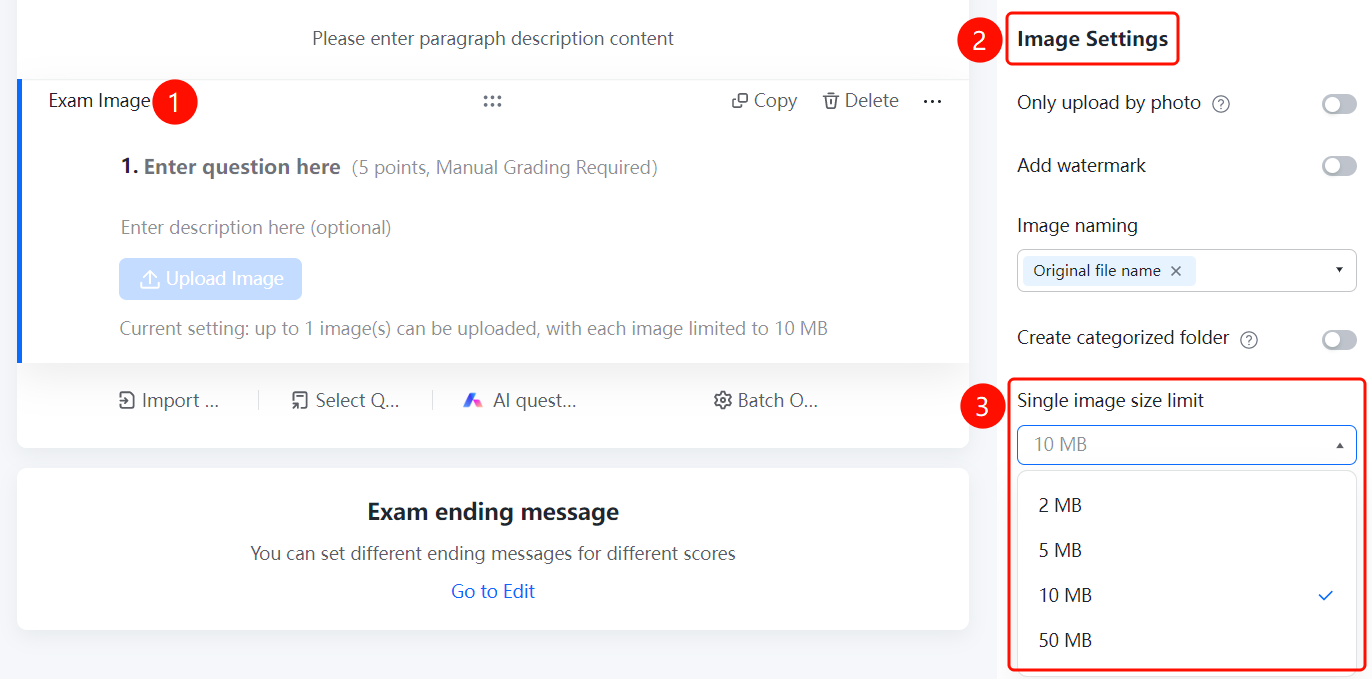
Exam Image question → "Image Settings" → "Single Image Size Limit" dropdown list
- Click the added Exam Image question.
- In the Image Settings panel on the right, click the Single Image Size Limit dropdown list.
- You can select the maximum file size for a single image, with options such as 2M, 5M, 10M, and 50M.
Set Answer Analysis
Feature Entry
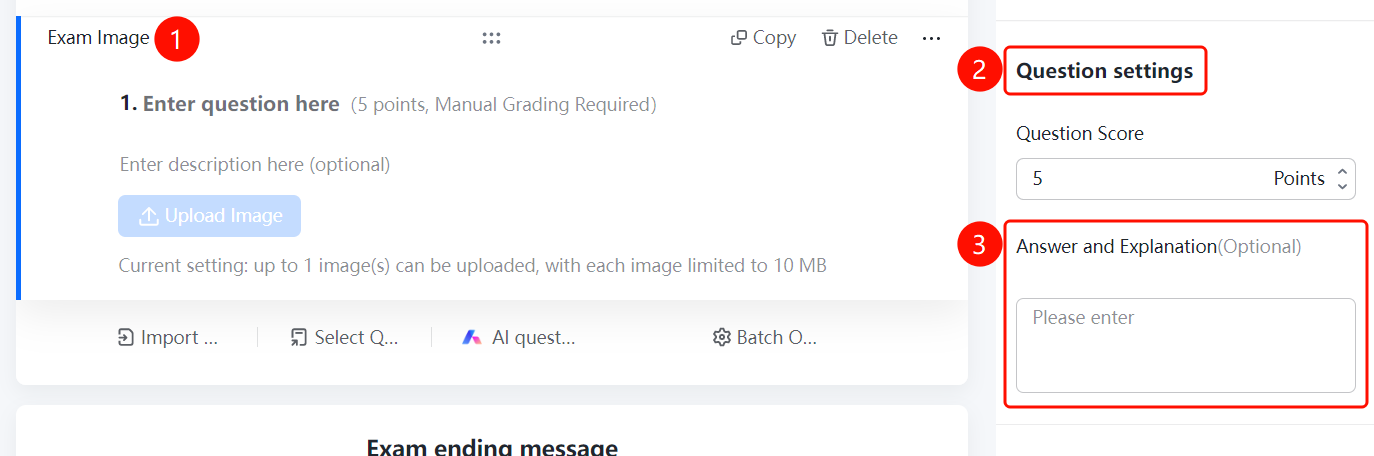
Exam Image question → "Question Settings" → "Answer Analysis (Optional)" input box
- Click the added Exam Image question.
- In the Question Settings panel on the right, find the Answer Analysis (Optional) input box.
- Enter the answer analysis. Candidates can view the analysis after submitting their answers.
Set Add Watermark
Feature Entry
Exam Image question → "Image Settings" → "Add Watermark" switch
- Click the added Exam Image question.
- In the Image Settings panel on the right, find the Add Watermark switch.
- Once enabled, the system will automatically add watermarks to the images uploaded by candidates.
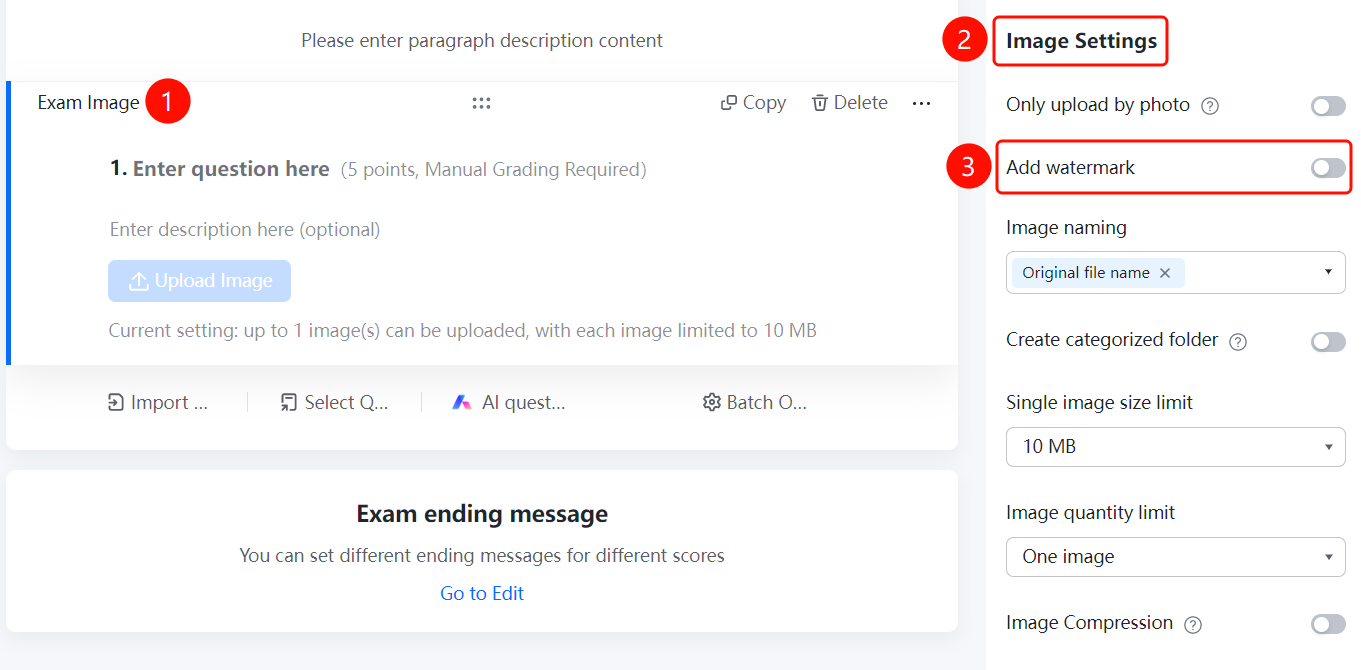
Set Create Categorized Folders
Feature Entry
Exam Image question → "Image Settings" → "Create Categorized Folders" switch
- Click the added Exam Image question.
- In the Image Settings panel on the right, find the Create Categorized Folders switch.
- Once enabled, folders will be automatically created according to the folder naming method, and the collected images will be categorized and summarized.
- For example, if the folder is named after "Department", the collected images from the same department will be automatically categorized and summarized into the same folder.
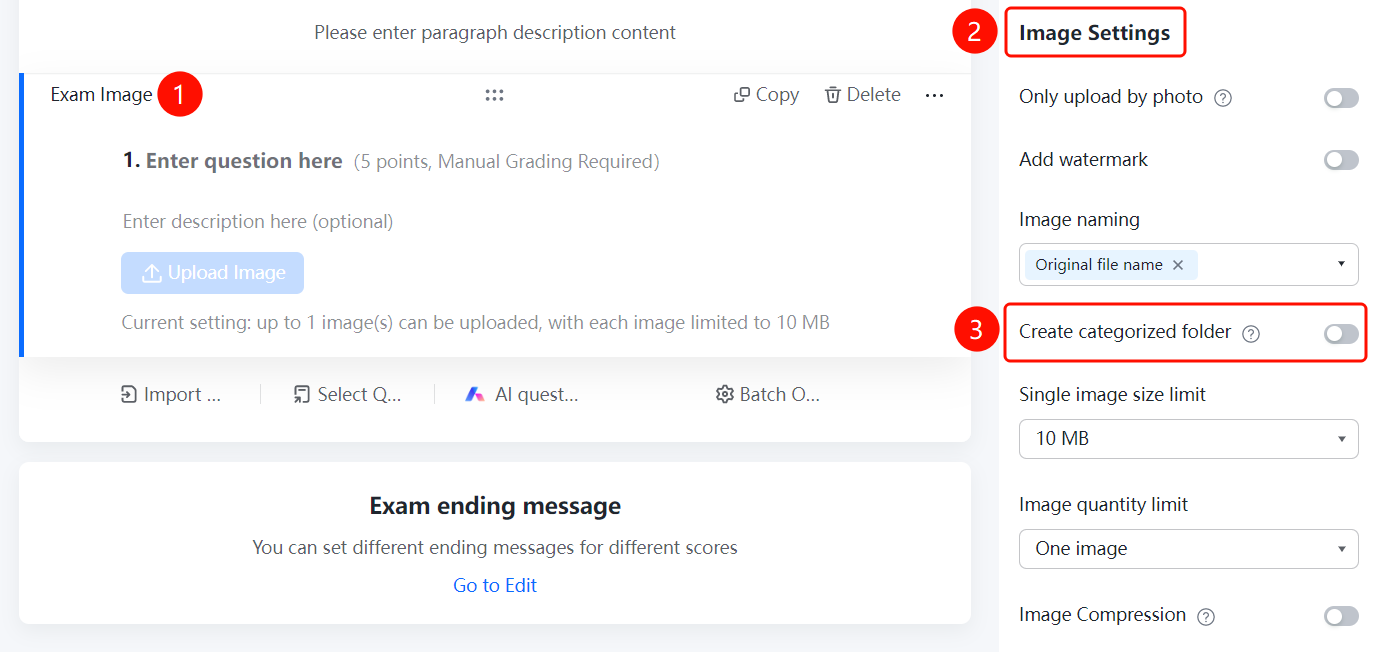
Set Image Quantity Limit
Feature Entry
Exam Image question → "Image Settings" → "Image Quantity Limit" dropdown list
- Click the added Exam Image question.
- In the Image Settings panel on the right, click the Image Quantity Limit dropdown list.
- You can select the number of images allowed for candidates to upload, with options such as 1, 2, 3, 4, 5, 6, 7, and 8.
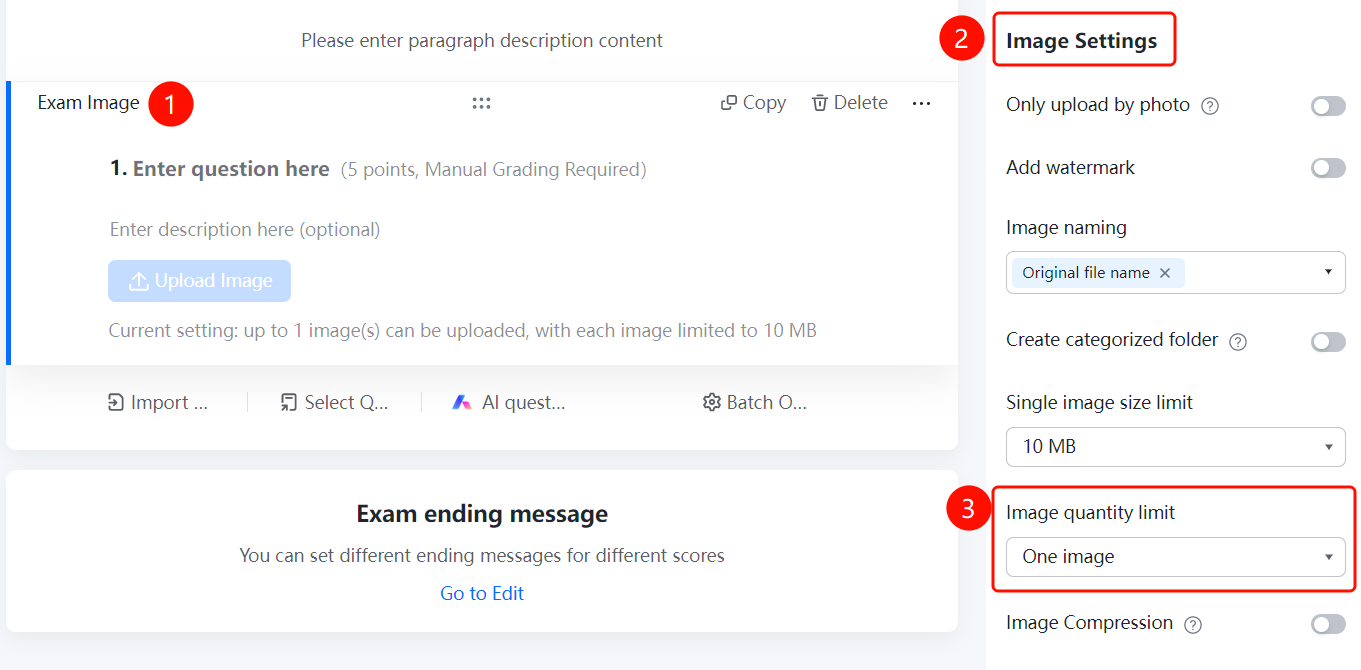
Set Upload via Camera Only
Feature Entry
Exam Image question → "Image Settings" → "Upload via Camera Only" switch
- Click the added Exam Image question.
- In the Image Settings panel on the right, find the Upload via Camera Only switch.
- Once enabled, candidates can only upload images by taking photos and cannot select existing images from their albums.
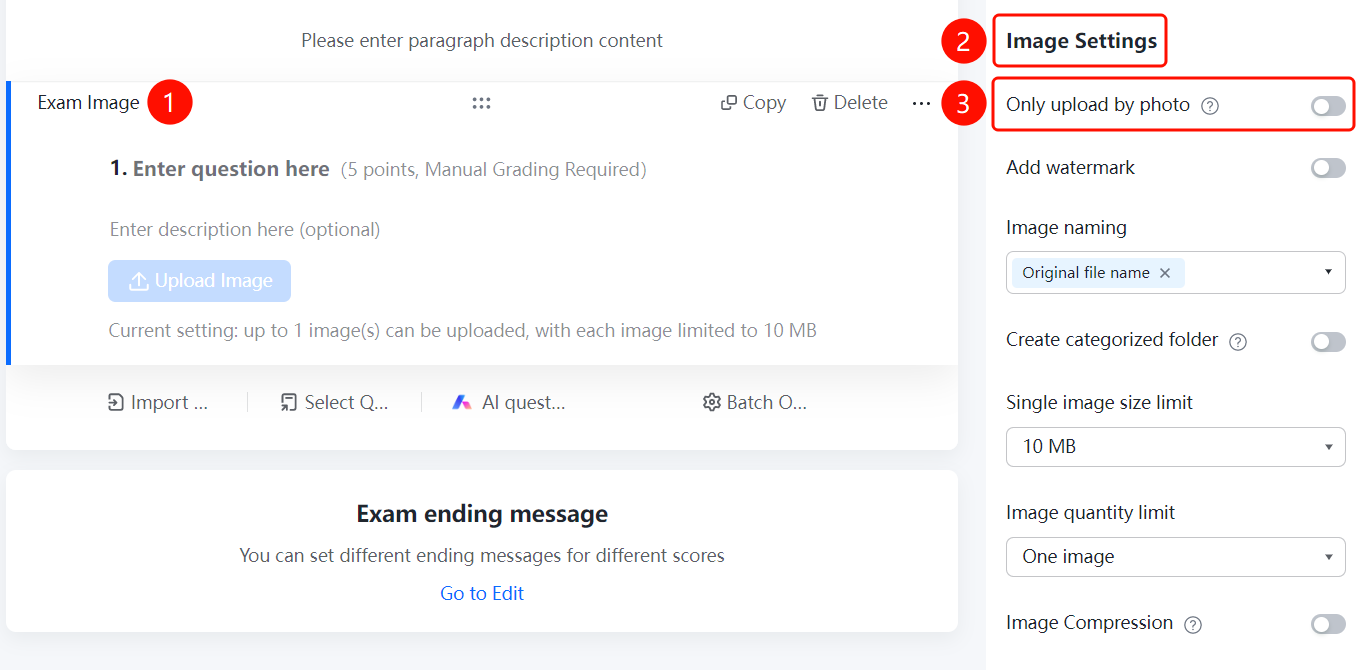
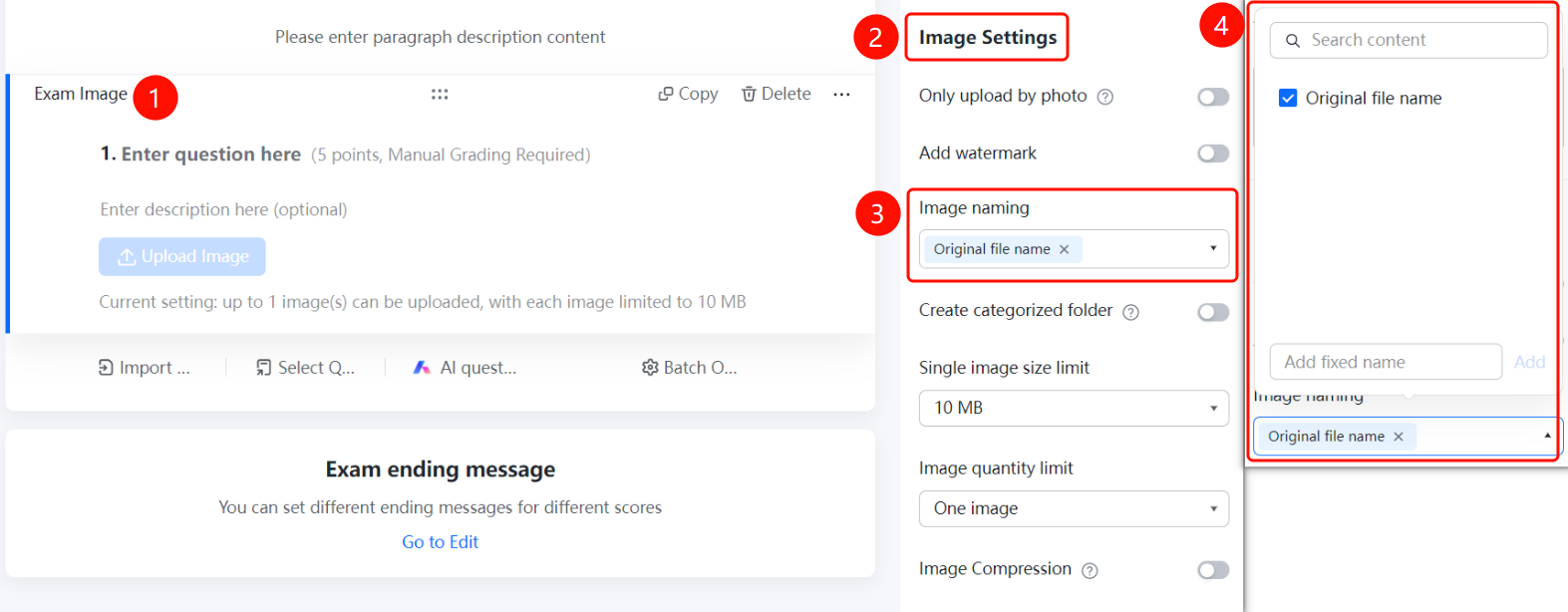
Set Image Naming Method
Feature Entry
Exam Image question → "Image Settings" → "Image Naming Method" dropdown list
- Click the added Exam Image question.
- In the Image Settings panel on the right, click the Image Naming Method dropdown list.
- The default is Original File Name, and you can also add custom fixed naming to uniformly manage the naming rules of uploaded images.
Set Compress Image
Feature Entry
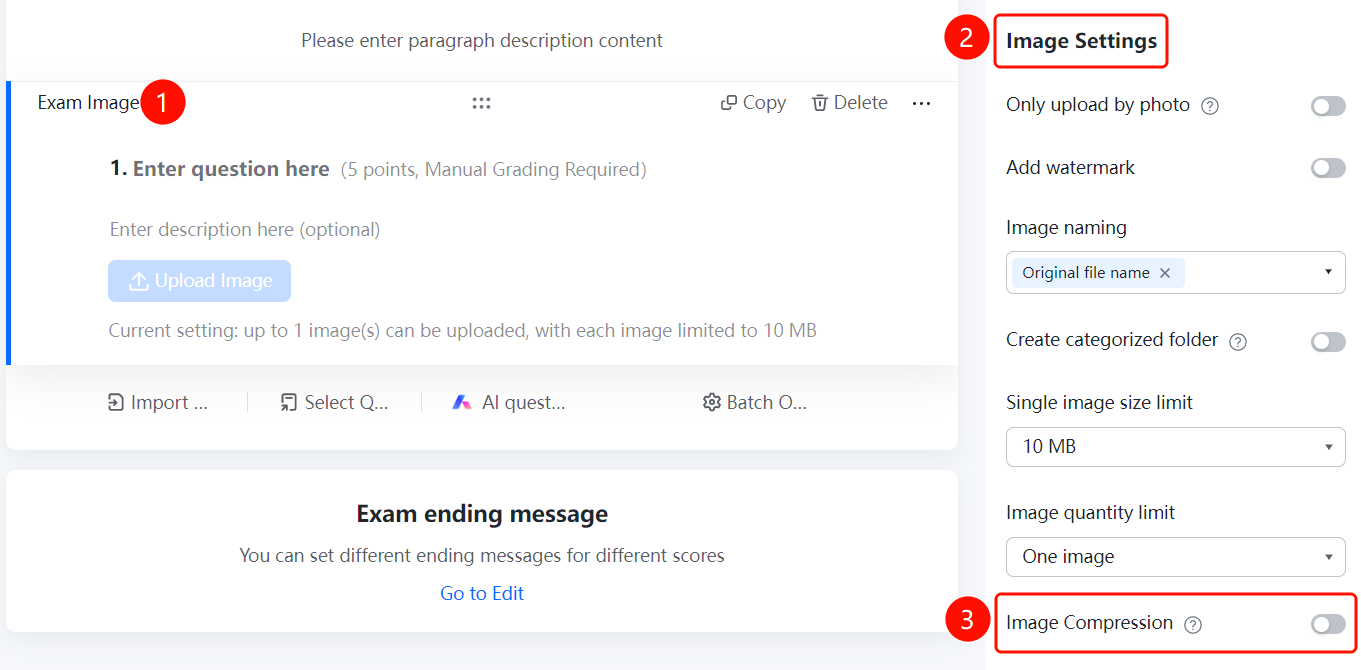
Exam Image question → "Image Settings" → "Compress Image" switch
- Click the added Exam Image question.
- In the Image Settings panel on the right, find the Compress Image switch.
- Once enabled, the system will automatically compress the images uploaded by candidates to avoid using too much cloud storage.
- Note that the image quality after compression will be affected to some extent, so please enable it with caution.
FAQ
Q1: How do I add an Exam Image question?
- Solution: Click the Edit tab at the top, expand Exam Question Types, and click the Exam Image button to add it to the form.
Q2: What should I do if the image question configuration does not take effect after saving?
- Solution: Please confirm that you have clicked Save. The configuration needs to be published in a new version to take effect on the respondent side.
Q3: How do I limit the size of images uploaded by candidates?
- Solution: Click the Exam Image question, and in the Single Image Size Limit dropdown list in the Image Settings panel on the right, select the desired limit. Options of 2M, 5M, 10M, and 50M are supported.
Q4: What is the impact of enabling image compression?
- Solution: After enabling Compress Image, the system will automatically compress images to save cloud storage, but the image quality will be affected to some extent. Please enable it with caution based on your actual needs.
Notes
- Exam Image questions are suitable for art exams, design work submissions, and other scenarios that require image answers.
- This question type is a Manual Grading Required question type, which needs to be reviewed and graded by teachers.
- It is recommended to test before publishing to verify whether the image upload and grading rules meet expectations.