Feature Summary
Exam Fill-in-the-Blanks is one of the question types in the "Exam" scenario of Forms. Candidates fill in the correct answers in the blanks, and the system automatically grades them. It supports flexible configurations such as setting multiple correct answers, case insensitivity, and scoring as long as the answer is contained, making it suitable for exam scenarios like English and math fill-in-the-blanks.
Feature Description
| Feature Dimension | Description |
|---|---|
| Premium Limits | No premium limits |
| Version Limits | No version limits |
Steps
Add Exam Fill-in-the-Blank Questions
Entry
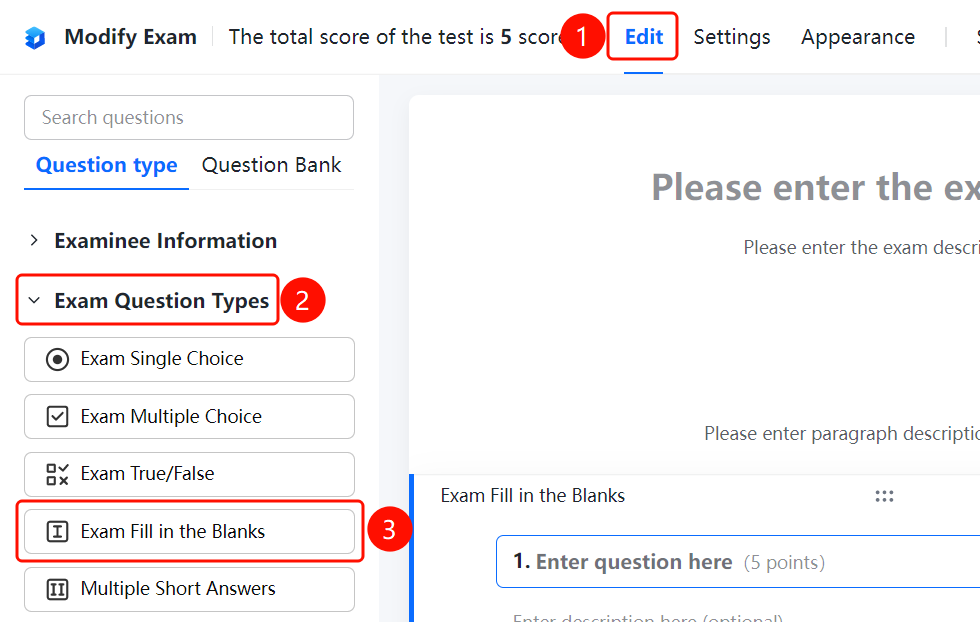
Edit tab > Exam Question Types > Exam Fill-in-the-Blank button
- Click the Edit tab at the top.
- Expand the Exam Question Types area in the left panel.
- Click the Exam Fill-in-the-Blank button to add the fill-in-the-blank question to the form.
- The question settings panel will be displayed on the right, where you can configure various parameters.
Set Question Score
Entry
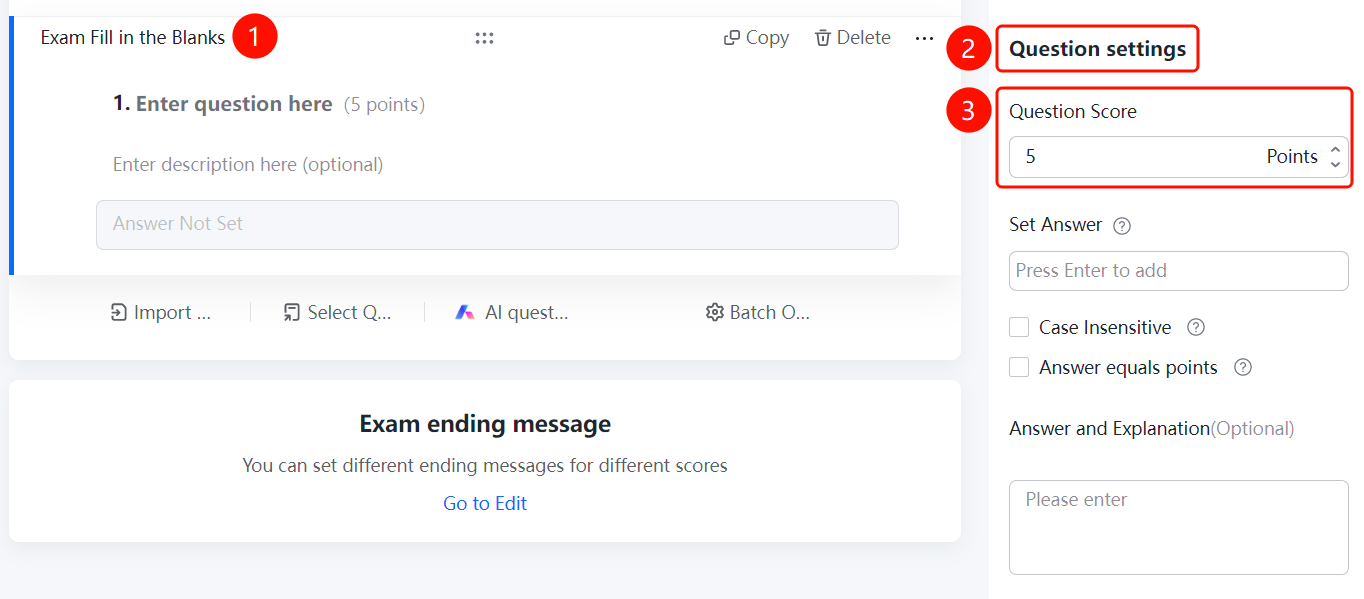
Exam Fill-in-the-Blank Question > Question Settings > Question Score
- In the Question Settings panel on the right, find the Question Score option.
- Enter or adjust the score of the question, for example, set it to 5 points.
- After the exam ends, the system will grade according to this score based on the candidate's answers.
Set Case Insensitivity
Entry
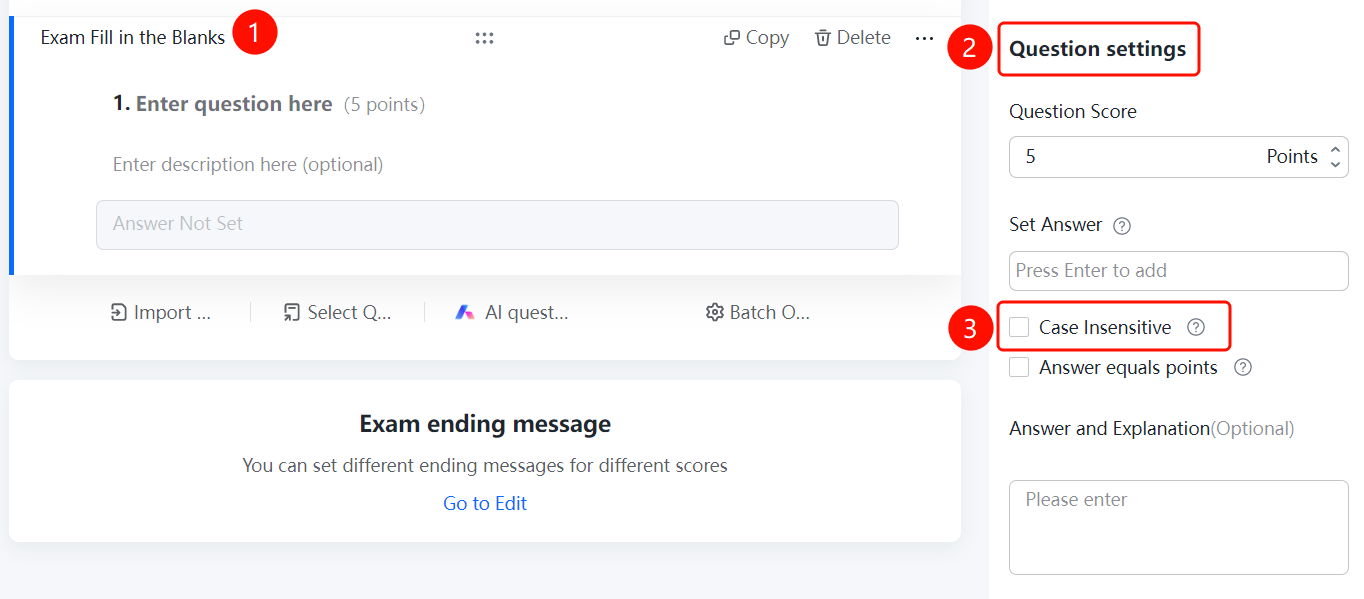
Exam Fill-in-the-Blank Question > Question Settings > Case Insensitive
- In the Question Settings panel, find the Case Insensitive checkbox.
- Once selected, English letter case will be ignored. For example, if the answer is "ABC", then answering "abc" or "Abc" will be considered correct.
- This is suitable for scenarios like English word fill-in-the-blanks where case is not strictly required.
Set Score if Answer Contained
Entry
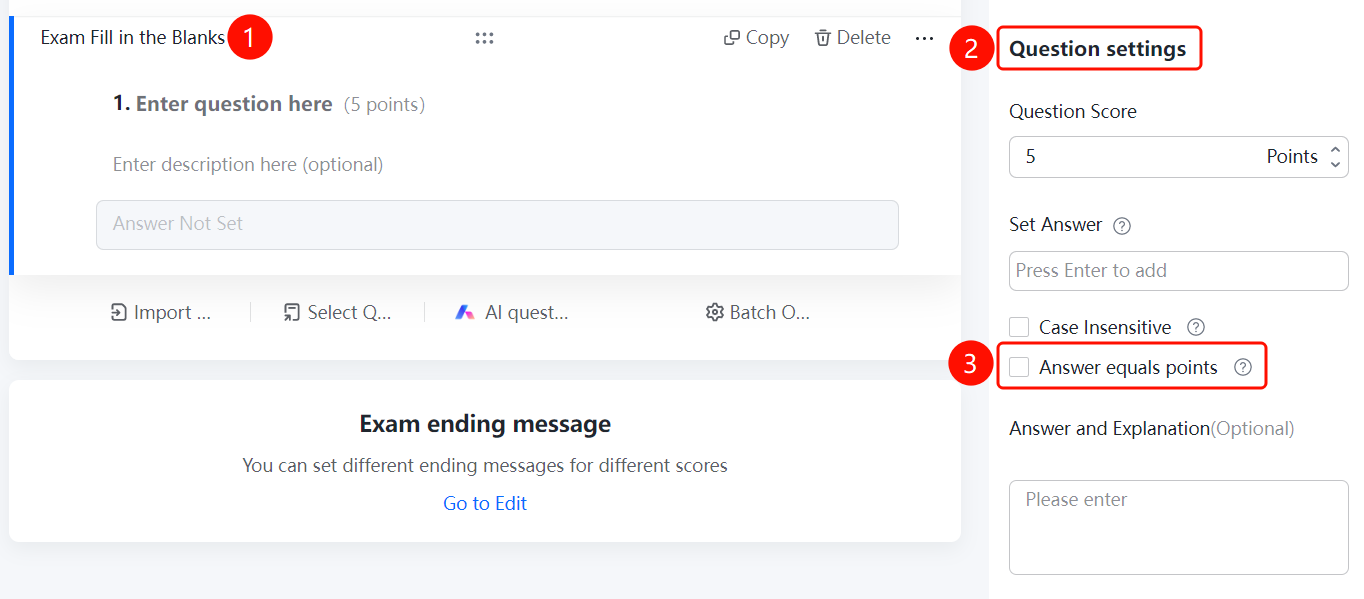
Exam Fill-in-the-Blank Question > Question Settings > Score if Answer Contained
- In the Question Settings panel, find the Score if Answer Contained checkbox.
- Once selected, candidates will get points as long as their answer contains the correct answer. For example, if the answer is "Beijing", then answering "Beijing City" will also be considered correct.
- This is suitable for fill-in-the-blank scenarios where the answer may have multiple expressions.
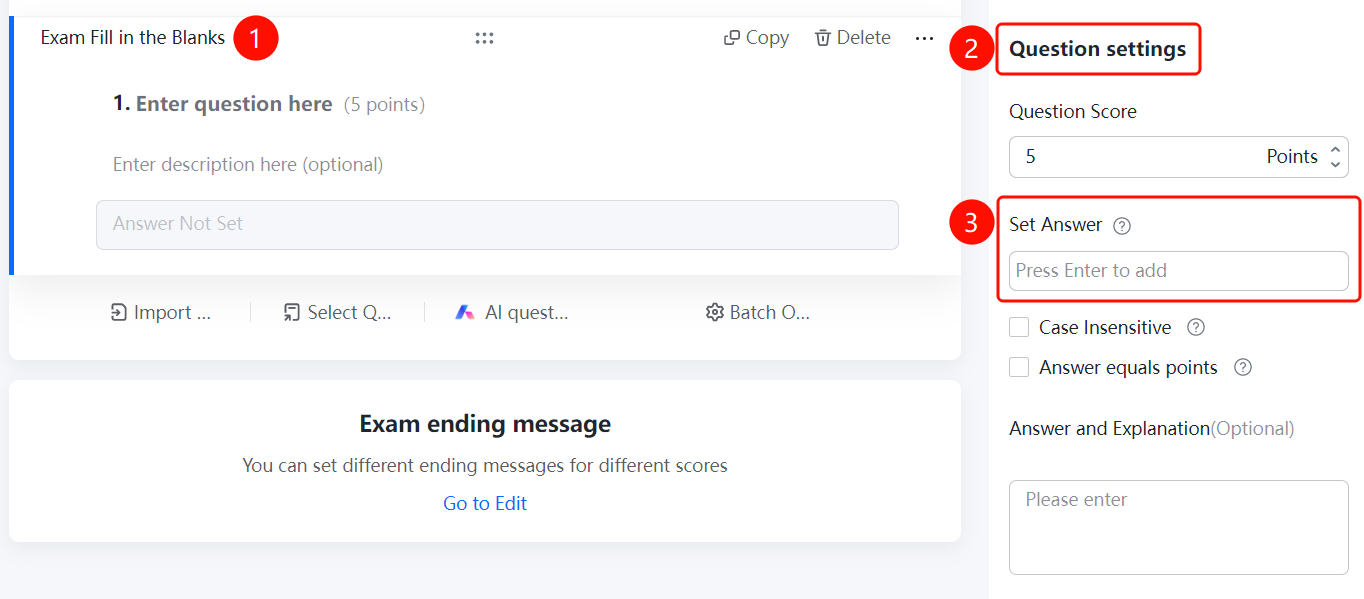
Set Correct Answers
Entry
Exam Fill-in-the-Blank Question > Question Settings > Set Answers
- In the Question Settings panel, find the Set Answers input box.
- Enter the correct answer and press Enter to confirm. You can set multiple answers, and candidates will get points as long as they answer any of them correctly.
- The question area on the left will synchronously display the configured answers.
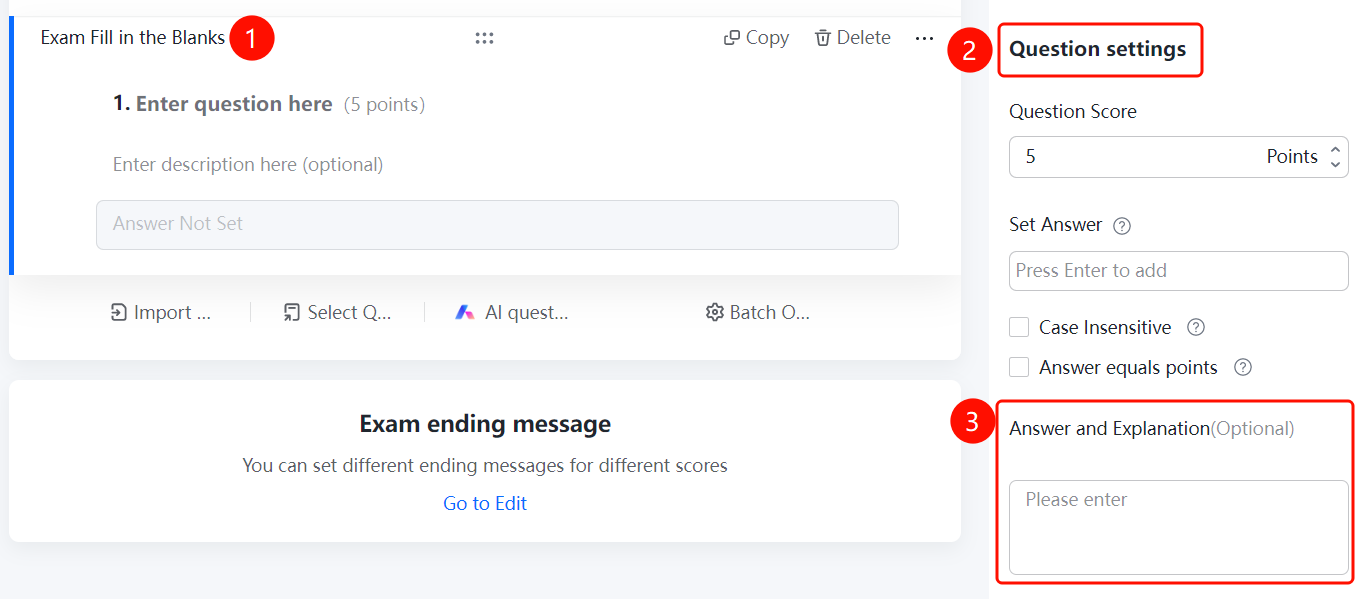
Set Answer Analysis
Entry
Exam Fill-in-the-Blank Question > Question Settings > Answer Analysis
- In the Question Settings panel, find the Answer Analysis (Optional) text box.
- Enter a detailed explanation of the correct answer to help candidates understand the reasoning.
- After the exam ends, candidates can view the analysis for review and learning.
FAQ
Question 1: How do I add fill-in-the-blank questions in an "Exam"?
- Solution: On the editing interface, click the Edit tab at the top, expand Exam Question Types, click the Exam Fill-in-the-Blank button to add, and click Save after configuration.
Question 2: Can I set multiple correct answers for a fill-in-the-blank question?
- Solution: Yes. Enter an answer in the Set Answers input box and press Enter. You can add multiple answers, and candidates will get points if they answer any of them correctly.
Question 3: What is the difference between "Case Insensitive" and "Score if Answer Contained"?
- Solution: "Case Insensitive" only ignores the case differences of English letters. "Score if Answer Contained" allows candidates to get points as long as their answer contains the correct answer. Both can be selected at the same time based on your needs.
Notes
- Exam fill-in-the-blank questions are exclusive to exams, and the system automatically grades them.
- It supports setting multiple correct answers and partial points.
- We recommend testing the exam in advance to verify the grading rules.