Feature Overview
Multiple-choice questions allow respondents to select one or more options from a given set. This feature is commonly used in scenarios such as questionnaire surveys, educational assessments, and satisfaction surveys.
Feature Specifications
| Dimension | Specification |
|---|---|
| Membership Restrictions | No membership restrictions |
| Version Restrictions | No version restrictions |
Operational Steps
Adding a Multiple-Choice Question
Access Path
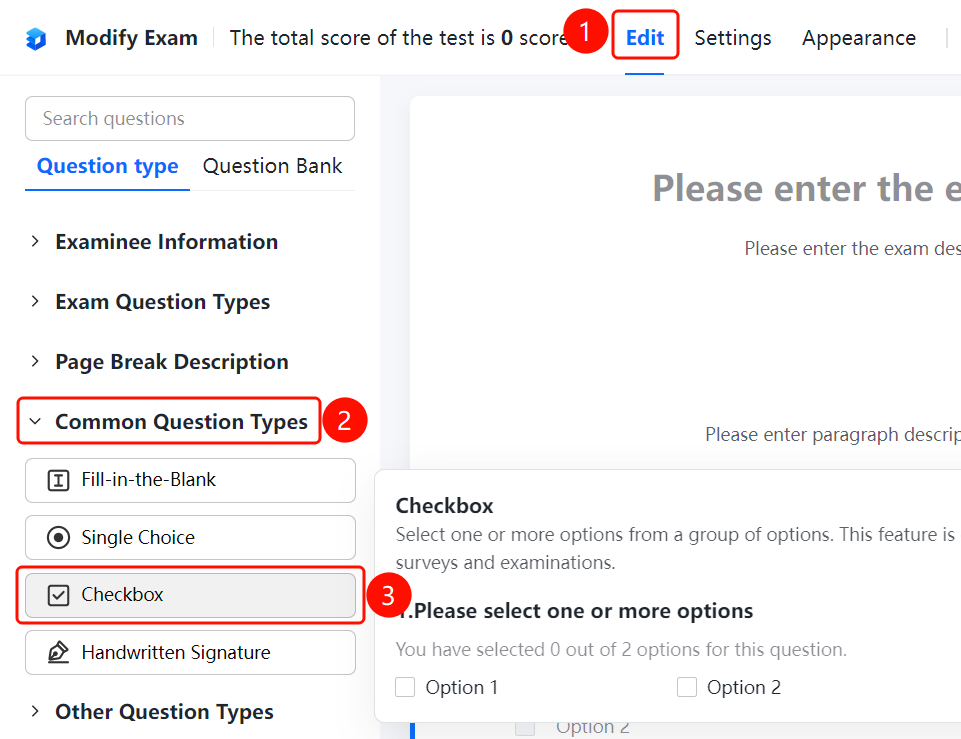
"Edit" Tab → "Common Question Types" → "Multiple-Choice Question" Button
- Click the "Edit" tab at the top.
- Expand the "Common Question Types" section in the left panel.
- Click the "Multiple-Choice Question" button to add a multiple-choice question to the exam.
- The default question text is "Please select one or more options", containing "Option 1" and "Option 2". Additional options can be added as needed.
Configuring Pre-set Answers
Access Path
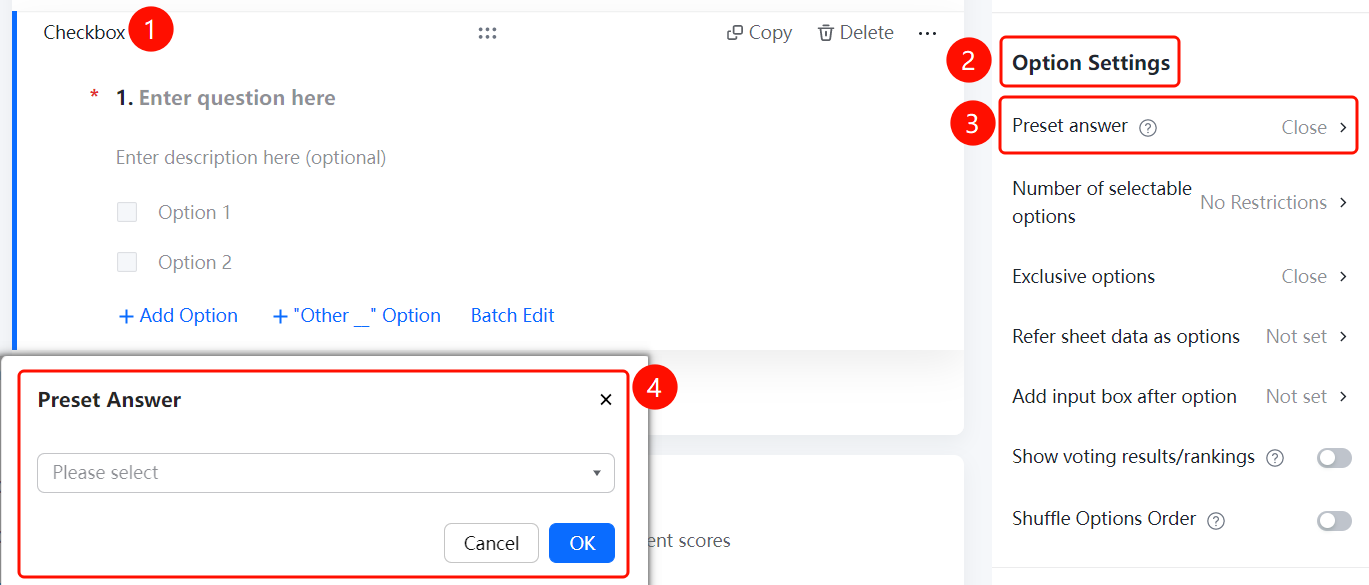
Multiple-Choice Question → "Option Settings" → "Pre-set Answers" Option
- Select the multiple-choice question that has been added.
- In the "Option Settings" panel on the right, click "Pre-set Answers" (currently set to "Off").
- Select the desired pre-set answer options in the pop-up "Pre-set Answers" dialog box.
- Click "Confirm" to save the changes.
Setting the Number of Selectable Options
Access Path
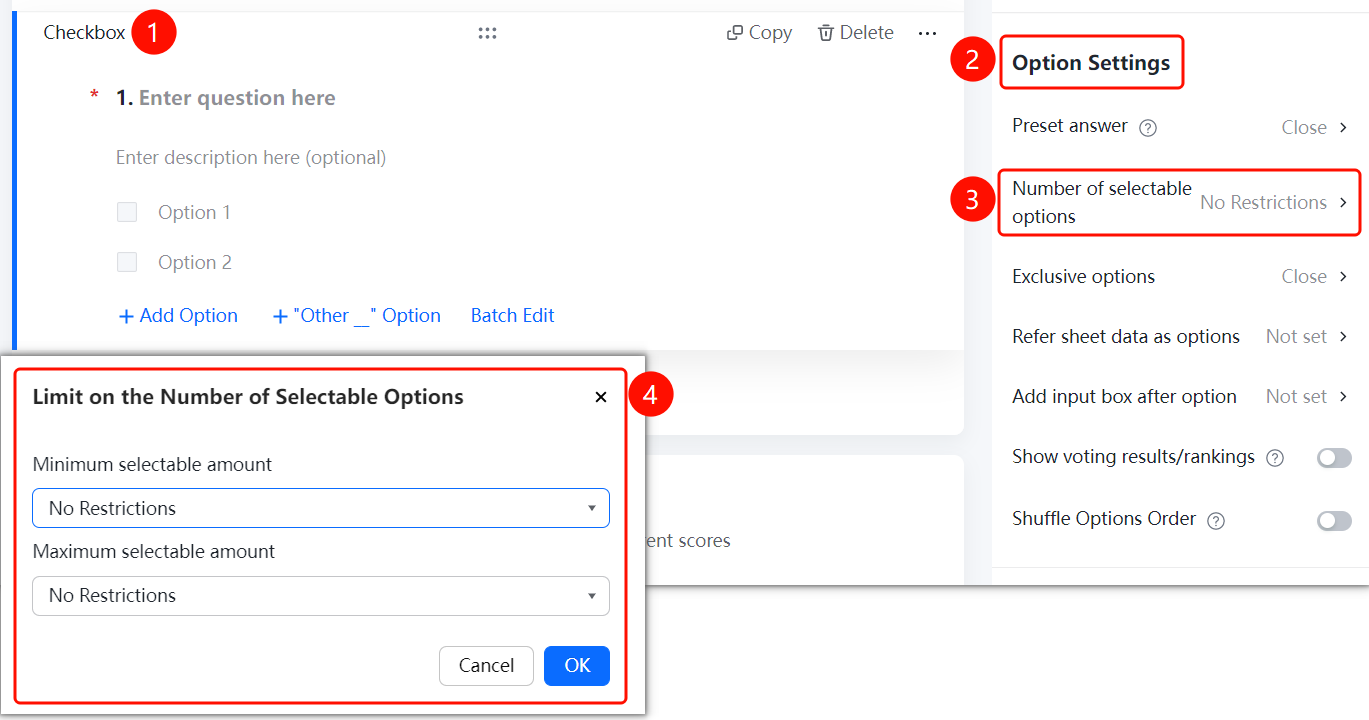
Multiple-Choice Question → "Option Settings" → "Number of Selectable Options" Option
- Select the multiple-choice question that has been added.
- In the "Option Settings" panel on the right, click "Number of Selectable Options" (currently set to "Unlimited").
- In the pop-up "Selectable Option Limits" dialog box, configure the following:
- Minimum number of selections: Leave as unlimited or specify a number.
- Maximum number of selections: Leave as unlimited or specify a number.
- Click "Confirm" to save the changes.
Configuring Mutually Exclusive Options
Access Path
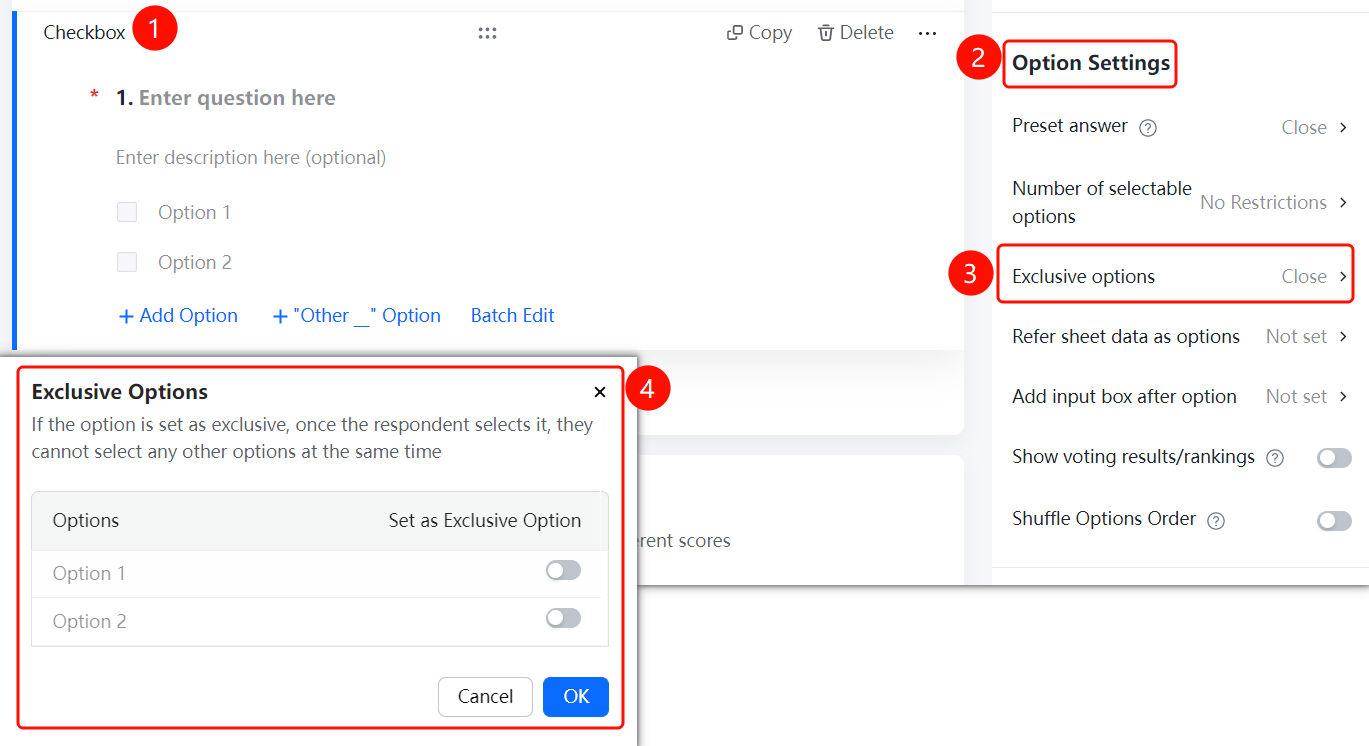
Multiple-Choice Question → "Option Settings" → "Mutually Exclusive Options" Option
- Select the multiple-choice question that has been added.
- In the "Option Settings" panel on the right, click "Mutually Exclusive Options" (currently set to "Off").
- In the pop-up "Mutually Exclusive Options" dialog box, if an option is marked as mutually exclusive, respondents cannot select any other options once this option is checked.
- Toggle the "Set as Mutually Exclusive" switch for the options that require this setting.
- Click "Confirm" to save the changes.
Using Table Data as Options
Feature Access
Multiple-Choice Question
ightarrow "Option Settings"
ightarrow "Use Table Data as Options" option
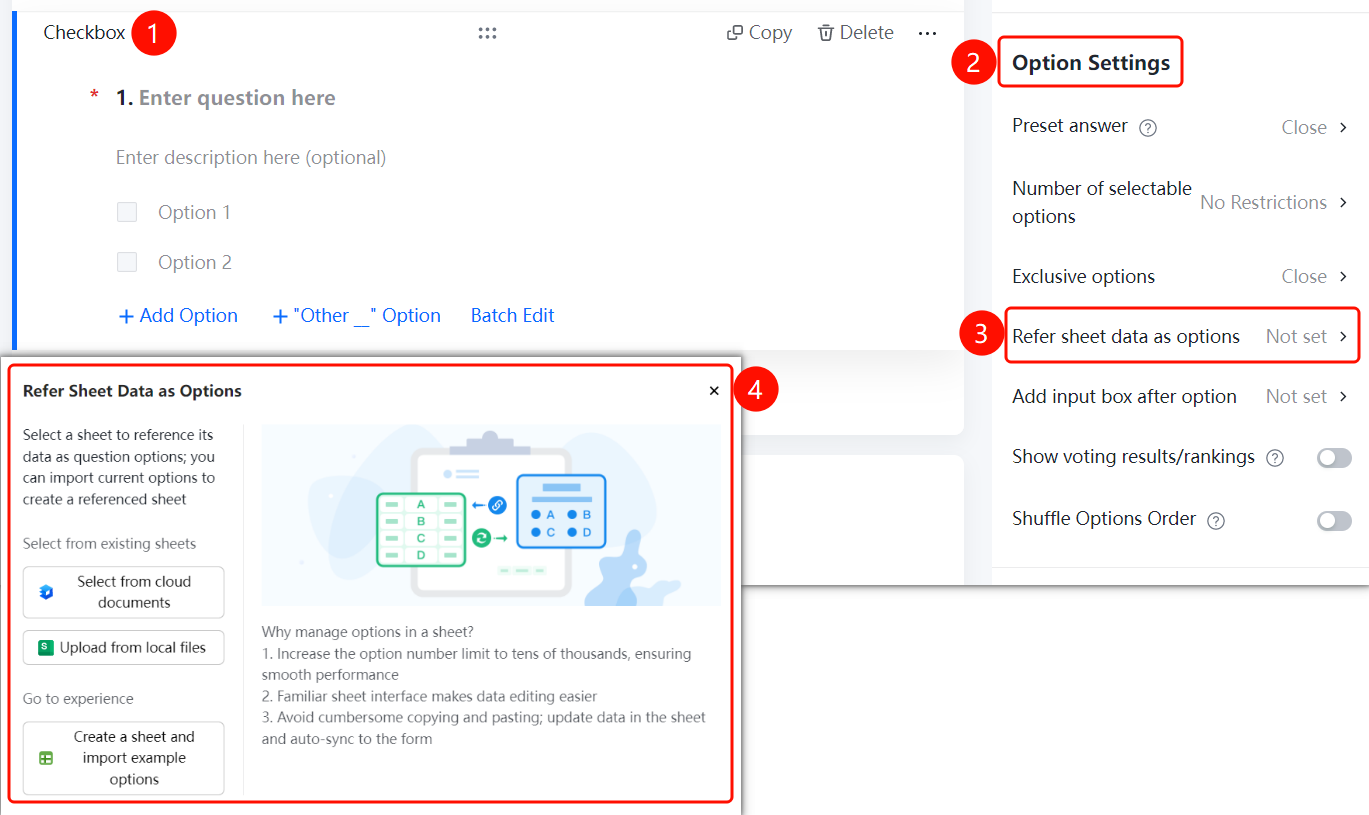
- Click on an existing multiple-choice question.
- In the "Option Settings" panel on the right, click "Use Table Data as Options" (currently set to "Not Configured").
- In the pop-up dialog box, select the data source: "Select from Cloud Document", "Upload from Local File", or "Create New Table and Import Sample Options".
- Once the table file is selected, the table data will be automatically synchronized to the form.
Adding an Input Field After an Option
Feature Access
Multiple-Choice Question
ightarrow "Option Settings"
ightarrow "Add Input Field After Option" option
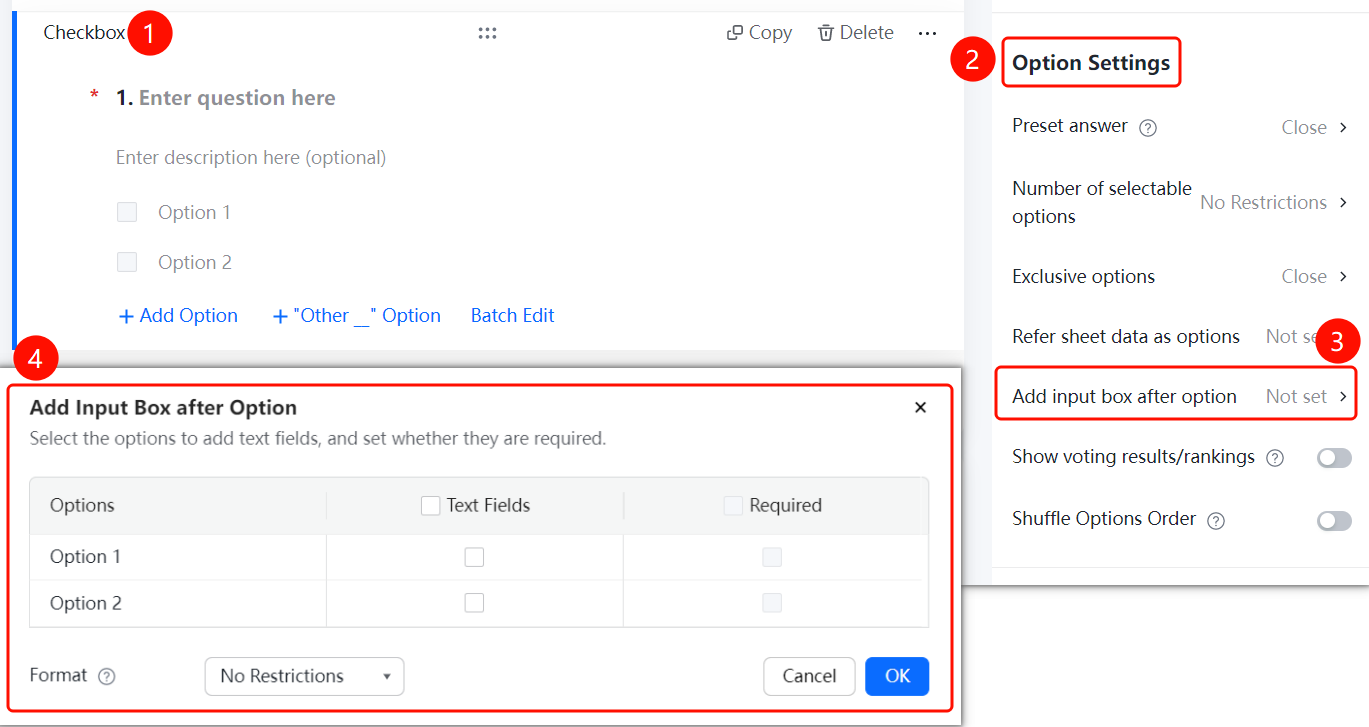
- Click on an existing multiple-choice question.
- In the "Option Settings" panel on the right, click "Add Input Field After Option" (currently set to "Not Configured").
- In the "Add Input Field After Option" dialog box, configure the following:
- Enable the "Add Input Field" checkbox for the specific option where the input field is required.
- Toggle the "Is Input Field Required" switch.
- Use the "Input Format Restrictions" drop-down menu to limit the input format (e.g., "No restriction", etc.).
- Click "Confirm" to save the settings.
Display Voting Results/Leaderboard
Feature Access
Multiple-Choice Question
ightarrow "Option Settings"
ightarrow "Display Voting Results/Leaderboard" toggle
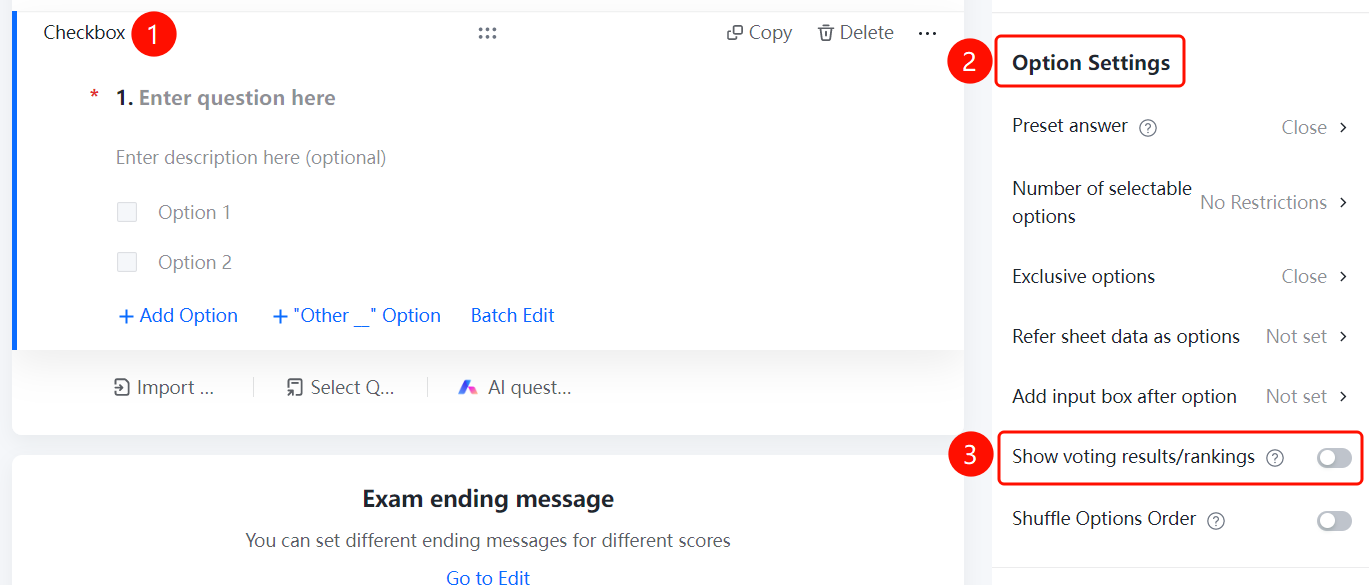
- Click on an existing multiple-choice question.
- In the "Option Settings" panel on the right, toggle on "Display Voting Results/Leaderboard".
- Once enabled, voting results or a leaderboard will be visible after submission, making this suitable for polling and election scenarios.
Randomize Option Order
Feature Access
Multiple-Choice Question
ightarrow "Option Settings"
ightarrow "Randomize Option Order" toggle
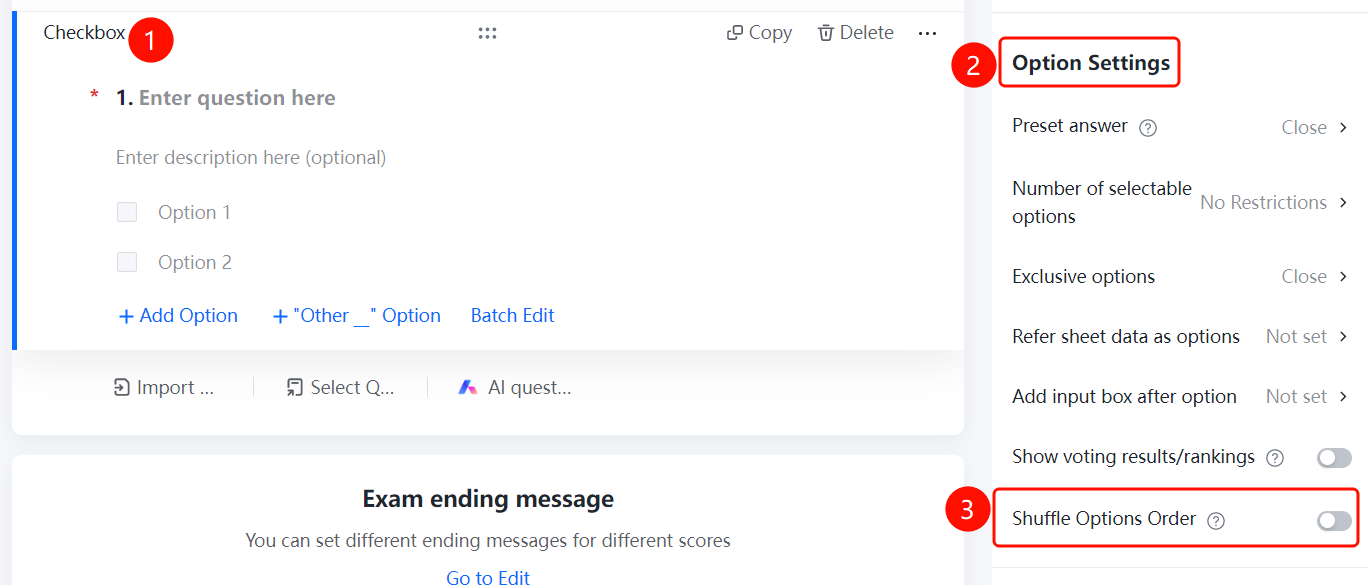
- Click on an existing multiple-choice question.
- In the "Option Settings" panel on the right, toggle on "Randomize Option Order".
- Once enabled, respondents will see the options in a randomized order.
Configure Question Linking
Feature Access
Multiple-Choice Question
ightarrow "Logic Settings"
ightarrow "Question Linking" option
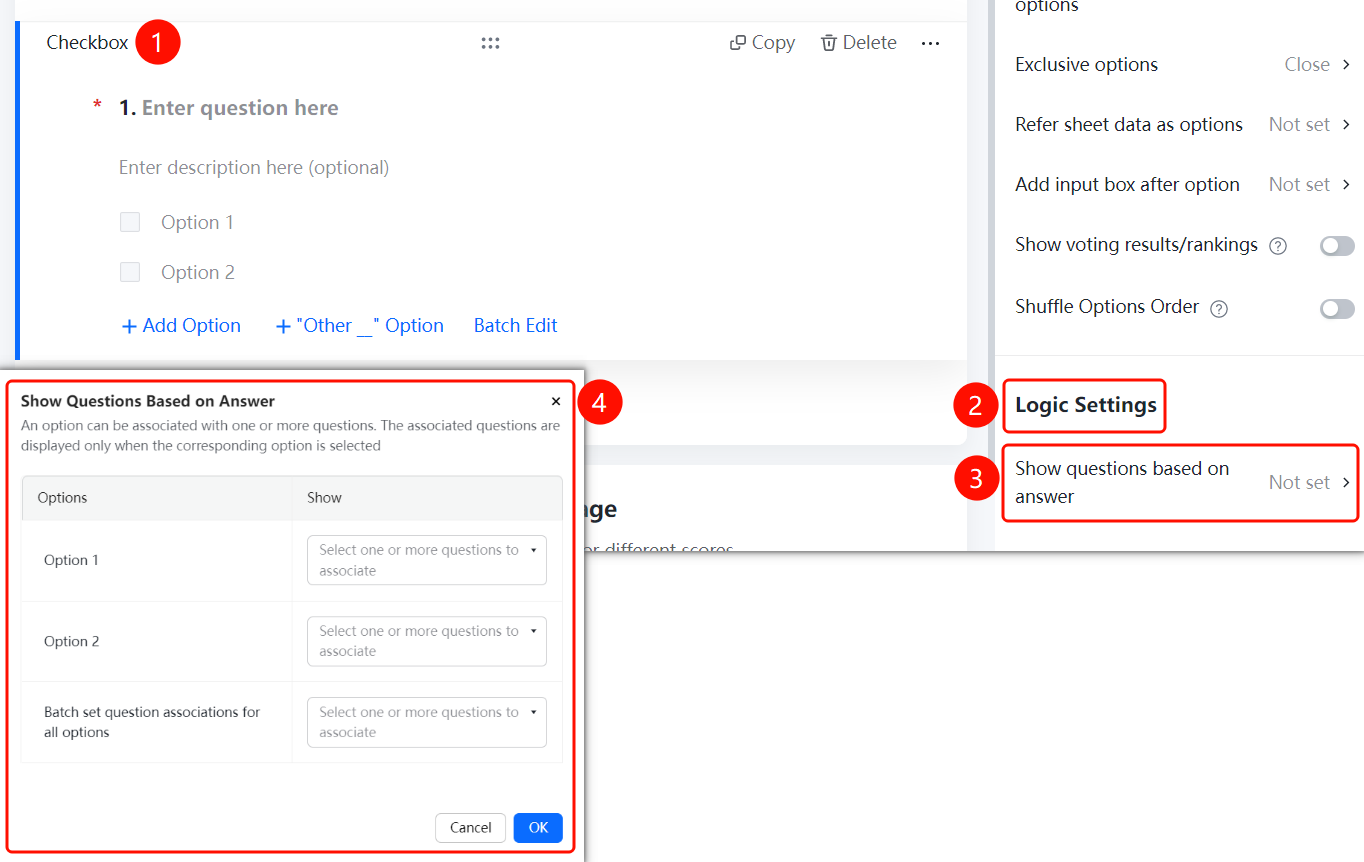
- Click on an existing multiple-choice question.
- Switch to the "Logic Settings" panel on the left.
- Click on "Question Linking" (currently showing as "Not Set").
- In the pop-up "Configure Question Linking" dialog box:
- Set a linked question for each option: Click the "Please set question linking (multiple selections allowed)" dropdown and select the question that should appear when that specific option is chosen.
- You can use "Batch set question linking for all options" to configure them uniformly.
- A single option can be linked to one or more questions; the linked questions will only appear once the respondent selects the corresponding option.
- Click "Confirm" to save.
Frequently Asked Questions
Q1: What are mutually exclusive options?
- Solution: Mutually exclusive options mean that once one option is selected, the other options cannot be selected simultaneously. This is useful for scenarios such as "None of the above."
Q2: How can I limit the number of selections?
- Solution: Click on the multiple-choice question and set the minimum and maximum number of selections under "Option Settings"
ightarrow "Number of Selectable Options."
Q3: Can multiple-choice questions reference table data?
- Solution: Yes. Click on the multiple-choice question and select your data source under "Option Settings"
ightarrow "Reference Table Data as Options."
Q4: What is the purpose of Question Linking?
- Solution: Question Linking allows you to dynamically show or hide other questions based on the options selected by the respondent. You can configure this by setting the linked questions for each option under "Logic Settings"
ightarrow "Question Linking."
Important Notes
- Multiple-choice questions are intended for scenarios where multiple answers are required.
- Once "Randomize Option Order" is enabled, the order of options will be randomized for each individual respondent.
- Question Linking enables conditional display; linked questions will only appear when the respondent selects the specific triggering option.