Feature Summary
Exam file questions are used to collect exam answer files uploaded by candidates. It supports setting file types, size limits, and upload quantities, and is suitable for exam question types that require file submission, such as essays and artworks.
Feature Description
| Feature Dimension | Description |
|---|---|
| Premium Limit | No premium limit |
| Version Limit | No version limit |
Steps
Add an Exam File Question
Feature Entry
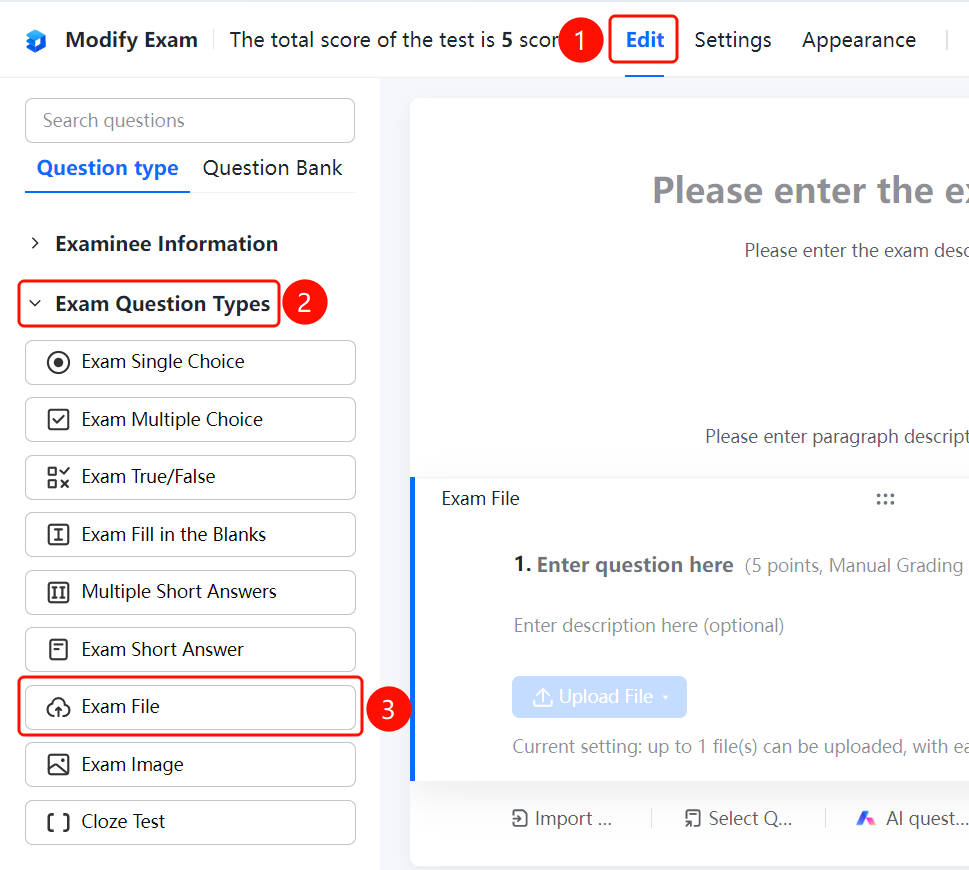
"Edit" tab → "Exam Question Types" → "Exam File" button
- Click the "Edit" tab at the top.
- In the left panel, expand the "Question Types" area.
- Click the "Exam File" button to add it to the form.
Set File Type Limits
Feature Entry
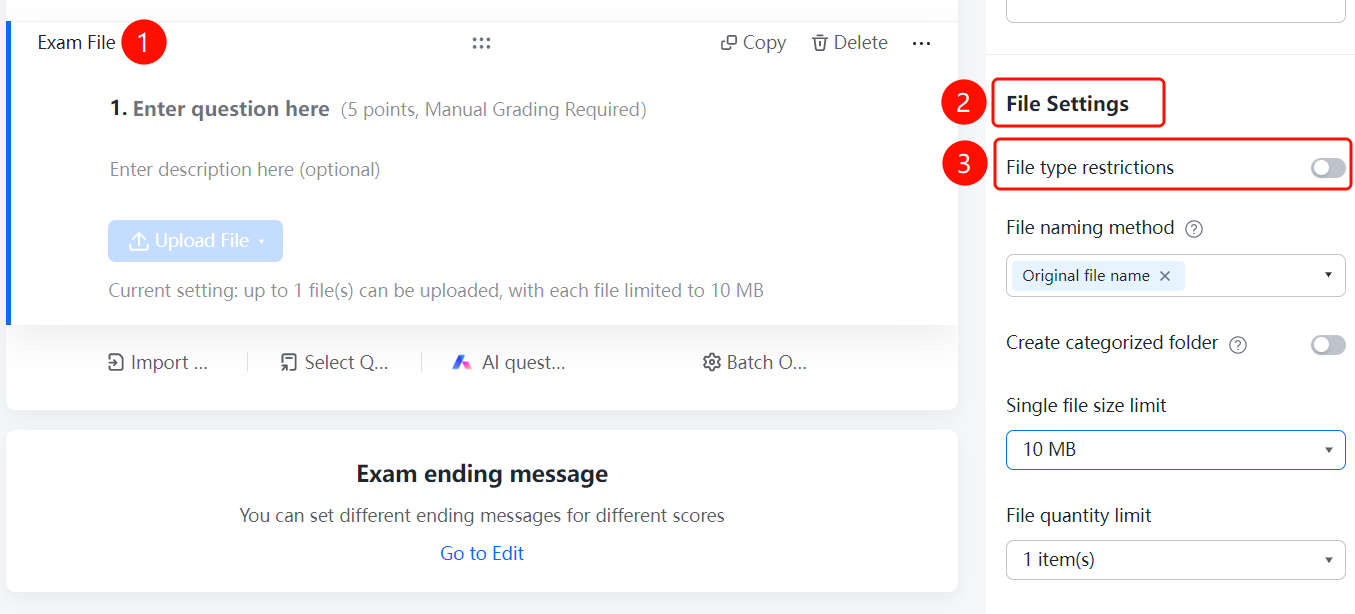
Exam file question → "File Settings" → "File Type Limit" option
- Click the added exam file question.
- In the "File Settings" panel on the right, click the "File Type Limit" option.
Set File Size Limits
Feature Entry
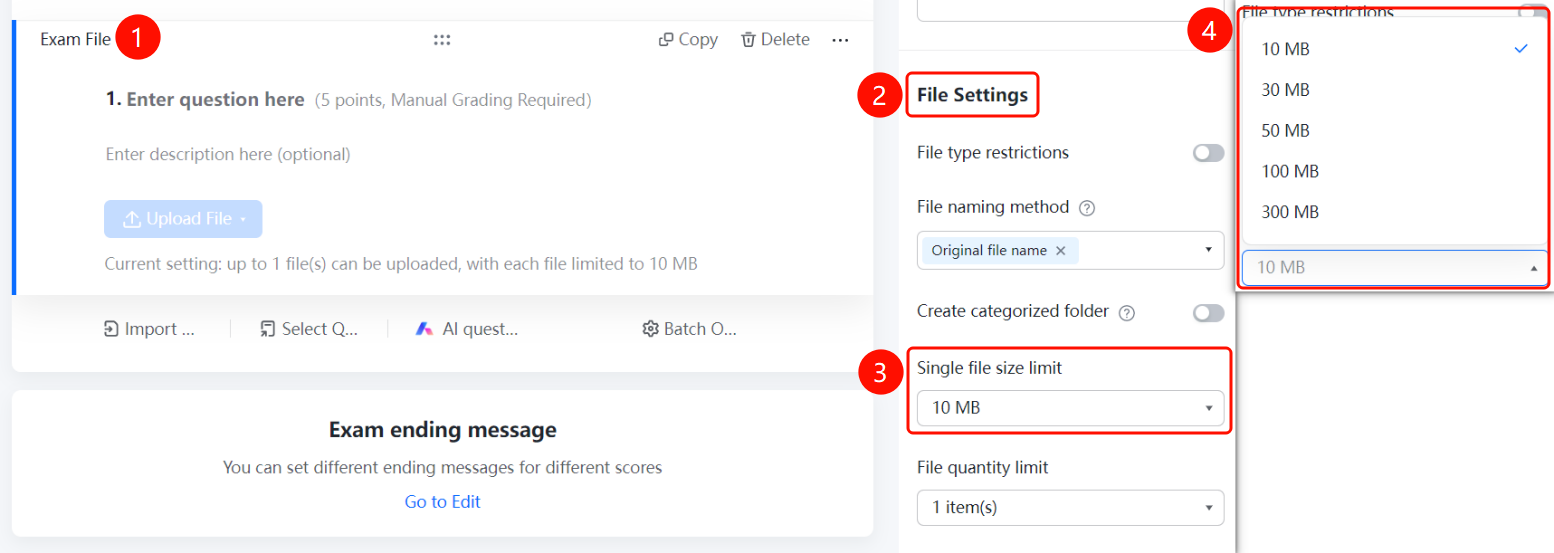
Exam file question → "File Settings" → "File Size Limit" option
- Click the added exam file question.
- In the "File Settings" panel on the right, set the "File Size Limit".
Set Maximum Upload Quantity
Feature Entry
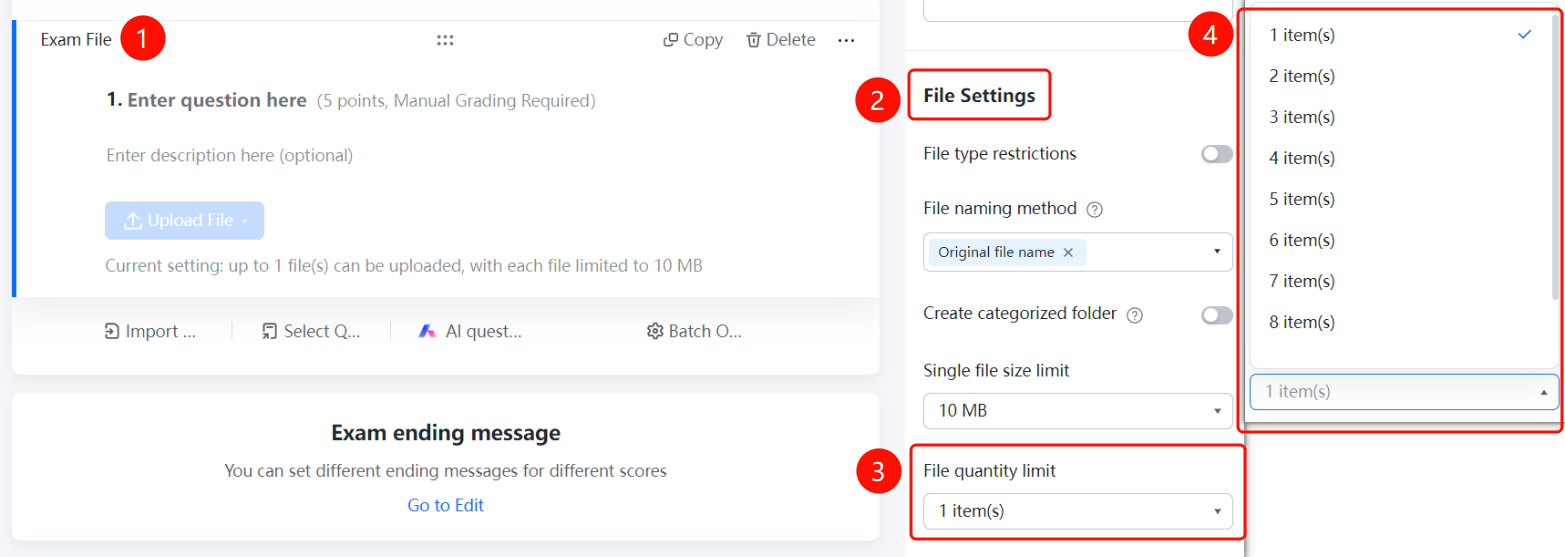
Exam file question → "File Settings" → "Max Upload Quantity" option
- Click the added exam file question.
- In the "File Settings" panel on the right, set the "Max Upload Quantity".
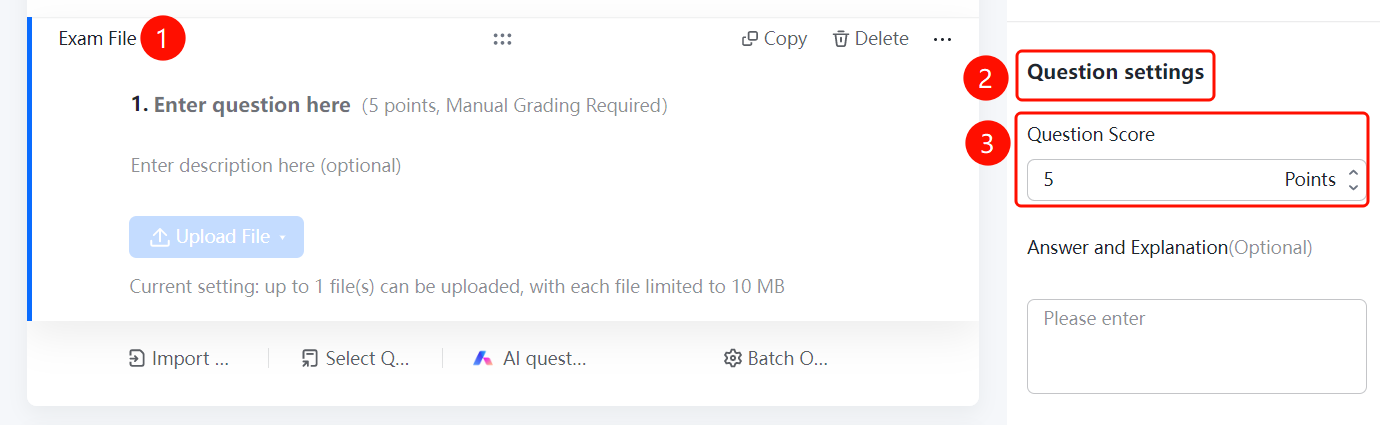
Set Score
Feature Entry
Exam file question → "Answer Settings" → Set Score
- Click the added exam file question.
- In the panel on the right, set the score for the question.
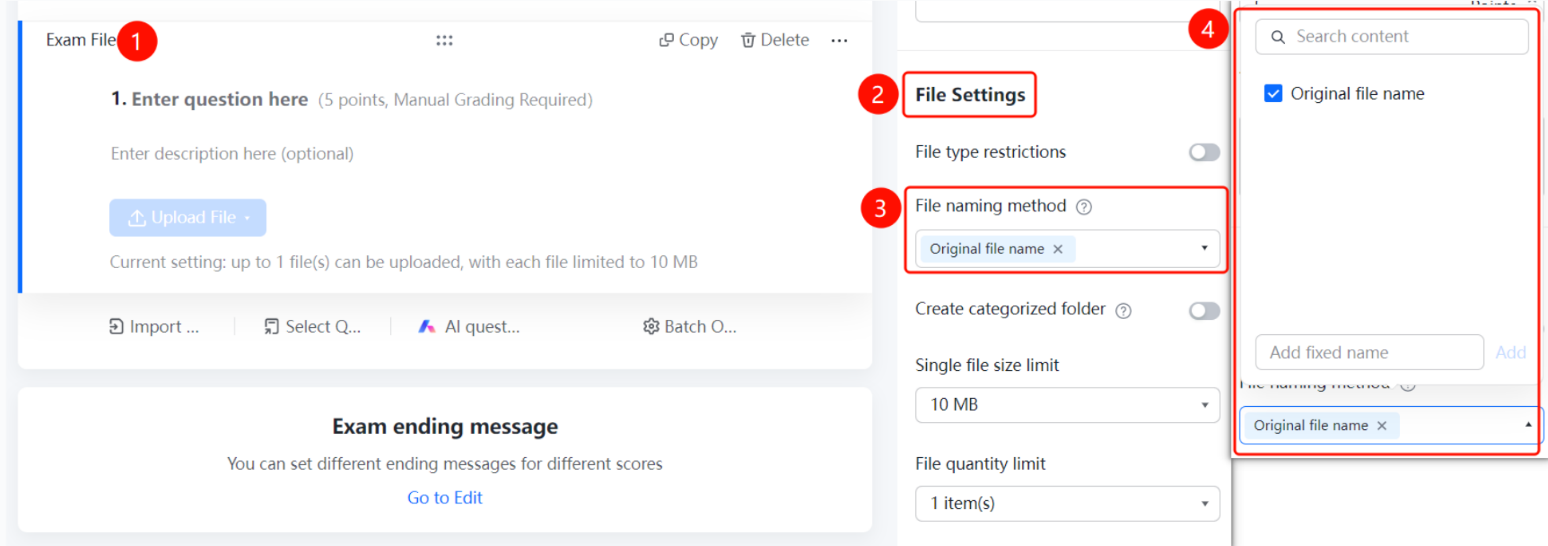
Set File Naming Format
Feature Entry
Exam file question → "File Settings" → "File Naming Format" option
- Click the added exam file question.
- In the "File Settings" panel on the right, click the "File Naming Format" option.
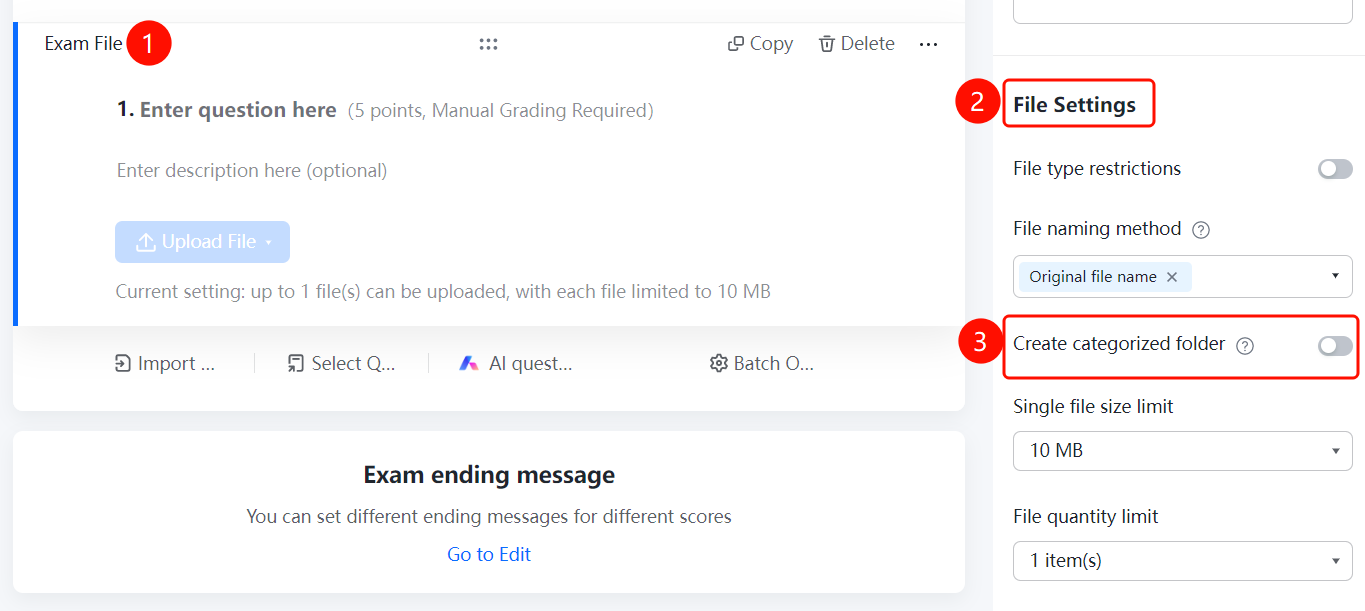
Set Up Creating Categorized Folders
Feature Entry
Exam file question → "File Settings" → "Create Categorized Folders" switch
- Click the added exam file question.
- In the "File Settings" panel on the right, turn on the "Create Categorized Folders" switch.
FAQ
Q1: What file types are supported by exam file questions?
- Solution: Click the exam file question, and in "File Settings", set "File Type Limit" to select the allowed file types.
Q2: How do I set the score for an exam file question?
- Solution: Click the exam file question, set the score in the panel on the right, and you can manually grade it during review.
Q3: How are uploaded files saved and managed?
- Solution: Turn on the "Save Uploaded Files" switch to view them on the data statistics page; turn on "Create Categorized Folders" to manage files by category.
Notes
- Exam file questions are suitable for exam question types that require file submission, such as essays and artworks.
- Manual grading is required.