Summary
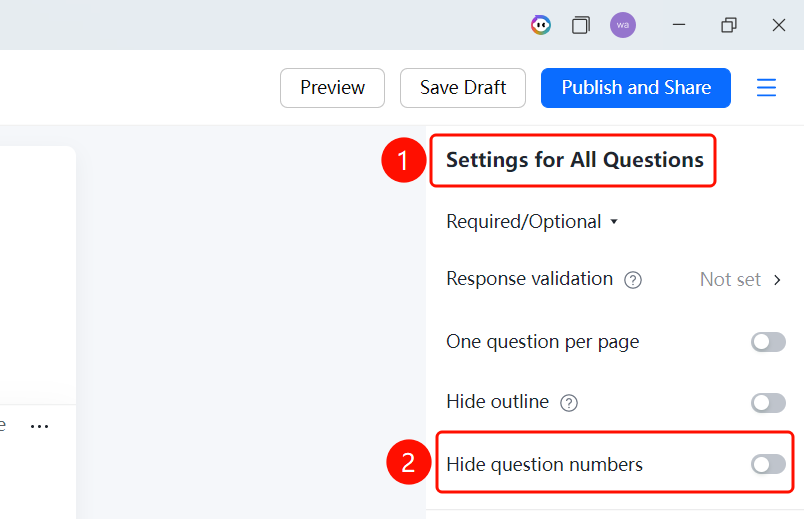
Global settings are used to configure global parameters for file collection. They are located in the Global Settings panel on the right side of the editing page. These settings include making all questions required, form submission validation, one question per page, requiring a page to be completed before turning, file collection methods, hiding the outline, and hiding question numbers.
Feature Description
| Feature Dimension | Description |
|---|---|
| Member Restrictions | No member restrictions |
| Version Restrictions | No version restrictions |
Steps
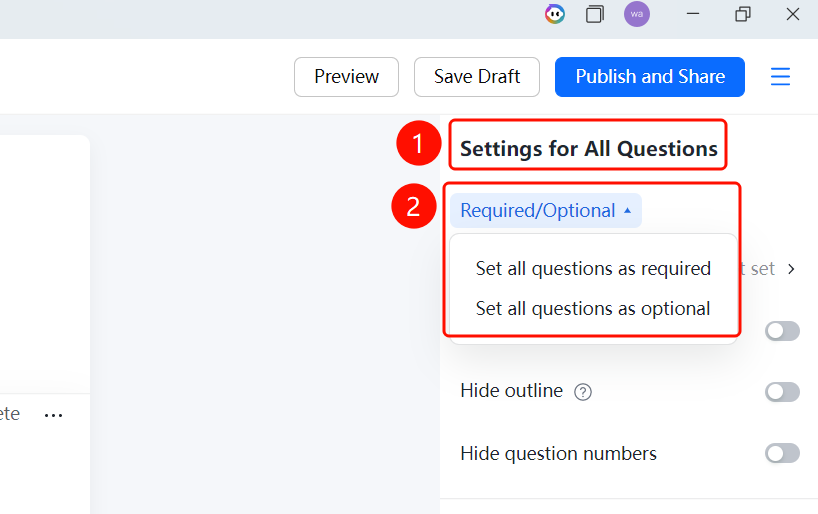
Set All Questions as Required
Entry
Editing page → "Global Settings" panel on the right → "Set All Questions as Required" dropdown menu
- On the editing page, find the Global Settings panel on the right.
- Click the Set All Questions as Required dropdown menu (currently set to Not Set).
- Select Set All Questions as Required or Set All Questions as Optional.
Set Form Submission Validation
Entry
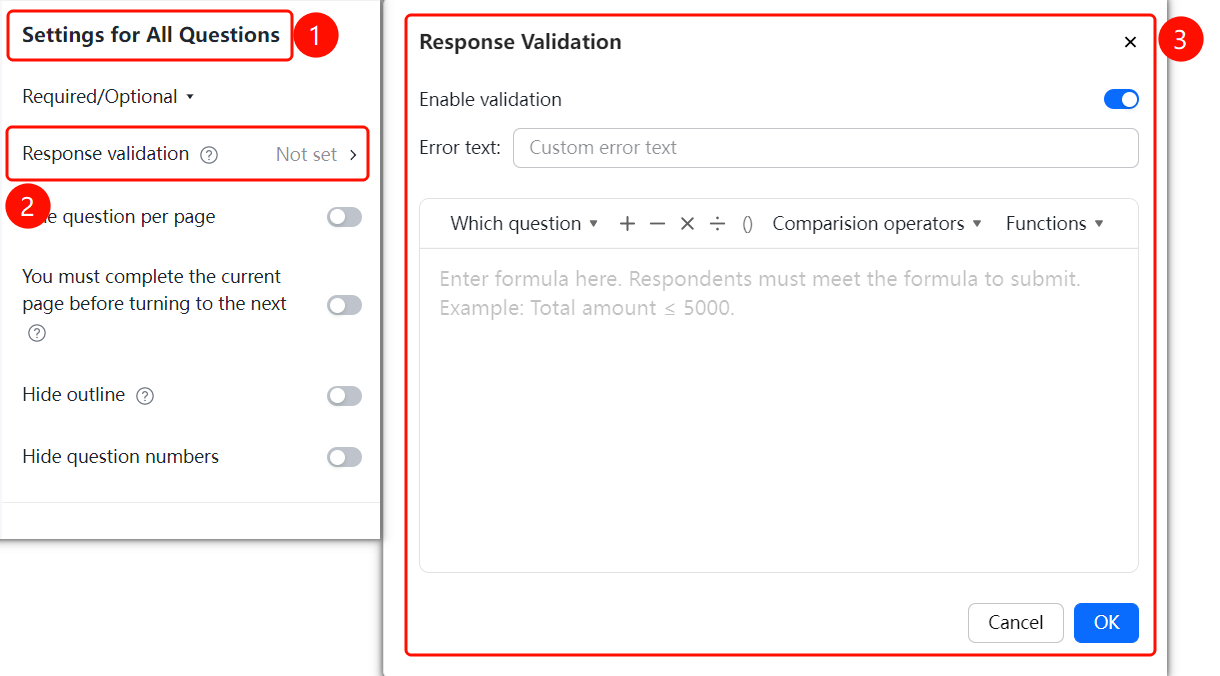
Editing page → "Global Settings" panel on the right → "Form Submission Validation" option
On the editing page, find the Global Settings panel on the right.
Click the Form Submission Validation option (currently set to Not Set).
You can set validation rules. If the validation fails, the form cannot be submitted.
In the Form Submission Validation dialog box that appears:
- Turn on the Enable Validation switch.
- Enter the Error message when validation rules are not met.
- Enter the validation formula in the formula editing area using tools such as Reference Form Question, + - × ÷ (), Comparison Operators, and Functions.
Respondents must meet the formula requirements to submit the form. For example, to require that the "total amount cannot exceed 5,000," you can enter "Total Amount <= 5000".
Click OK to save.
Set One Question per Page
Entry
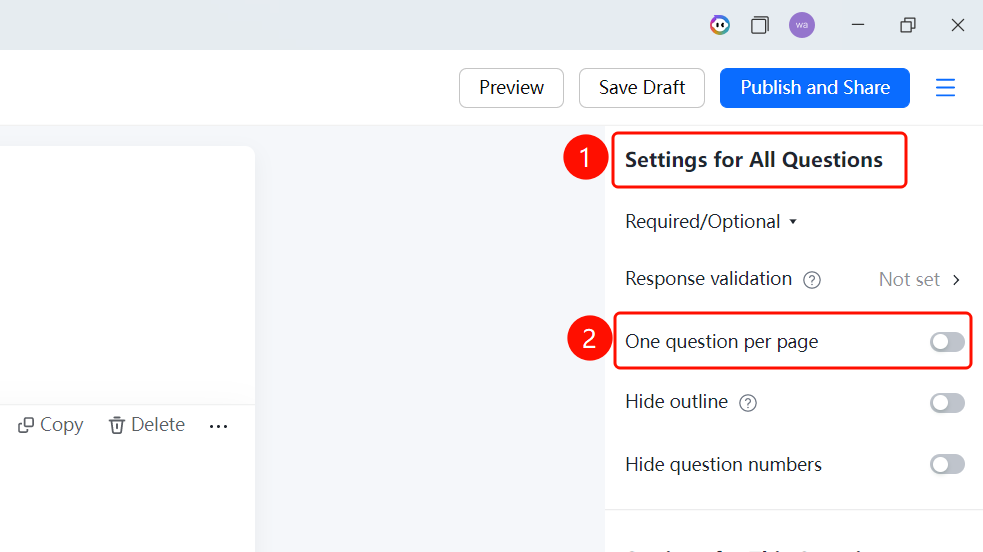
Editing page → "Global Settings" panel on the right → "One Question per Page" switch
- On the editing page, find the Global Settings panel on the right.
- Turn on the One Question per Page switch.
- Once enabled, respondents will only see one question at a time.
Hide Outline
Entry
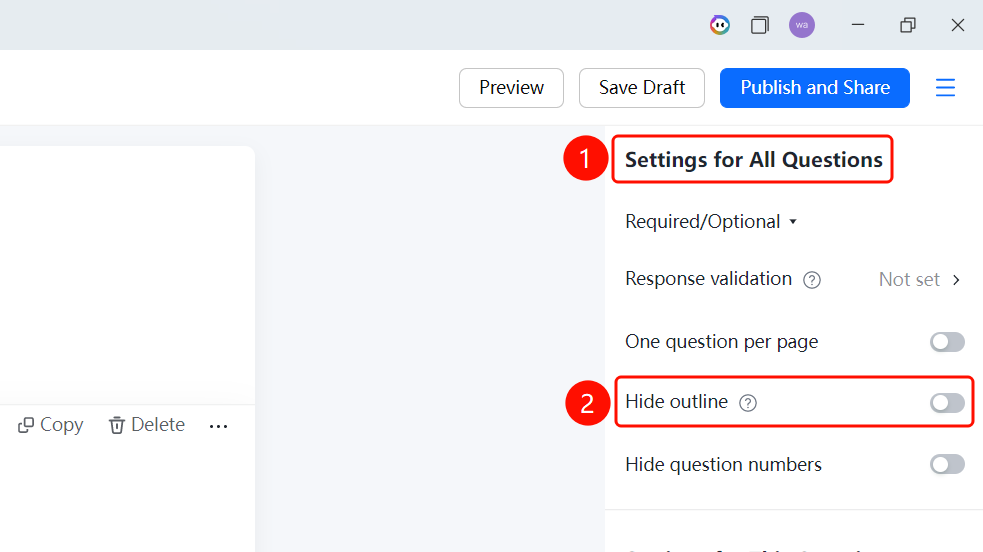
Editing page → "Global Settings" panel on the right → "Hide Outline" switch
- On the editing page, find the Global Settings panel on the right.
- Turn on the Hide Outline switch.
- Once enabled, respondents will not see the outline and cannot use it to skip questions, but they can still see the progress bar (answered questions/total questions).
Hide Question Numbers
Entry
Editing page → "Global Settings" panel on the right → "Hide Question Numbers" switch
- On the editing page, find the Global Settings panel on the right.
- Turn on the Hide Question Numbers switch.
- Once enabled, respondents will not see the question numbers.
FAQ
Q1: What is the purpose of form submission validation?
- Solution: It allows you to set validation rules. Respondents must meet the formula requirements to submit the form, such as limiting the total amount to not exceed a certain value.
Q2: What is the difference between "One Question per Page" and "Complete Page Before Turning"?
- Solution: "One Question per Page" displays only one question on each page. "Complete Page Before Turning" ensures that all required questions on the current page are completed before allowing the respondent to turn the page.
Question 3: What are the file collection methods?
- Solution: Two methods are supported: "One Folder per Question" and "One Folder for Multiple Questions," which correspond to separate storage and shared storage respectively.
Notes
- The global settings entry is located in the "Global Settings" panel on the right side of the editing page.
- The file collection method is a setting unique to file collection, which determines how the collected files are organized.