Feature Summary
Formula questions automatically calculate results based on previously filled content, such as total scores, average scores, total amounts, etc. Calculations are performed automatically according to the formula, eliminating the need for manual input by respondents.
Feature Description
| Feature Dimension | Description |
|---|---|
| Membership Restriction | No membership restriction |
| Version Restriction | No version restriction |
Operation Steps
Adding a Formula Question
Feature Entry
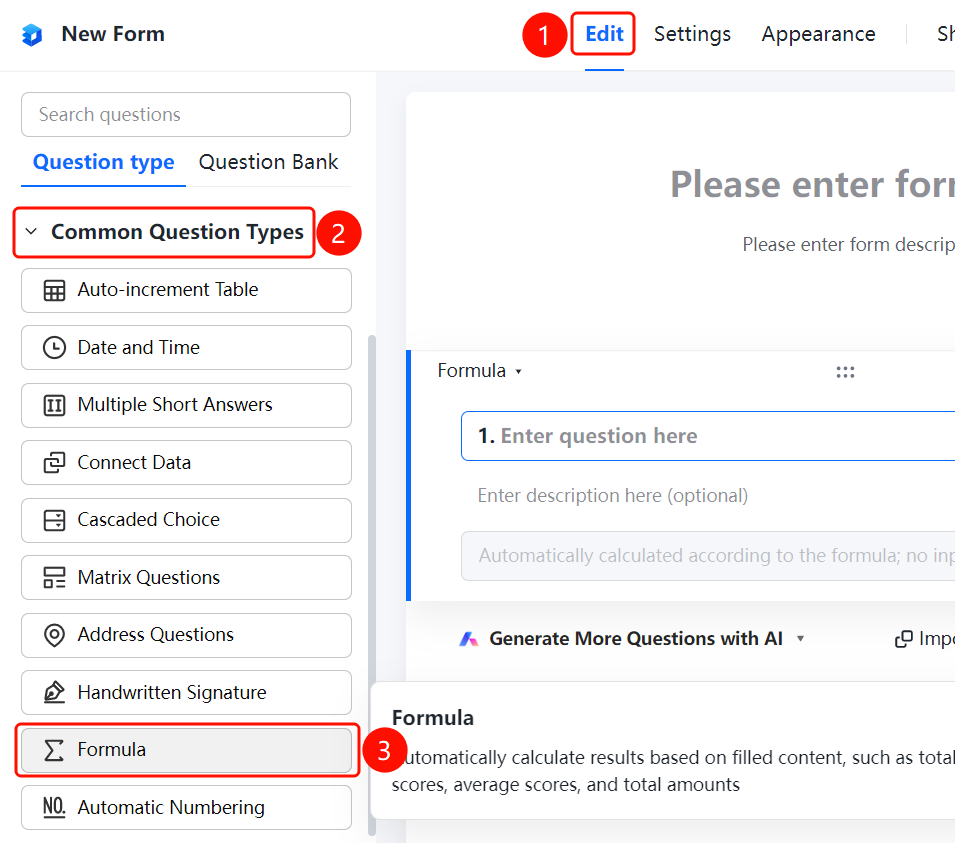
「Edit」 tab → 「Common question types」 → 「Formula」 button
- Click the top 「Edit」 tab
- Expand the 「Question Type」 area in the left panel
- Click the 「Formula」 button to add it to the form
Editing a Formula
Feature Entry
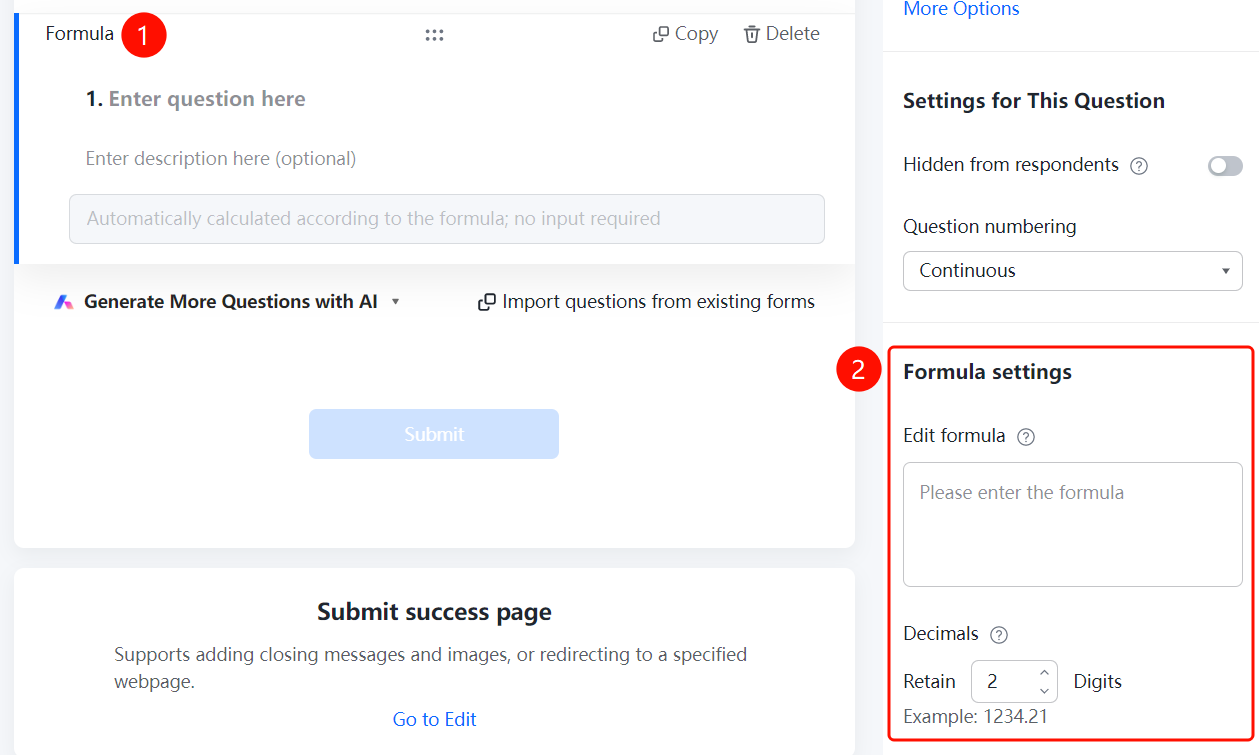
Formula question → 「Formula Settings」 → 「Edit Formula」 option
- Click the added formula question
- Click the 「Edit Formula」 option in the 「Formula Settings」 panel on the right
- Enter the calculation formula in the 「Please enter formula」 input box
- Set the 「Decimal Places」 and the number of retained digits
FAQ
Q1: What calculation types are supported by formula questions?
- Solution: Formula questions support automatic calculation of results based on previously filled content, such as total scores, average scores, total amounts, etc.
Q2: How to set the number of decimal places for calculation results?
- Solution: Click the formula question and set the 「Decimal Places」 in the 「Formula Settings」 panel.
Q3: Which questions' data can be referenced by a formula question?
- Solution: Formula questions can reference data from numeric-type questions. Simply select the referenced question through the formula editor.
Notes
- Calculation results of formula questions are generated automatically, eliminating the need for manual input by respondents
- When editing a formula, ensure that the referenced questions exist and are of numeric type