Feature Summary
Image questions are used to collect images uploaded by respondents. This feature supports camera-only uploads, adding watermarks, image naming methods, and creating categorized folders. It also allows setting limits on individual image size and the number of images.
Feature Description
| Feature Dimension | Description |
|---|---|
| Member Limit | No member limit |
| Version Limit | No version limit |
Steps
Add an Image Question
Feature Entry
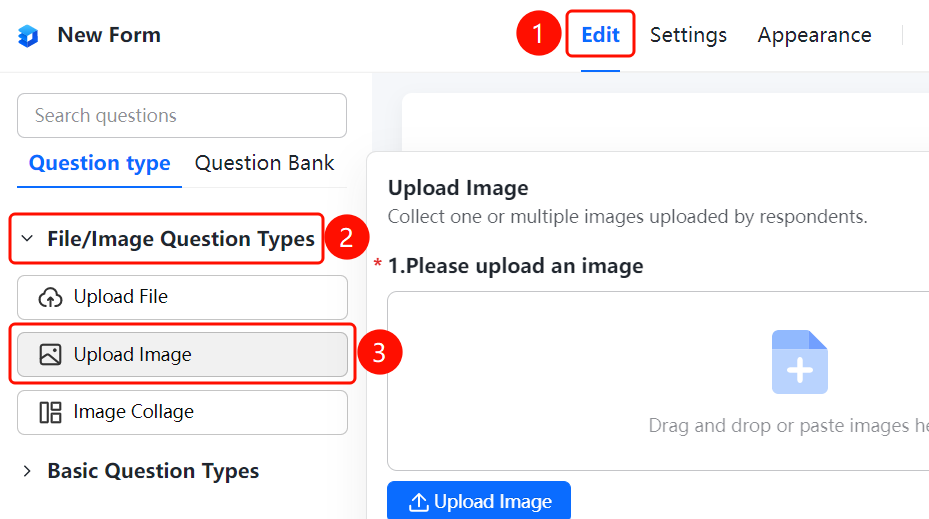
"Edit" tab → "File/Image Question Types" → "Image Question" button
- Click the "Edit" tab at the top.
- In the left panel, expand the "File/Image Question Types" area.
- Click the "Image Question" button to add an image question to the file collection.
- Enter the question content in the question editing area, such as "Image Question Example".
- Respondents click "Upload Image" to upload images. The current setting displays "Upload up to 1 image, each under 10 MB".
Set Camera-Only Upload
Feature Entry
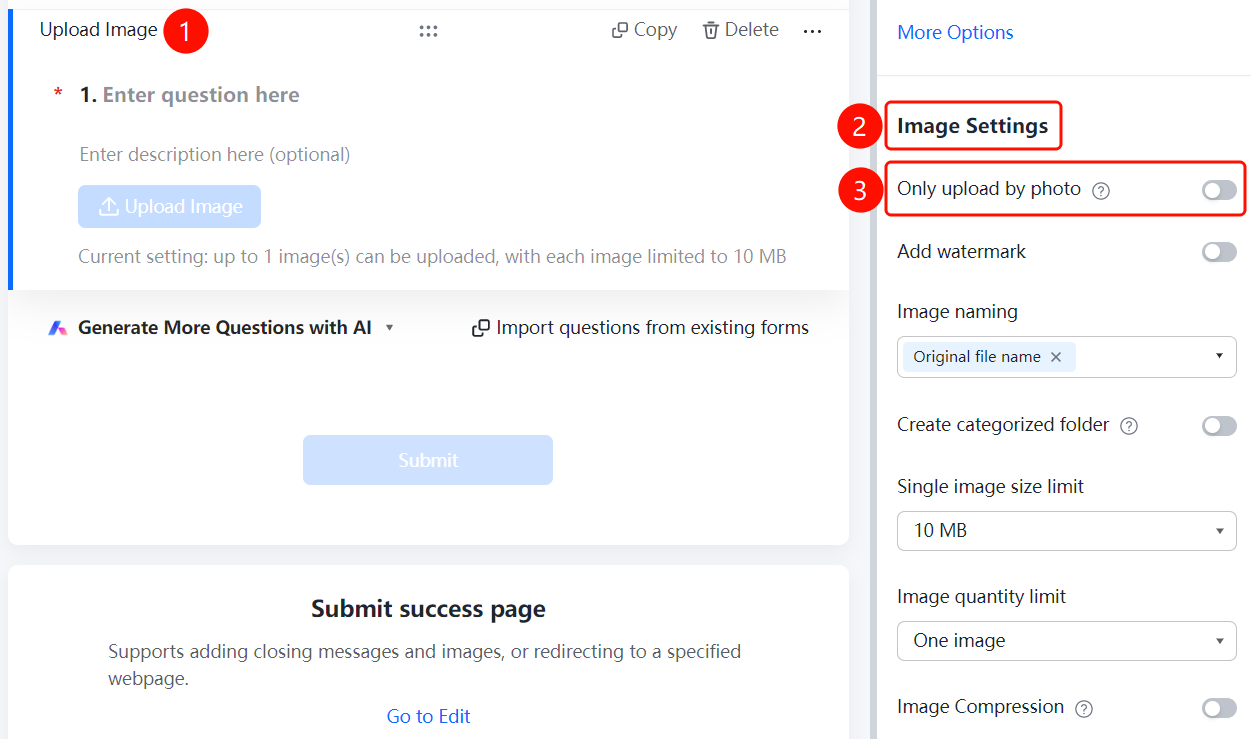
Image Question → "Image Settings" → "Camera-Only Upload" switch
- Click the added image question.
- In the "Image Settings" panel on the right, turn on the "Camera-Only Upload" switch.
- Once enabled, respondents can only upload images by taking photos.
Set Add Watermark
Feature Entry
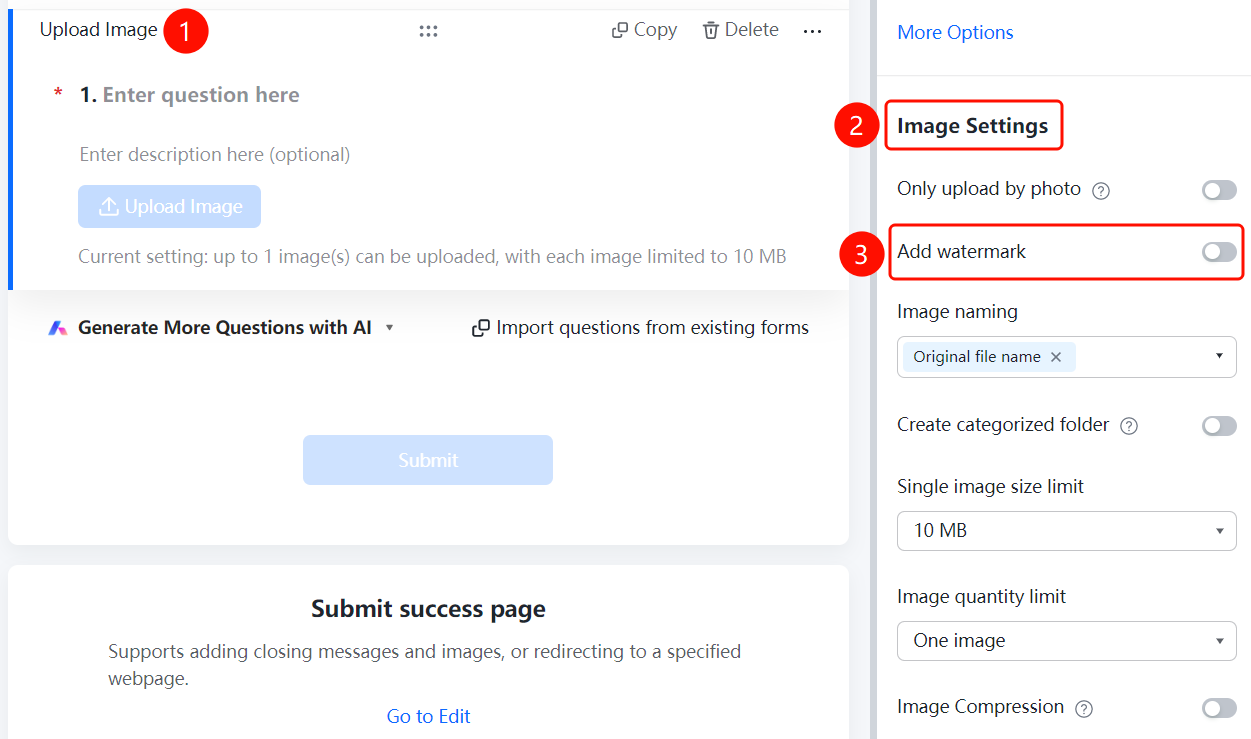
Image Question → "Image Settings" → "Add Watermark" option
- Click the added image question.
- In the "Image Settings" panel on the right, click the "Add Watermark" option.
Set Image Naming Method
Feature Entry
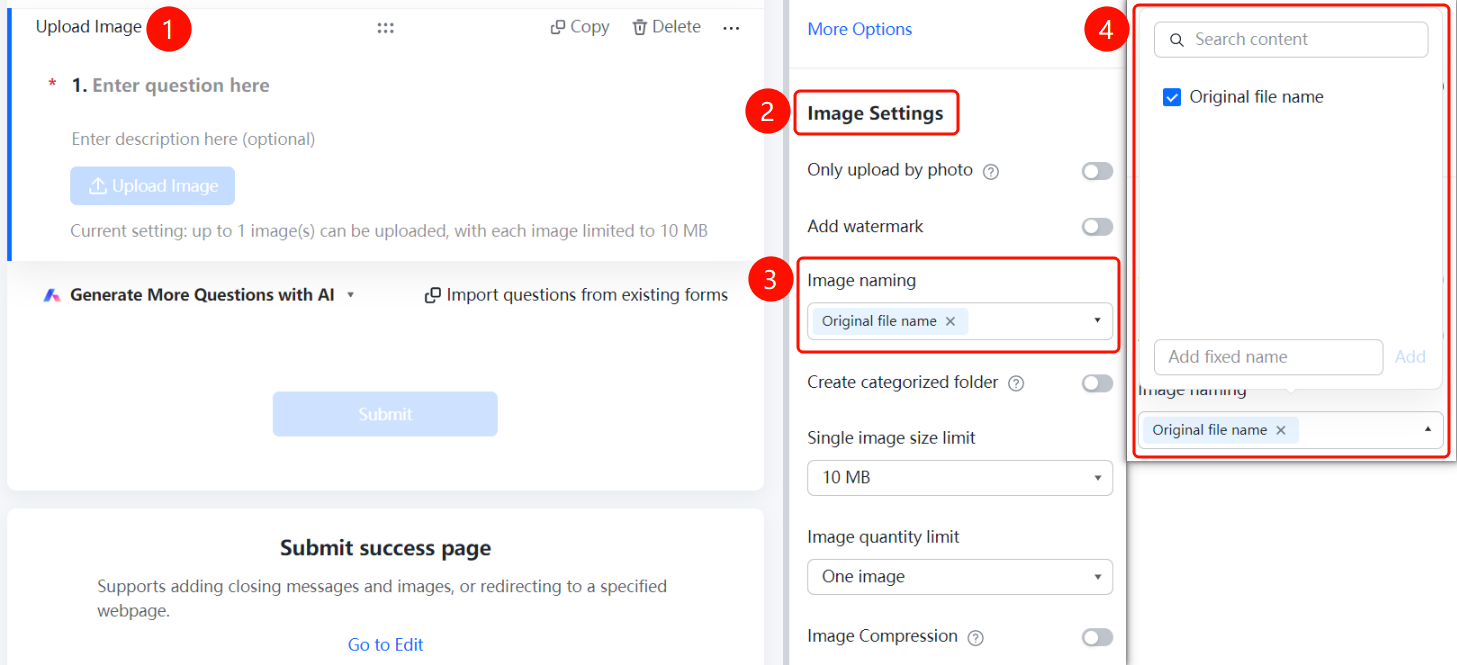
Image Question → "Image Settings" → "Image Naming Method" option
- Click the added image question.
- In the "Image Settings" panel on the right, click "Image Naming Method" (currently displays as "Original File Name ×").
- Select a naming method or click "Add Custom Fixed Name" to add custom rules.
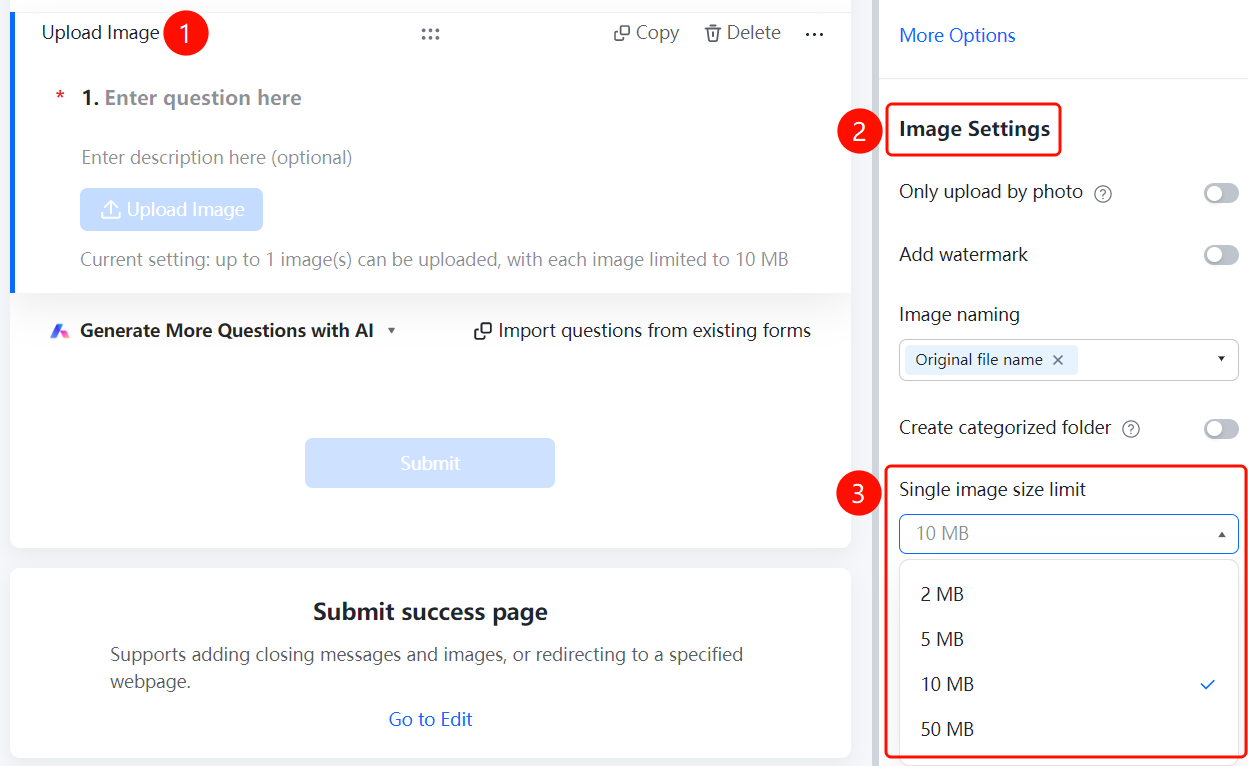
Set Individual Image Size Limit
Feature Entry
Image Question → "Image Settings" → "Individual Image Size Limit" option
- Click the added image question.
- In the "Image Settings" panel on the right, click "Individual Image Size Limit" (currently "10M").
- Select the allowed size limit.
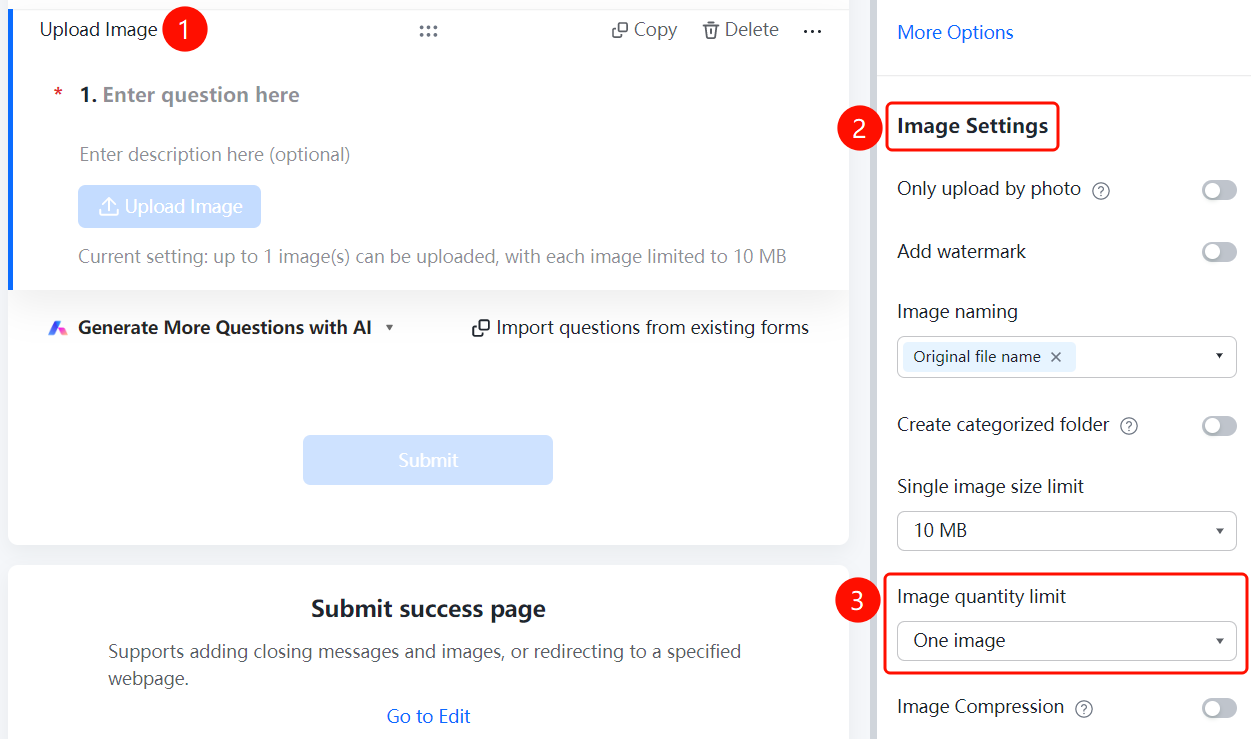
Set Image Quantity Limit
Feature Entry
Image Question → "Image Settings" → "Image Quantity Limit" option
- Click the added image question.
- In the "Image Settings" panel on the right, click "Image Quantity Limit" (currently "1 image").
- Select the allowed number of uploaded images.
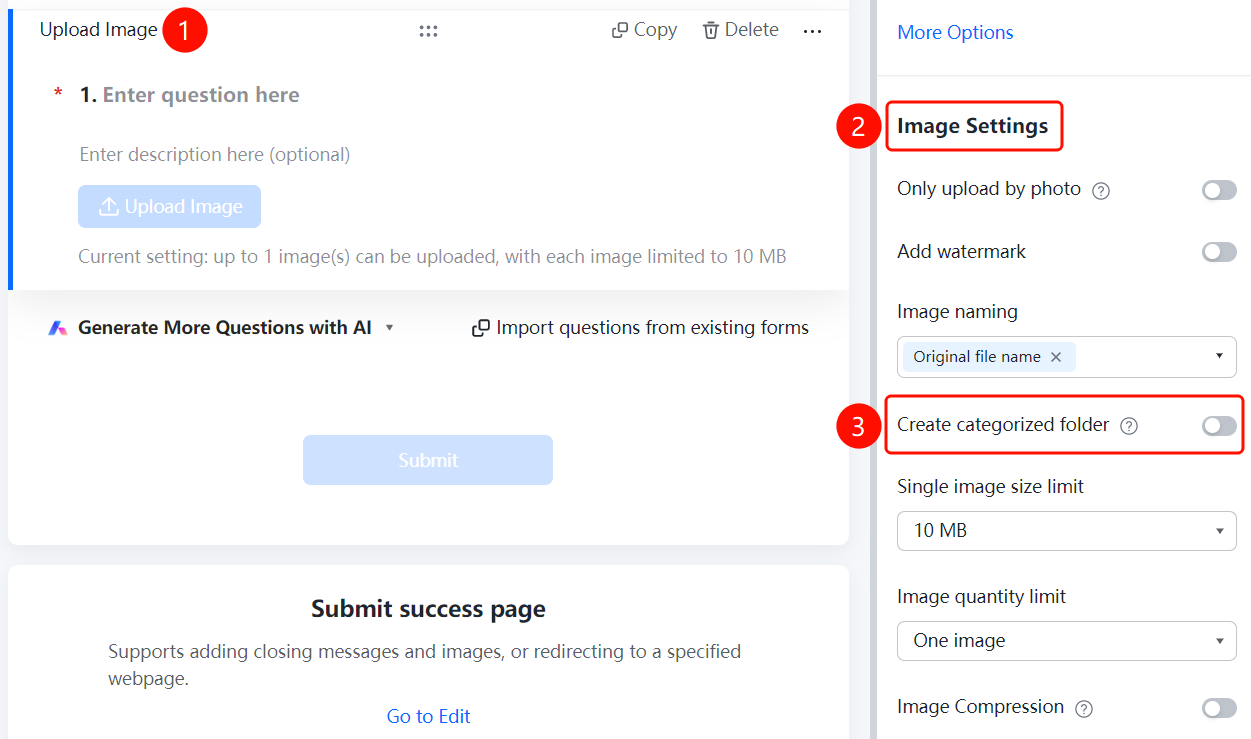
Enable Categorized Folder Creation
Feature Entry
Image Question → "Image Settings" → "Create Categorized Folders" switch
- Click the added image question.
- In the "Image Settings" panel on the right, turn on the "Create Categorized Folders" switch.
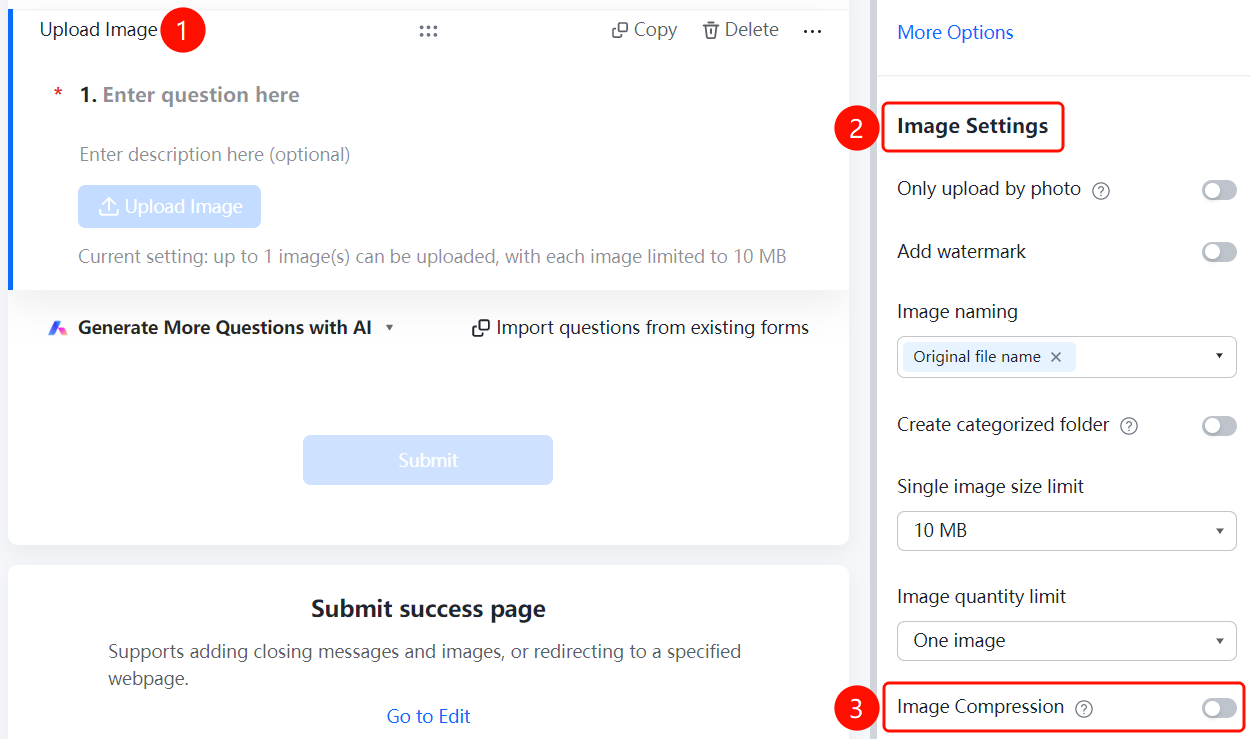
Set Image Compression
Feature Entry
Image Question → "Image Settings" → "Compress Image" switch
- Click the added image question.
- In the "Image Settings" panel on the right, turn on the "Compress Image" switch.
FAQ
Q1: How many images can be uploaded for an image question?
- Solution: Click the image question, and in "Image Settings", set "Image Quantity Limit" (e.g., 1 image). You can choose a larger number.
Q2: How do I limit the size of uploaded images?
- Solution: Click the image question, click "Individual Image Size Limit" in "Image Settings", and select the allowed size limit (e.g., 10M).
Q3: How do I restrict respondents to camera-only uploads?
- Solution: Click the image question and turn on the "Camera-Only Upload" switch in "Image Settings".
Notes
- Image questions are suitable for scenarios where you need to collect images.
- We recommend setting reasonable limits on image quantity and size.