Feature Summary
Multiple-choice vote questions allow users to select one or more voting options from a set. This feature is commonly used for voting and selections. After submission, users can view the voting results and leaderboard, with each option displaying the number of votes and percentage.
Feature Description
| Feature Dimension | Description |
|---|---|
| Member Limit | No member limit |
| Version Limit | No version limit |
Steps
Add Multiple-Choice Vote Questions
Feature Entry
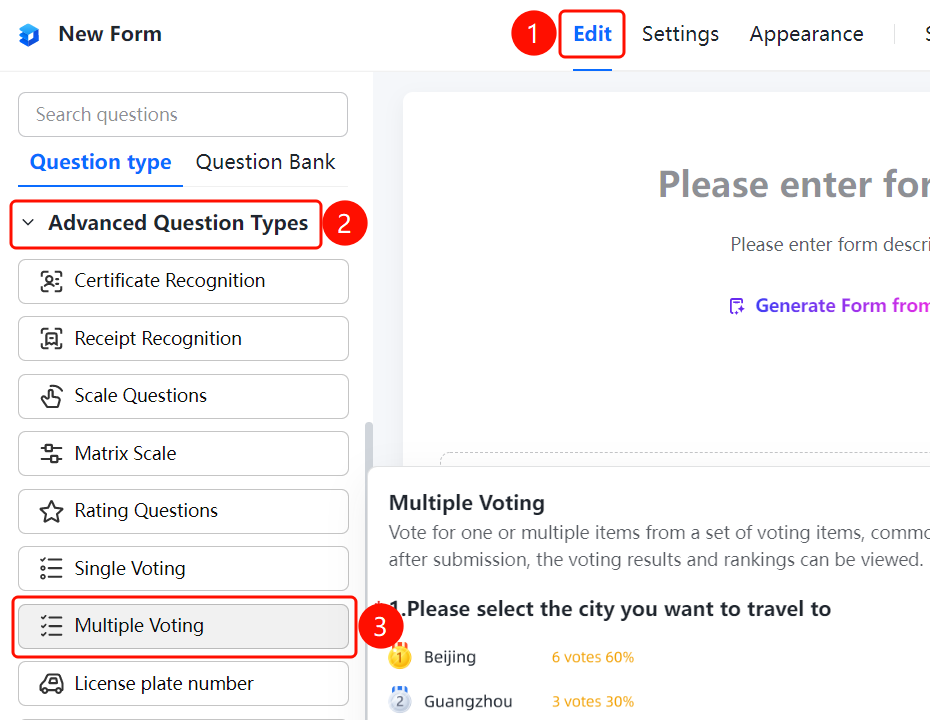
Edit tab → Voting Question Types → Multiple-Choice Vote button
- Click the Edit tab at the top.
- In the left panel, expand the Voting Question Types area.
- Click the Multiple-Choice Vote button to add a multiple-choice vote question to the file collection.
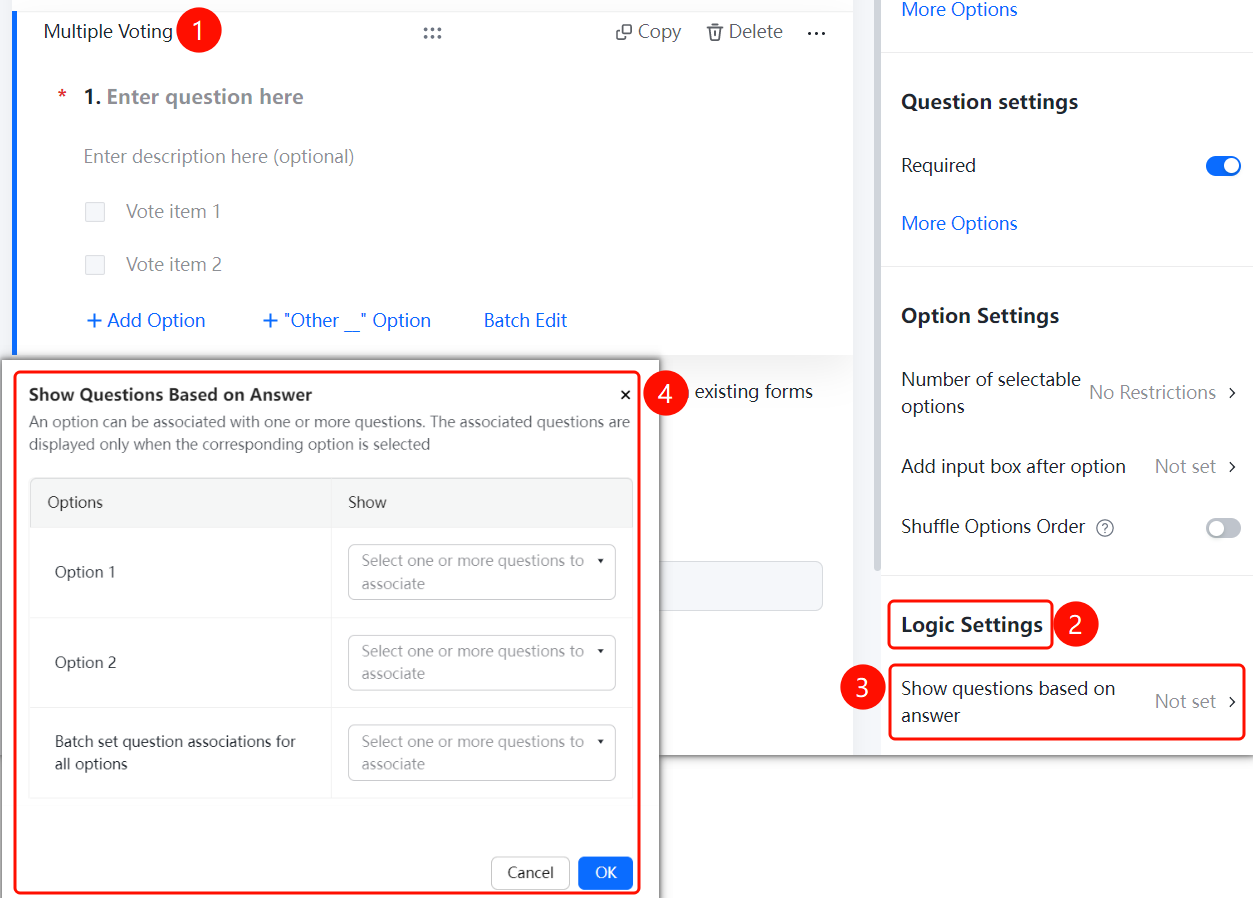
- In the question editing area, enter the question content, such as "Select the cities you want to visit."
- Add voting options. Each option displays the number of votes and percentage, such as "6 votes 60%", "3 votes 30%", and "1 vote 10%".
Set Up Voting Options
Feature Entry
Multiple-choice vote question → Option Settings → Add/Edit voting options
- Click the added multiple-choice vote question.
- Click Add Option or Batch Edit to manage voting options.
Display Voting Results/Leaderboard
Feature Entry
Multiple-choice vote question → Option Settings → Display Voting Results/Leaderboard switch
- Click the added multiple-choice vote question.
- In the Option Settings panel on the right, turn on the Display Voting Results/Leaderboard switch.
Add Text Box After Option
Feature Entry
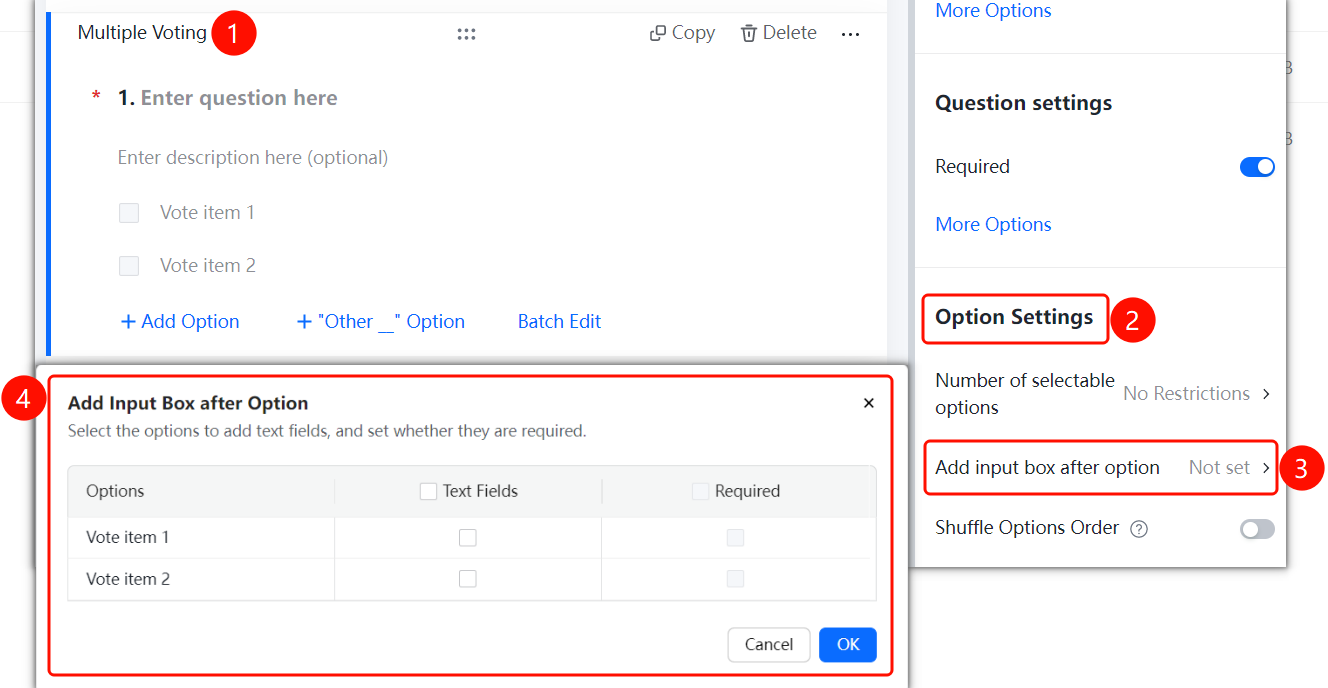
Multiple-choice vote question → Option Settings → Add Text Box After Option option
- Click the added multiple-choice vote question.
- In the Option Settings panel on the right, click the Add Text Box After Option option.
Shuffle Option Order
Feature Entry
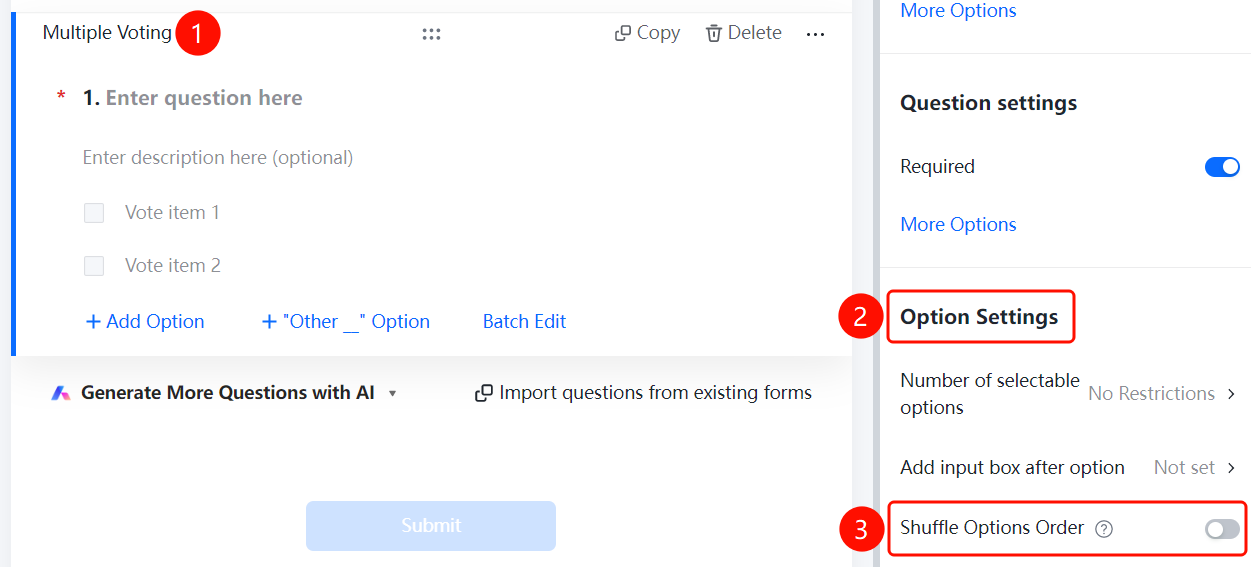
Multiple-choice vote question → Option Settings → Shuffle Option Order switch
- Click the added multiple-choice vote question.
- In the Option Settings panel on the right, turn on the Shuffle Option Order switch.
FAQ
Question 1: What is the difference between multiple-choice vote and single-choice vote?
- Solution: Multiple-choice vote allows users to select multiple options, while single-choice vote only allows one option. Choose the appropriate type based on your voting rules.
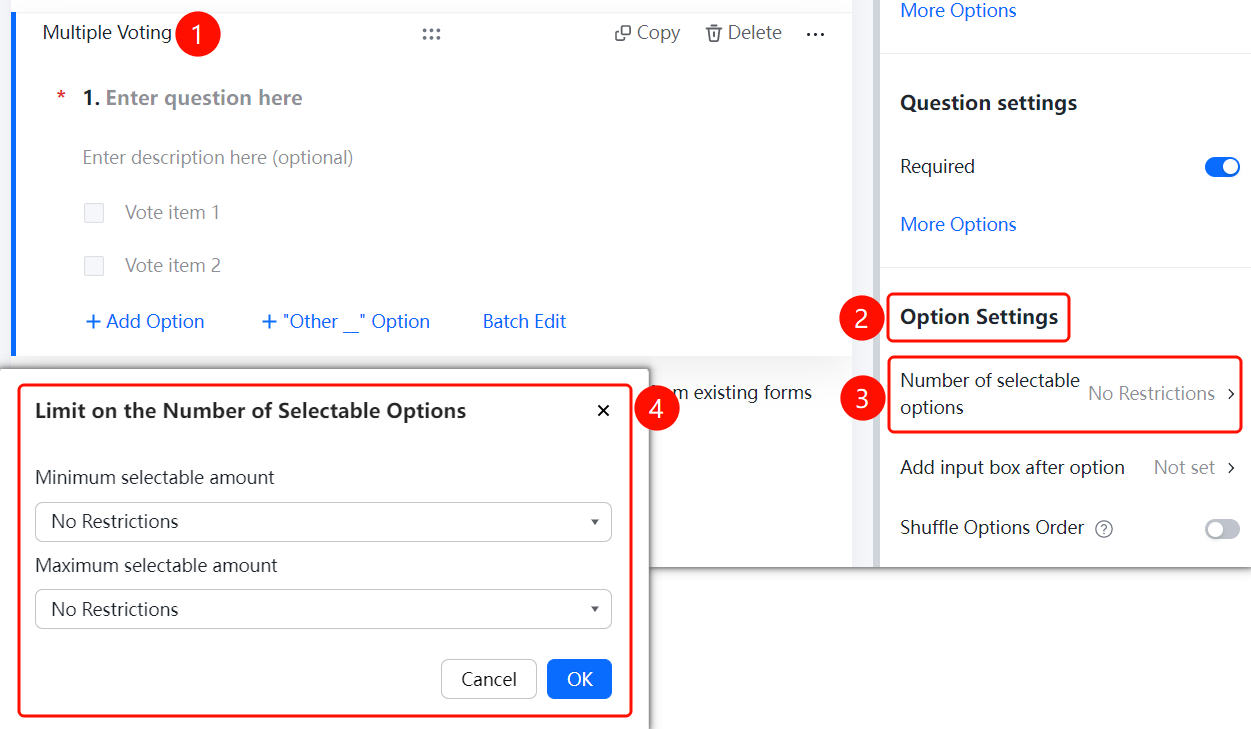
Question 2: How do I limit the maximum number of selectable options?
- Solution: Click the multiple-choice vote question. In Option Settings, you can set the maximum and minimum number of selectable options.
Question 3: How do I view the voting results?
- Solution: After submission, voting questions with Display Voting Results/Leaderboard enabled will automatically display the number of votes and percentage for each option.
Notes
- Voting results are displayed as the number of votes and percentage.
- Multiple-choice vote questions are suitable for multi-selection voting scenarios.