Feature Summary
The Jigsaw question is used to collect images uploaded by respondents. It supports setting the number of images, size limits, and image formats. Respondents can upload and assemble images in order.
Feature Description
| Feature Dimension | Description |
|---|---|
| Membership Restriction | No membership restriction |
| Version Restriction | No version restriction |
Operation Steps
Add a Jigsaw Question
Feature Entry
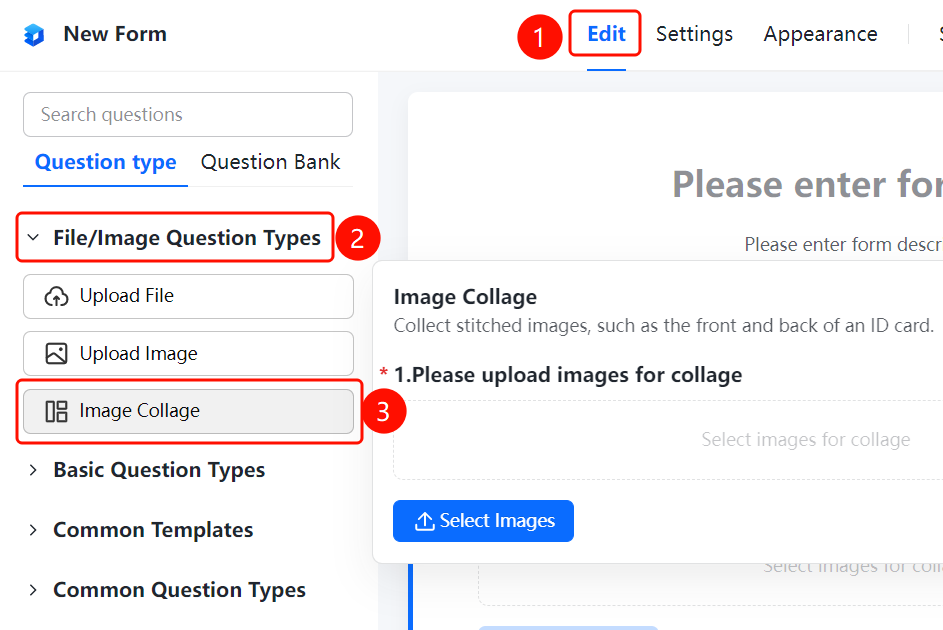
「Edit」 tab → 「Question Type」 → 「Jigsaw」 button
- Click the top 「Edit」 tab
- Expand the 「Question Type」 area in the left panel
- Click the 「Jigsaw」 button to add it to the form
Set Add Watermark
Feature Entry
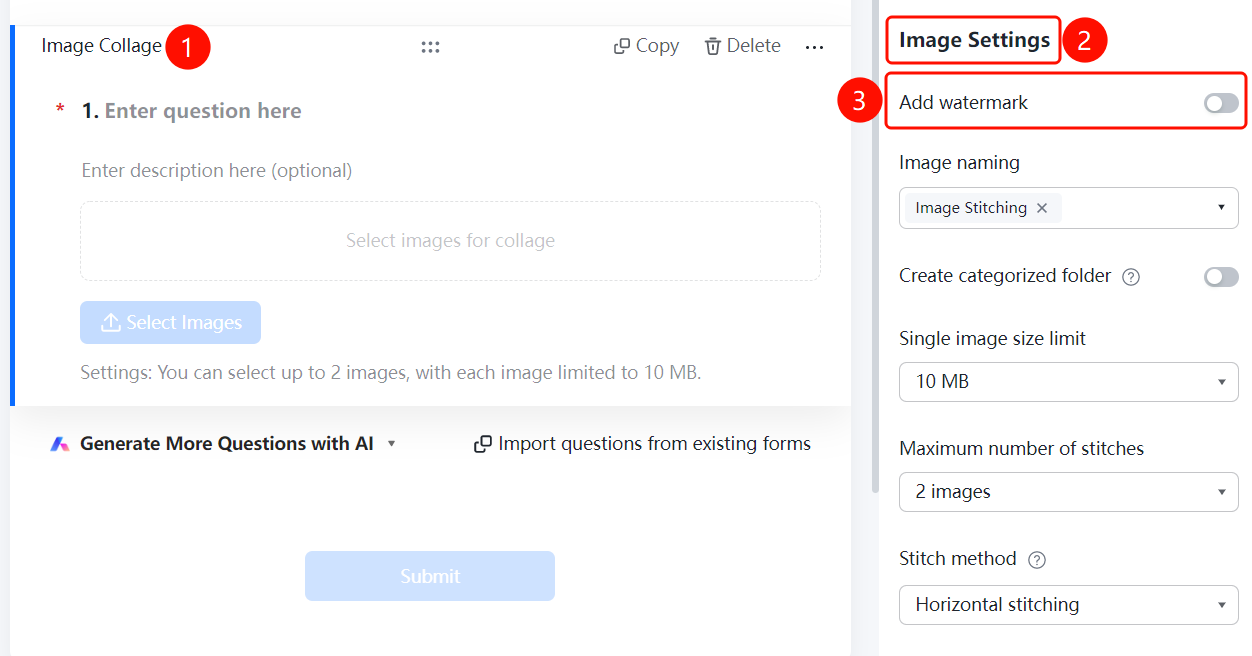
Puzzle Question → 「Image Settings」 → 「Add Watermark」 toggle
- Click the added puzzle question
- In the right 「Image Settings」 panel, turn on the 「Add Watermark」 toggle
- After turning it on, the uploaded images will automatically have Add Watermark information applied
Set Image Naming Method
Feature Entry
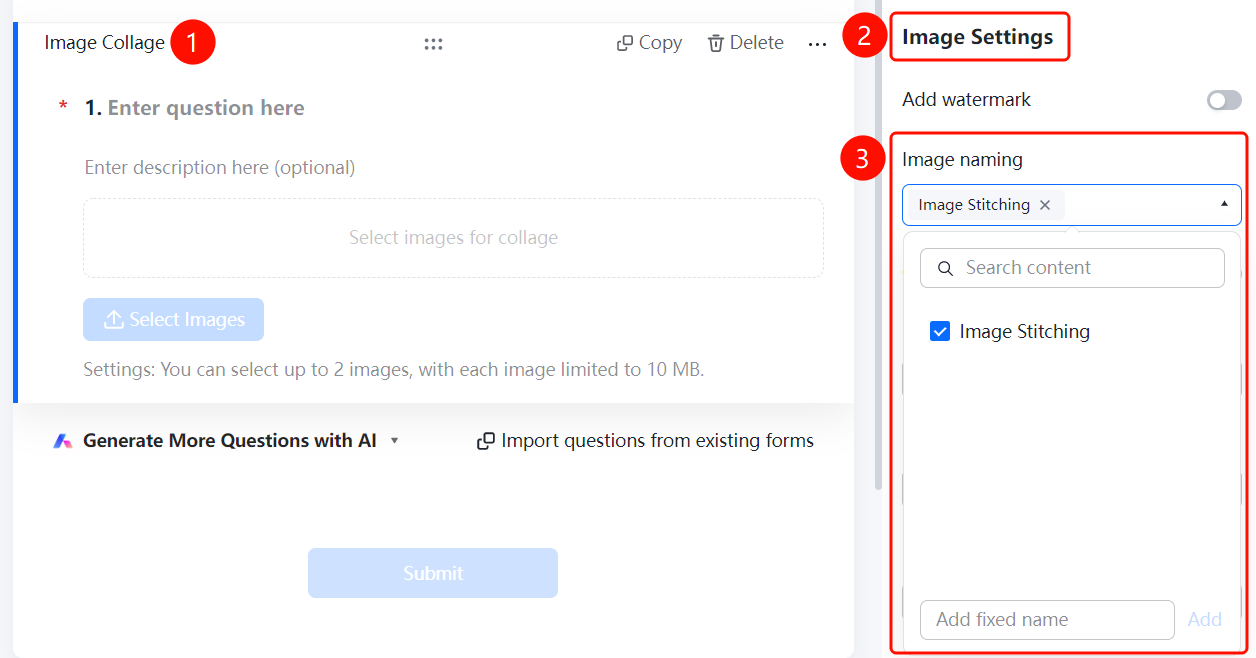
Puzzle Question → 「Image Settings」 → 「Image Naming Method」 dropdown menu
- Click the added puzzle question
- In the right 「Image Settings」 panel, click the 「Image Naming Method」 dropdown menu
- Select the naming method: 「Puzzle」 or 「Add custom fixed naming」
Set Create Classification Folder
Feature Entry
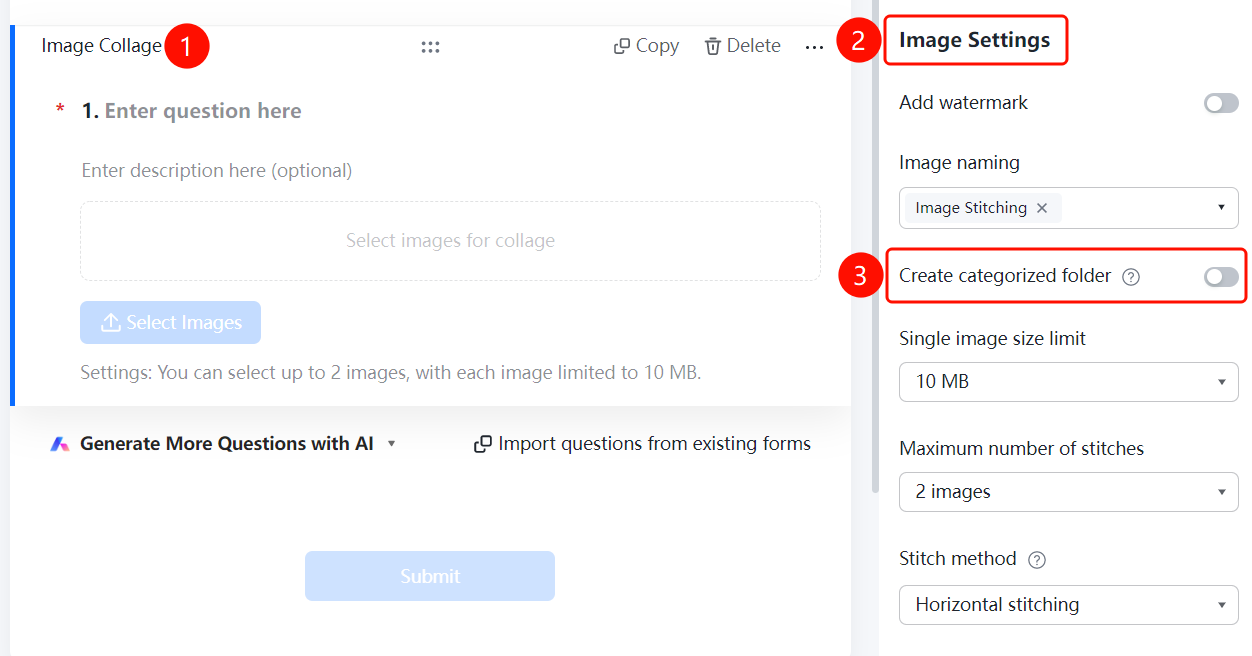
Puzzle Question → 「Image Settings」 → 「Create Classification Folder」 toggle
- Click the added puzzle question
- In the right 「Image Settings」 panel, turn on the 「Create Classification Folder」 toggle
- After turning it on, folders will be automatically created according to the folder naming method, and the collected images will be classified and summarized
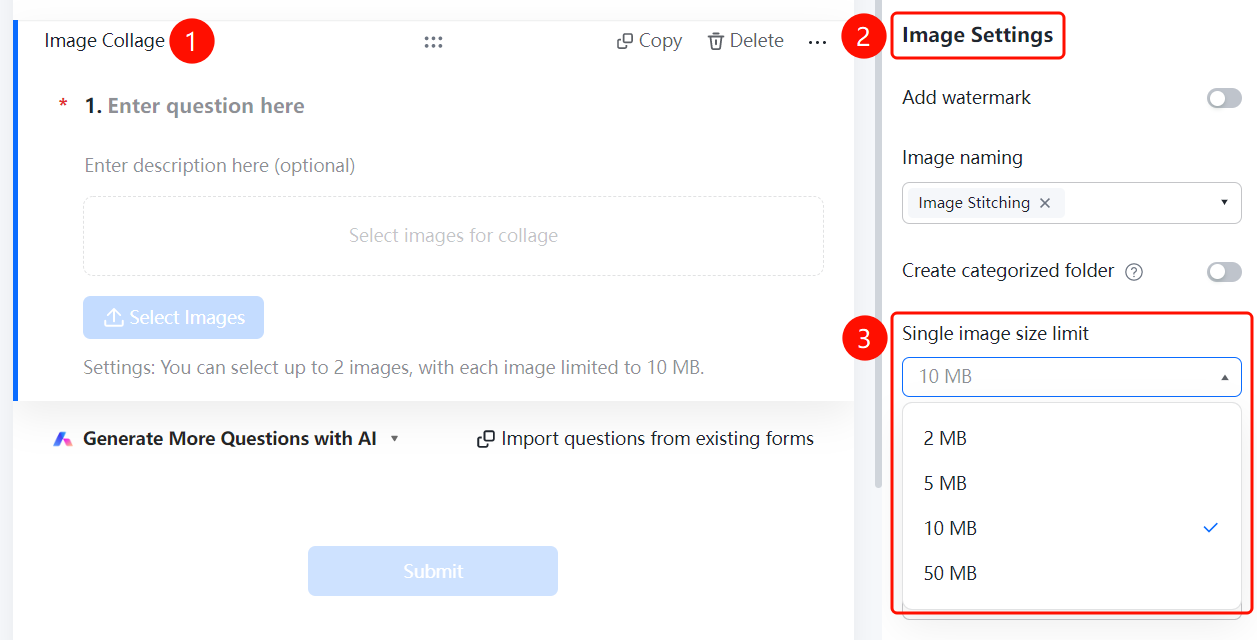
Set Single Image Size Limit
Feature Entry
Puzzle Question → 「Image Settings」 → 「Single Image Size Limit」 dropdown menu
- Click the added puzzle question
- In the right 「Image Settings」 panel, click the 「Single Image Size Limit」 dropdown menu
- Select the allowed size limit: 2M, 5M, 10M, or 50M
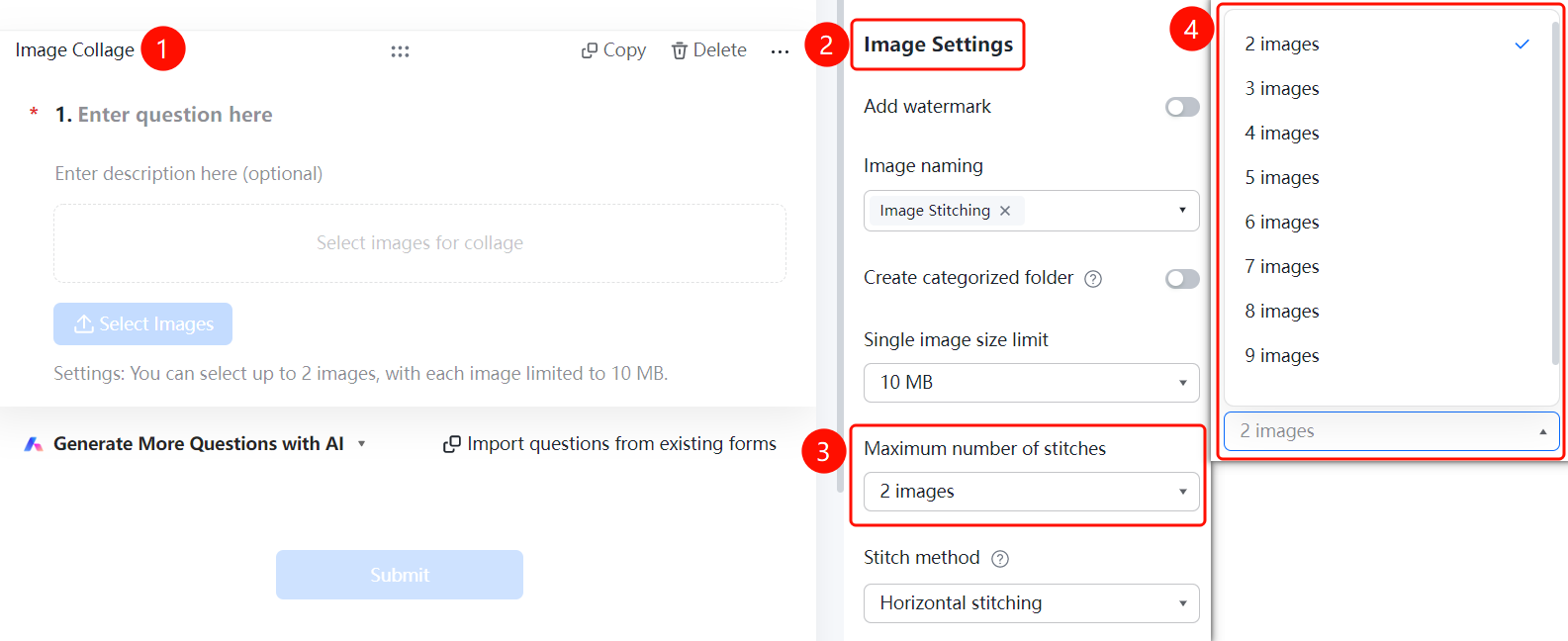
Set Maximum Stitching Number
Feature Entry
Puzzle Question → 「Image Settings」 → 「Maximum Stitching Number」 dropdown menu
- Click the added puzzle question
- In the right 「Image Settings」 panel, click the 「Maximum Stitching Number」 dropdown menu
- Select the number of images allowed to be uploaded and stitched
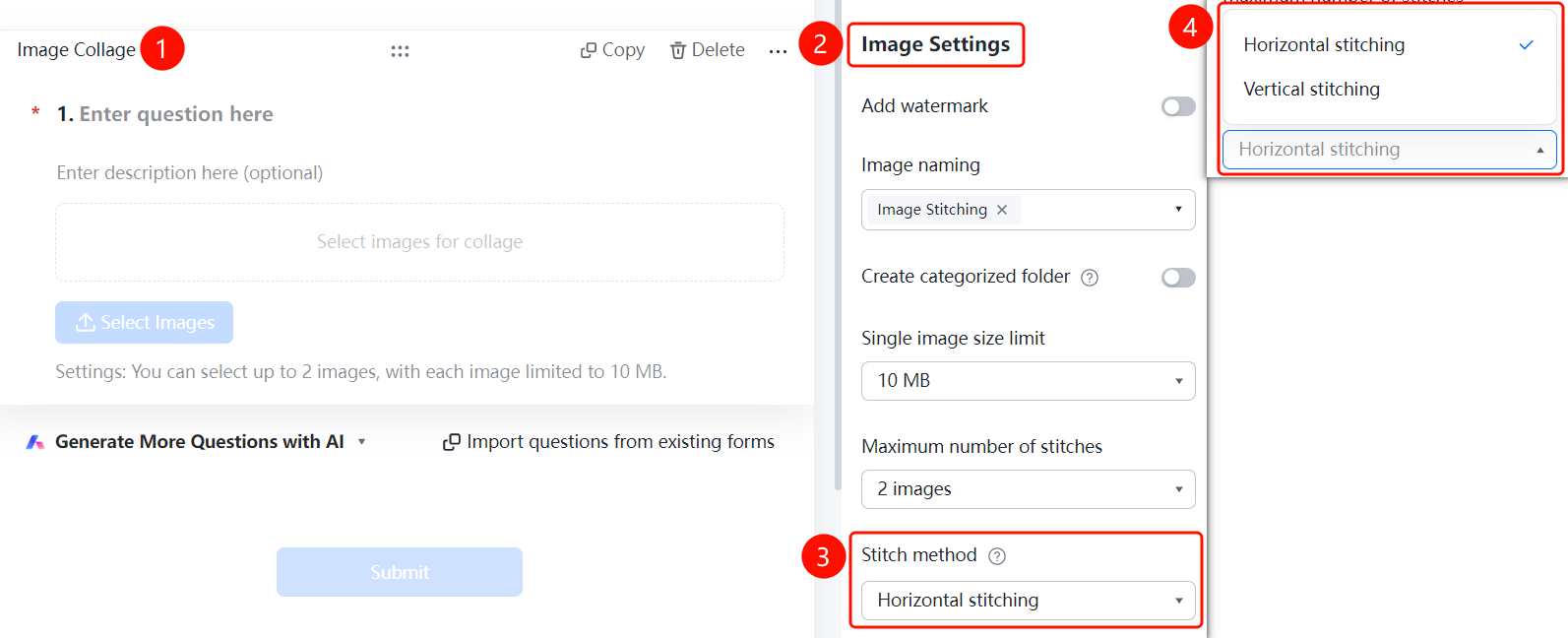
Set Stitching Method
Feature Entry
Puzzle Question → 「Image Settings」 → 「Stitching Method」 dropdown menu
- Click the added puzzle question
- In the right 「Image Settings」 panel, click the 「Stitching Method」 dropdown menu
- Select the stitching method: 「Horizontal Stitching」 or 「Vertical Stitching」
- The collected images will be stitched in the order they were uploaded by the uploader
FAQ
Q1: How many images can be uploaded for a Jigsaw question?
- Solution: Click the Jigsaw question, and set the 「Number of Images」 in 「Image Settings」 to limit the maximum number of images that can be uploaded.
Q2: How to limit the size and format of uploaded images?
- Solution: Click the Jigsaw question, and set the 「Image Size Limit」 and 「Image Format」 respectively in 「Image Settings」.
Q3: How to save and manage uploaded images?
- Solution: After turning on the 「Save Uploaded Images」 toggle, you can view them on the data statistics page; turning on 「Create Category Folder」 allows you to categorize and manage the images.
Notes
- The Jigsaw question is suitable for scenarios where multiple images need to be collected
- It is recommended to set a reasonable number of images and size limit