Feature Summary
Group Form settings are used to configure global parameters for file collection, including collection cycle, limiting collection count, start and end time, etc.
Feature Description
| Feature Dimension | Description |
|---|---|
| Member Restriction | No member restriction |
| Version Restriction | No version restriction |
Operation Steps
Enable Group Form
Feature Entry
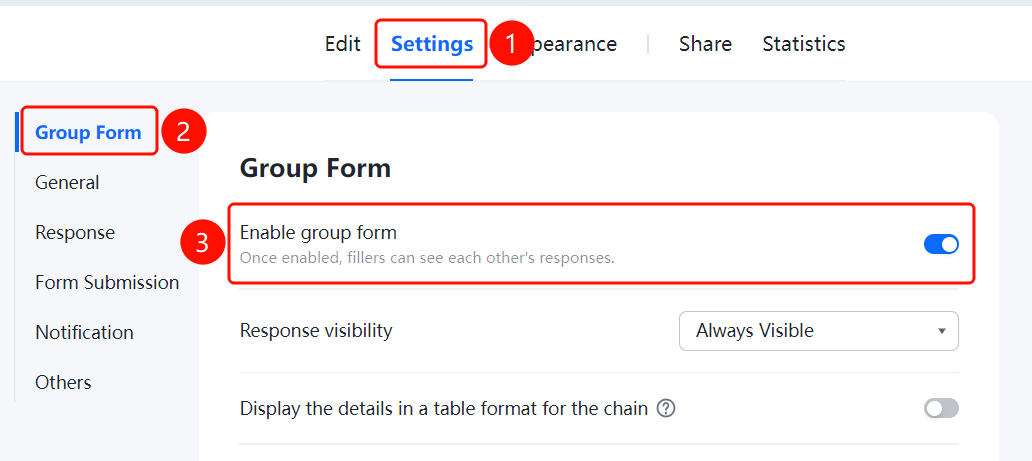
「Settings」 tab → 「Group Form Settings」 → 「Enable Group Form」 toggle
- Click the top 「Settings」 tab
- Click 「Group Form Settings」 in the left menu
- Turn on the 「Enable Group Form」 toggle
- After enabling, respondents will be able to see each other's submitted content
Set Group Form Detail Display
Feature Entry
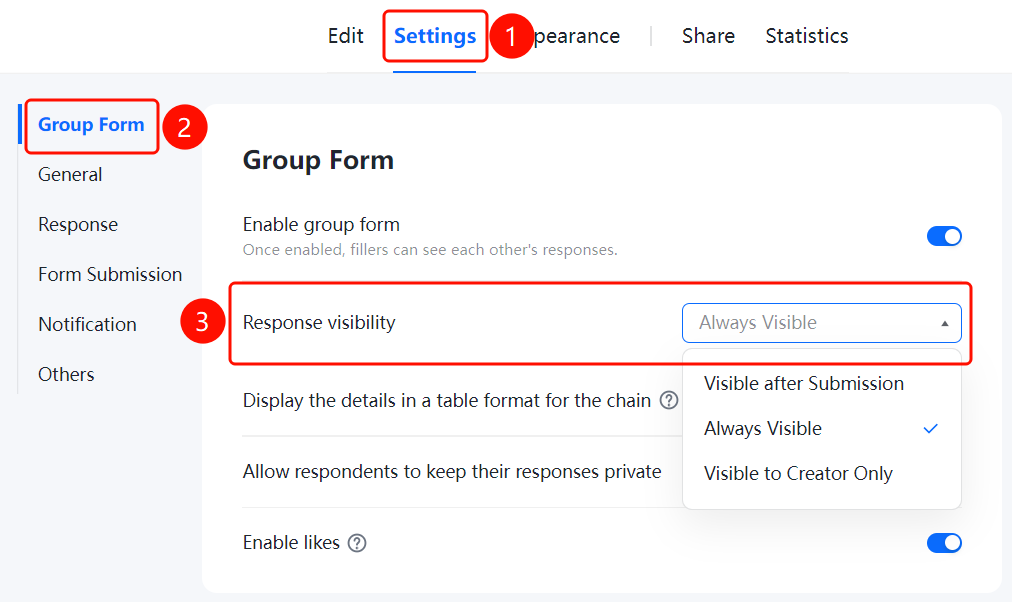
「Settings」 tab → 「Group Form Settings」 → 「Group Form Detail Display」 dropdown menu
- Click the top 「Settings」 tab
- Click 「Group Form Settings」 in the left menu
- Click the 「Group Form Detail Display」 dropdown menu
- Select the display mode: 「Visible only after participating in Group Form」, 「Visible before and after participating in Group Form」, or 「Visible only to creator」
Set to Display Group Form Details in Sheets
Feature Entry
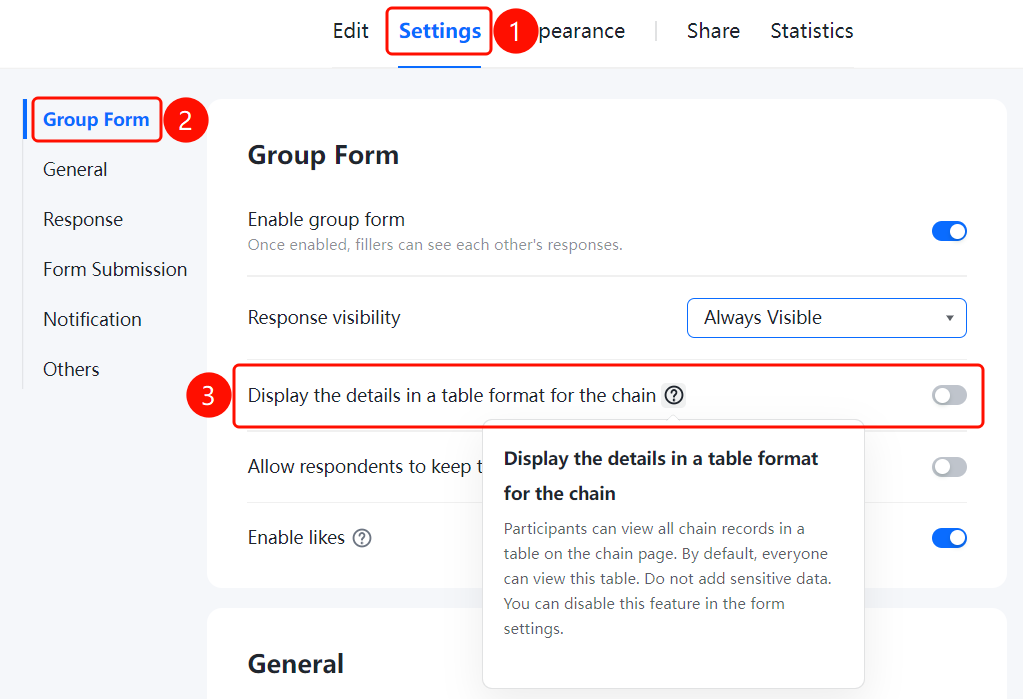
「Settings」 tab → 「Group Form Settings」 → 「Display Group Form Details in Sheets」 toggle
- Click the top 「Settings」 tab
- Click 「Group Form Settings」 in the left menu
- Turn on the 「Display Group Form Details in Sheets」 toggle
- After enabling, participants can open the Sheets on the Group Form page to view all Group Form Records
Set to Allow Participants Not to Make Group Form Records Public
Feature Entry
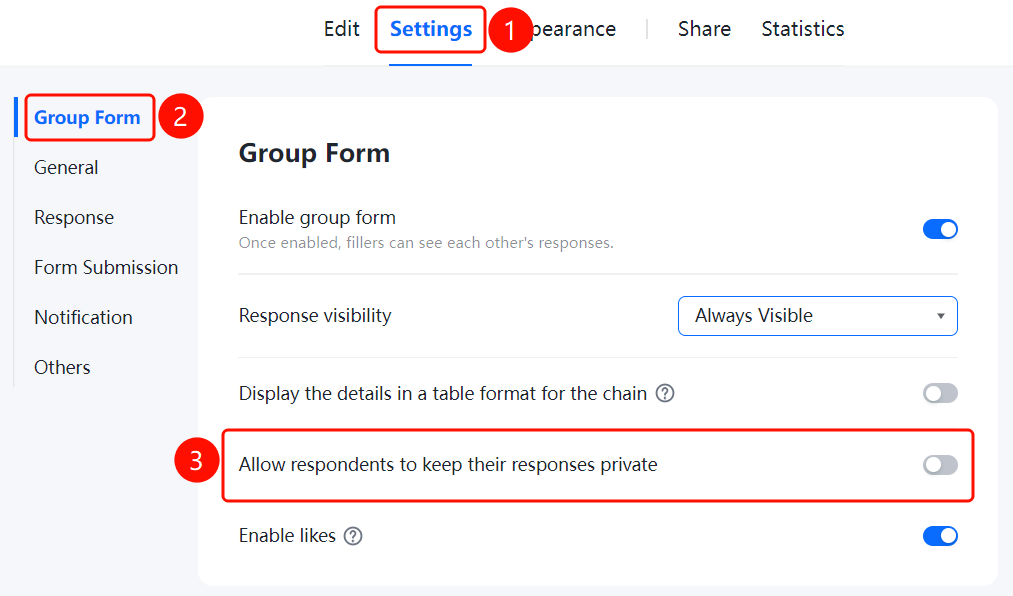
「Settings」 tab → 「Group Form Settings」 → 「Allow participants not to make Group Form Records public」 toggle
- Click the top 「Settings」 tab
- Click 「Group Form Settings」 in the left menu
- Turn on the 「Allow participants not to make Group Form Records public」 toggle
- After enabling, participants can choose not to make their Group Form Records public
Set to Allow Likes
Feature Entry
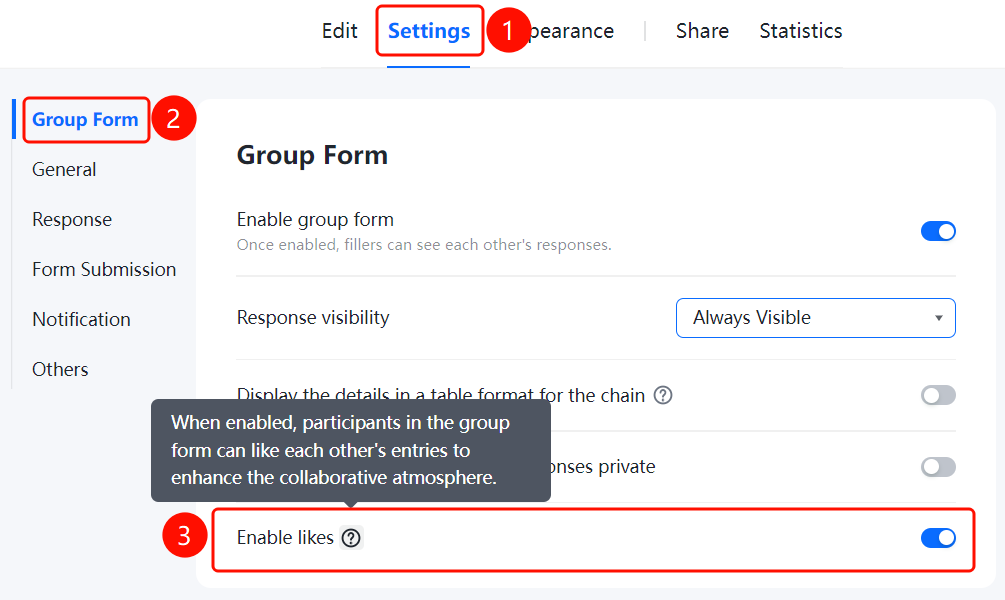
「Settings」 tab → 「Group Form Settings」 → 「Allow likes」 toggle
- Click the top 「Settings」 tab
- Click 「Group Form Settings」 in the left menu
- Turn on the 「Allow likes」 toggle
- After enabling, Group Form participants will be allowed to like other people's Group Form Records, enhancing the Group Form atmosphere
FAQ
Q1: How to set the time range for filling in the collection?
- Solution: Set 「Start and End Time」 in 「Settings」 → 「Group Form Settings」.
Q2: How to limit the collection count for each respondent?
- Solution: Click 「Limit Group Form Count」 in 「Settings」 → 「Group Form Settings」.
Q3: How to set the collection cycle?
- Solution: Click 「Group Form Cycle」 in 「Settings」 → 「Group Form Settings」.
Notes
- Group Form settings are used to control the global operation rules of the collection
- Settings can be flexibly adjusted as needed