Feature Summary
The number template is used to quickly add number input questions. It belongs to the fill-in-the-blank question type in "Common Templates." The respondent's answer area is preset to integer format only, making it convenient to collect numerical data.
Feature Description
| Feature Dimension | Description |
|---|---|
| Member Restrictions | No member restrictions |
| Version Restrictions | No version restrictions |
Steps
Add a Number Question
Feature Entry
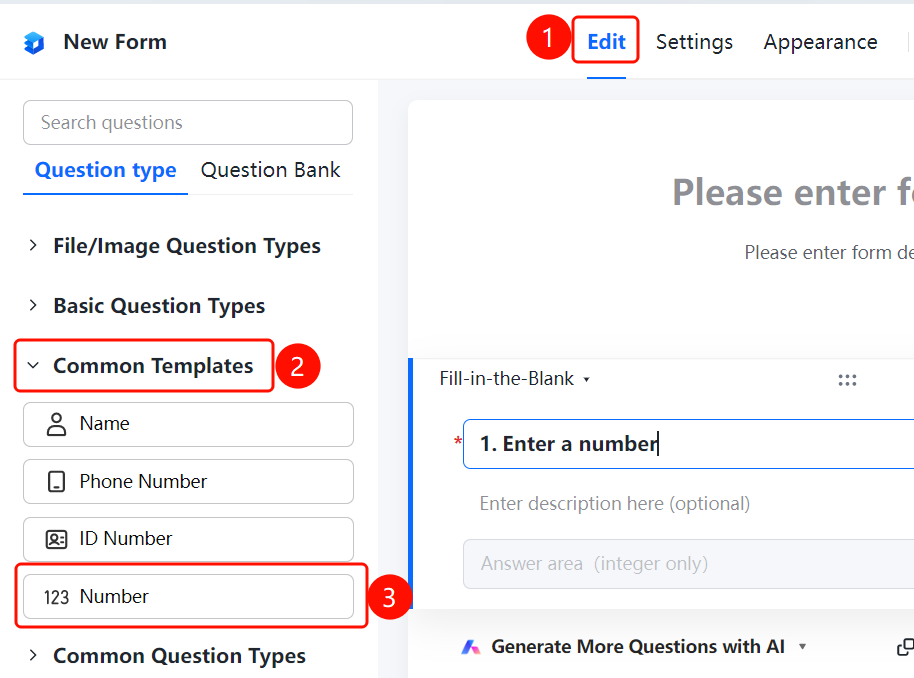
"Edit" tab → "Common Templates" → "123 Number" option
- Click the Edit tab at the top.
- Expand the Common Templates area in the left panel.
- Click the 123 Number option to add the number question to the file collection.
- The default type is a fill-in-the-blank question with the title "Enter a number", and the respondent's answer area is preset to integer format only.
Set Format Restrictions
Feature Entry
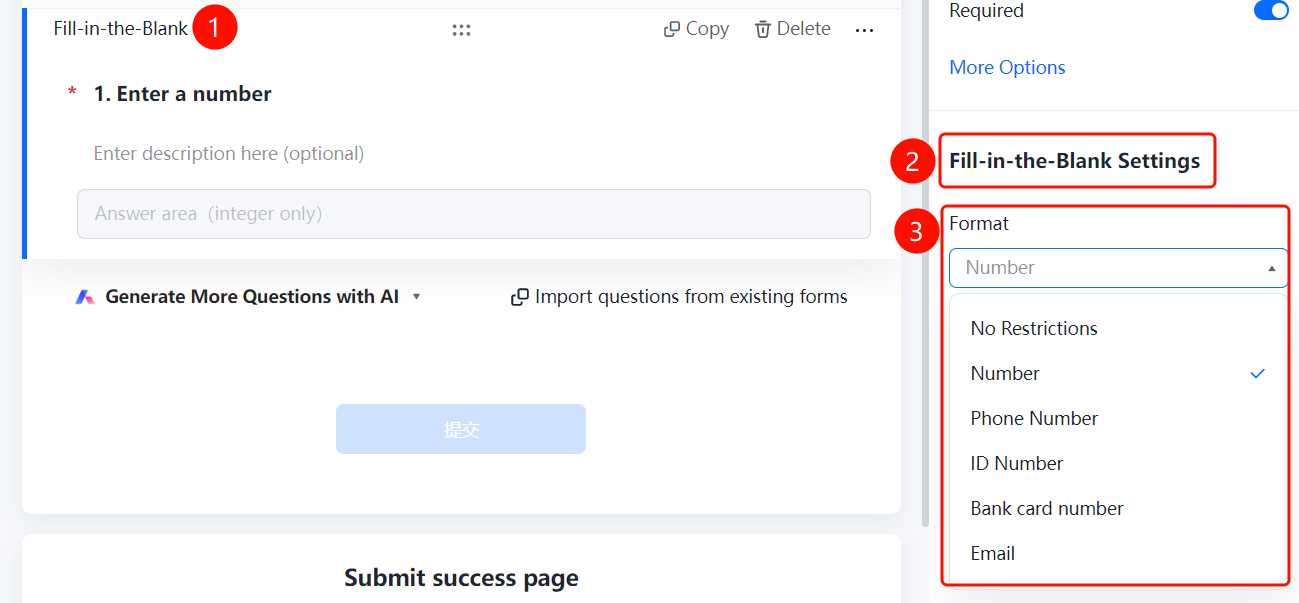
Number → "Fill-in Settings" → "Format Restrictions" drop-down list
- Click the added number question.
- Click the Format Restrictions drop-down list in the Fill-in Settings panel on the right.
- The number template selects the Number format by default. You can also switch to No Restrictions, Phone Number, ID Numbers, Bank Card Number, or Email.
Set Number Format
Feature Entry
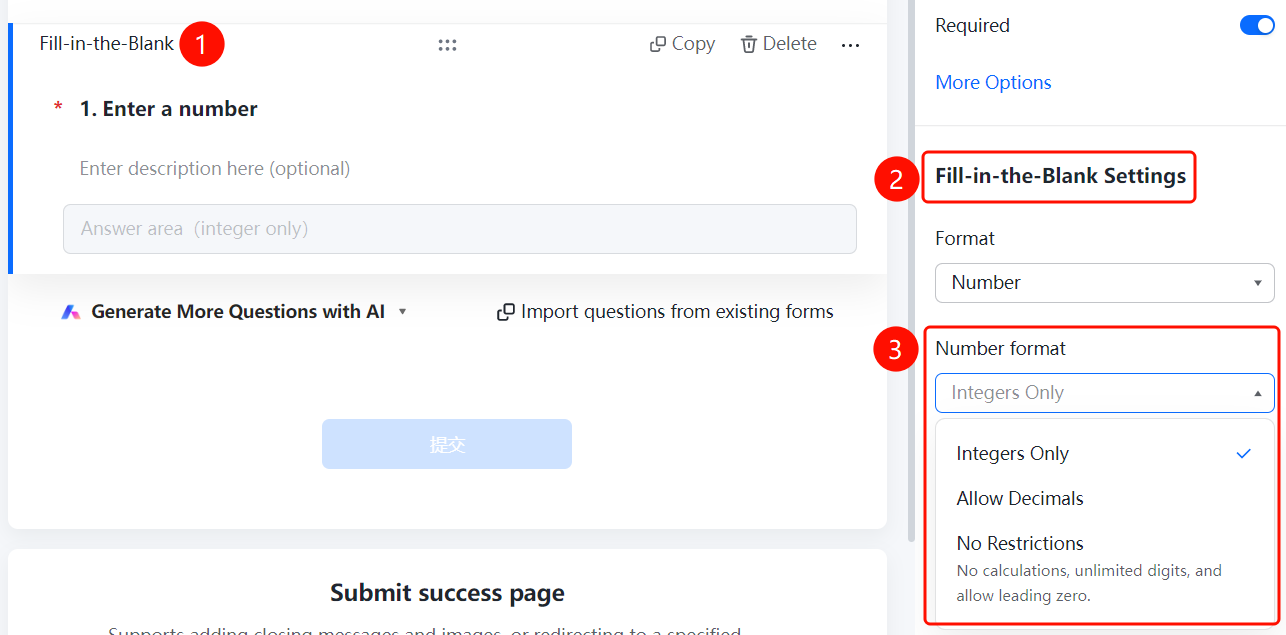
Number → "Fill-in Settings" → "Set Number Format" drop-down list
- Click the added number question.
- Click the Set Number Format drop-down list in the Fill-in Settings panel on the right.
- Select a number format: Integer Only (default), Decimals Allowed, or No Limit (does not support calculation, unlimited digits, supports starting with 0).
Set Number Range Restrictions
Feature Entry
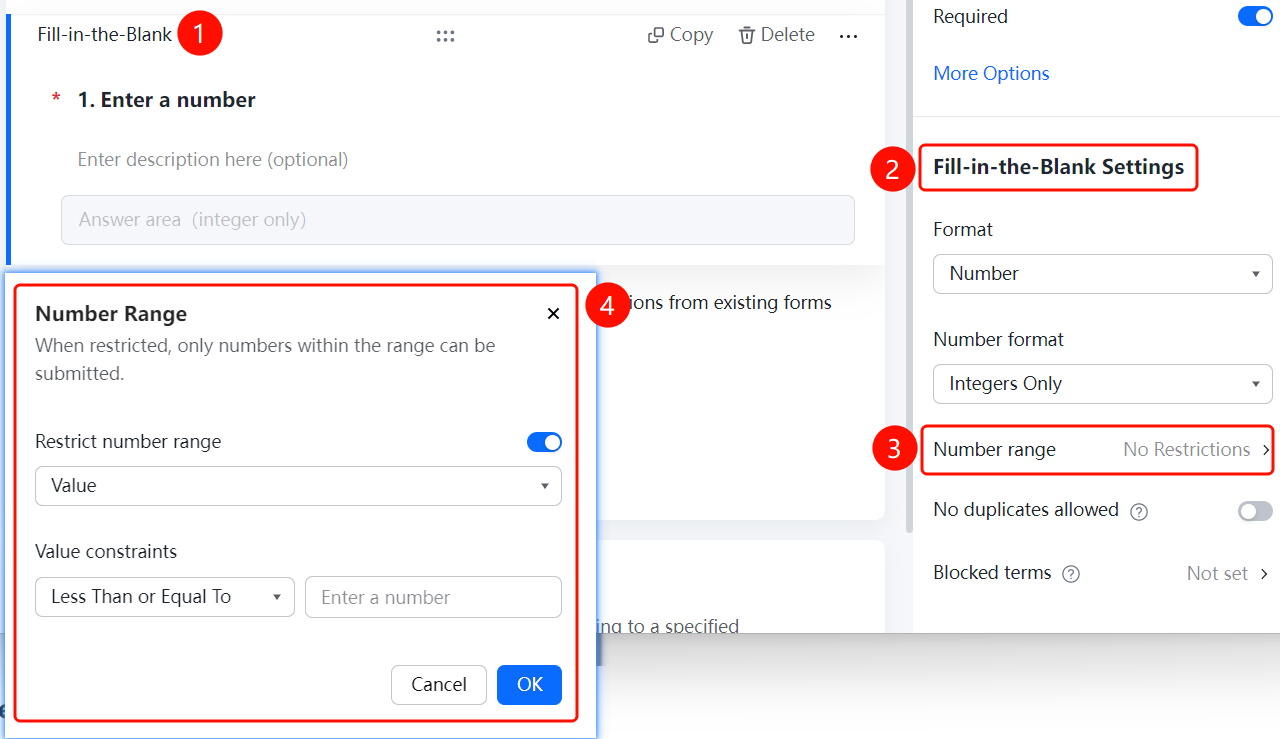
Number → "Fill-in Settings" → "Number Range Restrictions" option
- Click the added number question.
- Click Number Range Restrictions (currently set to No Restrictions) in the Fill-in Settings panel on the right.
- Turn on the Set Number Range switch in the pop-up dialog, select a comparison method (less than/greater than/less than or equal to/greater than or equal to/between/equal to), and enter specific values.
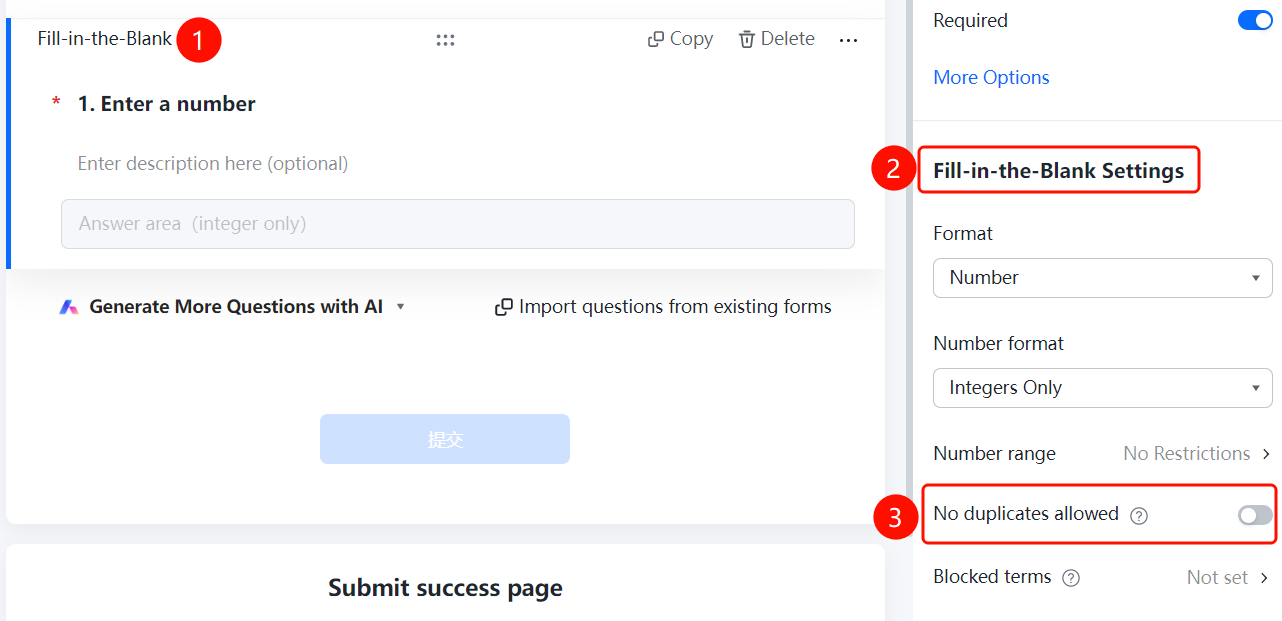
Set Do Not Allow Duplicates
Feature Entry
Number → "Fill-in Settings" → "Do Not Allow Duplicates" switch
- Click the added number question.
- Turn on the Do Not Allow Duplicates switch in the Fill-in Settings panel on the right.
Set Forbidden Content
Feature Entry
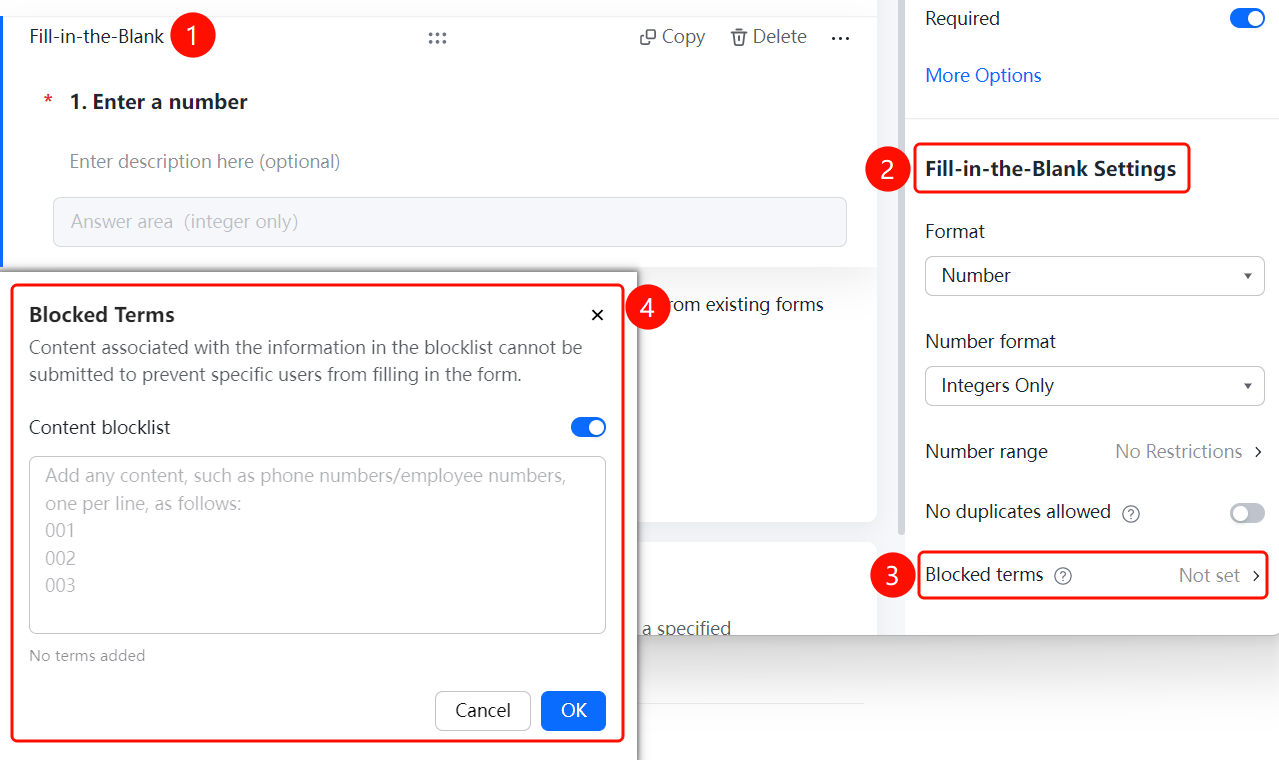
Number → "Fill-in Settings" → "Forbidden Content" option
- Click the added number question.
- Click Forbidden Content (currently set to Not Set) in the Fill-in Settings panel on the right.
- Turn on the Content Blocklist switch in the pop-up dialog, and add the content to be blocked, with one item per line.
FAQ
Question 1: Do numbers support decimals?
- Solution: By default, only integers are allowed. Click "Set Number Format" in "Fill-in Settings" to switch to "Decimals Allowed" or "No Limit."
Question 2: How do I restrict the number range?
- Solution: Click "Number Range Restrictions" in "Fill-in Settings" to set value limits (less than, greater than, between, equal to, etc.).
Notes
- Numbers belong to the fill-in-the-blank question type in "Common Templates."
- Supports setting number formats, number range restrictions, duplicate prevention, forbidden content, and more.