Feature Summary
The Receipt Recognition question is used to identify the information on invoices and tickets uploaded by respondents. Through AI, it automatically recognizes receipt content and fills it into the corresponding fields, reducing manual entry and improving filling efficiency.
Feature Description
| Feature Dimension | Description |
|---|---|
| Membership Restriction | No membership restriction |
| Version Restriction | No version restriction |
Operation Steps
Add Receipt Recognition Question
Feature Entry
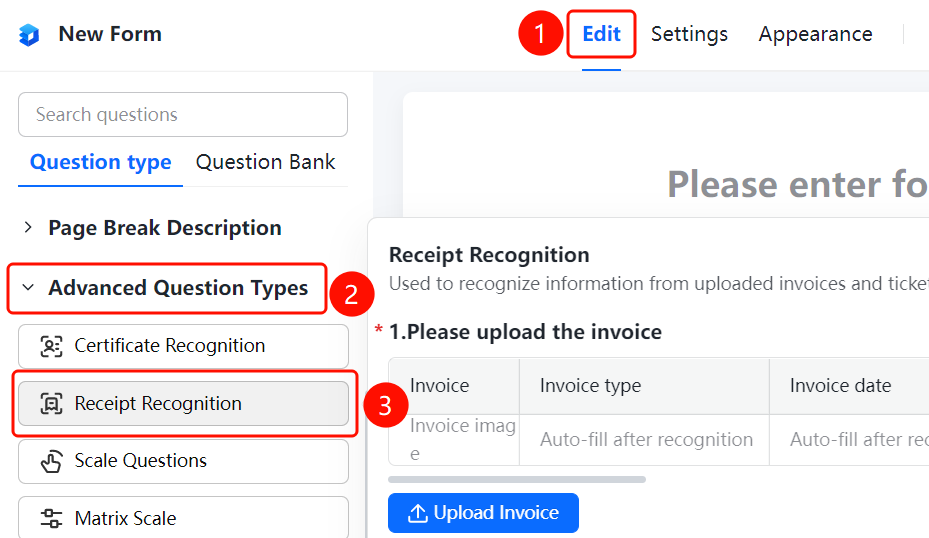
「Edit」tab → 「Question Type」 → 「Receipt Recognition」 button
- Click the top 「Edit」 tab
- Expand the 「Question Type」 area in the left panel
- Click the 「Receipt Recognition」 button to add it to the form
Set the Receipt Types to Be Recognized
Feature Entry
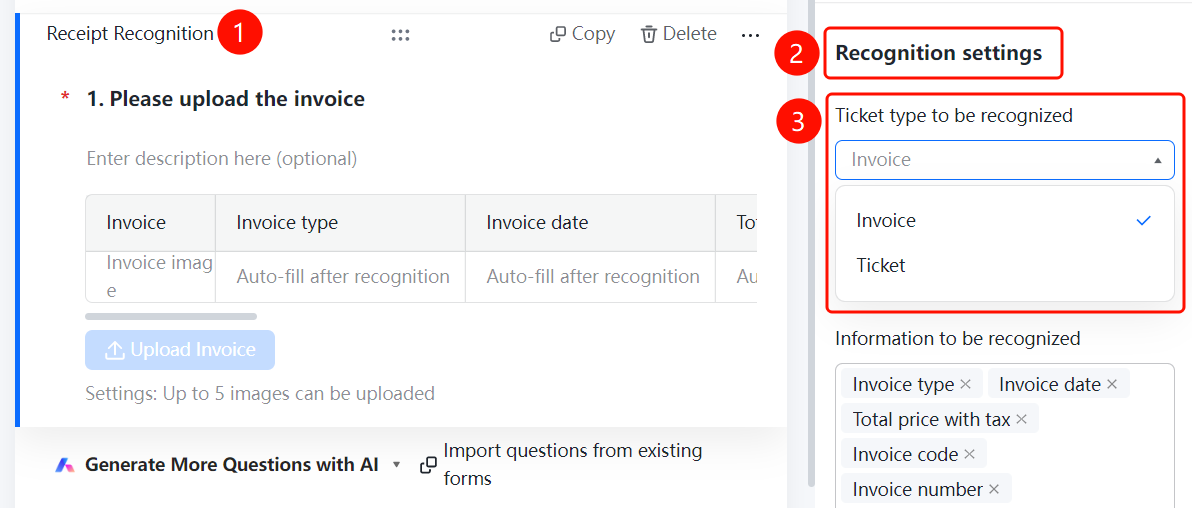
Receipt Recognition question → 「Recognition Settings」 → 「Receipt Types to Be Recognized」 option
- Click the added Receipt Recognition question
- In the right 「Recognition Settings」 panel, click the 「Receipt Types to Be Recognized」 option
- Select: Invoice / Ticket
Set Invoice Type Restriction
Feature Entry
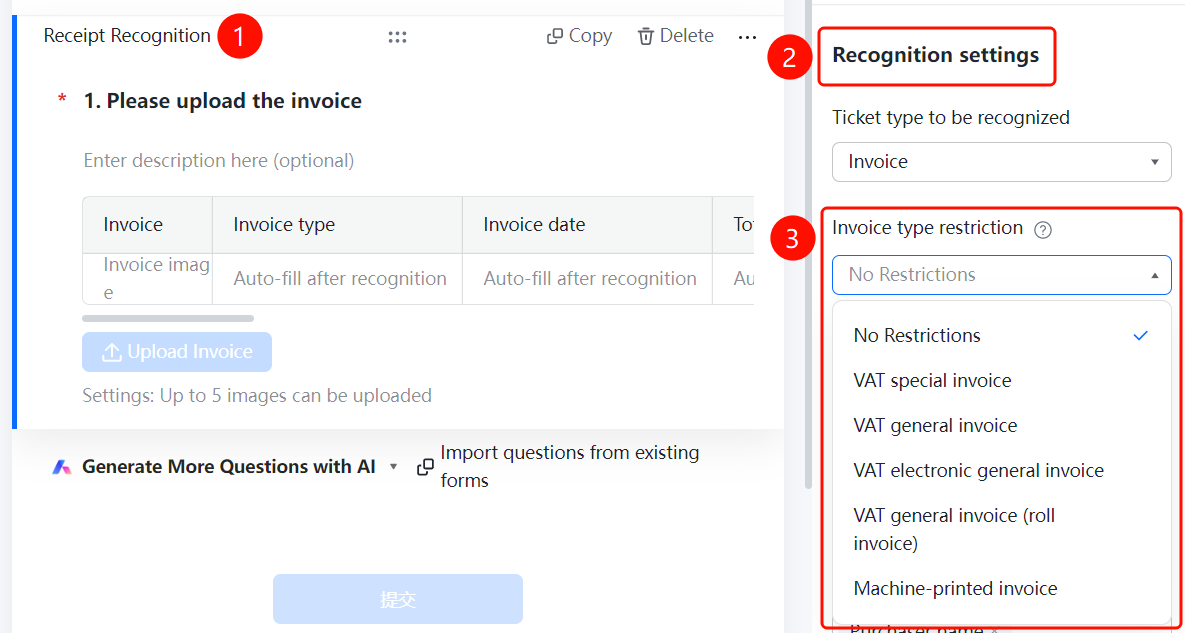
Receipt Recognition question → 「Recognition Settings」 → 「Invoice Type Restriction」 option
- Click the added Receipt Recognition question
- In the right 「Recognition Settings」 panel, click the 「Invoice Type Restriction」 option
- Select: No Restriction / VAT Special Invoice / VAT Normal Invoice, etc.
Set the Information to Be Recognized
Feature Entry
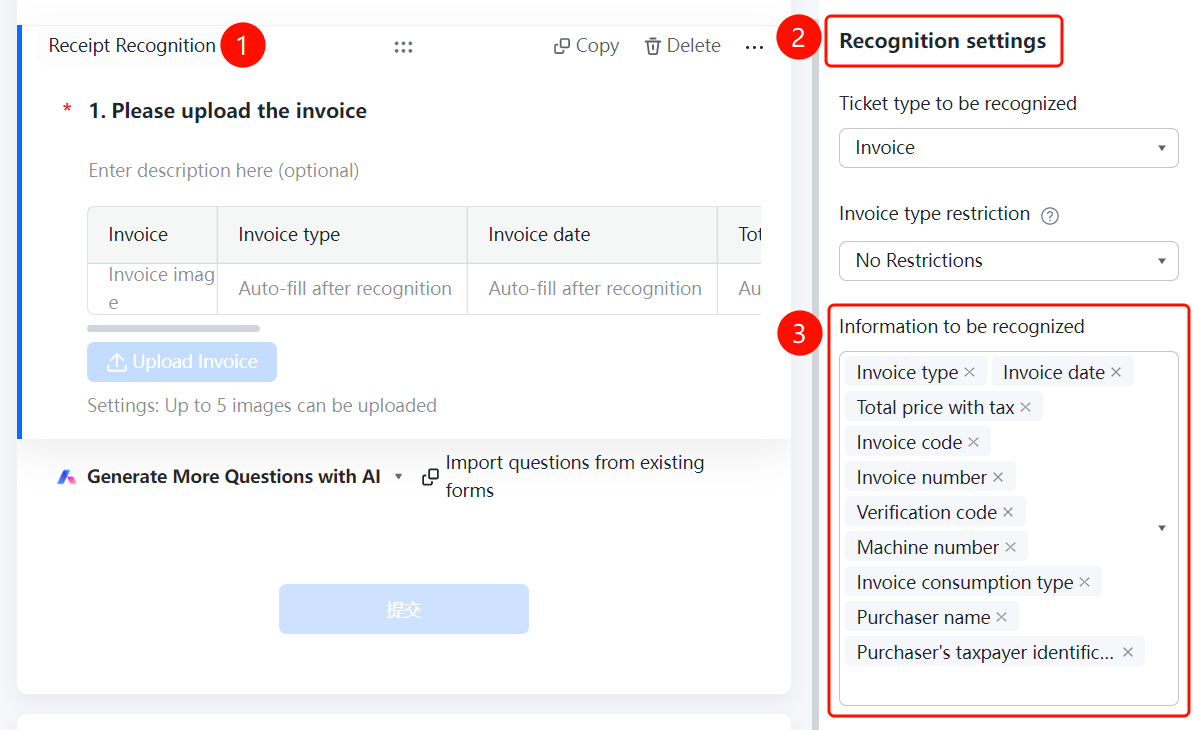
Receipt Recognition question → 「Recognition Settings」 → 「Information to Be Recognized」 option
- Click the added Receipt Recognition question
- In the right 「Recognition Settings」 panel, click the 「Information to Be Recognized」 option
- Check the fields to be recognized
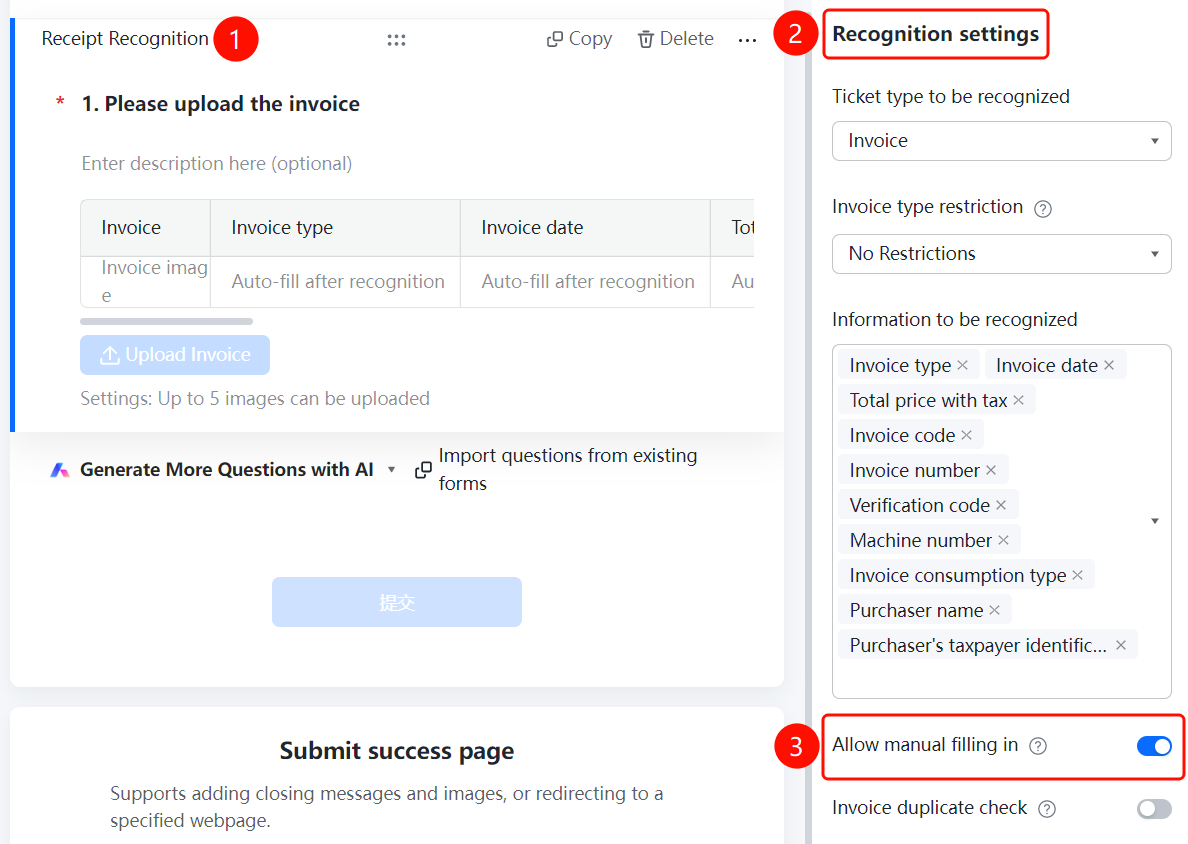
Enable Allow Manual Entry
Feature Entry
Receipt Recognition question → 「Recognition Settings」 → 「Allow Manual Entry」 toggle
- Click the added Receipt Recognition question
- In the right 「Recognition Settings」 panel, turn on the 「Allow Manual Entry」 toggle
Enable Invoice Duplicate Check
Feature Entry
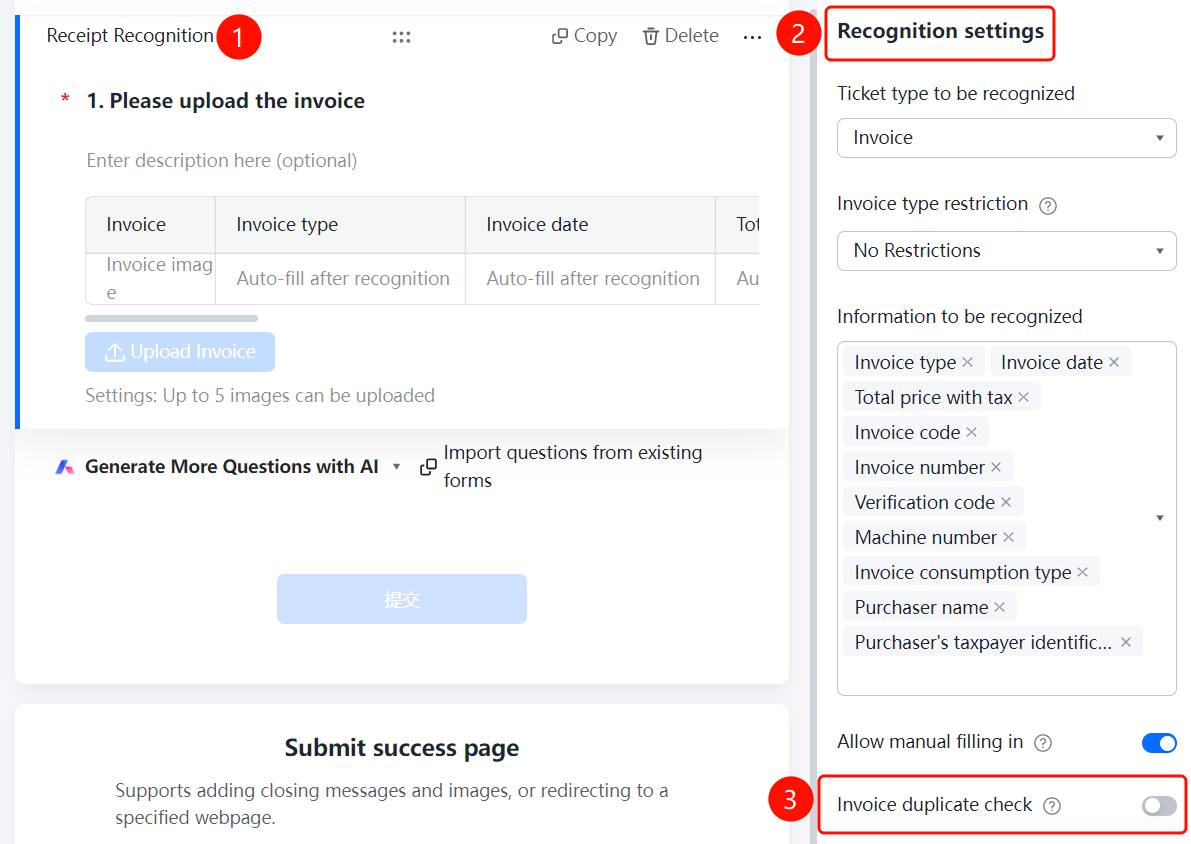
Receipt Recognition question → 「Recognition Settings」 → 「Invoice Duplicate Check」 toggle
- Click the added Receipt Recognition question
- In the right 「Recognition Settings」 panel, turn on the 「Invoice Duplicate Check」 toggle
Set Maximum Number of Uploads
Feature Entry
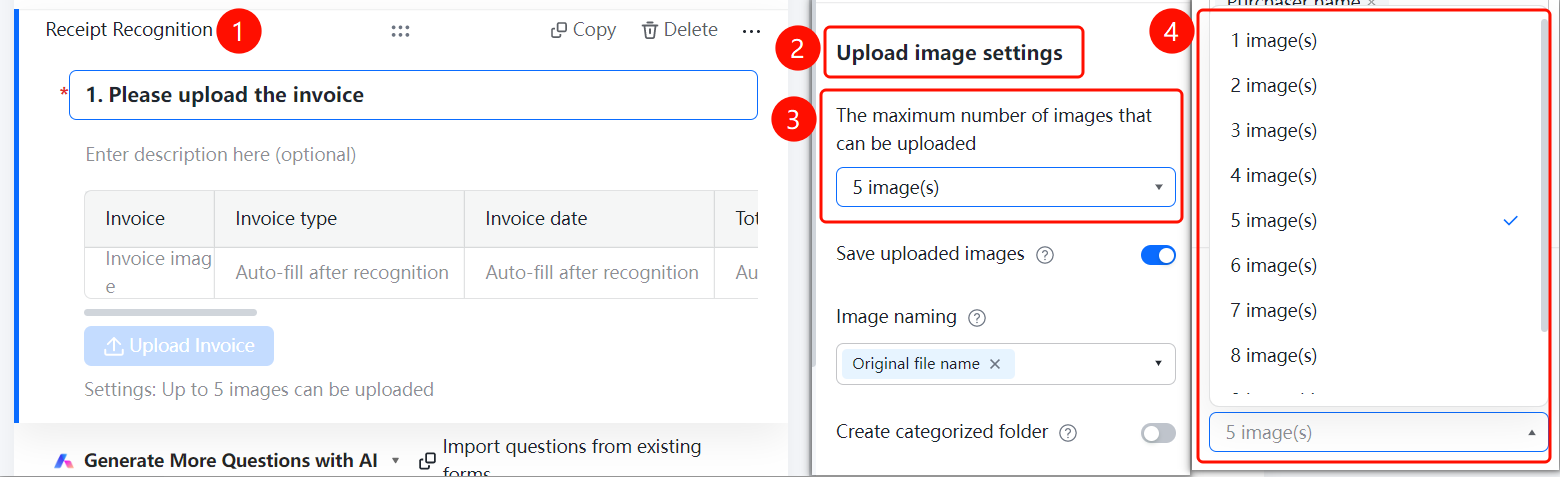
Receipt Recognition question → 「Upload Image Settings」 → 「Maximum Number of Uploads」 option
- Click the added Receipt Recognition question
- In the right 「Upload Image Settings」 panel, click the 「Maximum Number of Uploads」 option
Enable Save Uploaded Images
Feature Entry
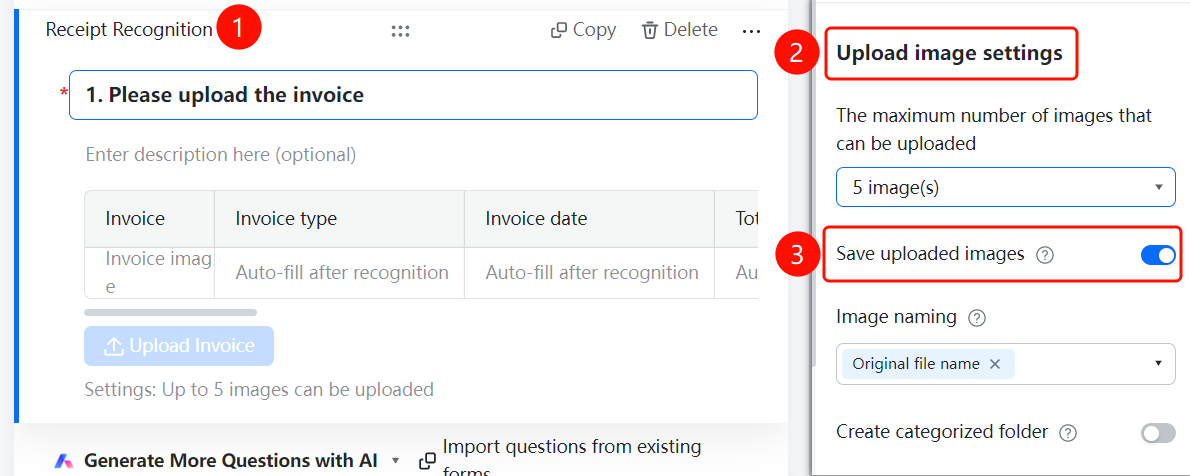
Receipt Recognition question → 「Upload Image Settings」 → 「Save Uploaded Images」 toggle
- Click the added Receipt Recognition question
- In the right 「Upload Image Settings」 panel, turn on the 「Save Uploaded Images」 toggle
Set Image Naming Method
Feature Entry
Receipt Recognition question → 「Upload Image Settings」 → 「Image Naming Method」 option
- Click the added Receipt Recognition question
- In the right 「Upload Image Settings」 panel, click the 「Image Naming Method」 option
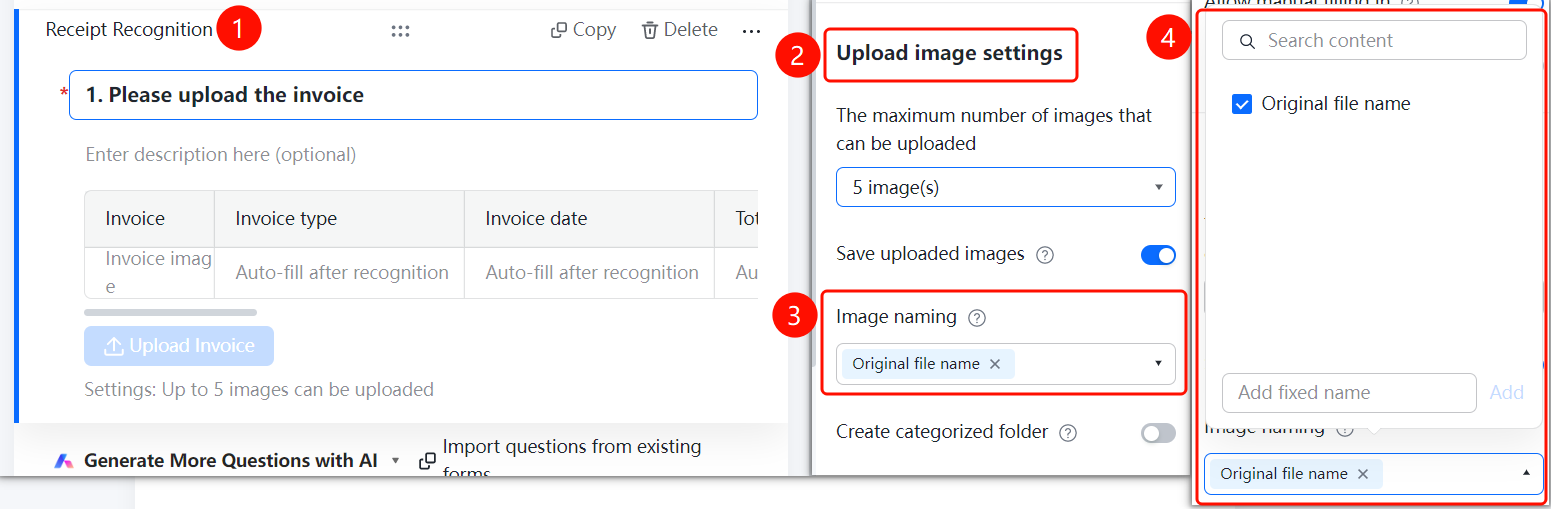
Enable Create Category Folder
Feature Entry
Receipt Recognition question → 「Upload Image Settings」 → 「Create Category Folder」 toggle
- Click the added Receipt Recognition question
- In the right 「Upload Image Settings」 panel, turn on the 「Create Category Folder」 toggle
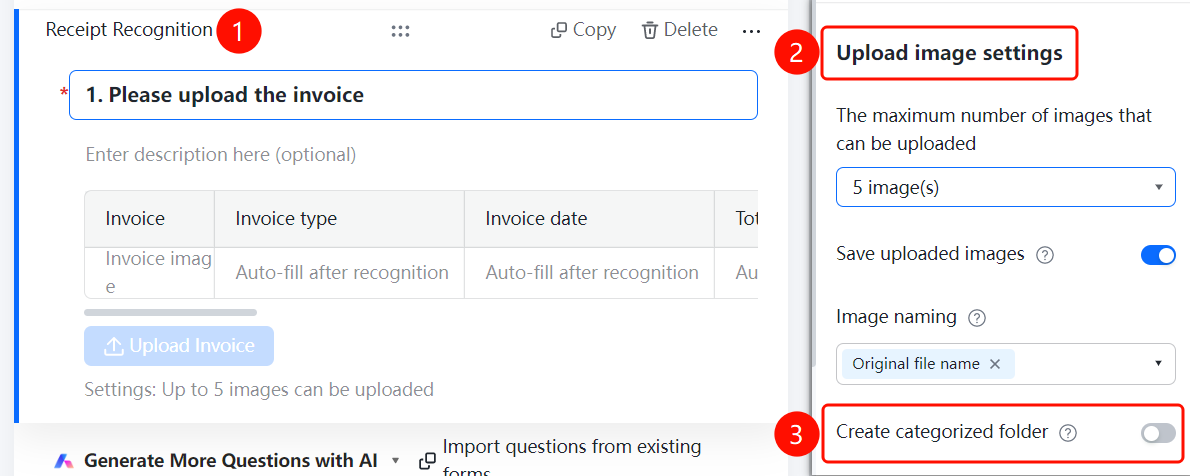
FAQ
Q1: How to restrict the invoice types that respondents can upload?
- Solution: Click the Receipt Recognition question, then click 「Invoice Type Restriction」 in 「Recognition Settings」 and select the specified type.
Q2: How to prevent respondents from submitting the same invoice repeatedly?
- Solution: Turn on the 「Invoice Duplicate Check」 toggle in 「Recognition Settings」, and the system will perform a duplicate check on invoices.
Q3: How to categorize and manage collected invoices?
- Solution: Turn on the 「Create Category Folder」 toggle in 「Upload Image Settings」, and the system will automatically categorize and summarize invoices.
Notes
- Receipt Recognition supports recognizing two types of receipts: invoices and tickets
- After enabling 「Invoice Duplicate Check」, duplicate invoices cannot be submitted
- After enabling 「Save Uploaded Images」, uploaded images can be viewed on the data statistics page