Feature Summary
ID card recognition is used to automatically recognize information on ID cards. It belongs to the certificate recognition category under "Other Templates". After the filler uploads an ID card photo, the system automatically extracts the information.
Feature Description
| Feature Dimension | Description |
|---|---|
| Member Limit | No member limit |
| Version Limit | No version limit |
Operating Steps
Add ID Card Recognition Question
Feature Entry
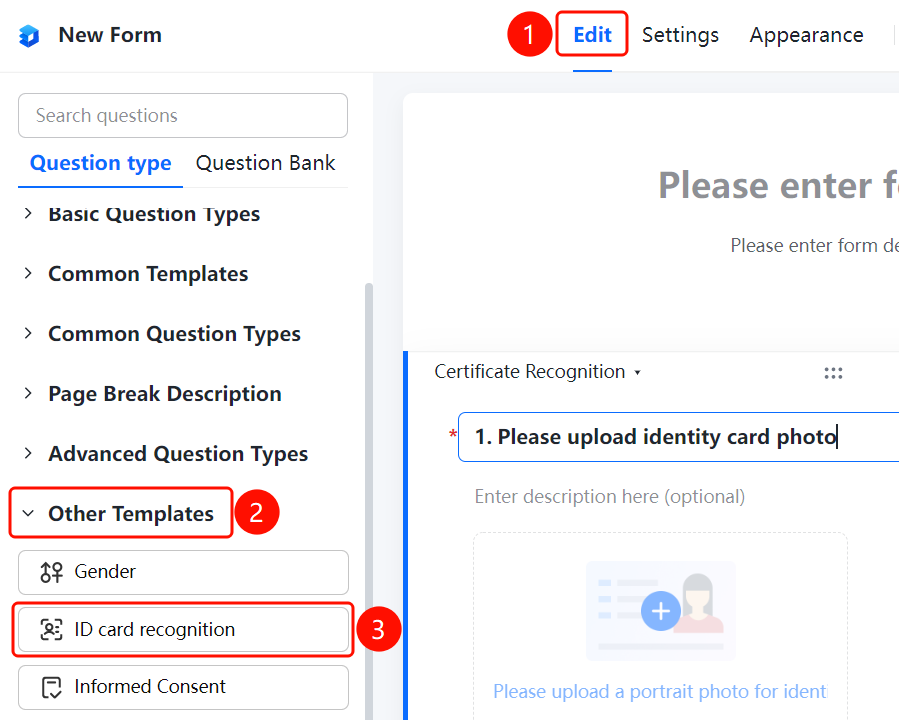
"Edit" tab → "Other Templates" → "ID Card Recognition" button
- Click the Edit tab at the top.
- Expand the Other Templates area in the left panel.
- Click the ID Card Recognition button to add the ID card recognition question to the file collection.
- The default question is "Please upload a photo of your ID card". The filler clicks "Please upload a photo of the portrait side for recognition" to upload the photo.
Set Certificate Type to Recognize
Feature Entry
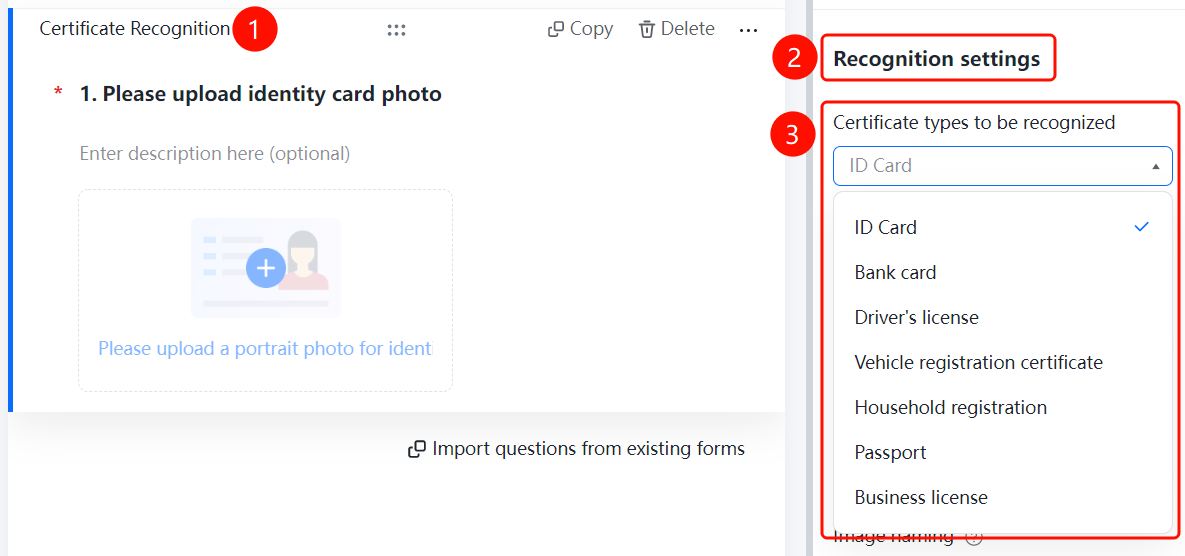
ID Card Recognition → "Recognition Settings" → "Certificate Type to Recognize" drop-down list
- Click the added ID card recognition question.
- In the Recognition Settings panel on the right, click the Certificate Type to Recognize drop-down list.
- Select the certificate type: ID Card, Bank Card, Driver's License, Vehicle License, Household Register, Passport, Business License.
Set Information to Recognize
Feature Entry
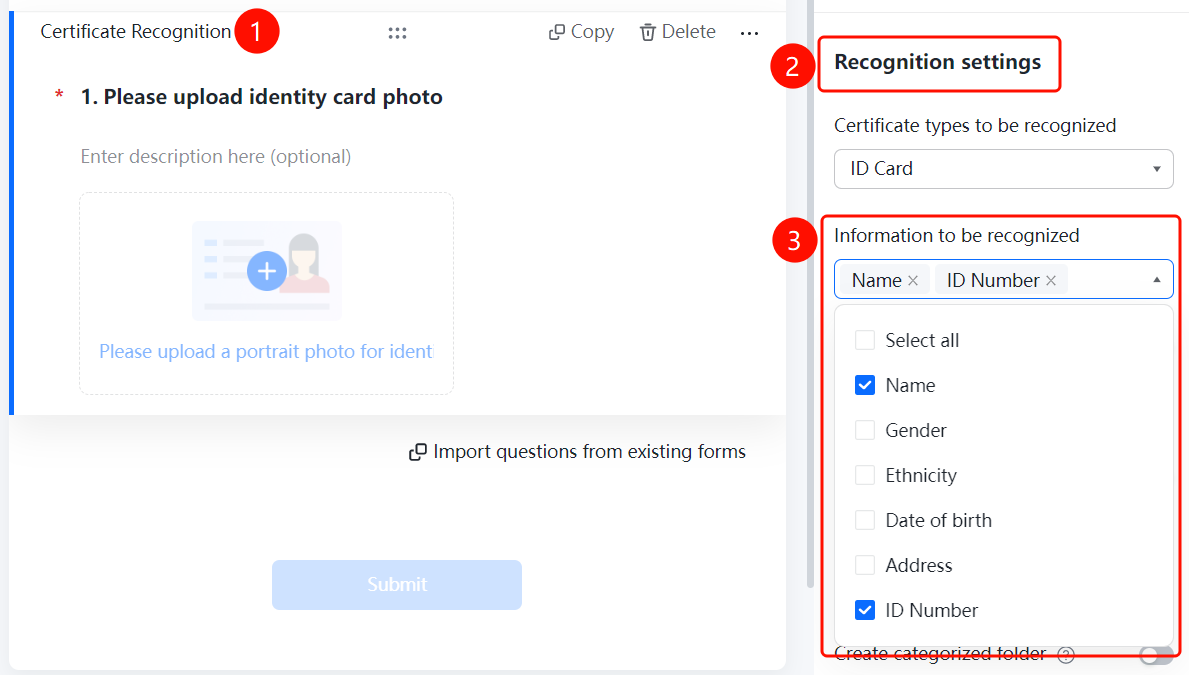
ID Card Recognition → "Recognition Settings" → "Information to Recognize" selection box
- Click the added ID card recognition question.
- In the Recognition Settings panel on the right, click the Information to Recognize selection box.
- Selected fields are displayed as labels (with a × to delete): Name, ID numbers.
- You can check more fields: Select All, Name, Gender, Ethnicity, Date of Birth, Address, ID numbers.
Enable Allow Manual Entry
Feature Entry
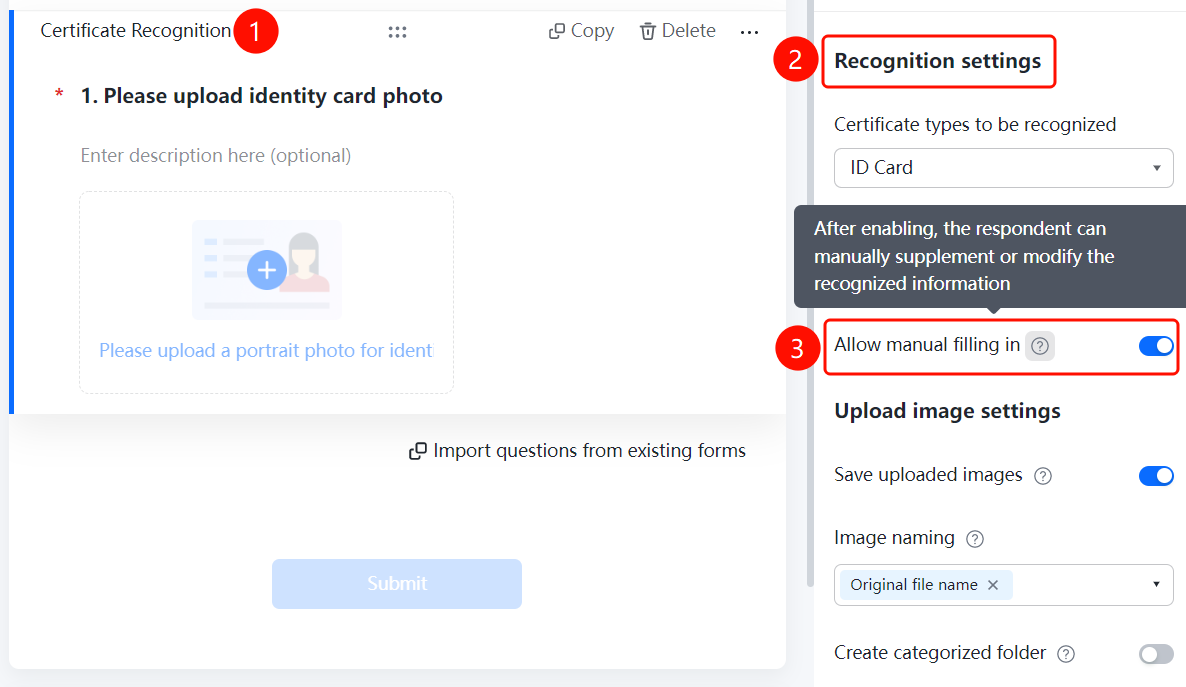
ID Card Recognition → "Recognition Settings" → "Allow Manual Entry" switch
- Click the added ID card recognition question.
- In the Recognition Settings panel on the right, turn on the Allow Manual Entry switch.
- Once enabled, fillers can manually supplement and modify the recognized information.
Enable Save Uploaded Images
Feature Entry
ID Card Recognition → "Upload Image Settings" → "Save Uploaded Images" switch
- Click the added ID card recognition question.
- In the Upload Image Settings panel below, turn on the Save Uploaded Images switch.
- Once enabled, the images uploaded by fillers for recognition will be saved and can be viewed on the data statistics page.
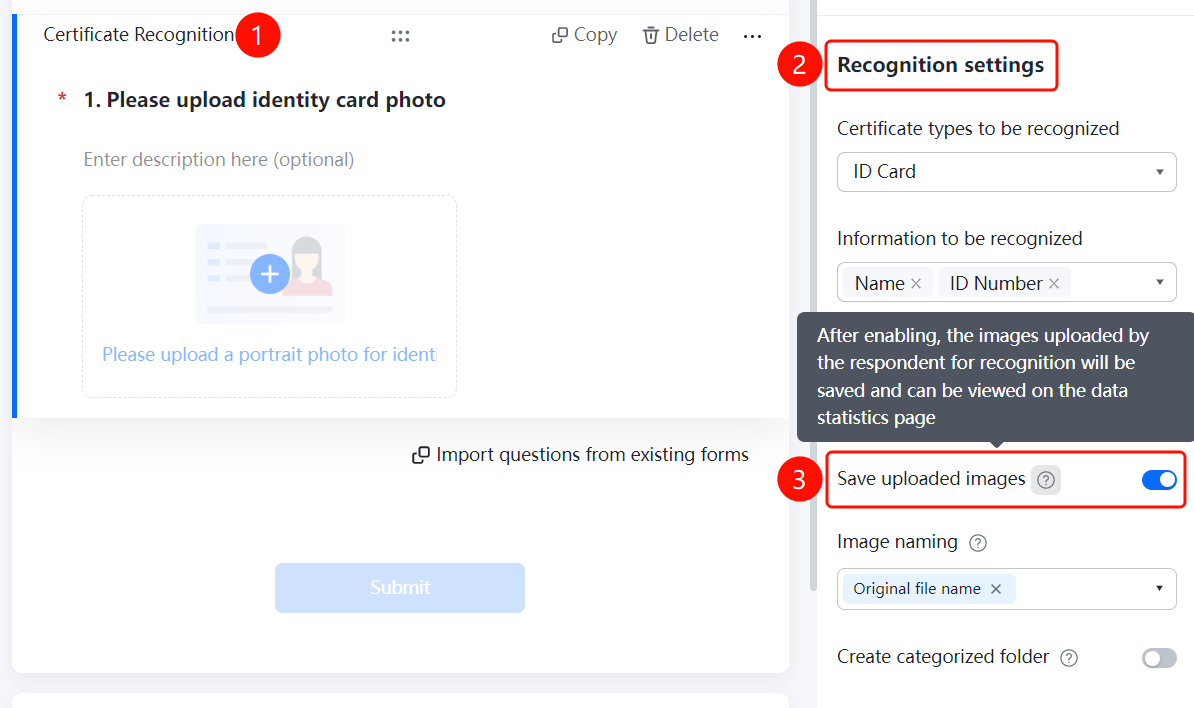
Set Image Naming Method
Feature Entry
ID Card Recognition → "Upload Image Settings" → "Image Naming Method" selection box
- Click the added ID card recognition question.
- In the Upload Image Settings panel below, click Image Naming Method (currently "Original File Name ×").
- In the pop-up panel, check the naming fields (such as Original File Name). You can also add custom rules in the Add Custom Fixed Name input box.
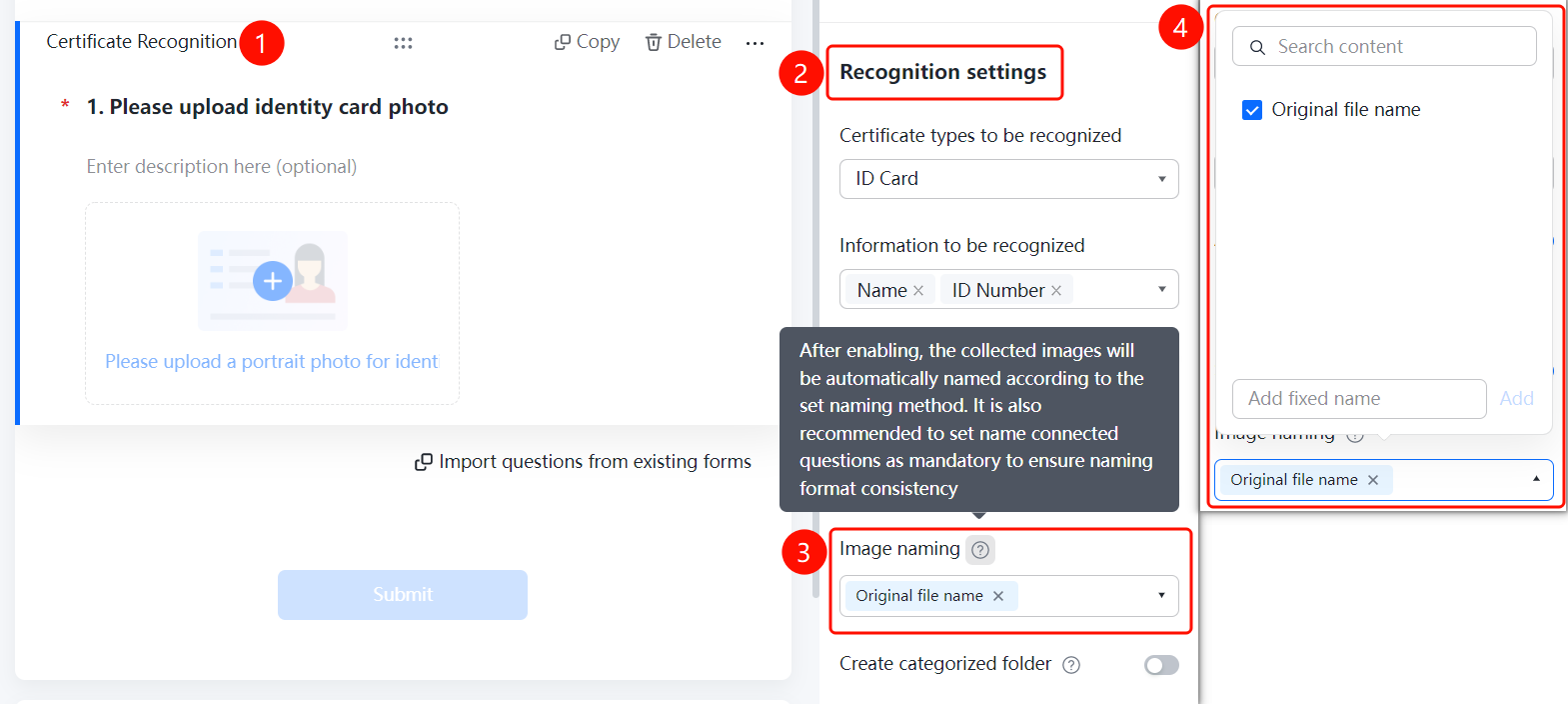
Enable Create Categorized Folders
Feature Entry
ID Card Recognition → "Upload Image Settings" → "Create Categorized Folders" switch
- Click the added ID card recognition question.
- In the Upload Image Settings panel below, turn on the Create Categorized Folders switch.
- Once enabled, folders will be automatically created according to the folder naming method, and the collected ID cards will be categorized and summarized.
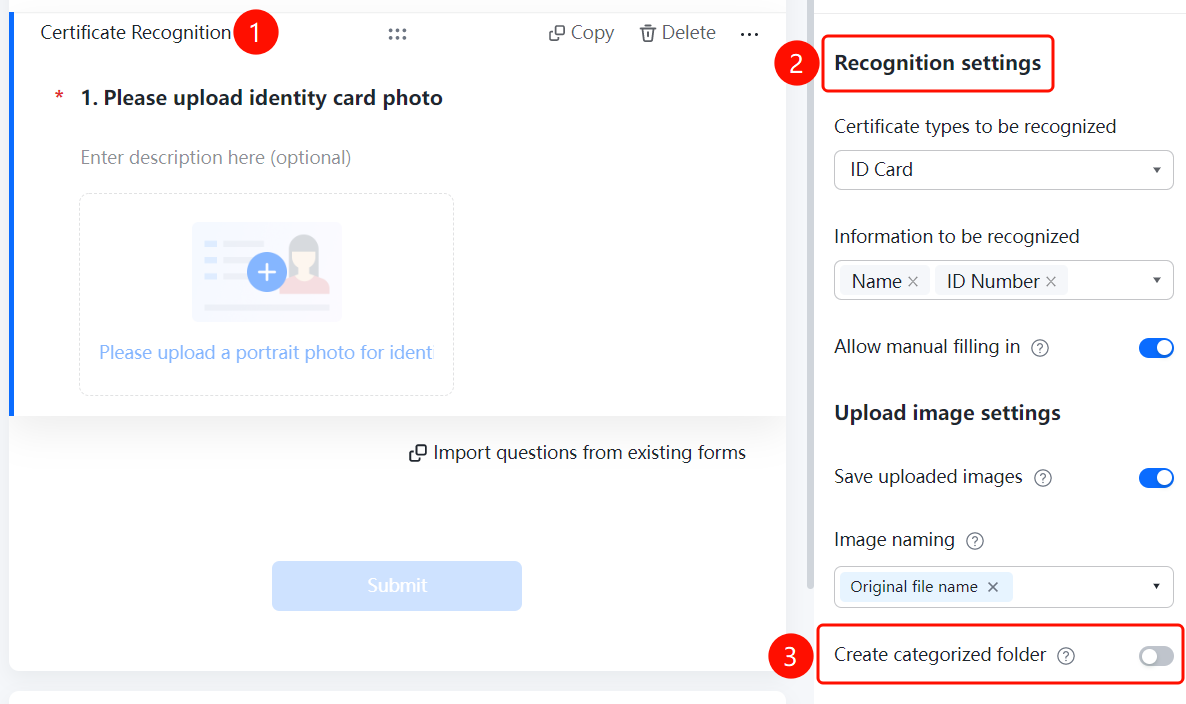
FAQ
Q1: What certificate types does ID card recognition support?
- Solution: It supports ID cards, bank cards, driver's licenses, vehicle licenses, household registers, passports, business licenses, and other types.
Question 2: How do I modify the recognized information?
- Solution: Turn on the "Allow Manual Entry" switch in "Recognition Settings". Fillers can then manually supplement and modify the recognized information.
Notes
- ID card recognition is located in the "Other Templates" area.
- It supports settings for certificate type to recognize, information to recognize, allow manual entry, save uploaded images, image naming method, and create categorized folders.