Feature Summary
Other settings are used to configure parameters such as time zones for file collection, ensuring that times displayed in the form are shown according to the specified time zone.
Feature Description
| Feature Dimension | Description |
|---|---|
| Membership Restrictions | No membership restrictions |
| Version Restrictions | No version restrictions |
Operating Steps
Specify Form Time Zone
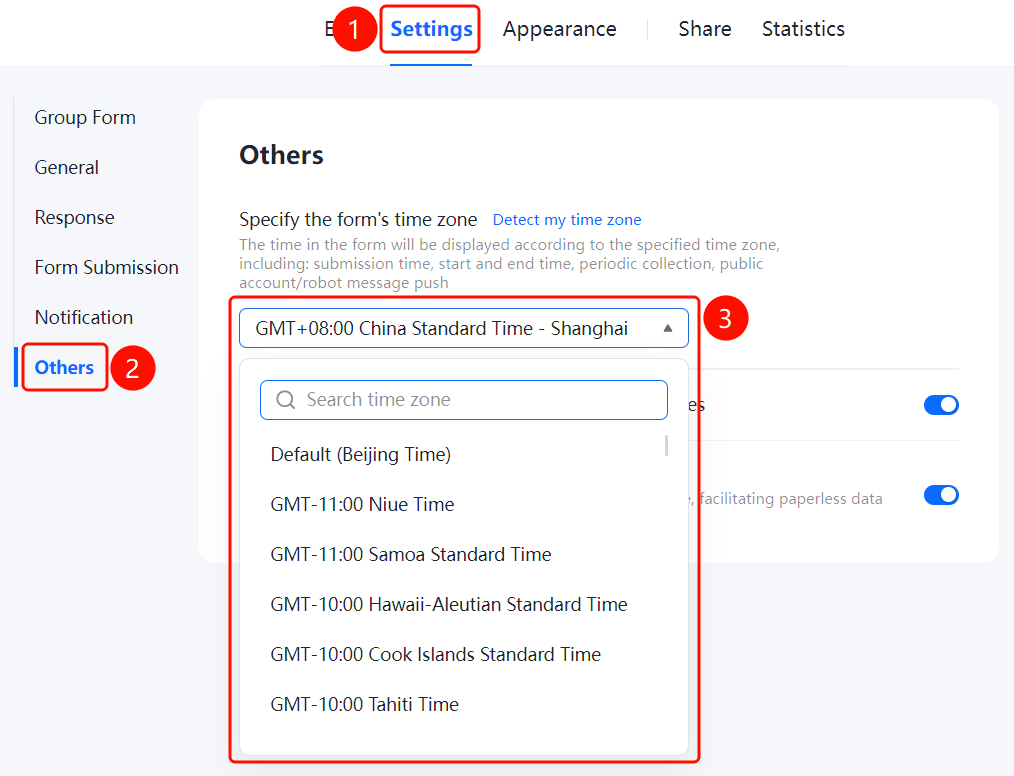
Access PathSettings tab → Left menu → Other Settings
- Click the "Settings" tab at the top
- In the left menu, click "Other Settings"
- In the right-hand settings area, locate "Specify Form Time Zone"
- Click the time zone dropdown menu and select your desired time zone
- Times in the form will now be displayed according to the specified time zone
Allow Respondents to Request to Withdraw Their Submissions
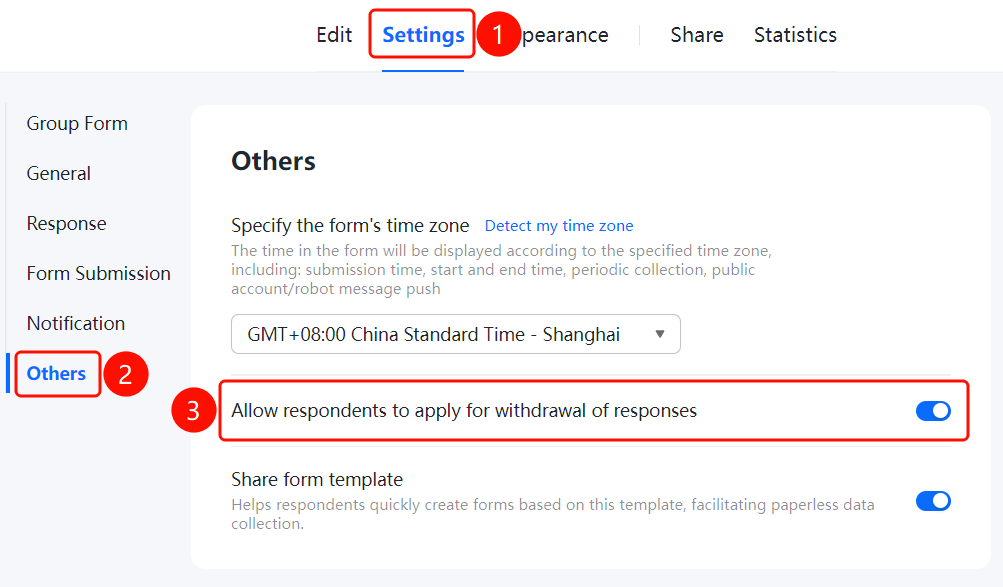
Feature Access PathSettings tab → Left menu → "Other Settings" → Toggle switch for "Allow respondents to request to withdraw their submissions"
- Click the "Settings" tab at the top
- In the left menu, click "Other Settings"
- In the right-hand settings area, turn on the toggle switch for "Allow respondents to request to withdraw their submissions". Once enabled, respondents can apply to withdraw their submitted responses.
Shared Form Template
Feature Access
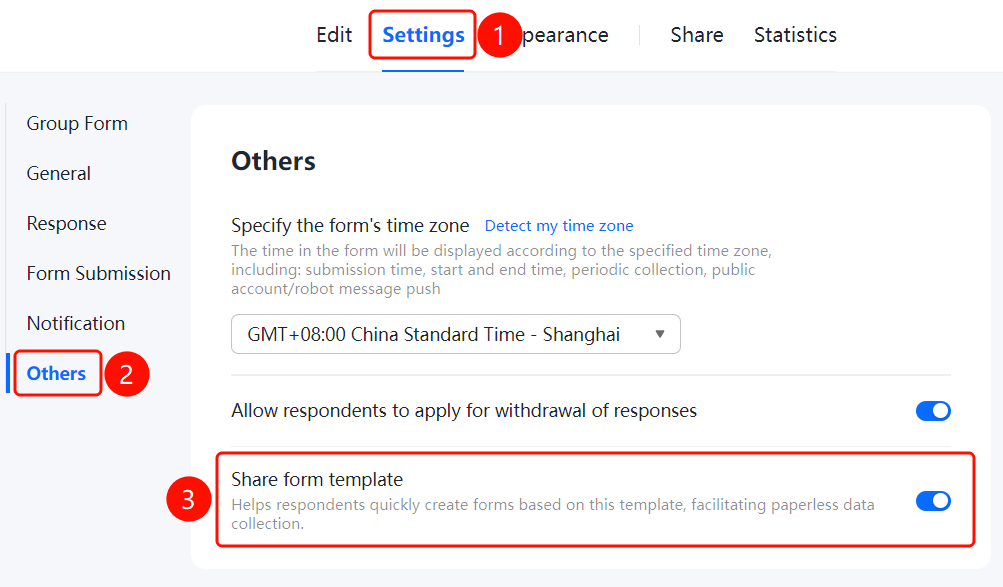
Settings tab → Left menu → "Other Settings" → Toggle "Shared Form Template"
- Click the "Settings" tab at the top
- In the left menu, click "Other Settings"
- In the right settings panel, turn on the "Shared Form Template" toggle to allow fillers to quickly create forms based on this template, supporting paperless data collection
Frequently Asked Questions
Question 1: What is the purpose of setting a form time zone?
- Solution: After specifying a time zone for the form, all time-related data within the form—such as submission time and start/end times—will be displayed according to that time zone.
Notes
- The default time zone is Beijing Time (GMT+08:00).
- Changing the time zone does not affect the timestamps of already submitted data.