Feature Overview
Single-choice questions allow users to select one option from a set of choices. As a "basic question type," they are commonly used in scenarios such as event registration, exams and teaching, and information collection.
Feature Description
| Functional Dimension | Description |
|---|---|
| Membership Restrictions | No membership restrictions |
| Version Restrictions | No version restrictions |
Operating Steps
Adding a Multiple-Choice Question
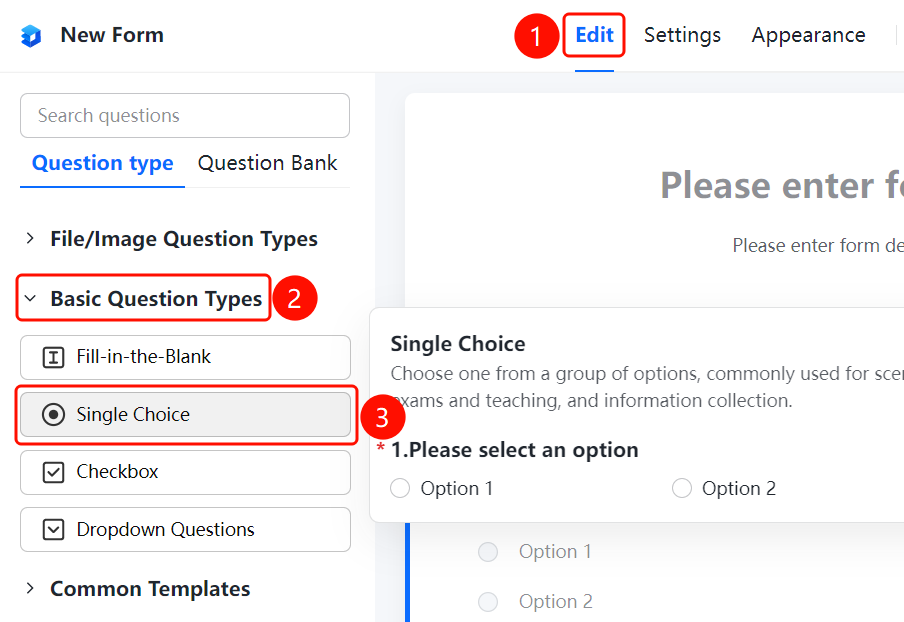
Access Point"Edit" tab → "Basic Question Types" → "Multiple-Choice Question" button
- Click the "Edit" tab at the top
- Expand the "Basic Question Types" section in the left panel
- Click the "Multiple-Choice Question" button to add a multiple-choice question to the file collection
- Enter the question title and option content in the question editing area
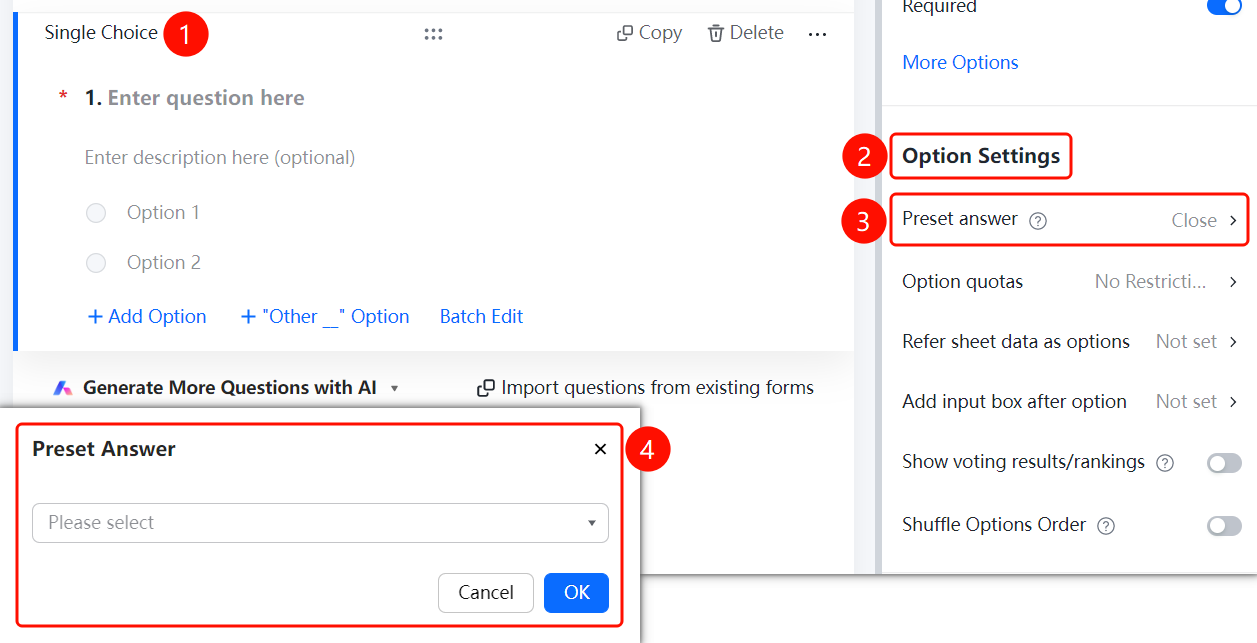
Set Default Answer
Feature Access PathMultiple Choice Question → "Option Settings" → "Default Answer" option
- Click on the added "Multiple Choice Question"
- In the right-hand "Option Settings" panel, click "Default Answer" (currently displayed as "Off")
- In the pop-up "Default Answer" dialog box, select your desired default answer option
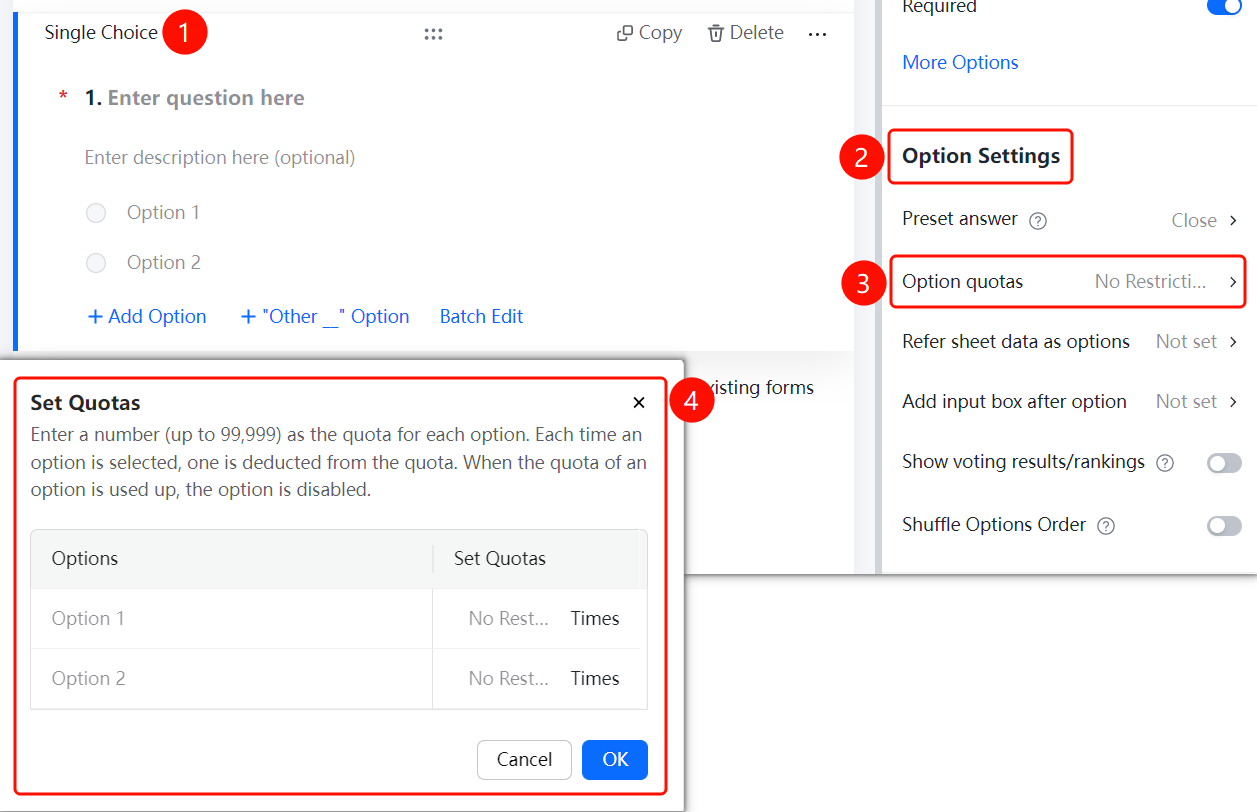
Set Option Quotas
Feature Access PathMultiple Choice Question → "Option Settings" → "Option Quotas"
- Click on the "Multiple Choice Question" you have added.
- In the right-hand "Option Settings" panel, click "Option Quotas" (currently set to "Unlimited").
- In the pop-up dialog, enter the quota number for each option; maximum support is 99,999.
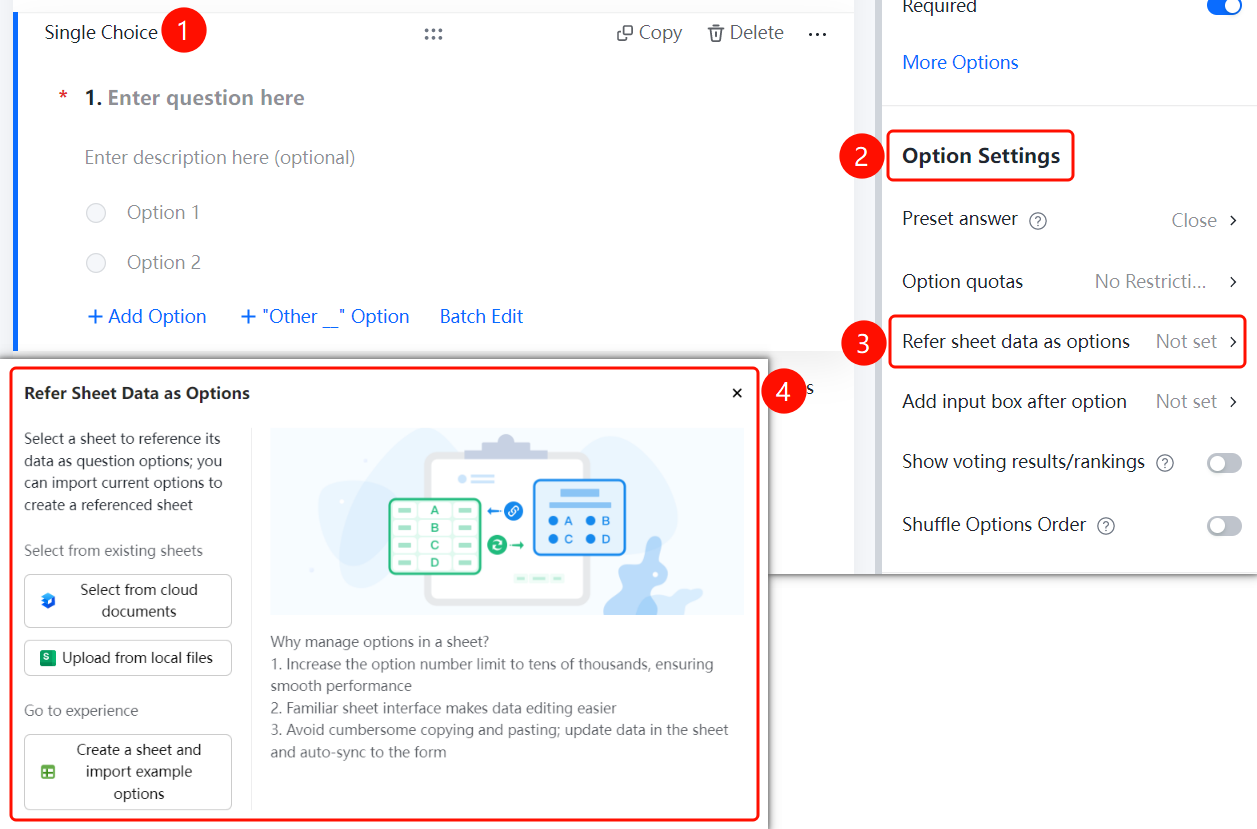
Reference Table Data as Options
Feature Access
Single Choice Question → "Option Settings" → "Reference Table Data as Options"
- Click on the added "Single Choice Question".
- In the right-hand "Option Settings" panel, click "Reference Table Data as Options" (currently set to "Not Set").
- Choose the table source: "Select from Cloud Document", "Upload from Local File", or create a new table and import sample options.
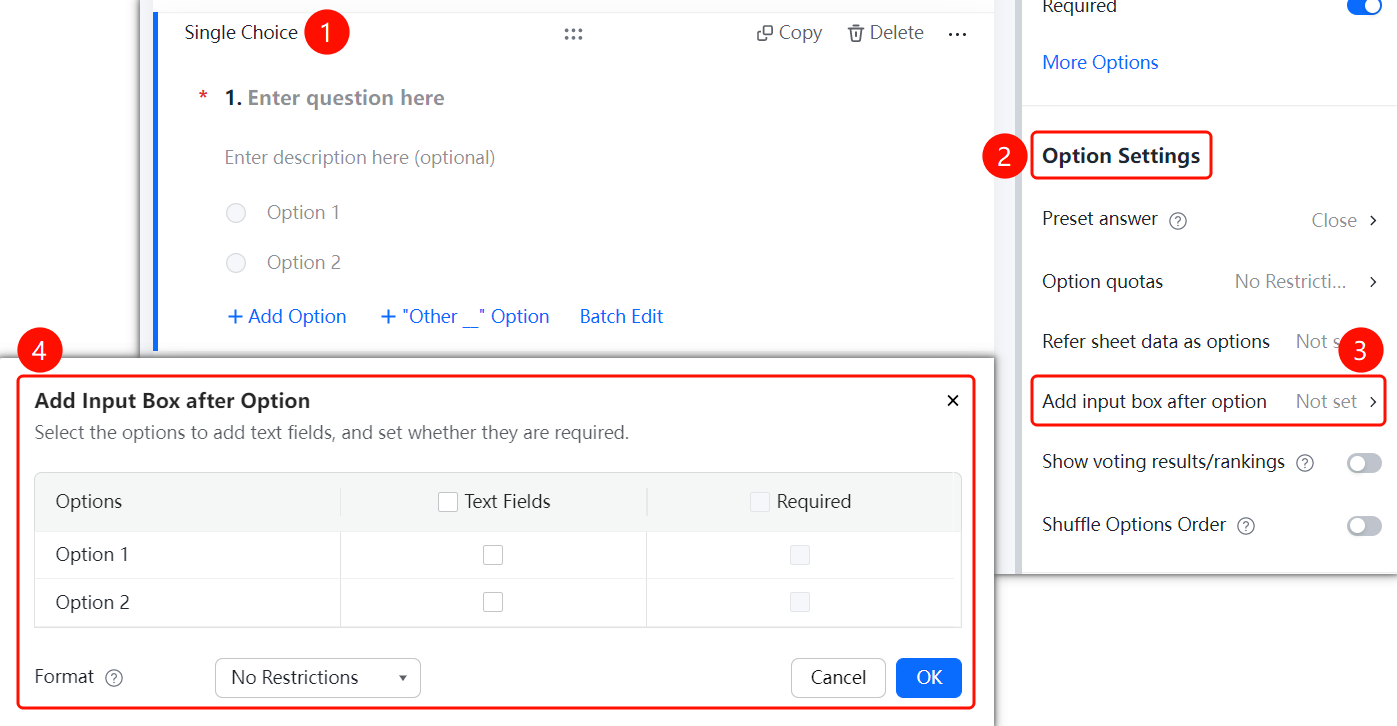
Add Input Box After Options
Feature Access PathMultiple Choice Question → "Option Settings" → "Add Input Box After Options"
- Click on the already added "Multiple Choice Question".
- In the right-hand "Option Settings" panel, click "Add Input Box After Options" (currently set to "Not Set").
- Check the options where you want to add an input box, and specify whether the input box is required.
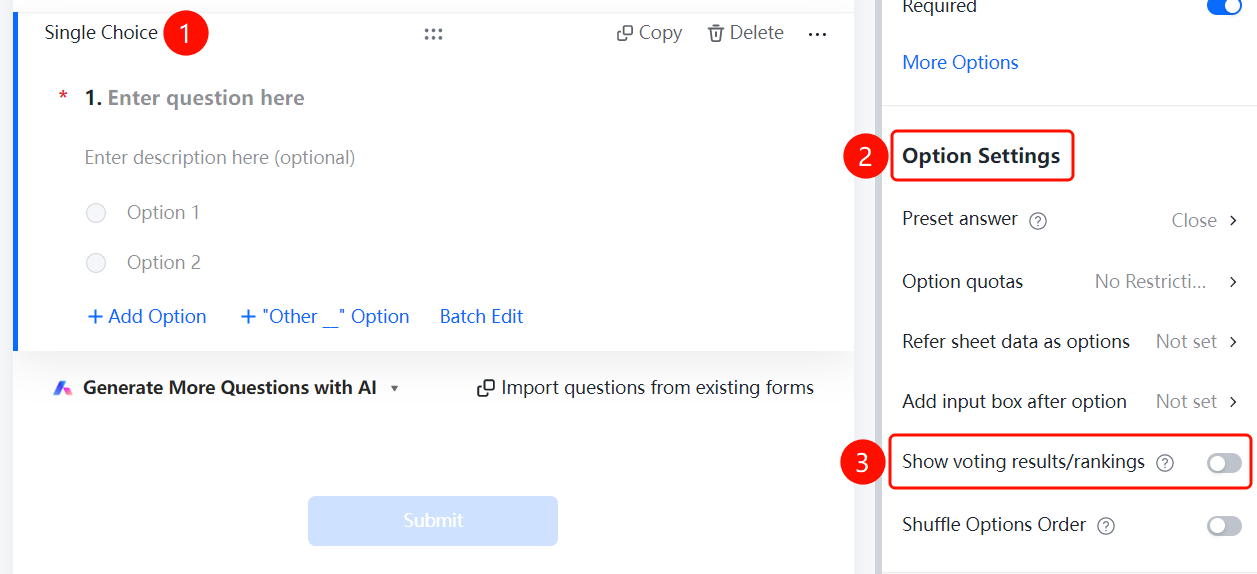
Display Voting Results/Leaderboard
Feature Access
Single-choice question → "Option Settings" → Toggle "Display Voting Results/Leaderboard"
- Click on the added "Single-choice Question"
- In the right-hand "Option Settings" panel, turn on the "Display Voting Results/Leaderboard" toggle
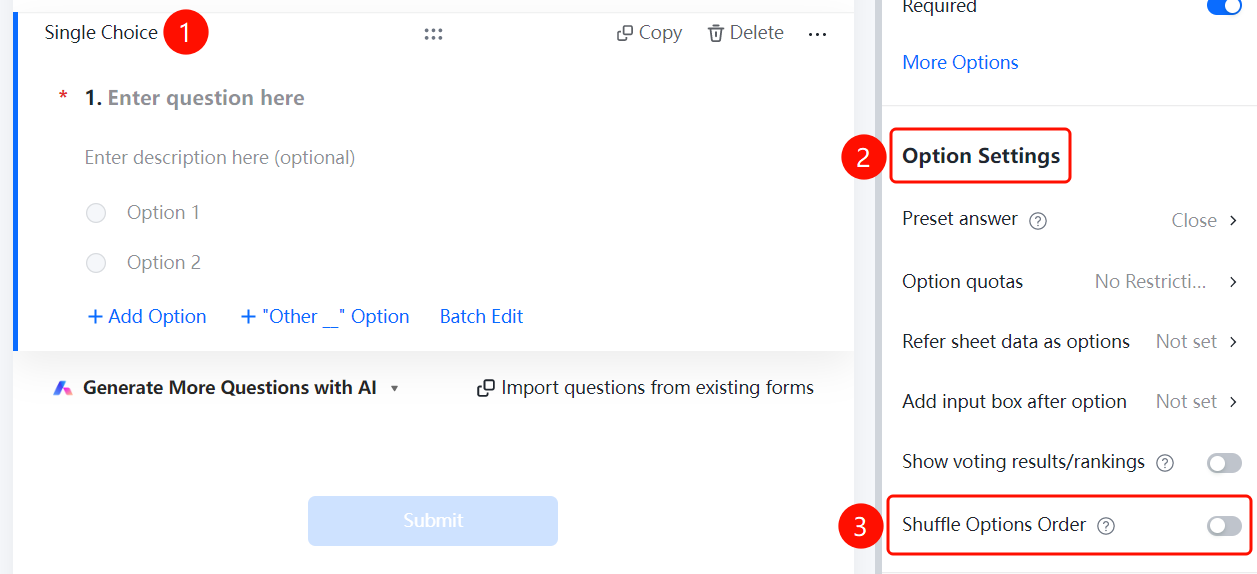
Shuffle Option Order
Feature Access
Single Choice Question → "Option Settings" → Toggle "Shuffle Option Order"
- Click on the added "Single Choice Question"
- In the right-hand "Option Settings" panel, turn on the "Shuffle Option Order" toggle
Frequently Asked Questions
Q1: What is the difference between single-choice and multiple-choice questions?
- Solution: A single-choice question allows only one option to be selected, while a multiple-choice question allows multiple options to be selected.
Notes
- Single-choice questions are located in the "Basic Question Types" section.
- Supports preset answers, number of options, table references, input boxes after options, display of voting results, and randomizing option order.