Feature Summary
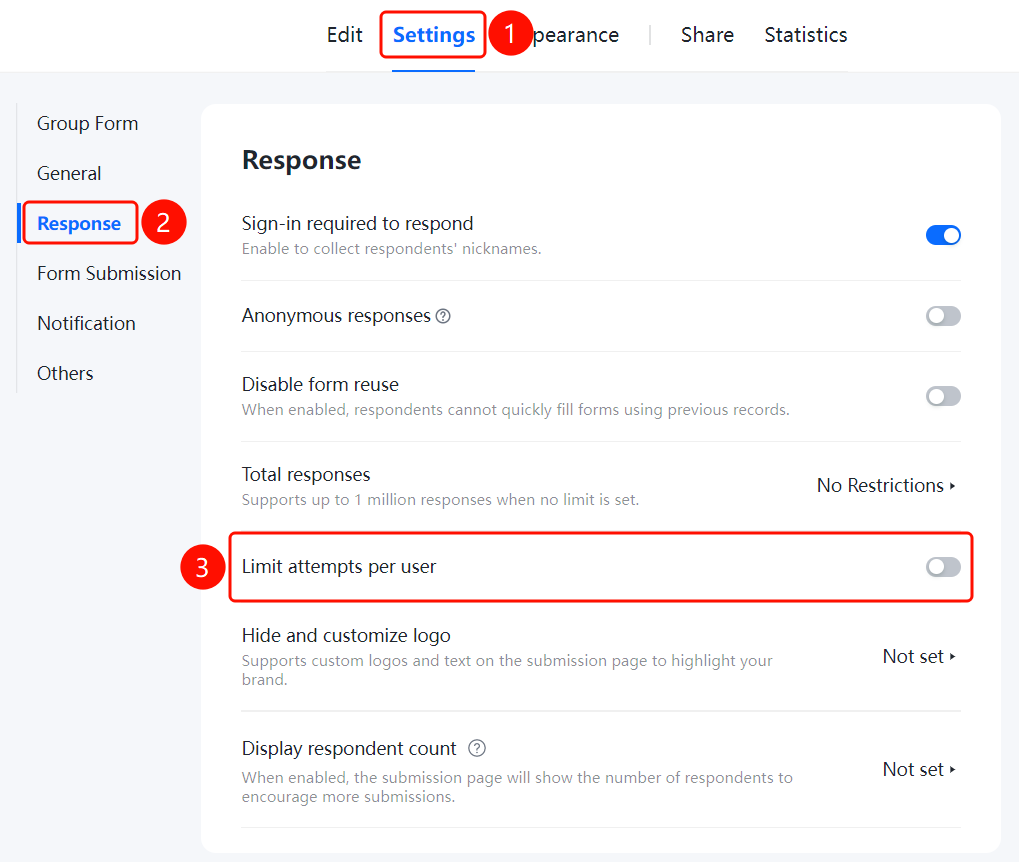
Filling settings allow you to configure rules for file collection submissions, including requiring login to fill out, enabling anonymous submissions, preventing reuse of previous submission records, setting limits on the total number of responses, restricting the number of submissions per user, hiding or customizing logos, and displaying the number of participants.
Feature Description
| Feature Dimension | Description |
|---|---|
| Membership Restrictions | No membership restrictions |
| Version Restrictions | No version restrictions |
Operating Steps
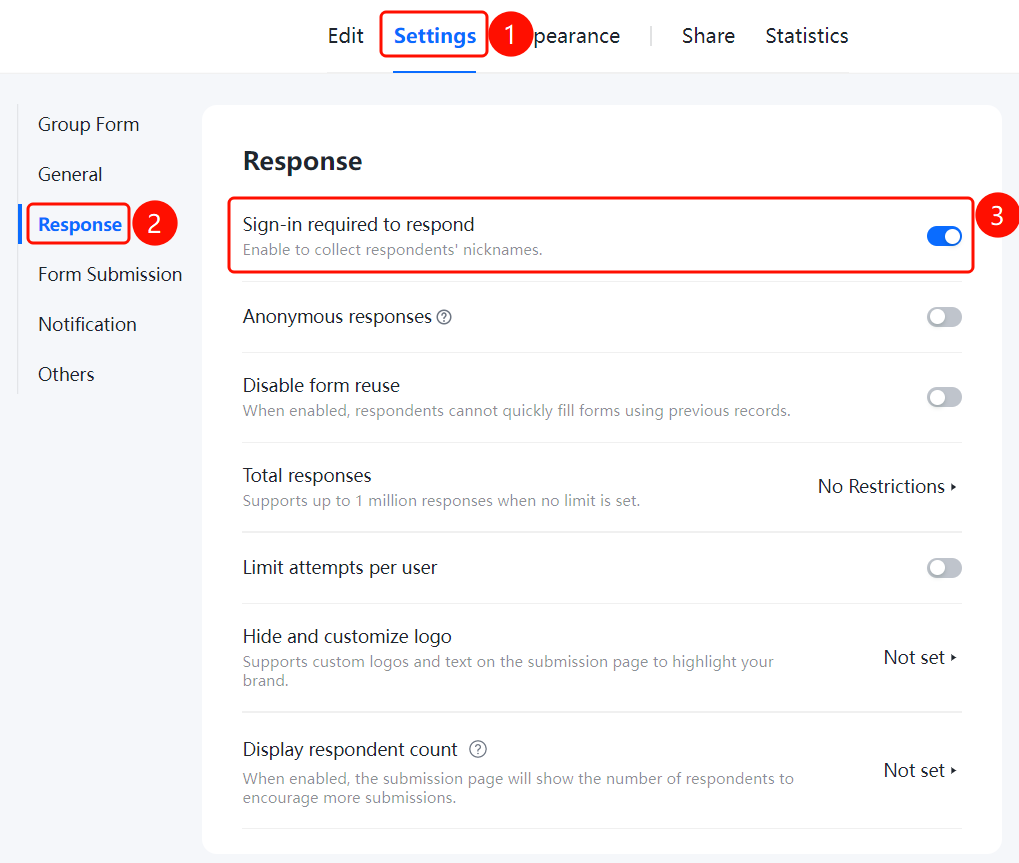
Enable Login Required for Form Filling
Feature Access PathSettings tab → Fill Settings → Toggle "Login Required for Filling"
- Click the "Settings" tab at the top
- In the left menu, click "Fill Settings"
- Turn on the "Login Required for Filling" toggle
- After enabling, you can collect the filler's nickname information
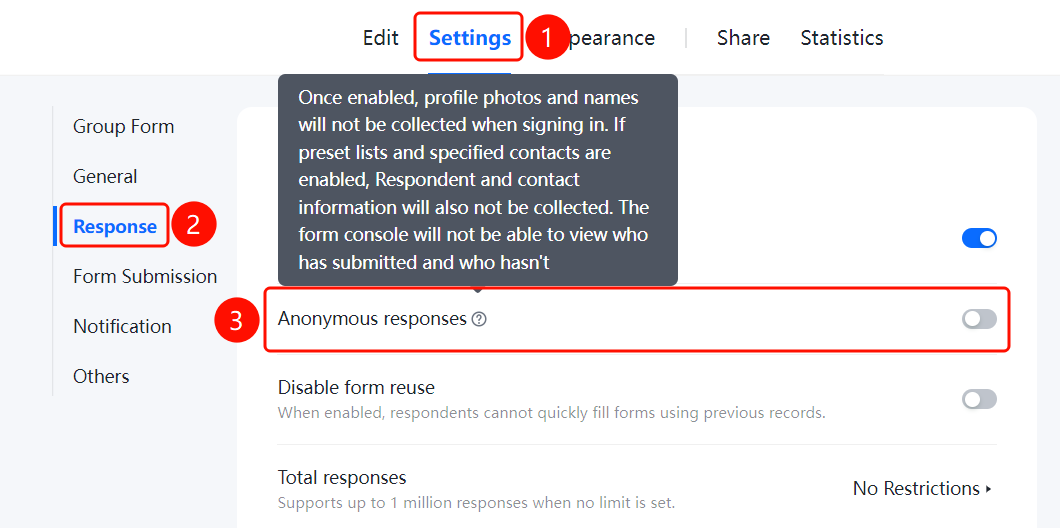
Enable Anonymous Submission
Access PathSettings tab → Filling Settings → Toggle "Anonymous Submission"
- Click the "Settings" tab at the top
- In the left-hand menu, click "Filling Settings"
- Turn on the "Anonymous Submission" toggle
- Once enabled, the identity of the submitter cannot be identified; the system will not automatically collect avatars or nicknames, nor will it recognize predefined list submitters. The form backend will not be able to see who has submitted or not; default values for contact questions cannot be set to the person filling out the form
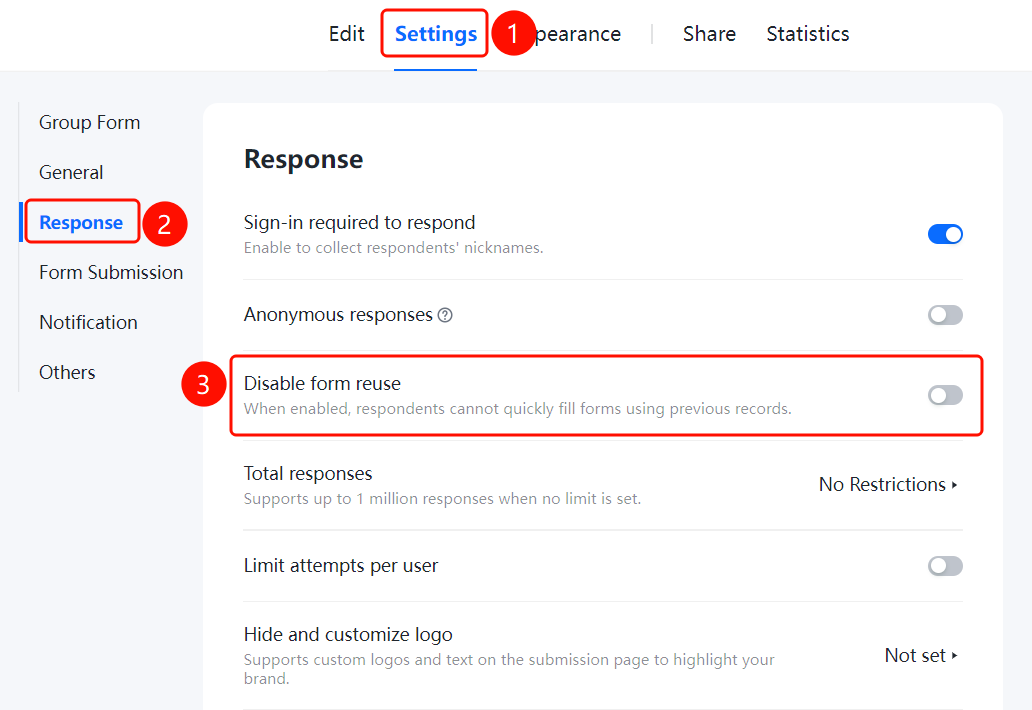
Disable Reusing Previous Form Entries
Feature Access PathSettings tab → Filling Settings → Toggle "Disable Reusing Previous Form Entries"
- Click the "Settings" tab at the top
- In the left-hand menu, click "Filling Settings"
- Turn on the toggle for "Disable Reusing Previous Form Entries"
- Once enabled, users will no longer be able to use this feature for quick form filling
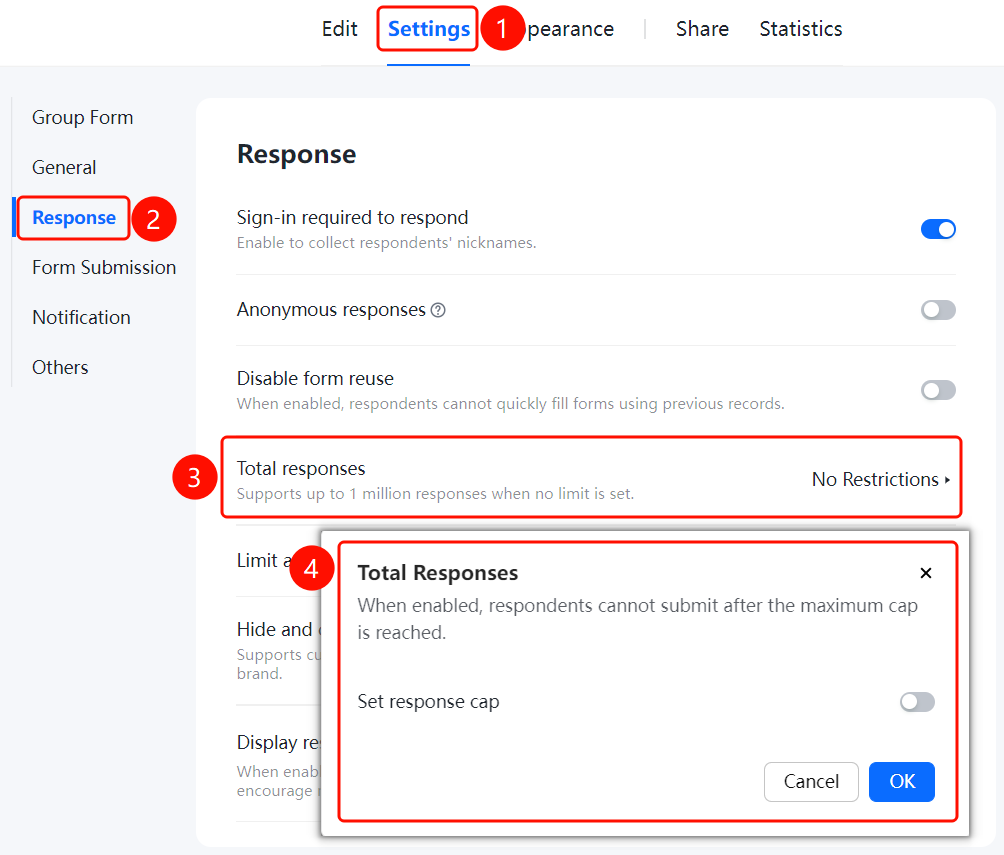
Set Total Number of Responses
Access Path"Settings" tab → "Filling Settings" → "Total Number of Responses"
- Click the "Settings" tab at the top
- In the left menu, click "Filling Settings"
- Click "Total Number of Responses" (currently set to **"Unlimited"—without restrictions, up to one million responses are supported)
- In the pop-up window, enable "Limit Total Number of Responses" and set the maximum cap
- Once the limit is enabled, respondents will be unable to submit after exceeding the maximum allowed number
Set Limit on Number of Submissions per User
Feature Access PathSettings tab → Submission Settings → Limit number of submissions per user
- Click the "Settings" tab at the top
- In the left-hand menu, click "Submission Settings"
- Click "Limit number of submissions per user" (currently set to "Not set")
- Specify the maximum number of submissions allowed per user
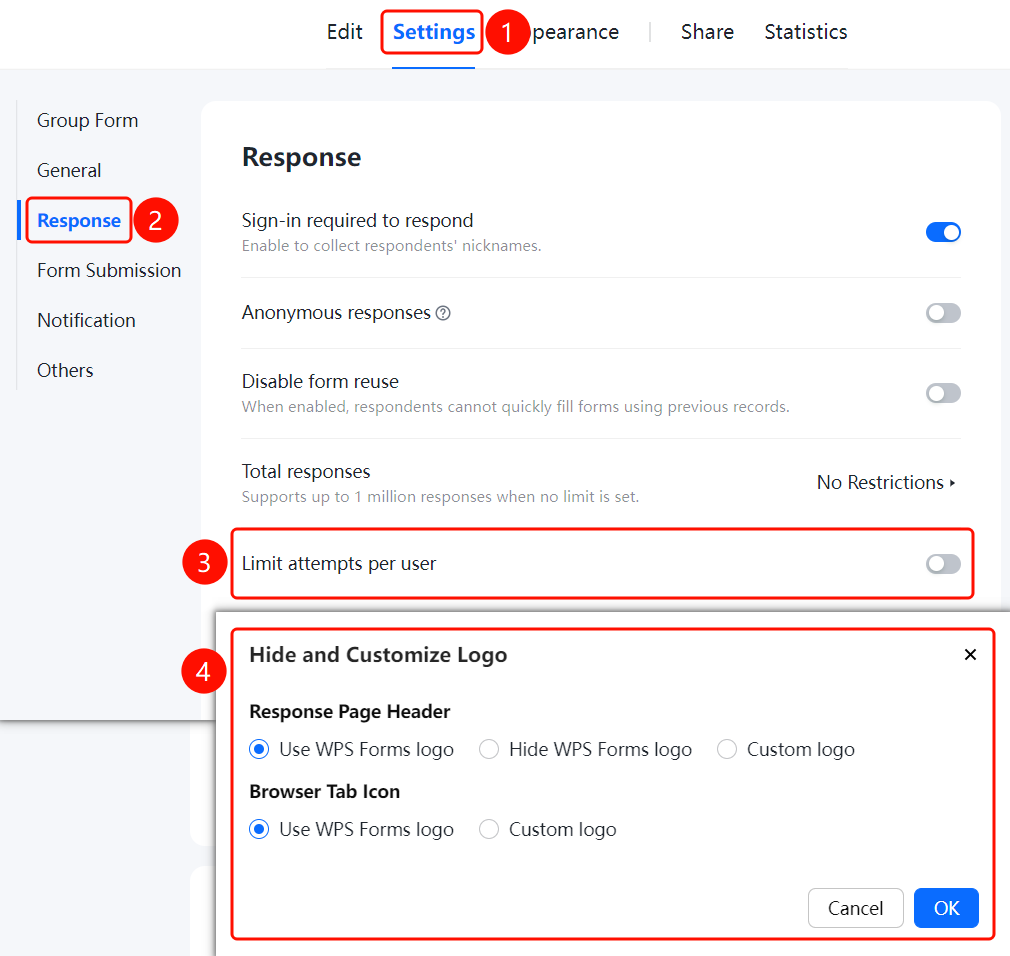
Hide and Customize Logo
Feature Access PathSettings tab → Fill Settings → Hide and Customize Logo
- Click the "Settings" tab at the top
- In the left menu, click "Fill Settings"
- Click "Hide and Customize Logo" (currently set to "Not Set")
- Customize the logo and text on the form page to highlight your company's brand image
Set to Display Number of Participants
Feature Access Path"Settings" tab → "Form Settings" → "Display Number of Participants" option
- Click the "Settings" tab at the top
- In the left menu, click "Form Settings"
- Click "Display Number of Participants" (currently set to "Not Set")
- Once enabled, the form page will display the number of participants, encouraging more people to fill it out
! Image
Frequently Asked Questions
Q1: What is the difference between requiring login and allowing anonymous submissions?
- Solution: When "Require Login" is enabled, you can collect respondents' nicknames. With "Anonymous Submission" enabled, the identity of the respondent cannot be identified.
Q2: How can I limit the total number of responses collected for a file?
- Solution: Go to "Settings" → "Submission Settings," click on "Total Responses," enable "Limit Total Responses," and set an upper limit.
Notes
- "Require Login" and "Anonymous Submission" are mutually exclusive settings.
- When there is no limit on the number of responses, up to one million entries are supported.