Feature Summary
The multi-section fill-in-the-blank question is designed to collect multiple segments of input from respondents. When a single paragraph requires input at several different points, this question type can be used by inserting placeholder markers to enable multiple fill-in sections.
Feature Description
| Functional Dimension | Description |
|---|---|
| Membership Restrictions | No membership restrictions |
| Version Restrictions | No version restrictions |
Operating Steps
Adding Multiple Blank Filling Questions
Feature Access
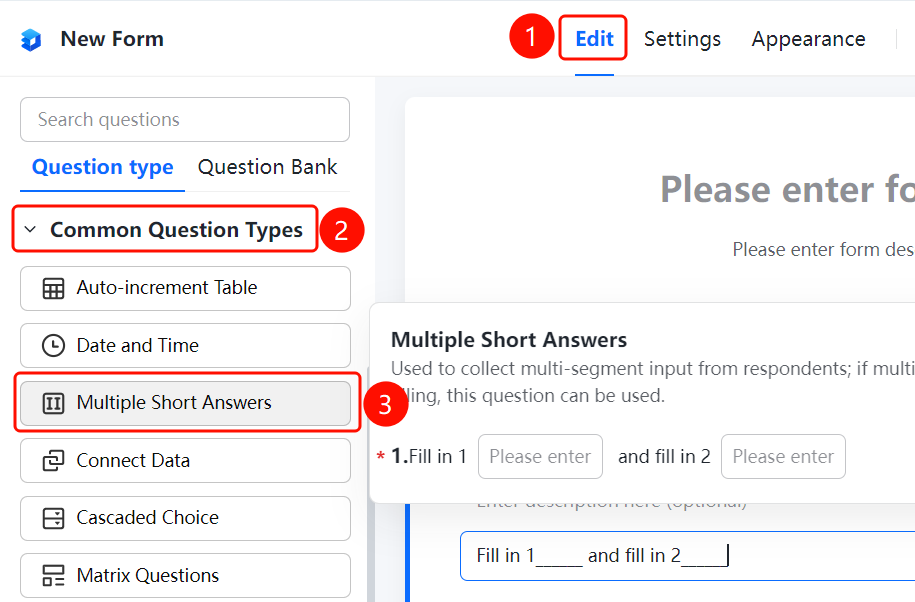
"Edit" tab → "Common Question Types" → "Multiple Blank Filling" button
- Click the "Edit" tab at the top
- Expand the "Common Question Types" section in the left panel
- Click the "Multiple Blank Filling" button to add a multiple blank filling question to the file collection
- Enter the question content in the question editing area, such as "Blank 1", "Blank 2"
- Click "Insert Blank Marker" to insert a fill-in area at the desired location
Frequently Asked Questions
Q1: How can I insert multiple blank spaces within a piece of text?
- Solution: Click on the "Multiple Blank" option, enter your text in the editing area, then click "Insert Blank Marker" to place blank fields at desired locations.
Q2: What is the difference between Multiple Blank and Single Blank questions?
- Solution: A single blank question contains only one fill-in area, while multiple blank allows inserting several blank positions within the same paragraph. This is ideal for scenarios requiring users to provide multiple pieces of information.
Q3: Can the position of blank markers in multiple blanks be adjusted?
- Solution: Yes. In the editing area, blank markers can be inserted anywhere, and their context can be modified by editing the surrounding text.
Notes
- Multiple blank is suitable for templates such as contracts or notices where users need to input multiple details.
- After inserting blank markers, users can enter content directly into the corresponding fields.