Feature Overview
Multiple choice questions allow respondents to select one or more options from a list of choices. This feature is ideal for scenarios requiring multiple selections, such as interests, hobbies, or skill tags.
Feature Description
| Feature Dimension | Description |
|---|---|
| Membership Restrictions | No membership restrictions |
| Version Restrictions | No version restrictions |
Steps to Operate
Adding a Multiple Choice Question
Feature Entry
「Edit」 tab → 「Basic Question Types」 → 「Multiple Choice」 button
- Click the top 「Edit」 tab
- Expand the 「Basic Question Types」 area in the left panel
- Click the 「Multiple Choice」 button to add a multiple choice question to the form
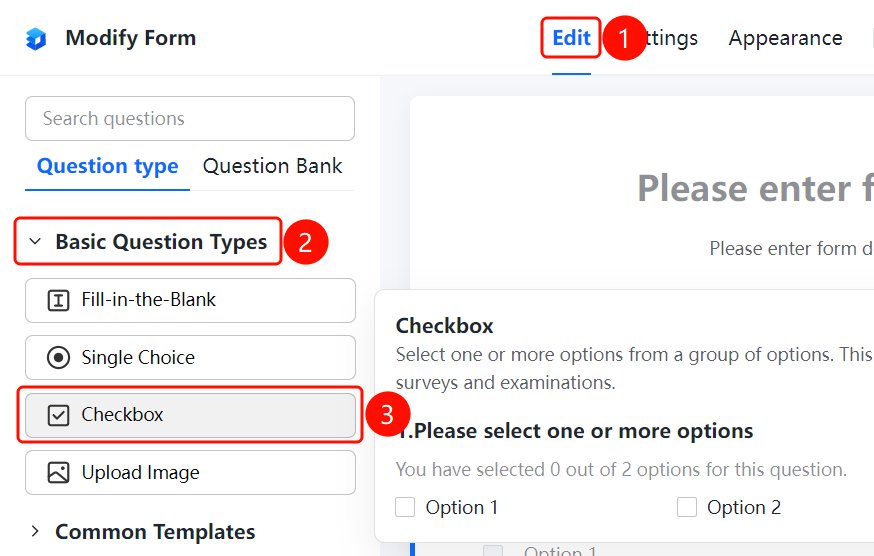
Setting Preset Answers
Feature Entry
Multiple Choice → 「Option Settings」 → 「Preset Answers」 option
- Click the added multiple choice question
- In the right 「Option Settings」 panel, click the 「Preset Answers」 option
- In the pop-up dropdown, check the options you want to set as default
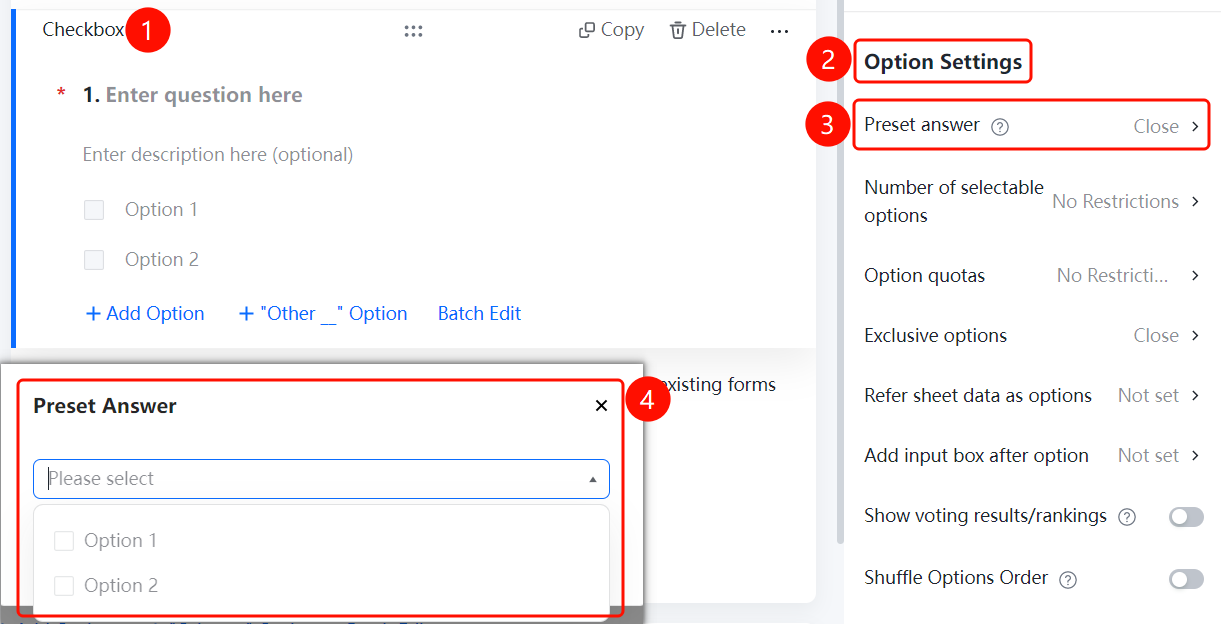
Setting Selectable Option Quantity
Feature Entry
Multiple Choice → 「Option Settings」 → 「Selectable Option Quantity」 option
- Click the added multiple choice question
- In the right 「Option Settings」 panel, click the 「Selectable Option Quantity」 option
- In the pop-up panel, set the 「Minimum Selections」 and 「Maximum Selections」
- Click the 「Confirm」 button to complete the setting
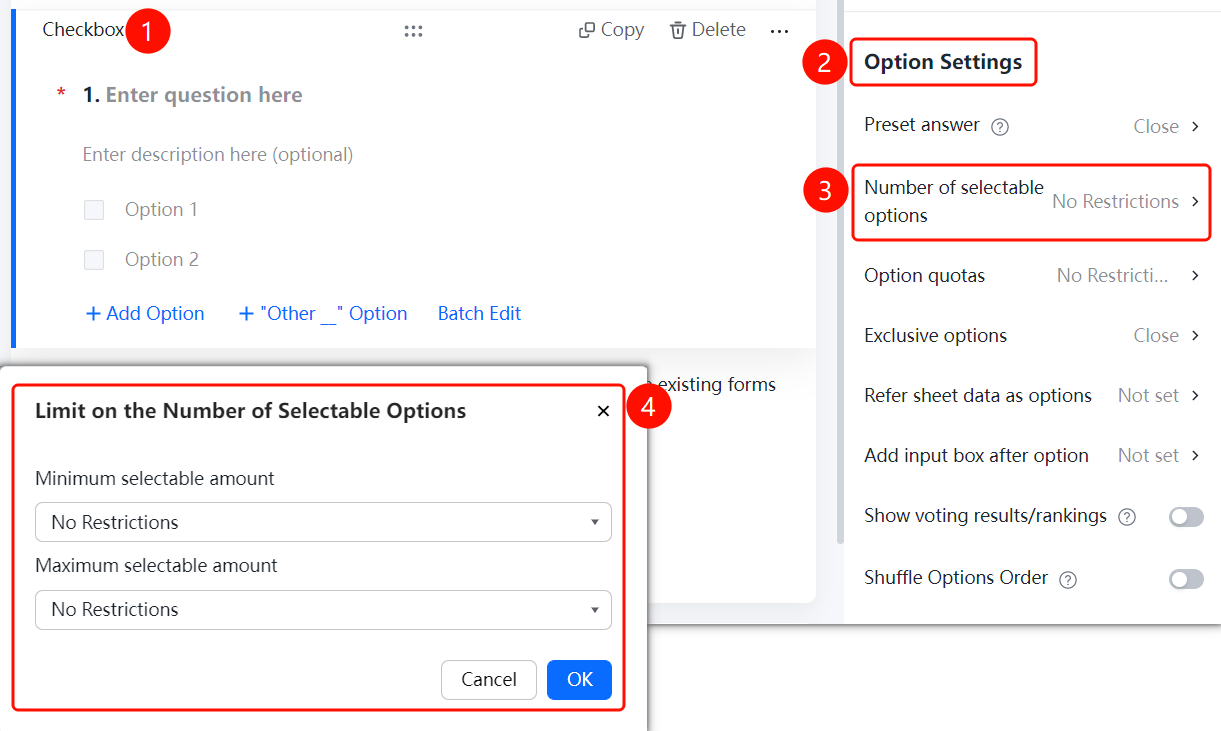
Setting Option Quotas
Feature Entry
Multiple Choice → 「Option Settings」 → 「Option Quotas」 option
- Click the added multiple choice question
- In the right 「Option Settings」 panel, click the 「Option Quotas」 option
- In the pop-up panel, set the quota for each option (maximum 99999)
- Click the 「Confirm」 button to complete the setting
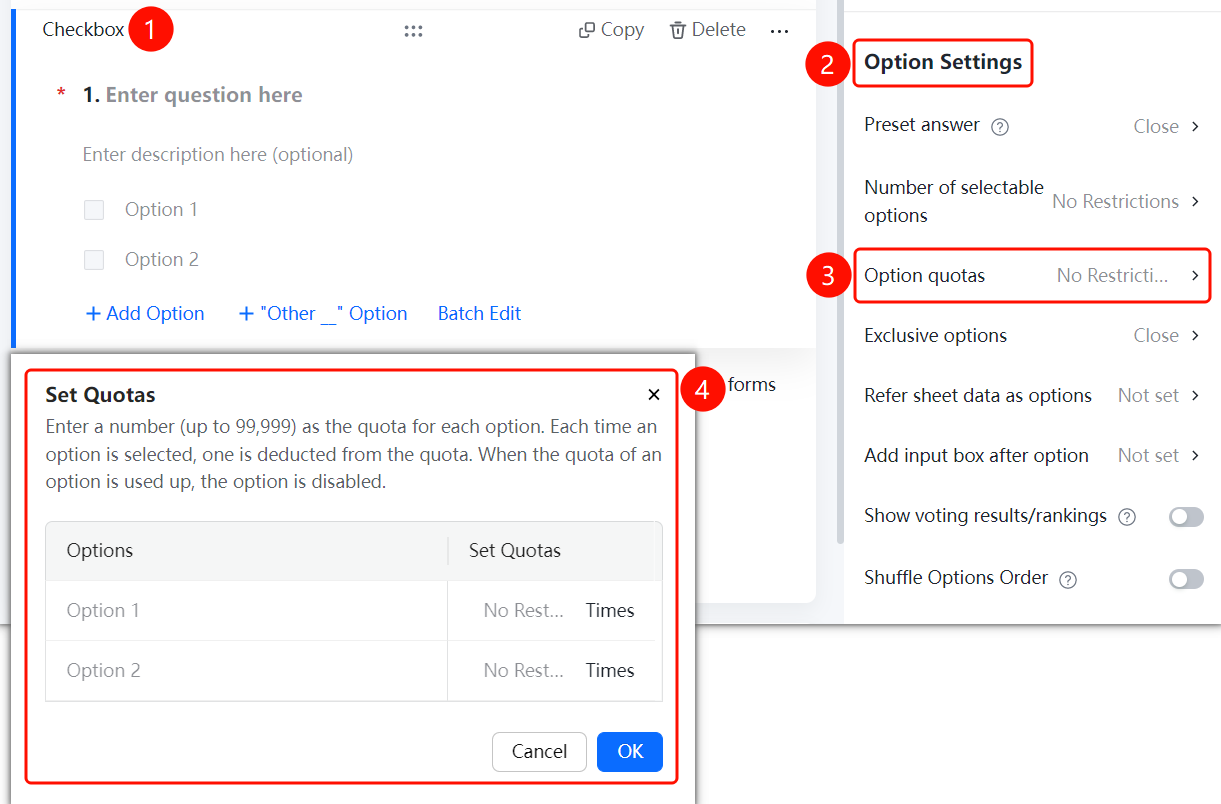
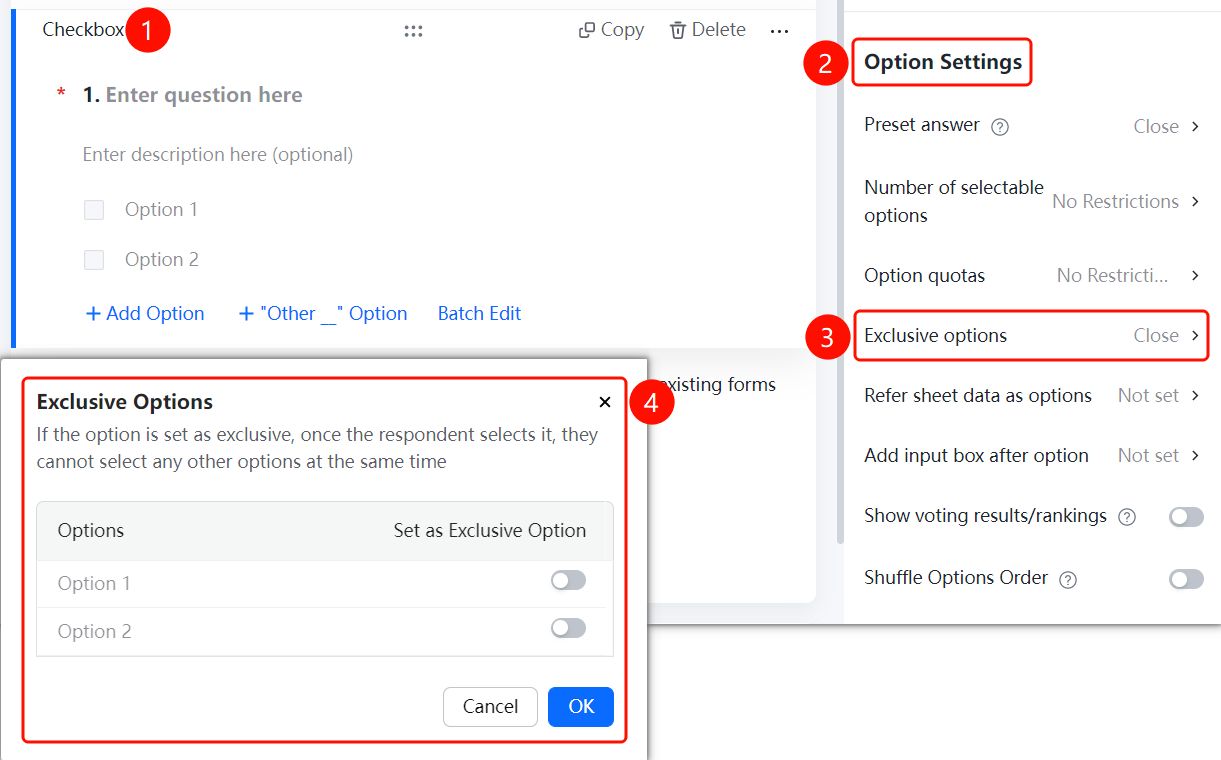
Setting Exclusive Options
Feature Entry
Multiple Choice → 「Option Settings」 → 「Exclusive Options」 option
- Click the added multiple choice question
- In the right 「Option Settings」 panel, click the 「Exclusive Options」 option
- In the pop-up panel, toggle on the switch for the options you want to set as exclusive
- After checking an exclusive option, other options cannot be checked simultaneously
- Click the 「Confirm」 button to complete the setting
Referencing Sheets Data as Options
Feature Entry
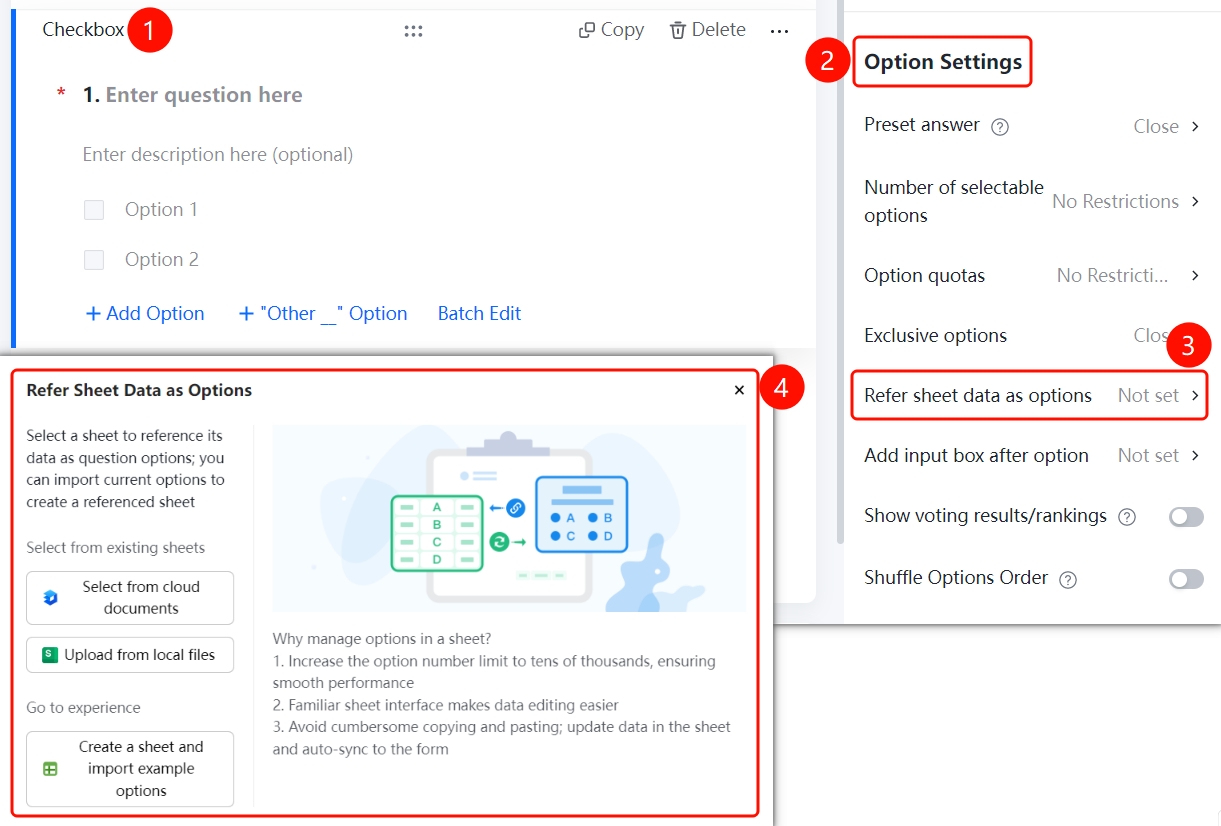
Multiple Choice → 「Option Settings」 → 「Reference Sheets Data as Options」 option
- Click the added multiple choice question
- In the right 「Option Settings」 panel, click the 「Reference Sheets Data as Options」 option
- In the pop-up panel, select the Sheets source: 「Select from Cloud Document」, 「Upload from Local File」, or 「Create New Sheet and Import Sample Options」
Adding Input Box After Options
Feature Entry
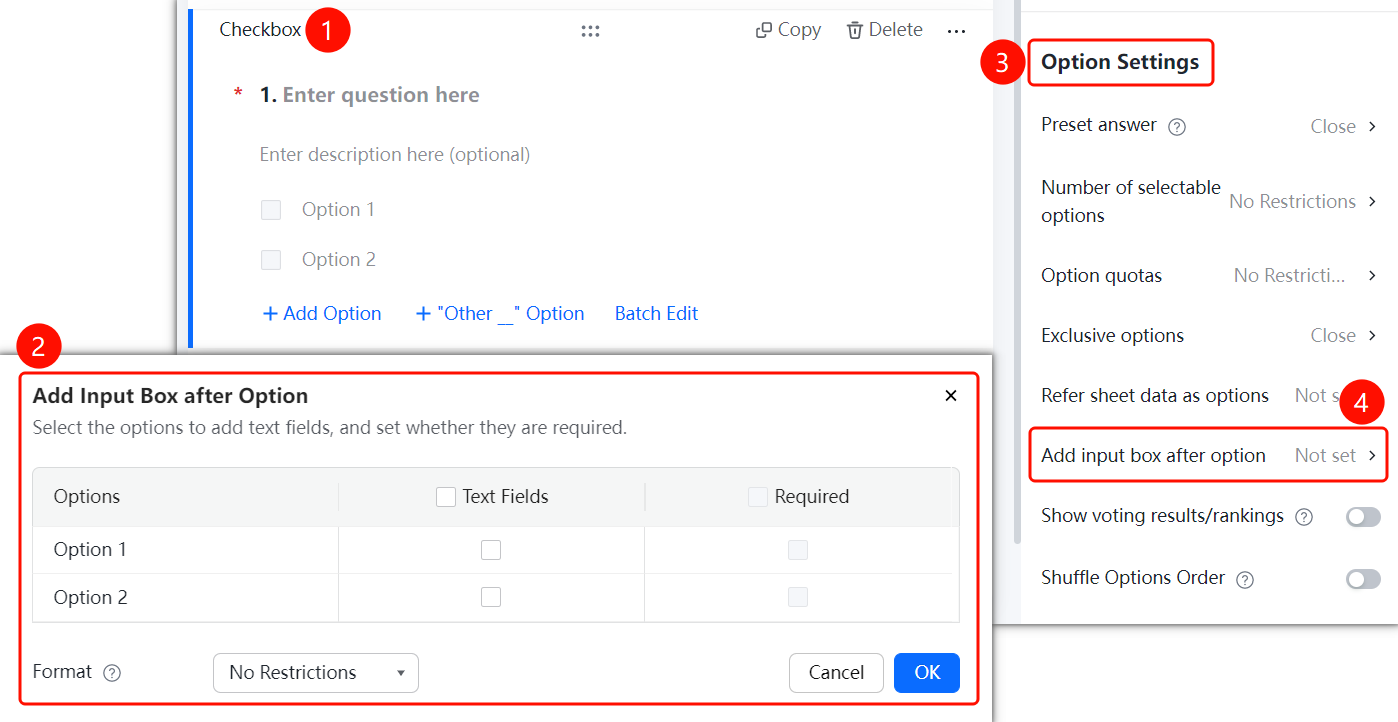
Multiple Choice → 「Option Settings」 → 「Add Input Box After Options」 option
- Click the added multiple choice question
- In the right 「Option Settings」 panel, click the 「Add Input Box After Options」 option
- In the pop-up panel, check the options to which you want to add an input box
- Set whether the input box is required and the input content format restrictions
- Click the 「Confirm」 button to complete the setting
Show Poll Results / Leaderboard
Feature Entry
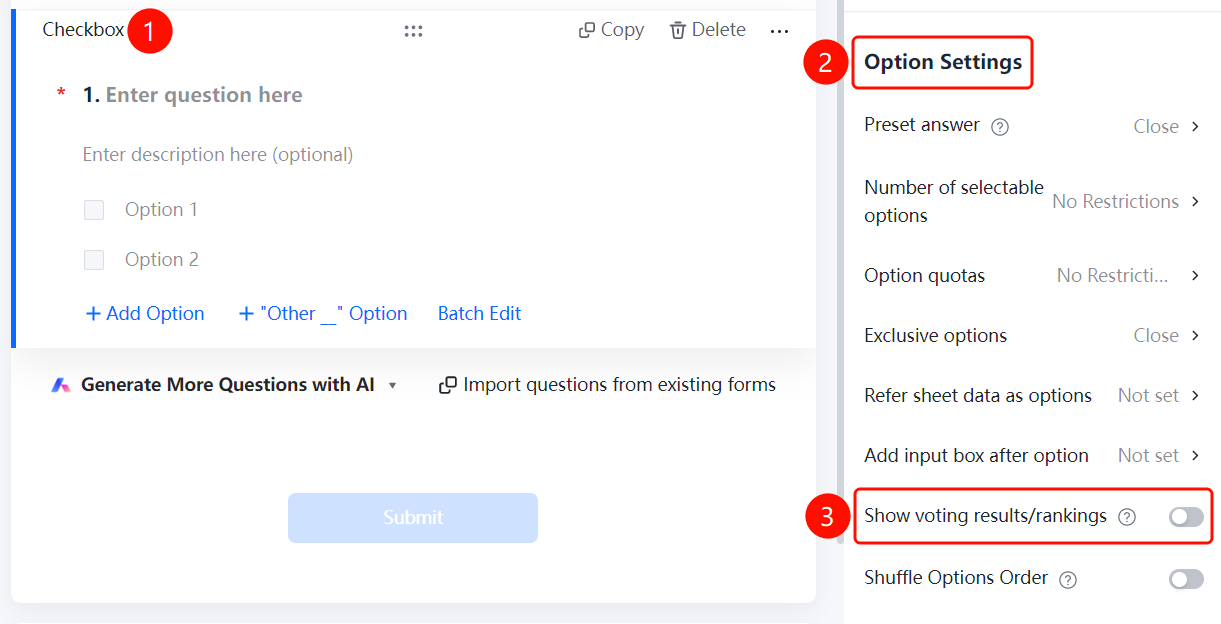
Multiple Choice → "Option Settings" → "Show Poll Results / Leaderboard" toggle
- Click the added multiple choice question
- In the "Option Settings" panel on the right, enable the "Show Poll Results / Leaderboard" toggle
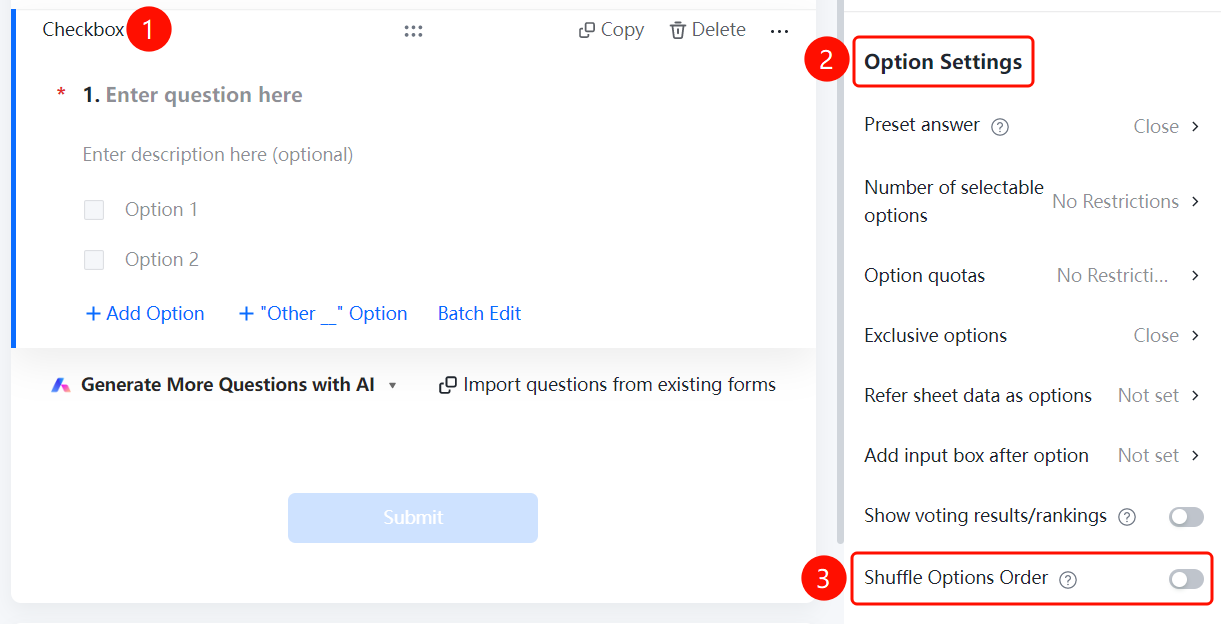
Shuffle Option Order
Feature Entry
Multiple Choice → "Option Settings" → "Shuffle Option Order" toggle
- Click the added multiple choice question
- In the "Option Settings" panel on the right, enable the "Shuffle Option Order" toggle
Frequently Asked Questions
Q1: How can I set the minimum and maximum number of selections allowed for respondents?
- Solution: Click on the multiple-choice question, then in "Option Settings," specify the "Minimum Number of Selections" and "Maximum Number of Selections."
Q2: How can I allow respondents to enter custom options?
- Solution: Click on the multiple-choice question, then select the "Other" option or use the "Add Input Box After Options" feature.
Q3: Can a multiple-choice question reference table data as its options?
- Solution: Yes. Click on the multiple-choice question, then in "Option Settings," select "Reference Table Data as Options."
Notes
- Multiple-choice questions support adding multiple options, which can be managed via "Add Option," "Batch Edit," or the "Other" option.
- When "Shuffle Option Order" is enabled, the order of options will appear randomly for each respondent.