Feature Overview
The name field is used to collect respondents' names and falls under the fill-in-the-blank question type in basic question formats. Respondents enter their names in the answer area, and format restrictions can be set.
Feature Description
| Functional Dimension | Description |
|---|---|
| Membership Restrictions | No membership restrictions |
| Version Restrictions | No version restrictions |
Operating Steps
Adding Name
Feature Access
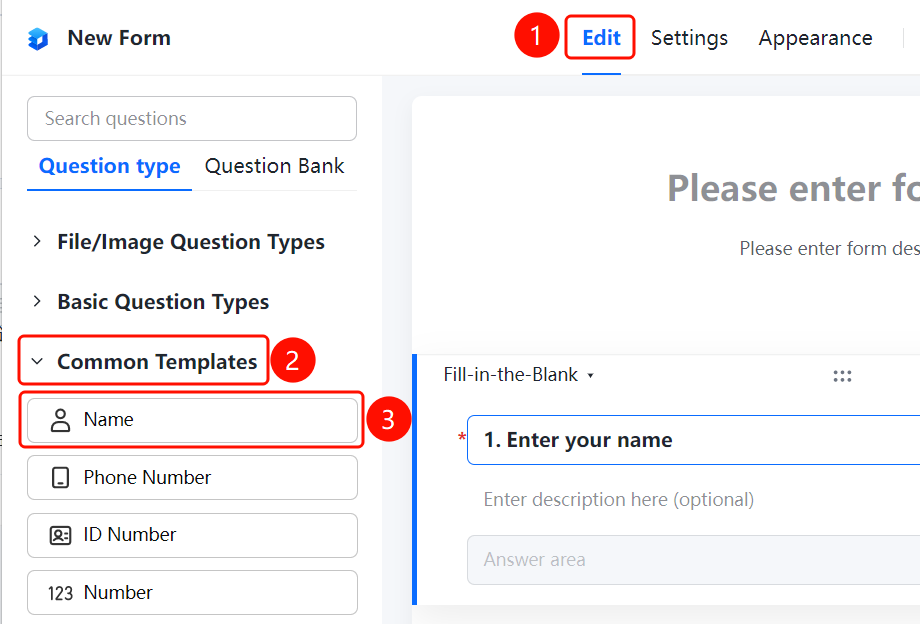
"Edit" tab → "Common Templates" → "Name" option
- Click the "Edit" tab at the top
- In the left panel, expand the "Common Templates" section and check "Name"
- The name field will be added to the form collection, allowing respondents to enter their names in the "Respondent Answer Area"
Setting Format Restrictions
Feature Entry
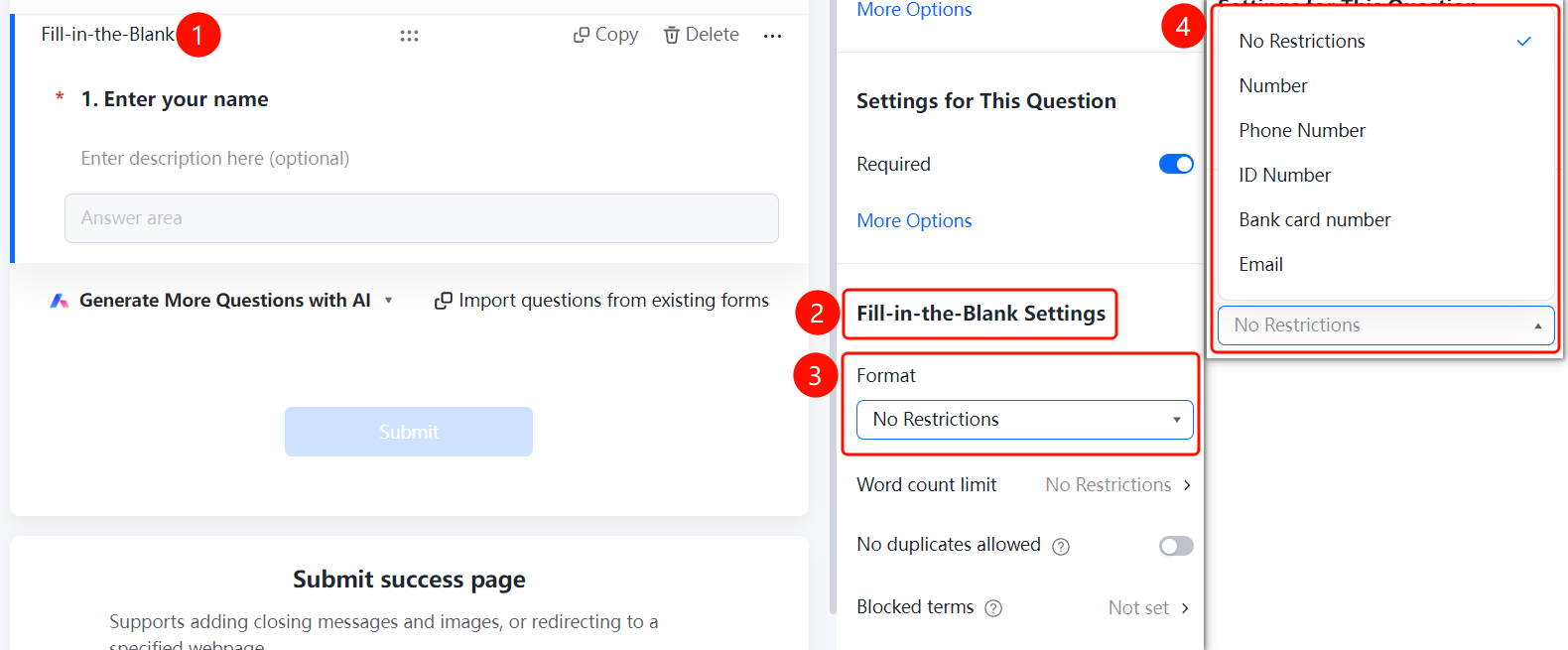
Name question → "Fill Settings" → "Format Restriction"
- Click the added Name question
- In the right "Fill Settings" panel, click the "Format Restriction" dropdown
- Select a format: No Restriction, Number, Phone Number, ID Number, Bank Card Number, Email
Setting Word count Limit
Feature Entry
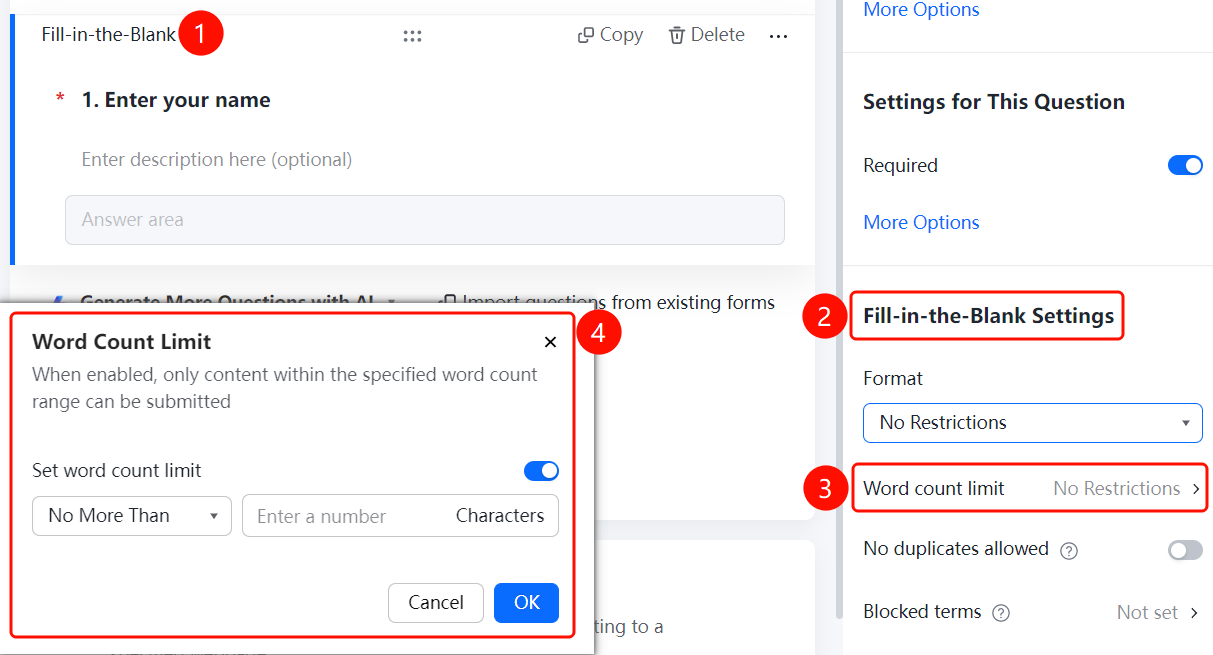
Name question → "Fill Settings" → "Character Limit"
- Click the added Name question
- In the right "Fill Settings" panel, click the "Word count Limit" option
- In the pop-up panel, enable the "Set word count Limit" toggle
- Set the minimum and maximum character limits
Set Noduplicates allowed
Feature Entry
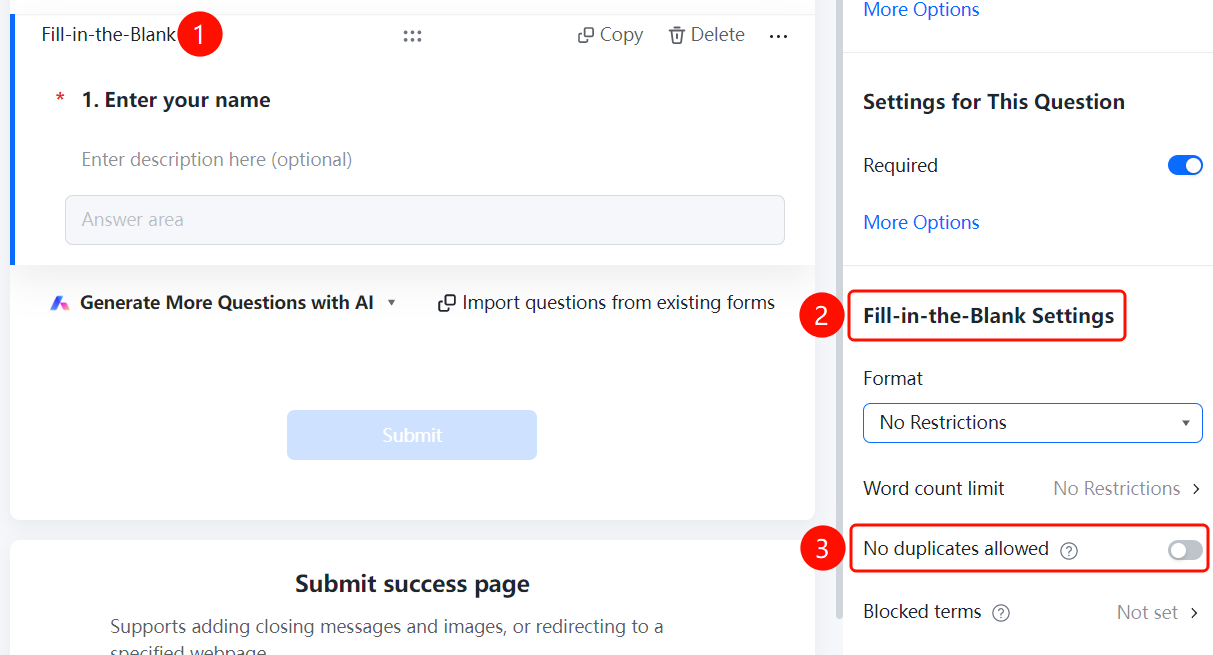
Name question → "Fill Settings" → "Noduplicates allowed"
- Click the added Name question
- In the right "Fill Settings" panel, find the "Noduplicates allowed" option
- After enabling the toggle, the same name cannot be submitted repeatedly
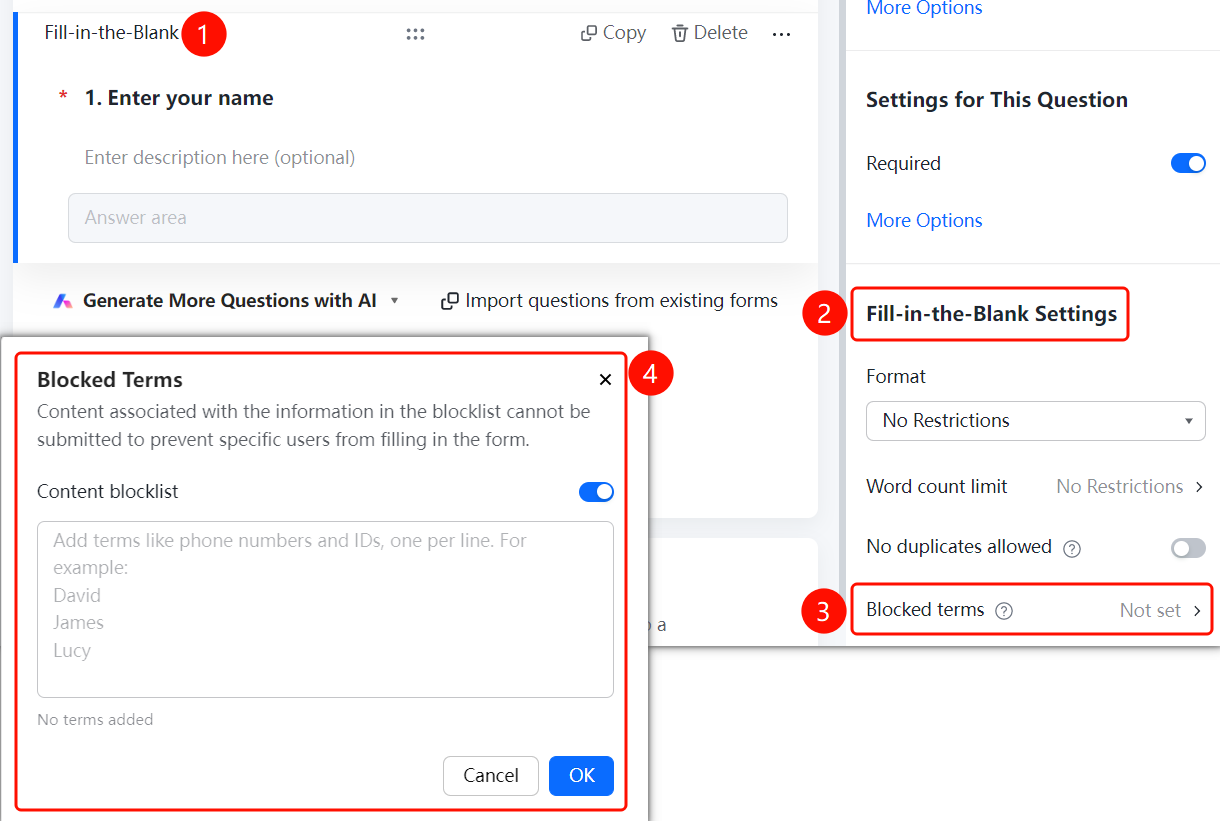
Set Blocked terms
Feature Entry
Name question → "Fill Settings" → "Blocked terms"
- Click the added Name question
- In the right "Fill Settings" panel, click the "Blocked terms" option
- Enable the "Content blocklist" toggle
- Add the name content to be prohibited, one per line
- Click the "OK" button to save
Frequently Asked Questions
Question 1: How to add a name field?
- Solution: Click the "Edit" tab, then check the "Name" option in the "Common Templates" section.
Question 2: Can I set format restrictions for the name field?
- Solution: Yes. Click on the name field, go to "Field Settings," and select "Format Restrictions." You can choose options such as no restriction, numbers, phone numbers, etc.
Question 3: How to automatically fill in the name when users re-fill the form?
- Solution: Click the name field, then enable the "Auto-fill last entered content" option under "Basic Settings."
Notes
- The name field is a type of fill-in-the-blank question within basic question types.
- Once auto-fill is enabled, users won't need to re-enter their name when filling out the form again.