Feature Overview
The age range feature collects respondents' age group information and is a single-choice question type under "Other Templates." It includes preset options such as Under 18, 18–25, 26–30, 31–40, 41–50, 51–60, and Over 60. Respondents can select only one age range.
Feature Description
| Functional Dimension | Description |
|---|---|
| Membership Restrictions | No membership restrictions |
| Version Restrictions | No version restrictions |
Operating Steps
Adding an Age Group Question
Feature Access
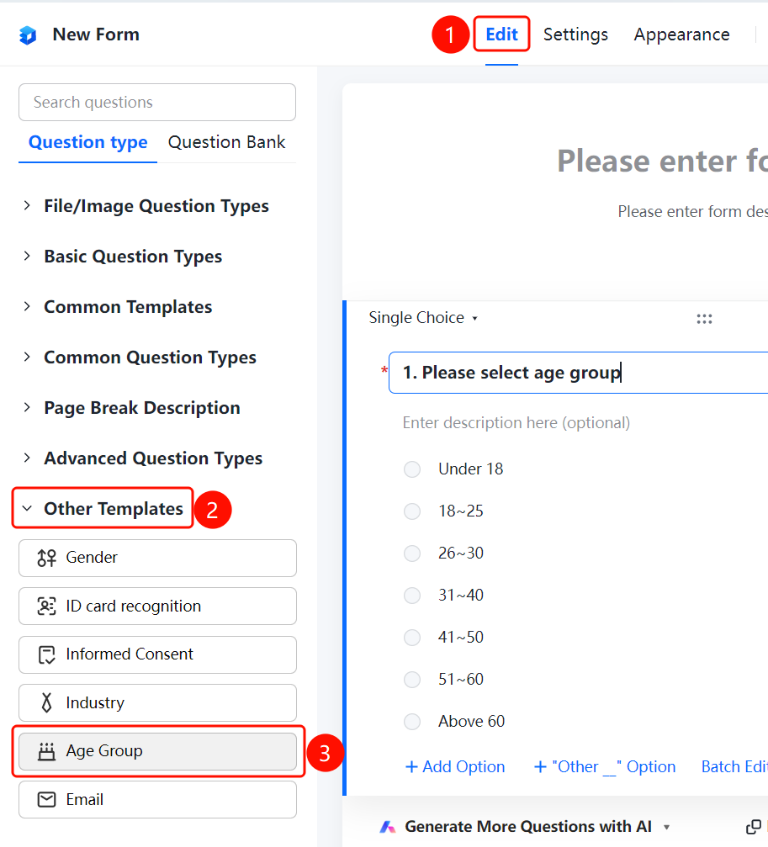
"Edit" tab → "Other Templates" → "Age Group" option
- Click the "Edit" tab at the top
- Expand the "Other Templates" section in the left panel
- Click the "Age Group" option to add the age group question to the file collection
- By default, it is a single-choice question with the prompt "Please select your age group", and preset options include Under 18, 18–25, 26–30, 31–40, 41–50, 51–60, etc.
Set Default Answers
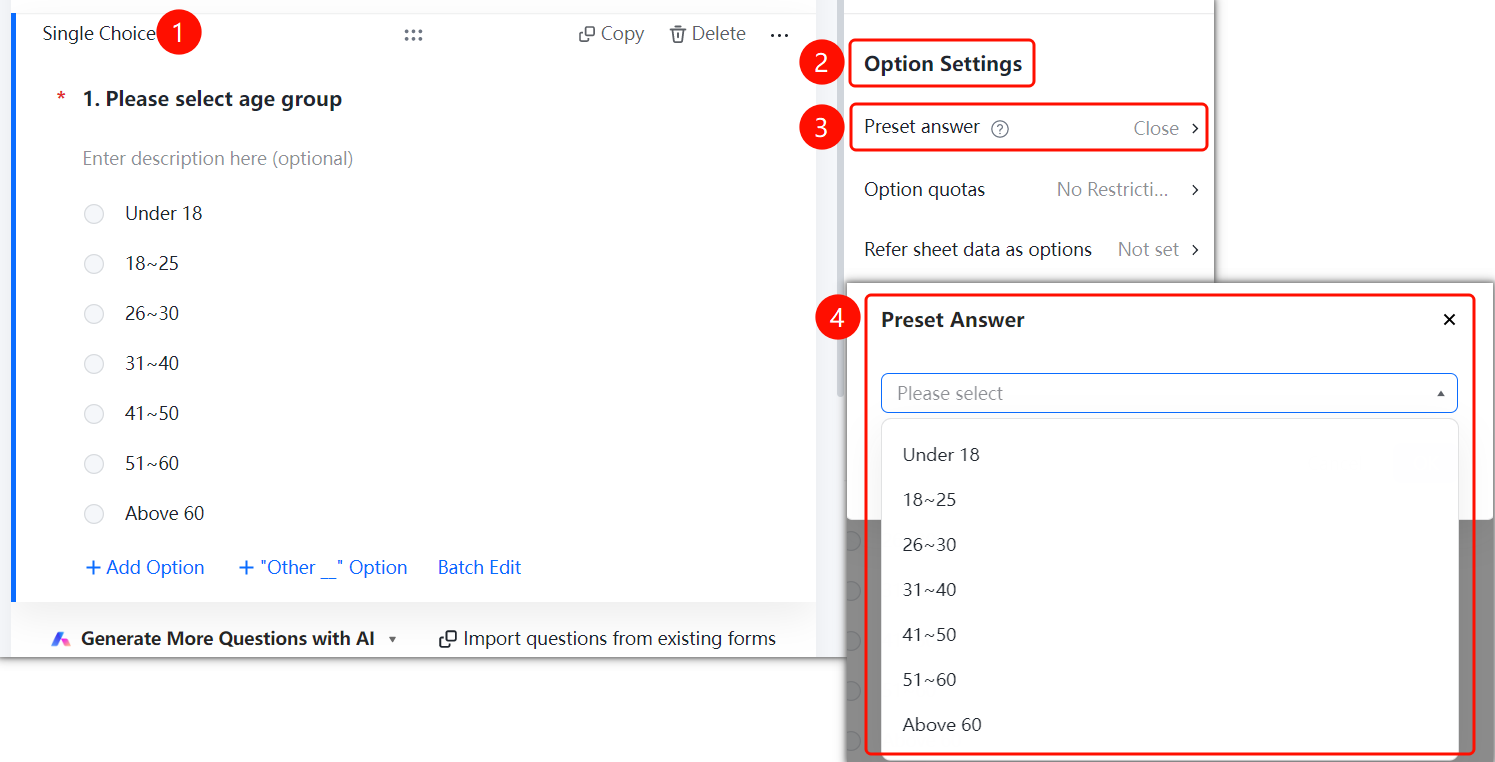
Access PathAge Group Question → "Option Settings" → "Default Answer" option
- Click on the added age group question
- In the right-hand "Option Settings" panel, click "Default Answer" (currently displayed as "Off")
- In the pop-up dialog, select a default answer from the dropdown list
Set Option Quotas
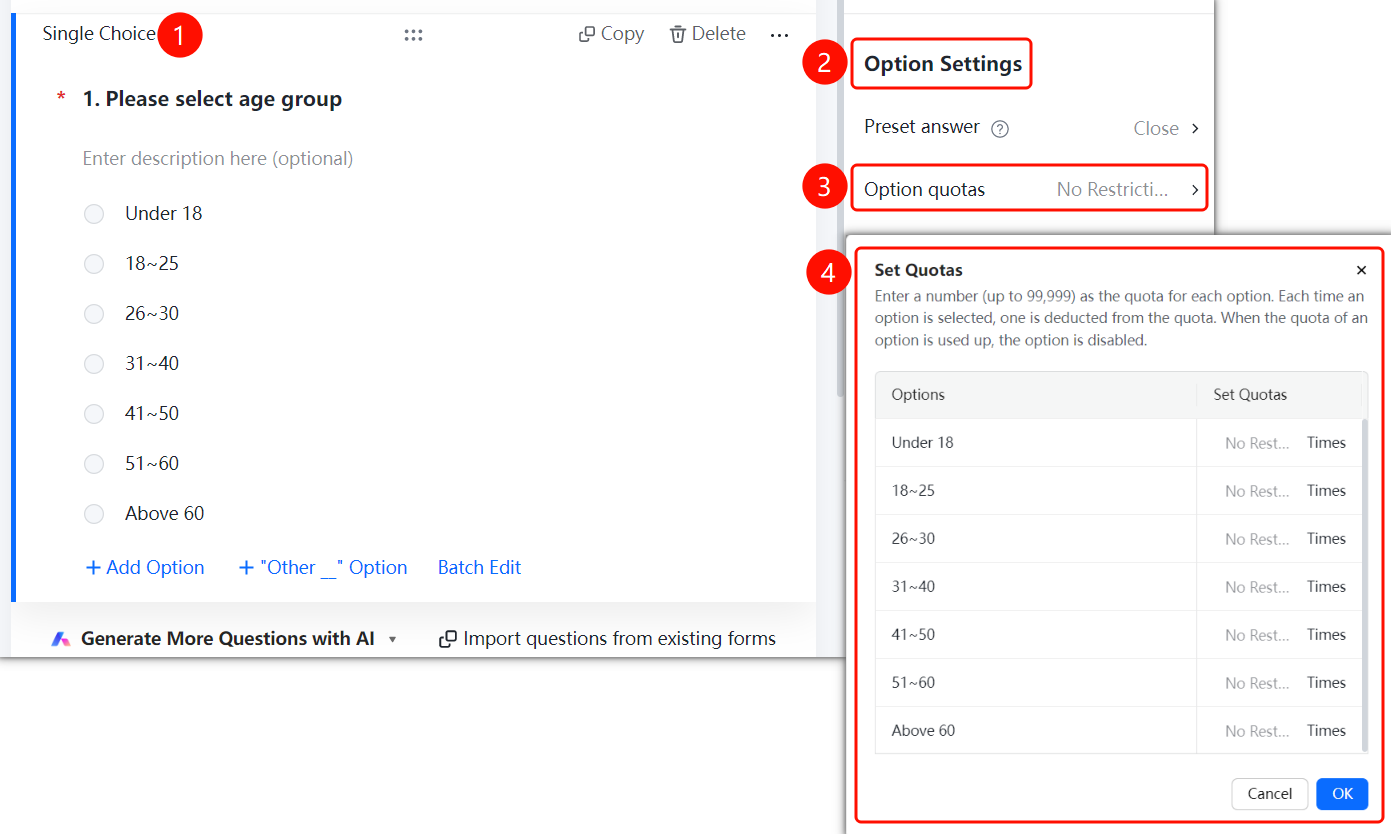
Feature Access PathAge Group Question → "Option Settings" → "Option Quotas"
- Click on the added age group question.
- In the right-hand "Option Settings" panel, click "Option Quotas" (currently set to "Unlimited").
- In the pop-up dialog, enter the quota number for each option; maximum support is 99,999.
Reference Table Data as Options
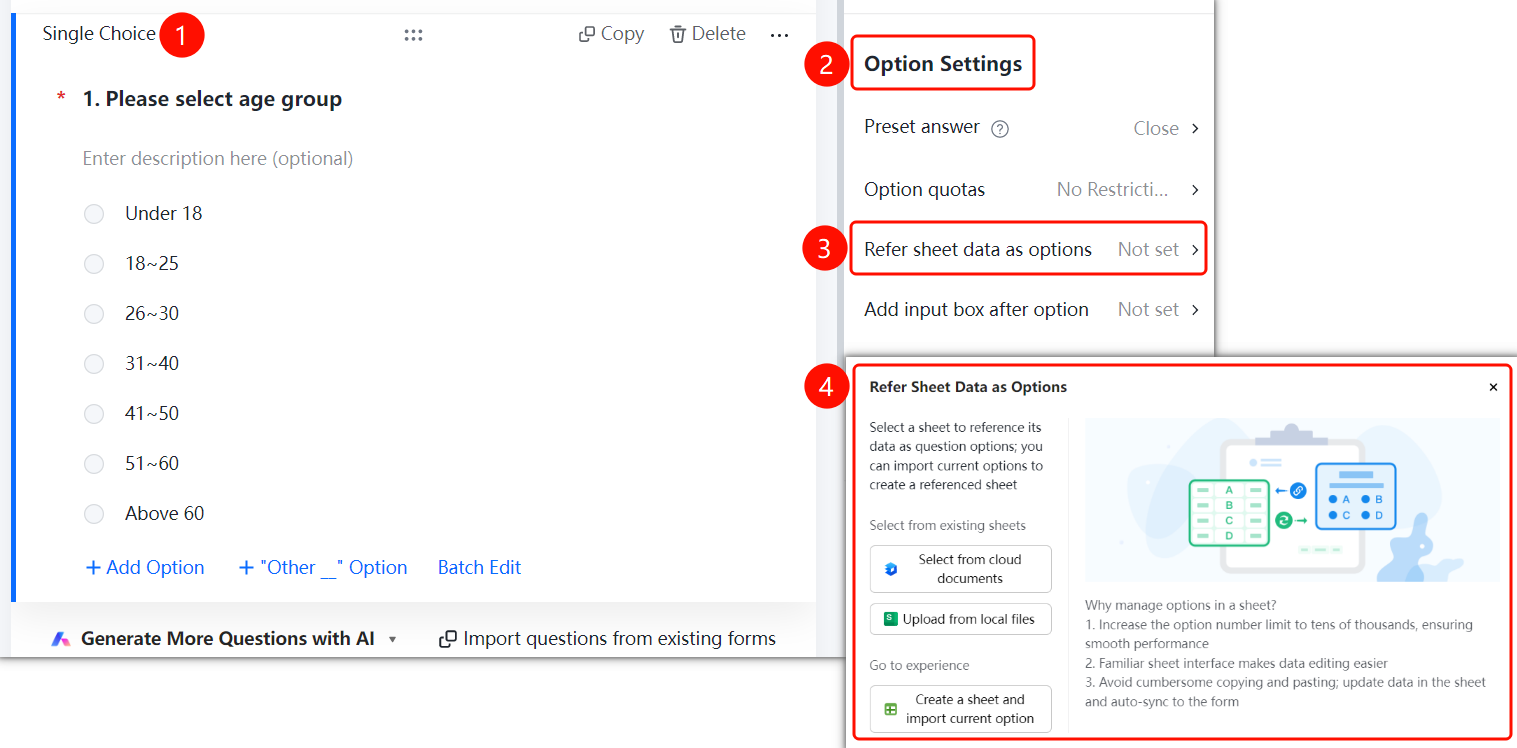
Feature Access PathAge Group Question → "Option Settings" → "Reference Table Data as Options"
- Click on the added age group question.
- In the right-hand "Option Settings" panel, click "Reference Table Data as Options" (currently set to "Not Set").
- Choose the table source: "Select from Cloud Document", "Upload from Local File", or create a new table and import current options.
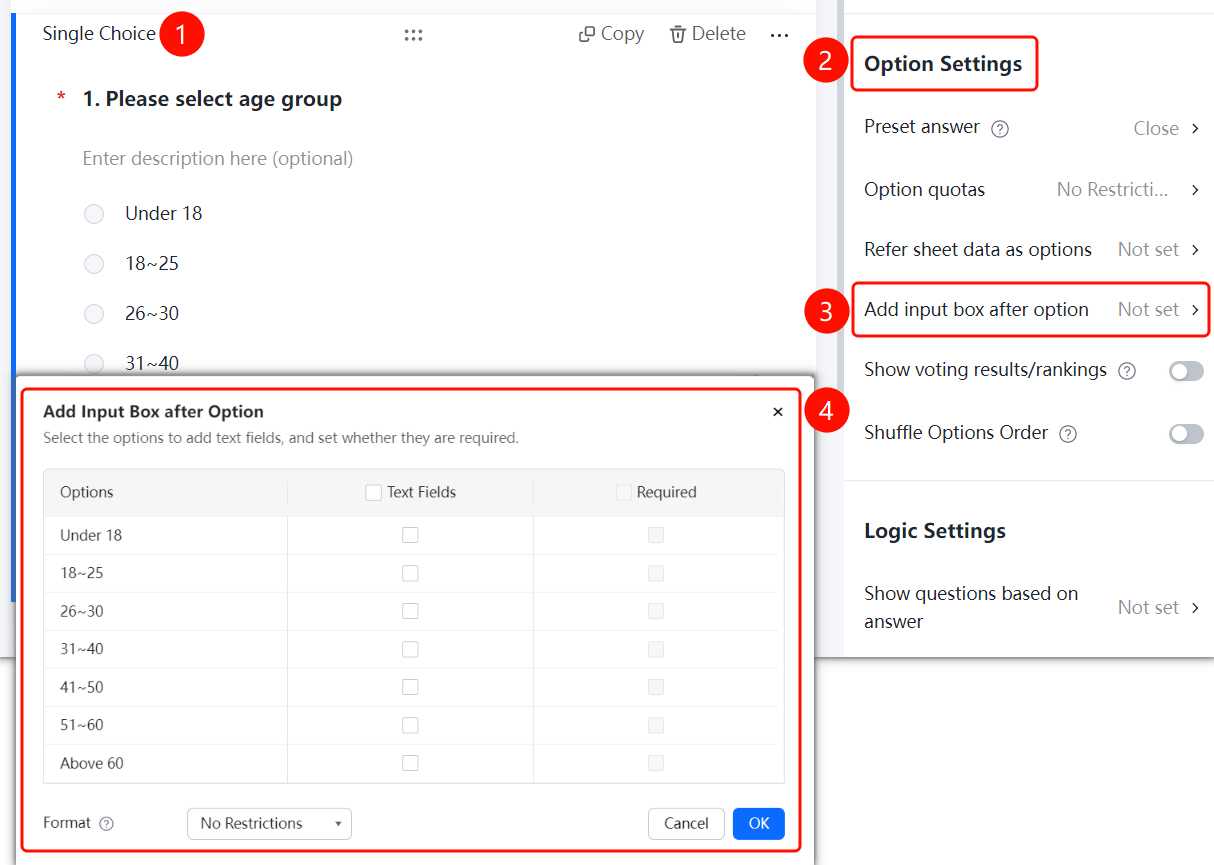
Add Input Box After Options
Feature Access PathAge Range Question → "Option Settings" → "Add Input Box After Options"
- Click on the age range question you have added.
- In the right-hand "Option Settings" panel, click "Add Input Box After Options" (currently set to "Not Set").
- Check the options where you want to add an input box, and optionally enable "Input Box Required".
Display Voting Results/Leaderboard
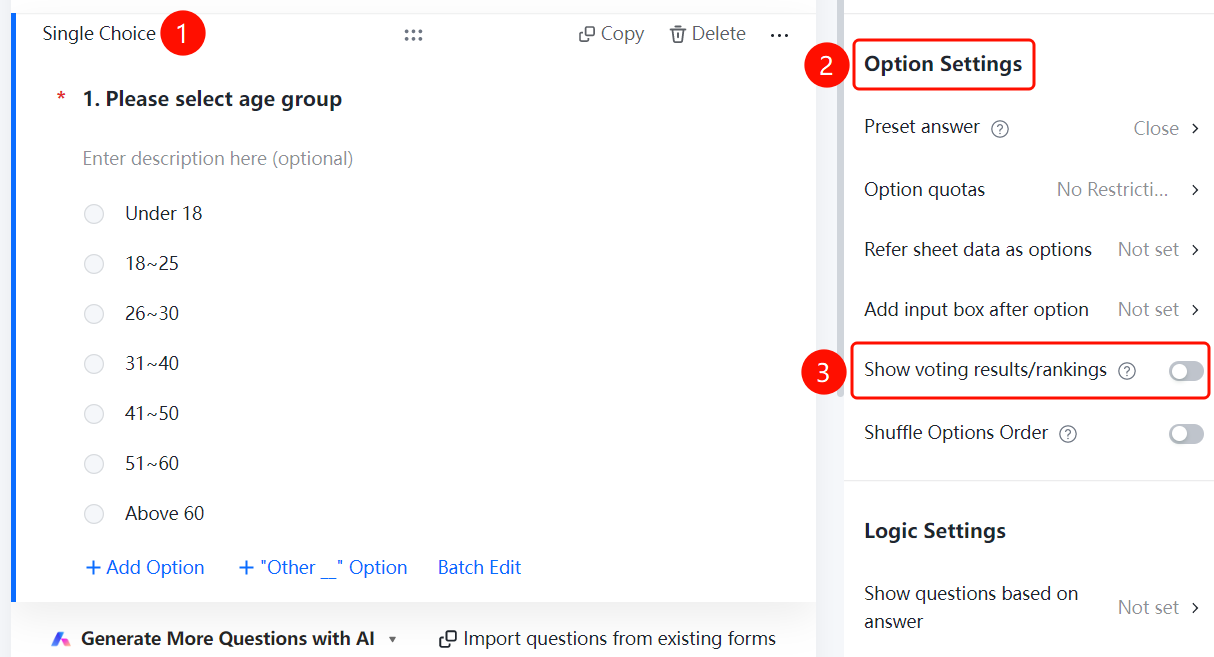
Feature Access PathAge Group Question → "Option Settings" → Toggle "Display Voting Results/Leaderboard"
- Click on the added age group question
- In the right-hand "Option Settings" panel, turn on the "Display Voting Results/Leaderboard" toggle
Shuffle Option Order
Feature Access
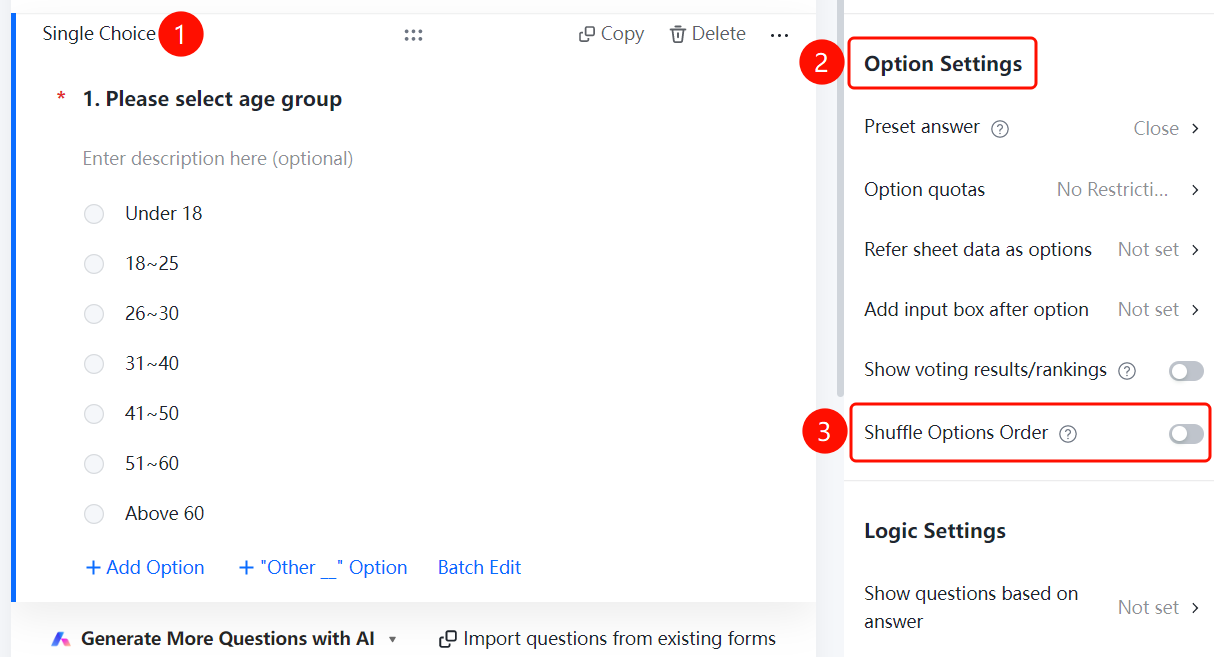
Age Group Question → "Option Settings" → Toggle "Shuffle Option Order"
- Click on the added age group question
- In the right-hand "Option Settings" panel, turn on the "Shuffle Option Order" toggle
Frequently Asked Questions
Q1: What are the preset age group options?
- Solution: Preset options include Under 18, 18–25, 26–30, 31–40, 41–50, 51–60, and Over 60.
Notes
- Age groups belong to the single-choice question type under "Other Templates."
- Supports preset answers, option quotas, referencing table data, adding input boxes after options, displaying voting results/rankings, and randomizing option order.
- Supports preset answers, option quotas, referencing table data, adding input boxes after options, displaying voting results/rankings, and randomizing option order.