Feature Overview
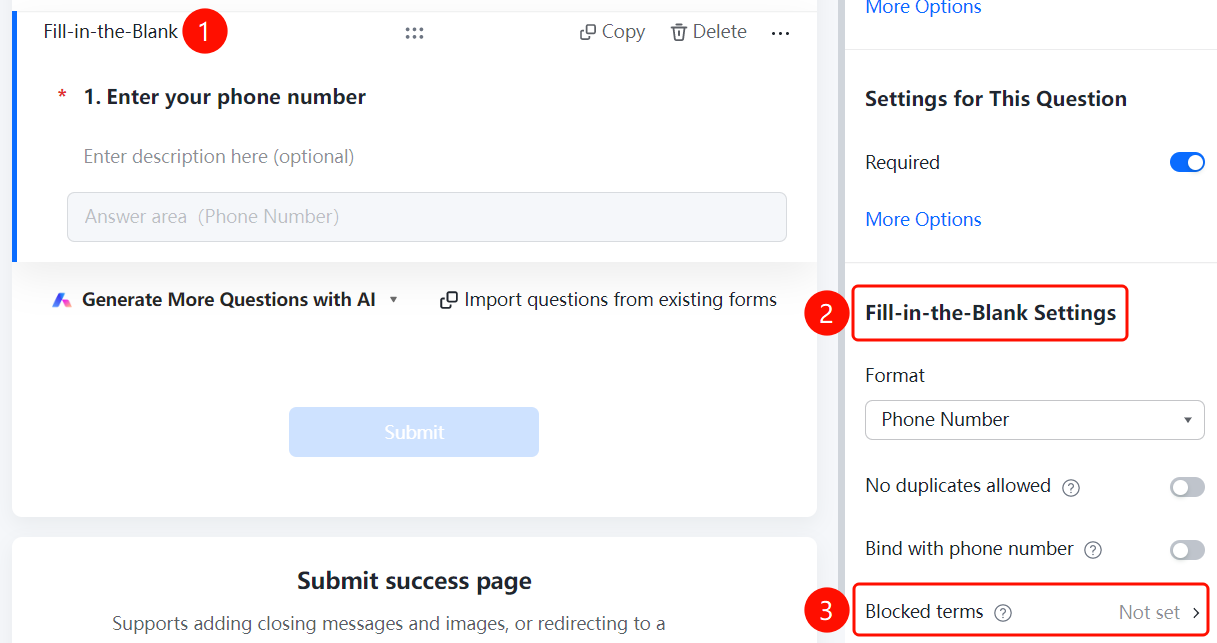
The mobile number field is used to collect users' phone numbers and falls under the fill-in-the-blank question type in basic question formats. By default, it enforces a mobile number format, with automatic system validation.
Feature Description
| Functional Dimension | Description |
|---|---|
| Membership Restrictions | No membership restrictions |
| Version Restrictions | No version restrictions |
Operating Steps
Adding a Phone Number
Feature Access
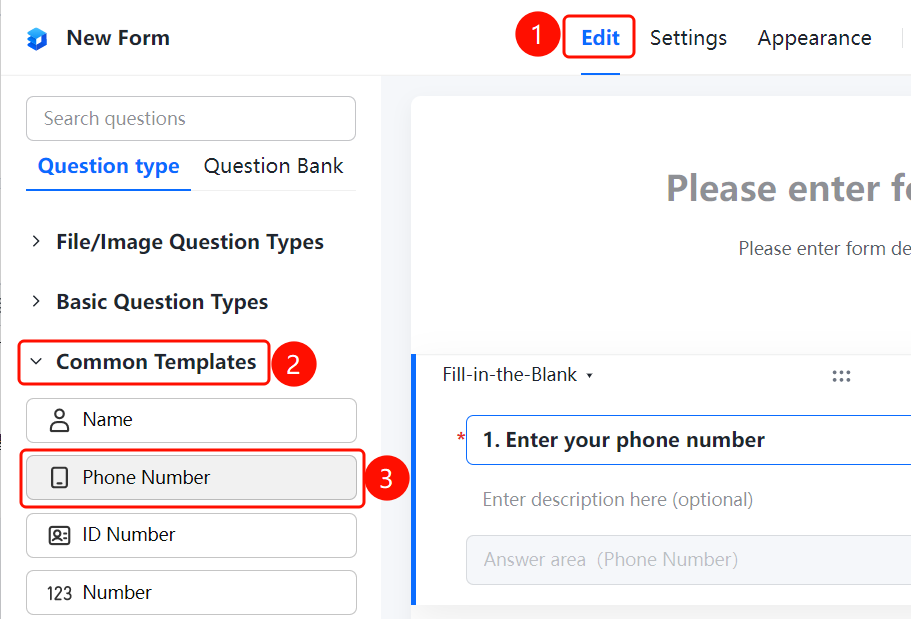
"Edit" tab → "Common Templates" → "Phone Number" option
- Click the "Edit" tab at the top
- In the left panel, expand the "Common Templates" section and check "Phone Number"
- The phone number field will be added to the form collection, allowing respondents to enter their phone number in the "Responder Answer Area (Phone Number)"
Set Format Restrictions
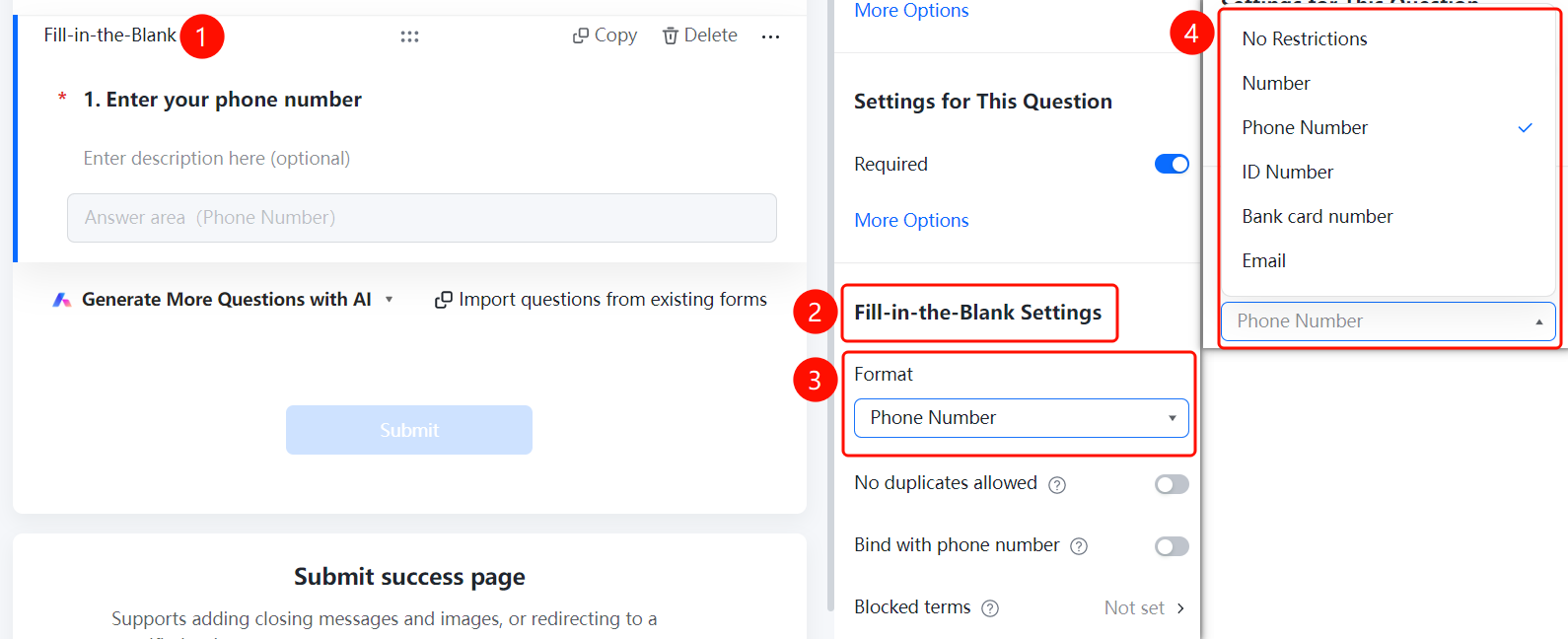
Access PathPhone Number → "Field Settings" → "Format Restrictions"
- Click on the added phone number field
- In the right-hand "Field Settings" panel, click "Format Restrictions" (currently set to "Phone Number")
- Switch between format types: "No Restriction", "Numbers Only", "Phone Number", "ID Number", "Bank Card Number", or "Email"
Setting No duplicates allowed
Feature Entry
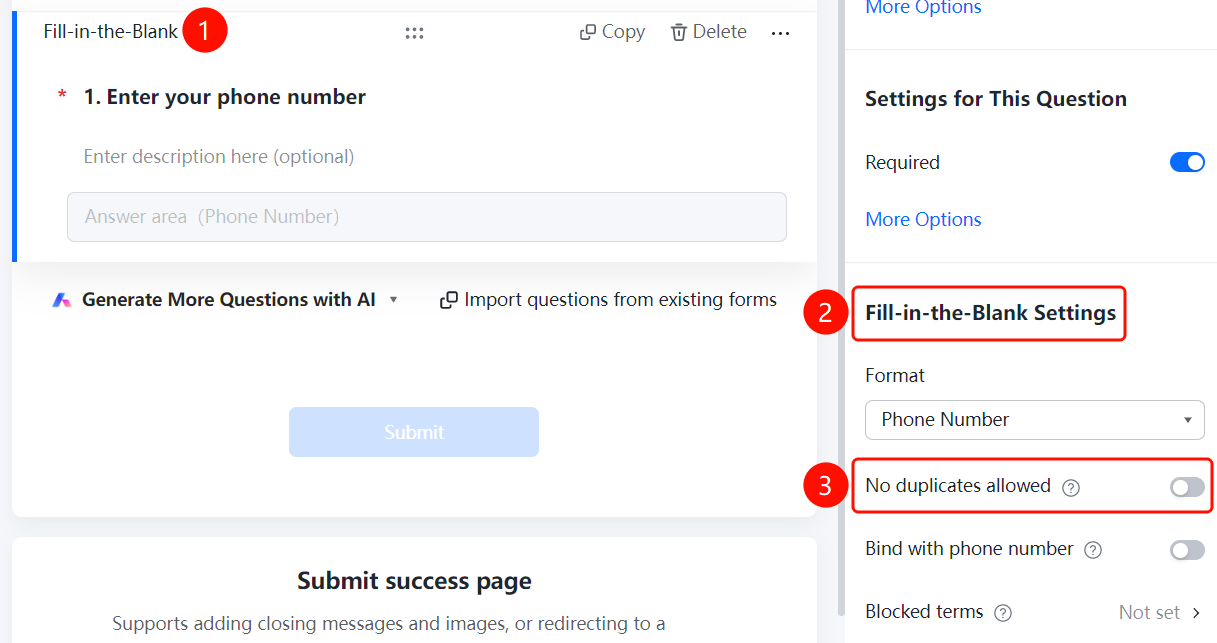
Phone number question → 「Fill-in-the-Blank Settings」 → 「No duplicates allowed」
- Click the added phone number question
- In the right 「Fill-in-the-Blank Settings」 panel, find the 「No duplicates allowed」 option
- After enabling the toggle, the same phone number cannot be submitted again
Verifying Phone Number
Feature Entry
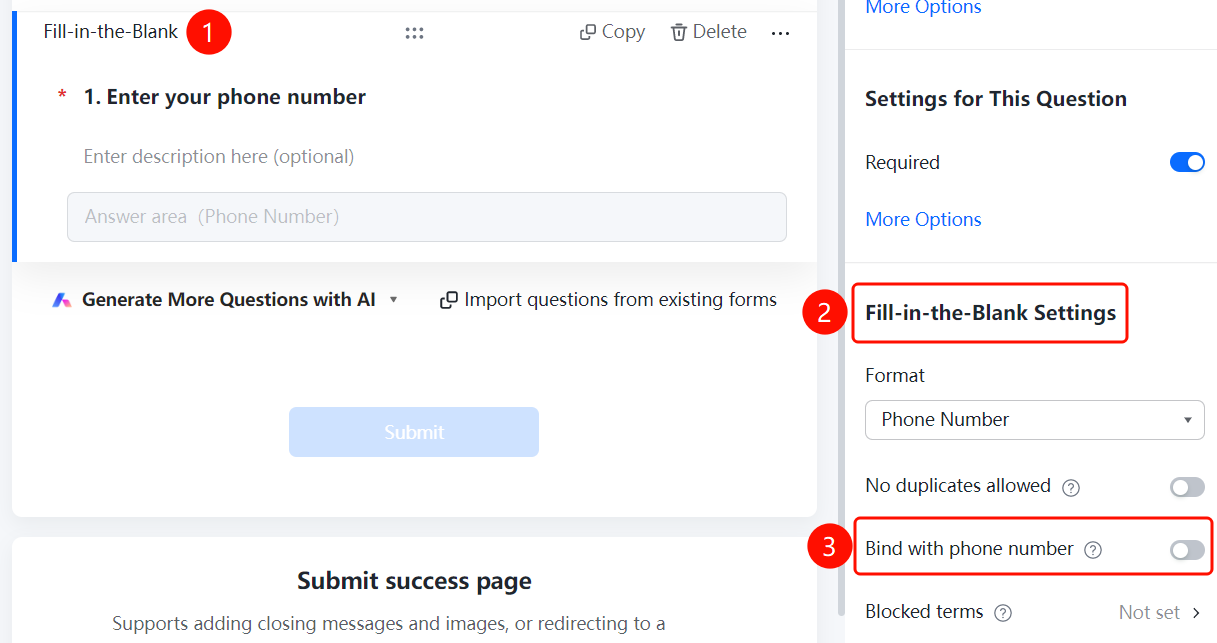
Phone number question → 「Fill-in Settings」 → 「Verify Phone Number」
- Click the added phone number question
- In the right 「Fill-in Settings」 panel, find the 「Verify Phone Number」 option
- After enabling the toggle, the system will send a verification code for phone number verification
Setting Blocked Submission Content
Feature Entry
Phone number question → 「Fill-in Settings」 → 「Blocked Submission Content」
- Click the added phone number question
- In the right 「Fill-in Settings」 panel, click the 「Blocked Submission Content」 option
- Enable the 「Content Blocklist」 toggle
- Add phone numbers to be blocked, one per line
- Click the 「Confirm」 button to save
Frequently Asked Questions
Q1: How to add a phone number field?
- Solution: Click the "Edit" tab, then check the "Phone Number" option in the "Common Templates" section.
Q2: Will the system automatically validate the phone number format?
- Solution: Yes. The default format restriction is set to "Phone Number," and the system will automatically verify the format when users enter their information.
Q3: Can the phone number field be changed to other format restrictions?
- Solution: Yes. Click on the phone number field, go to "Answer Settings," and select "Format Restriction" to switch between options such as no restriction, numbers only, ID number, etc.
Notes
- Phone number fields are a type of fill-in-the-blank question under basic question types, with the default format restriction set to phone number.
- The system automatically validates phone number formats to prevent collection of invalid numbers.