Feature Overview
The submission success page allows you to configure the page that form fillers see after submitting their file collection. It supports adding closing messages and images, or redirecting to a specified webpage.
Feature Description
| Feature Dimension | Description |
|---|---|
| Membership Restrictions | No membership restrictions |
| Version Restrictions | No version restrictions |
Operating Steps
Edit the Submission Success Page
Access Path"Edit" tab → "Submission Success Page" → "Go to Edit" button
- On the editing page, locate the "Submission Success Page" section
- Click the "Go to Edit" button
- In the pop-up dialog, select the "Redirect To" option: either "Submission Success Page" or "Web Link" (limited free)
- If selecting "Submission Success Page", enter your custom closing message in the "Please Enter Custom Closing Message" input field
- Click "Confirm" to save the settings
Set Redirect Webpage Link
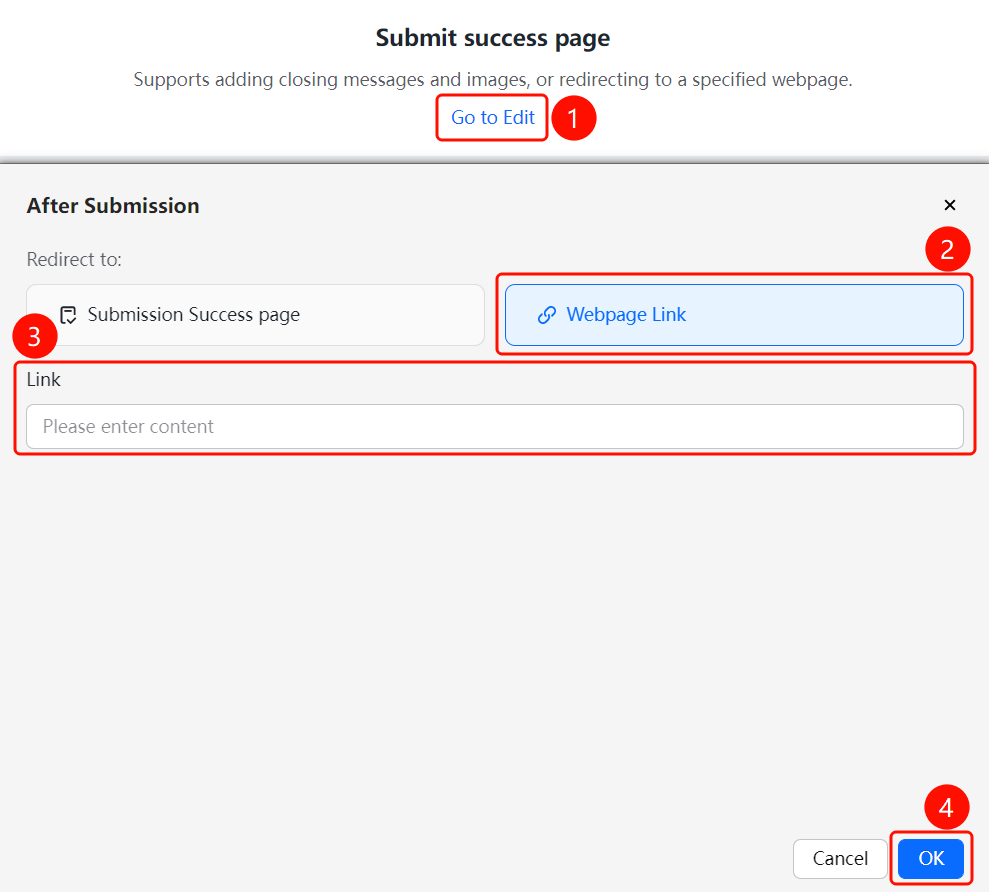
Access Path"Edit" tab → "Submission Success Page" → "Go to Edit" button → "Webpage Link" option
- On the editing page, locate the "Submission Success Page" section.
- Click the "Go to Edit" button.
- In the pop-up dialog, select the "Webpage Link" option.
- Enter the target webpage URL in the "Link" input field.
- Click "Confirm" to save the settings.
- After completing file submission, the submitter will be automatically redirected to the specified webpage.
Frequently Asked Questions
Q1: What is the difference between a submission success page and a web link?
- Solution: The submission success page is a built-in page provided by the file collection feature, allowing you to customize the closing message. A web link redirects users to an external website.
Notes
- It's recommended that the closing message be concise and clear, expressing gratitude or explaining next steps.
- If using a web link for redirection, ensure the URL is correct and accessible.