Feature Summary
The post-submission settings allow you to configure actions after respondents submit files, such as generating a response QR code upon submission. This QR code can be used for scanning to view detailed responses, check-in via scan, or supplementing submissions.
Feature Description
| Feature Dimension | Description |
|---|---|
| Membership Restrictions | No membership restrictions |
| Version Restrictions | No version restrictions |
Operating Steps
Enable QR Code Generation After Submission
Feature Access
Settings tab → Left menu → "After Form Submission" → "Generate Response QR Code"
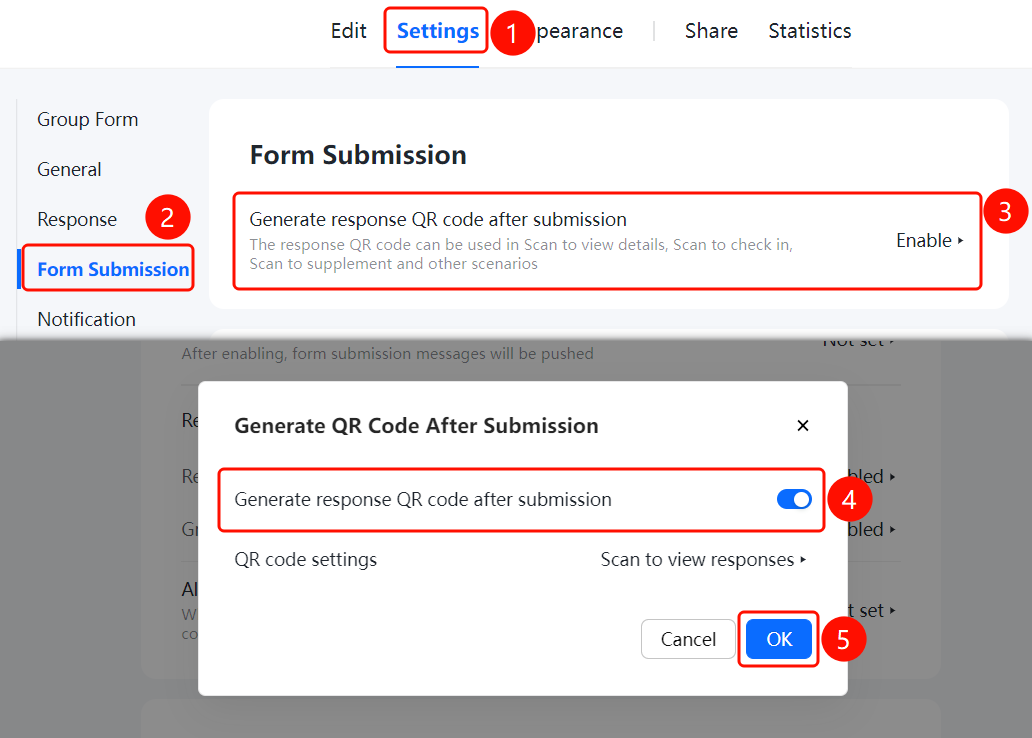
- Click the "Settings" tab at the top
- In the left menu, click "After Form Submission"
- Click "Generate Response QR Code" (currently set to "Enabled")
- In the pop-up dialog, turn on the "Generate Response QR Code" switch
- Click "Confirm" to save the settings
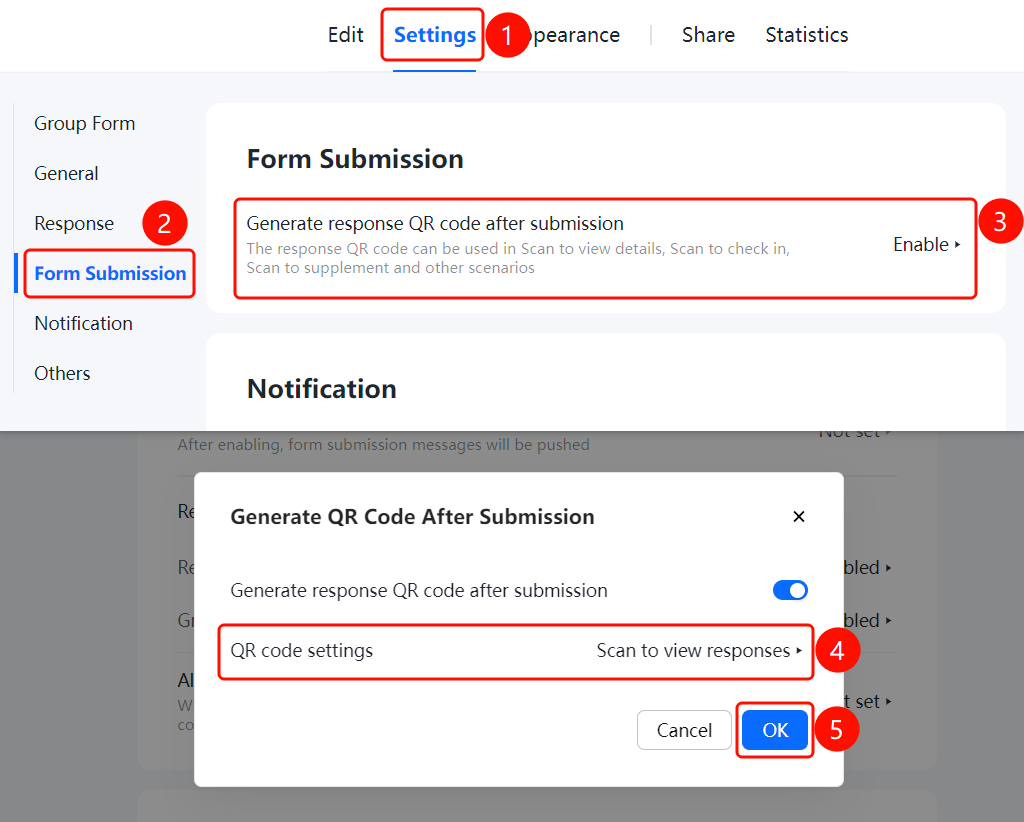
Set up QR code to view content
Access pathAfter submitting the form → A response QR code is generated after submission → "QR Code Settings" option
- In the "Generate Response QR Code After Submission" dialog box, click "QR Code Settings" (currently set to "Scan to View Response Content")
- Configure the response content visible after scanning
- Click "Confirm" to save the settings
Frequently Asked Questions
Q1: What is the purpose of generating a response QR code after submission?
- Solution: The response QR code can be used in scenarios such as scanning to view detailed responses, scanning for check-in, or scanning to complete additional information.
Notes
- The response QR code allows respondents to easily view their own submitted details.
- Once enabled, the QR code will automatically appear after a respondent submits the questionnaire.