Feature Summary
The file upload question is used to collect various file formats, such as documents, images, audio, and video. It belongs to the "File/Image Question Type." Respondents can drag and drop or paste files into the upload area, with support for setting restrictions on file types and sizes.
Feature Description
| Feature Dimension | Description |
|---|---|
| Membership Restrictions | No membership restrictions |
| Version Restrictions | No version restrictions |
Operating Steps
Adding a File Upload Question
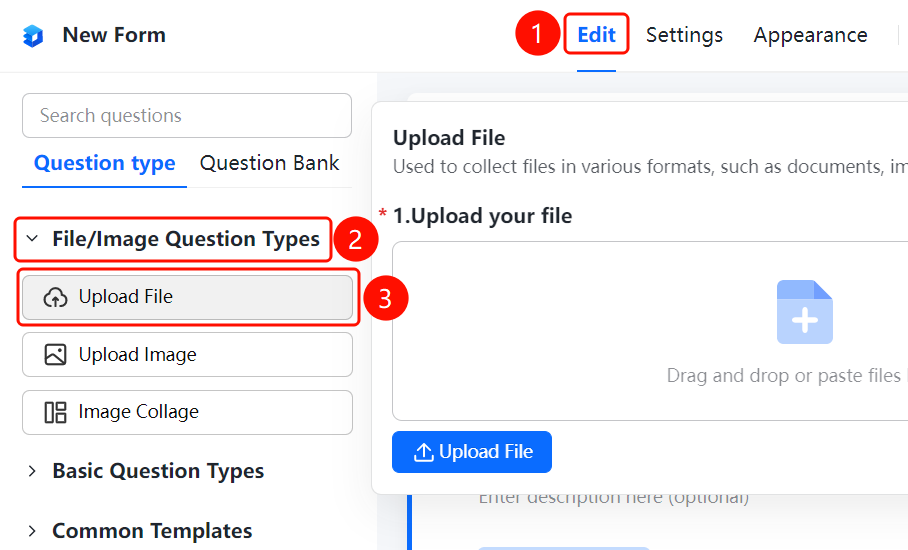
Access Point"Edit" tab → "File/Image Question Types" → "File Upload" button
- Click the "Edit" tab at the top
- Expand the "File/Image Question Types" section in the left panel
- Click the "File Upload" button to add a file upload question to the collection
- The default question text is "Please upload a file". Respondents can drag and drop or paste files into the upload area, or click the "Upload File" button to upload
- Current default settings: maximum of 1 file upload, with each file not exceeding 10MB
Set File Type Restrictions
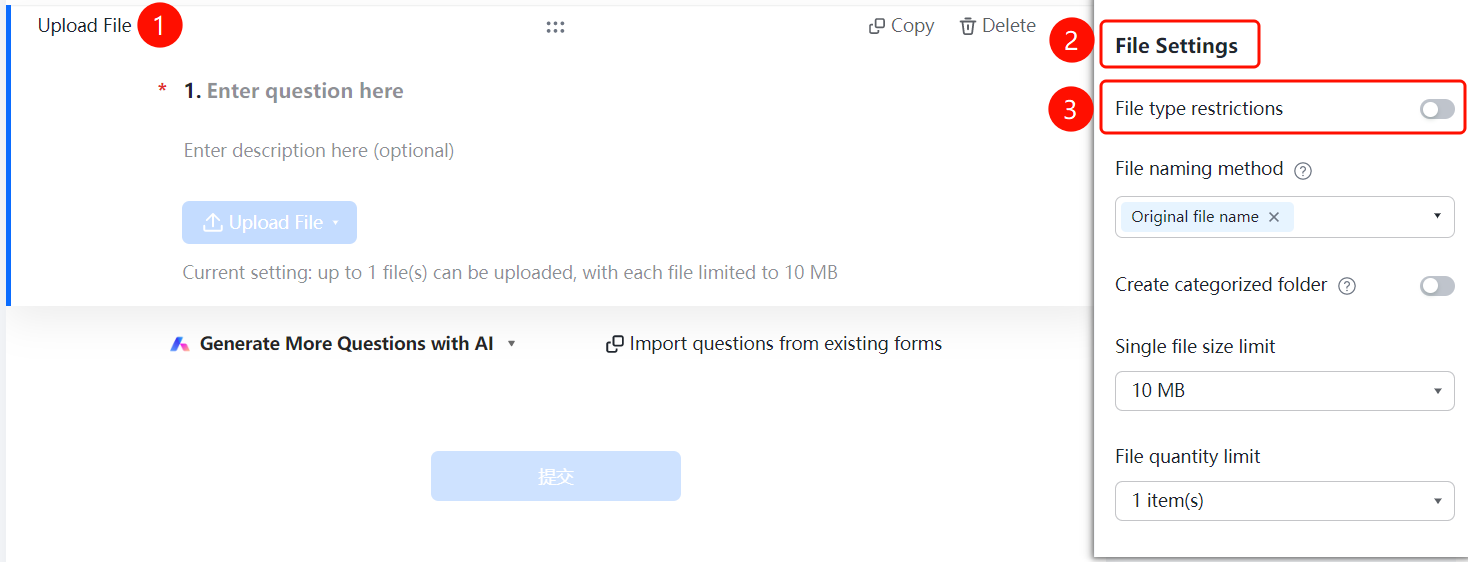
Access PathFile Upload → "File Settings" → Toggle "File Type Restrictions"
- Click on the added file upload question
- In the right-hand "File Settings" panel, turn on the "File Type Restrictions" toggle
- After enabling, select the allowed file types for upload
Set File Naming Method
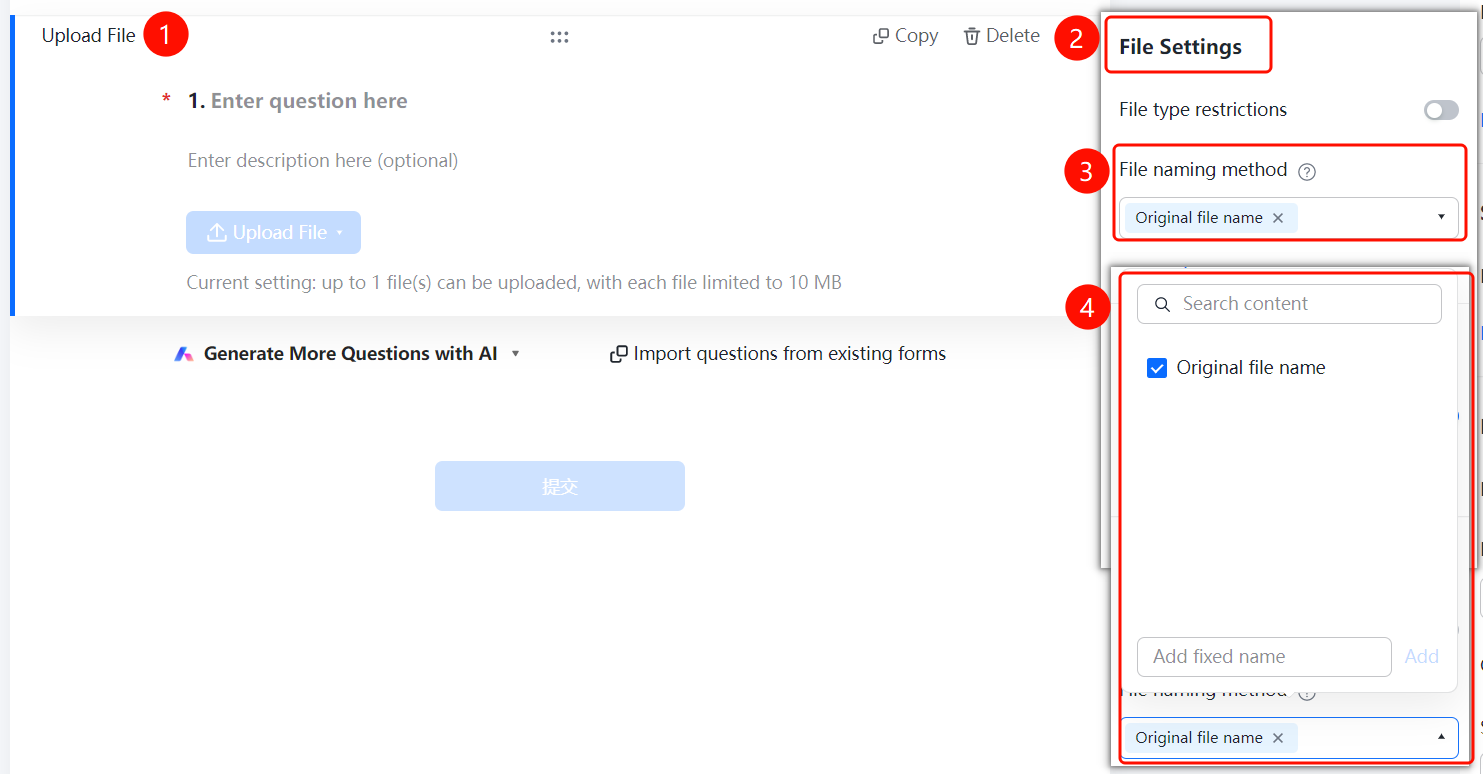
Access PathFile Upload → "File Settings" → "File Naming Method" dropdown
- Click on the file upload question you have added
- In the right-hand "File Settings" panel, click "File Naming Method" (currently set to "Original Filename ×")
- In the pop-up panel, check the desired naming fields (e.g., "Original Filename"), or enter a custom rule in the "Add Custom Fixed Name" input box
Enable Creation of Categorized Folders
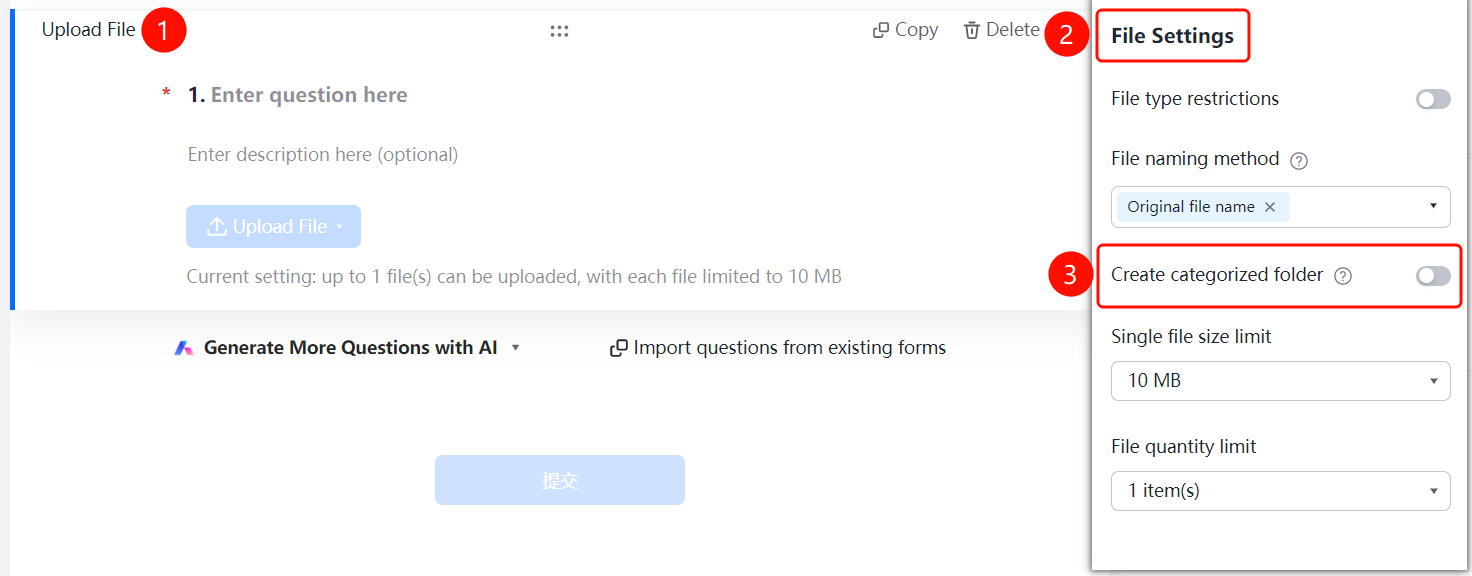
Feature Access PathFile Upload → "File Settings" → Toggle "Create Categorized Folder"
- Click on the file upload question that has already been added
- In the right-hand "File Settings" panel, turn on the "Create Categorized Folder" toggle
- Once enabled, folders will be automatically created based on the naming convention, and collected files will be categorized and consolidated accordingly
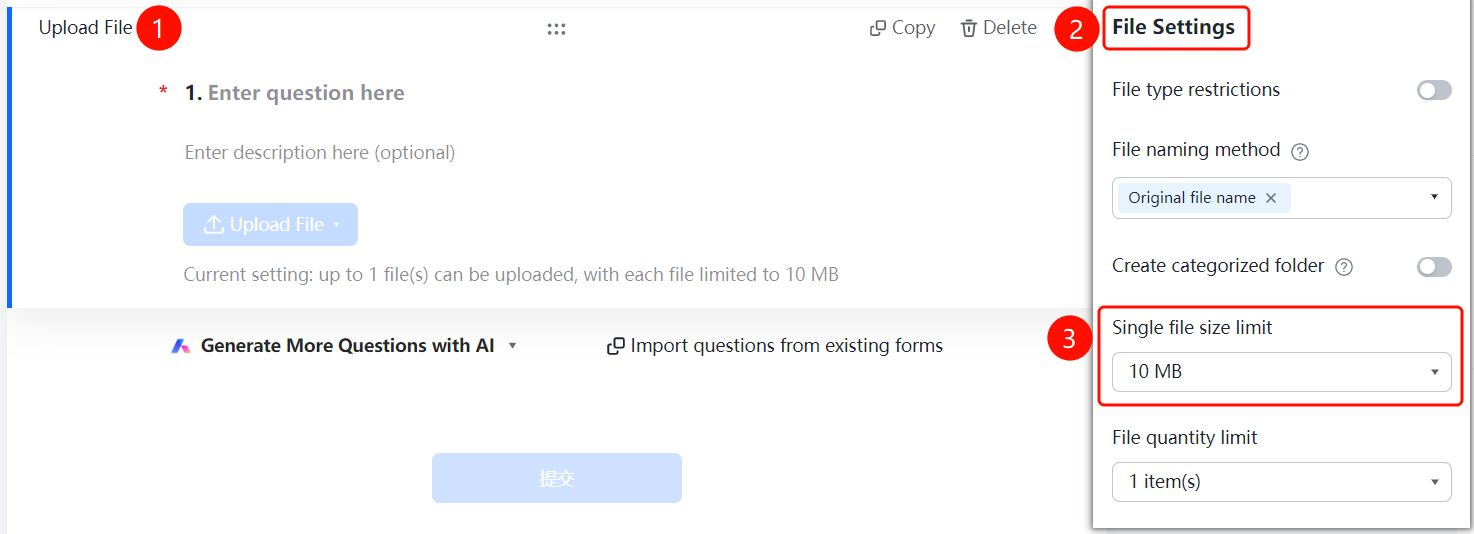
Set Individual File Size Limit
Feature Access PathFile Upload → "File Settings" → Dropdown menu for "Individual File Size Limit"
- Click on the added file upload question
- In the right-hand "File Settings" panel, click the dropdown menu for "Individual File Size Limit"
- Available options: "10M" (default), "30M", "50M", "100M", "300M"
Set File Quantity Limit
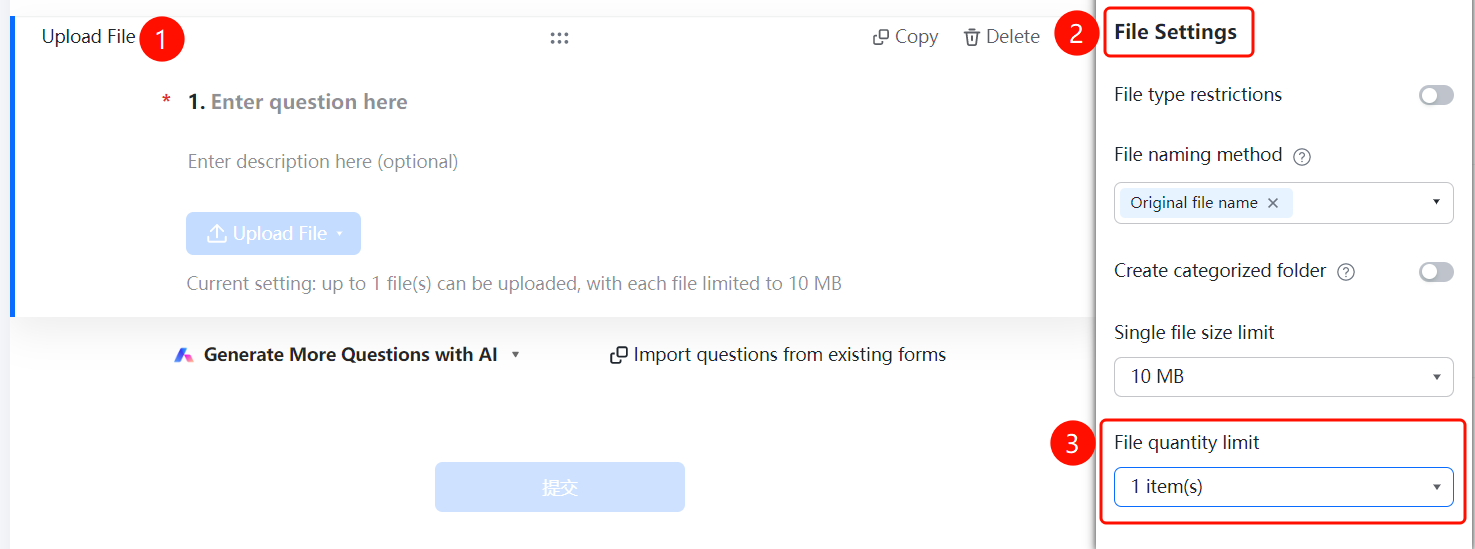
Feature Access PathFile Upload → "File Settings" → "File Quantity Limit" dropdown menu
- Click on the added file upload question
- In the right-hand "File Settings" panel, click the "File Quantity Limit" dropdown menu
- Available options: "1 file" (default), "2 files", "3 files", "4 files", "5 files", "6 files", "7 files", "8 files", etc.
Frequently Asked Questions
Q1: What file types are supported for upload?
- Solution: Supports various file formats such as documents, images, audio, and video. You can specify allowed file types under "File Type Restrictions."
Q2: How to limit file size and quantity?
- Solution: Set the "Maximum File Size" and "Maximum Number of Files" separately in the "File Settings."
Notes
- The file upload question is suitable for scenarios such as material collection and attachment submission.
- It is recommended to set reasonable limits on file types and sizes.