Feature Summary
The formula feature automatically calculates results based on filled-in content, such as total scores, average scores, total amounts, etc., eliminating the need for manual entry.
Feature Description
| Feature Dimension | Description |
|---|---|
| Membership Restriction | No membership restriction |
| Version Restriction | No version restriction |
Operation Steps
Adding a Formula Question
Feature Entry
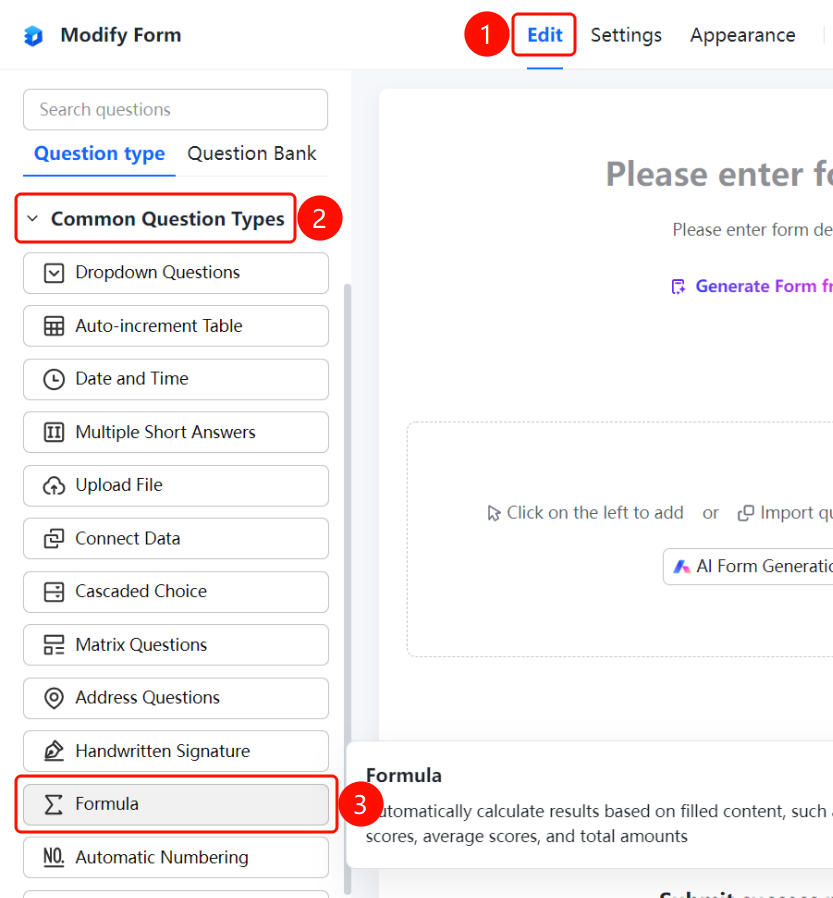
"Edit" tab → "Question Types" tab → "Common Question Types" → "Formula" button
- Click the "Edit" tab at the top
- Expand the "Common Question Types" area in the left panel
- Click the "Formula" button to add a formula question to the form
Setting Up the Formula
Feature Entry
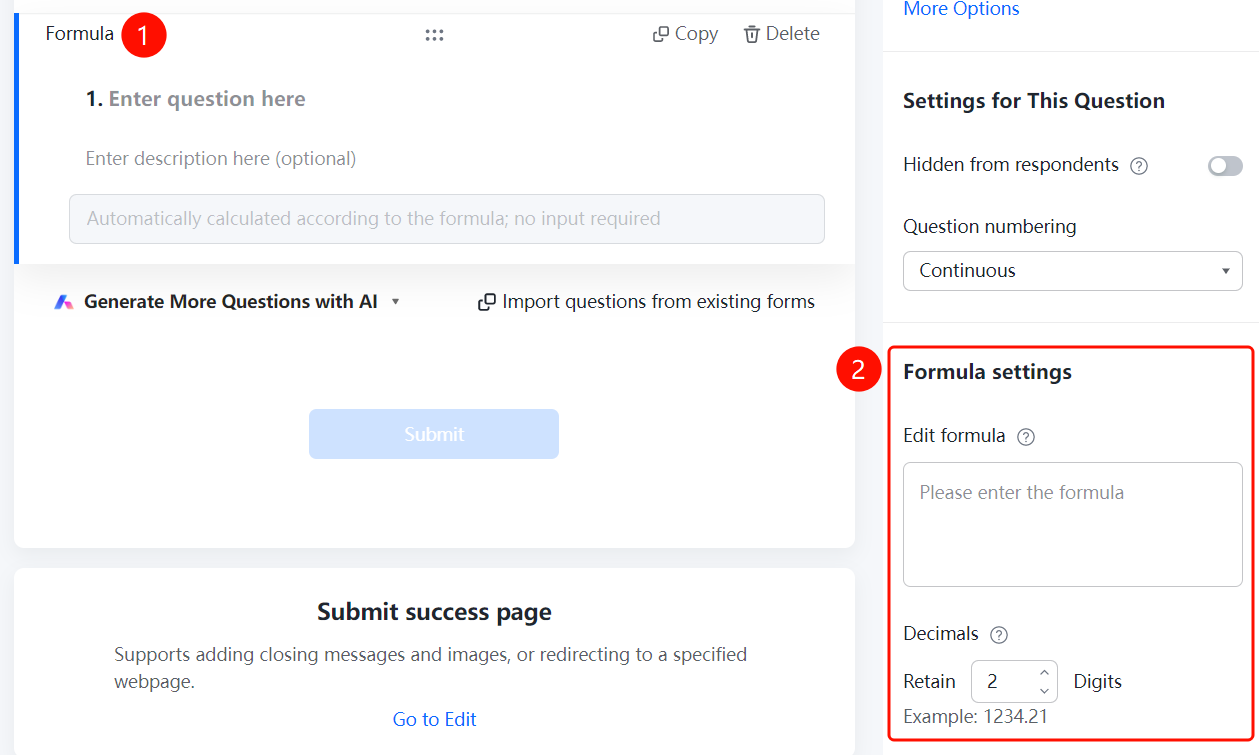
Formula question → "Formula Settings" panel
- Click the added formula question
- Enter the calculation formula in the "Edit Formula" input box of the right "Formula Settings" panel
- Set the "Decimal Places" ; the default is to keep 2 decimal places
- The system will automatically calculate the result based on the formula; respondents do not need to enter it manually
Frequently Asked Questions
Q1: What calculation types does the formula question support?
- Solution: The formula question supports various calculation types such as sum, average, maximum, minimum, etc., and can be flexibly set according to needs.
Q2: Can the number of decimal places be adjusted?
- Solution: Yes, the number of decimal places can be adjusted in the formula settings; the default is to keep 2 decimal places.
Q3: Will the result of the formula question be displayed automatically?
- Solution: Yes, the formula question will automatically calculate and display the result based on the relevant data entered by the respondent.
Notes
- The formula question relies on data from other questions for calculation; ensure that the associated questions are set up correctly
- Calculation results will be automatically rounded to the specified number of decimal places