Feature Summary
The Linked Data feature is used to link a sheet, allowing respondents to select one or more rows of data from the sheet as their submission content.
Feature Description
| Feature Dimension | Description |
|---|---|
| Membership Restrictions | No membership restrictions |
| Version Restrictions | No version restrictions |
Steps
Add Linked Data
Feature Entry
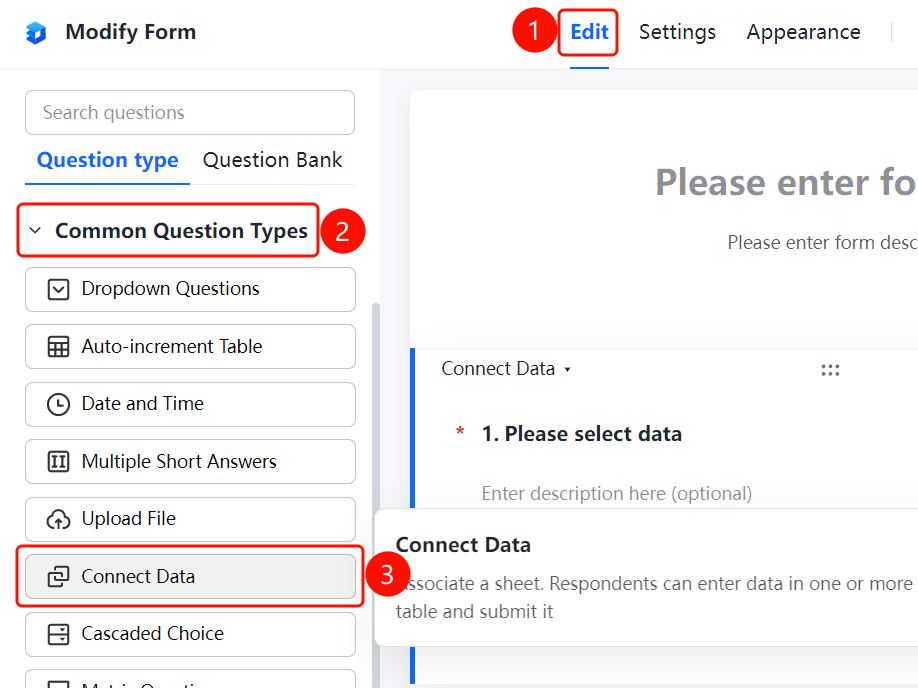
"Edit" tab → "Question Types" tab → "Common Question Types" → "Linked Data" button
- Click the top "Edit" tab
- Expand the "Common Question Types" area in the left panel
- Click the "Linked Data" button to add the Linked Data question to the form
Set Linked Sheet
Feature Entry
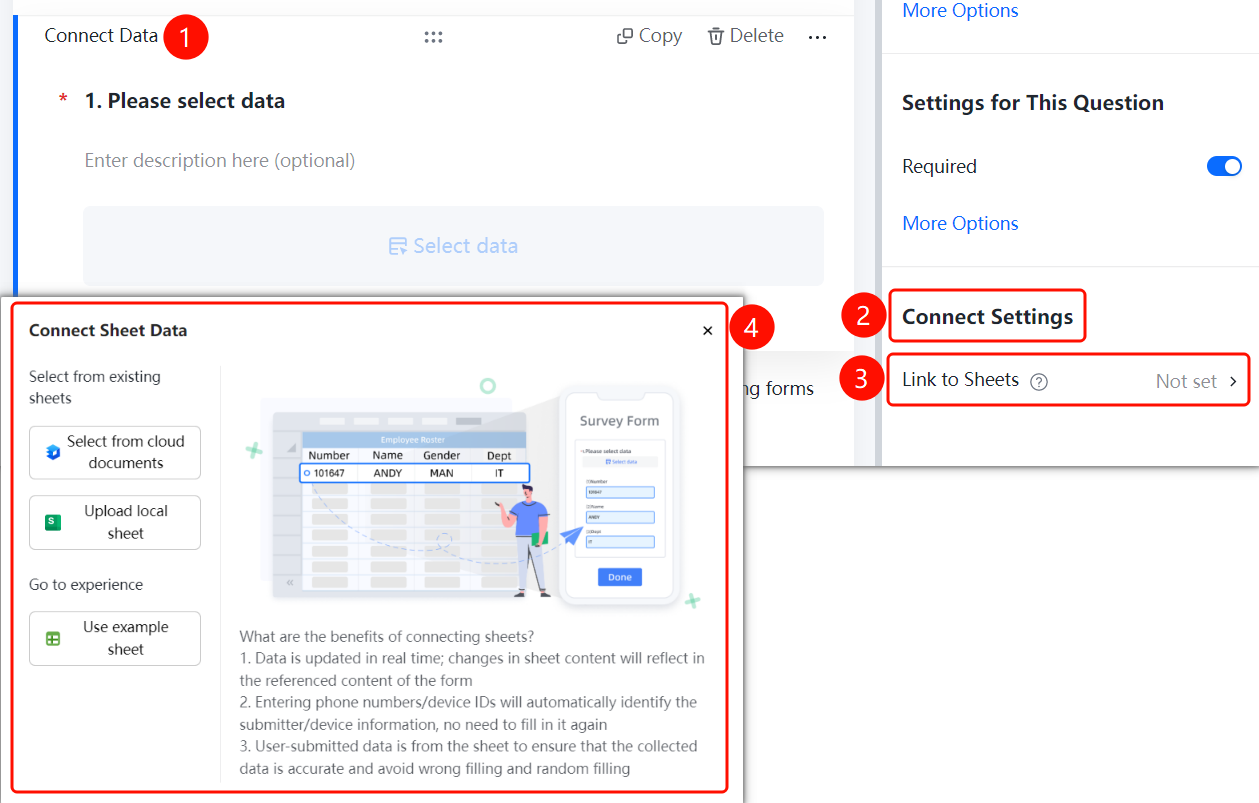
Linked Data question → "Link Settings" → "Linked Sheet" option
- Click the added Linked Data question
- In the right "Link Settings" panel, click the "Linked Sheet" option
- In the pop-up "Linked Sheet Data" panel, select the sheet source: choose from cloud documents, upload a local sheet, or use a sample sheet
- After selecting the sheet, respondents can select one or more rows of data from the sheet to submit
FAQ
Q1: What are the benefits of Linked Data?
- Solution: Linked Data supports real-time data updates and automatic identification of submitter information. Since the data comes from a sheet, it ensures accuracy and prevents incorrect or random entries.
Q2: What sheet sources are supported?
- Solution: It supports selecting from cloud documents, uploading a local sheet, or using the system-provided sample sheet for a trial experience.
Q3: Can respondents select multiple rows of data?
- Solution: Yes, respondents can select one or more rows of data from the sheet as their submission content.
Notes
- The linked sheet data will sync in real time. When the sheet content changes, the content referenced by the form will also change accordingly.
- It is recommended to use a well-structured sheet as the data source to make it easier for respondents to select.