Feature Summary
The pagination feature is used to divide form questions into different pages, allowing respondents to fill in more focused and improving filling efficiency.
Feature Description
| Feature Dimension | Description |
|---|---|
| Membership Restriction | No membership restriction |
| Version Restriction | No version restriction |
Operation Steps
Insert Pagination
Feature Entry
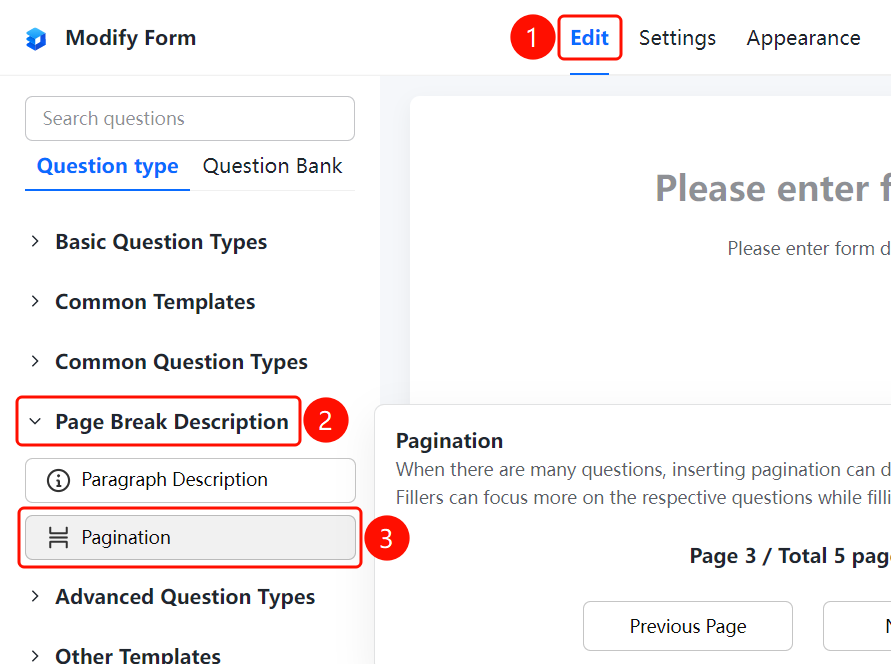
"Edit" tab → "Question Type" tab → "Pagination Description" → "Pagination" button
- Click the top "Edit" tab
- Expand the "Pagination Description" area in the left panel
- Click the "Pagination" button to insert pagination into the form
- After pagination is inserted, it will display "Page X of Y", supporting previous page and next page navigation
FAQ
Q1: When do I need to use pagination?
- Solution: When there are many form questions, inserting pagination can divide the questions into different pages, preventing respondents from feeling fatigued due to too many questions.
Q2: Does pagination affect data collection?
- Solution: No, pagination only affects the filling experience. Data from all pages will be collected and counted uniformly.
Q3: Can I adjust the position of pagination?
- Solution: Yes, you can drag the pagination component on the editing page to adjust its position in the form.