Feature Summary
The image question allows respondents to upload images as answers. It supports settings such as camera-only upload, Add Watermark, image naming method, creating category folders, image size limit, quantity limit, and Compress Image.
Feature Description
| Feature Dimension | Description |
|---|---|
| Membership Restriction | No membership restriction |
| Version Restriction | No version restriction |
Operation Steps
Adding an Image Question
Feature Entry
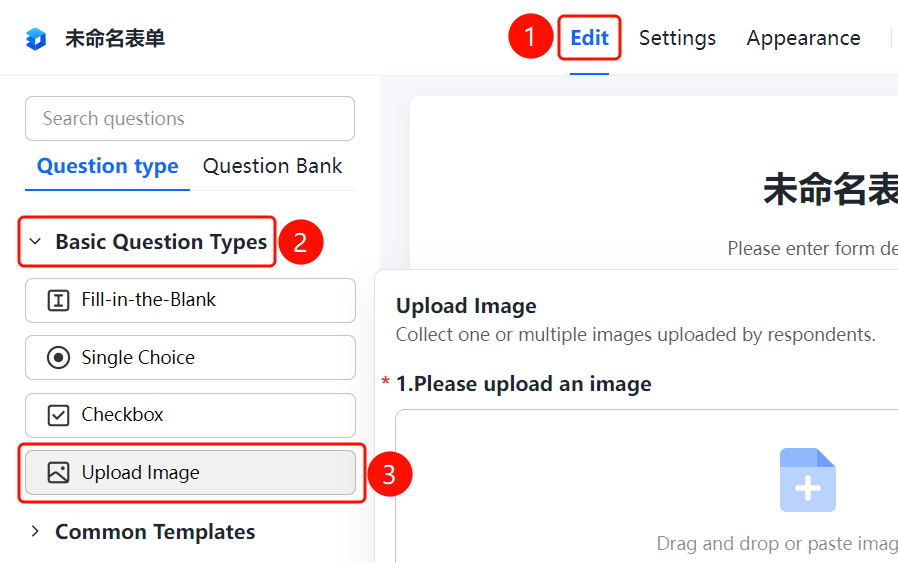
"Edit" tab → "Basic Question Types" → "Image Question" button
- Click the top "Edit" tab
- Expand the "Basic Question Types" area in the left panel
- Click the "Upload Image" button to add the image question to the form
Setting Camera-Only Upload
Feature Entry
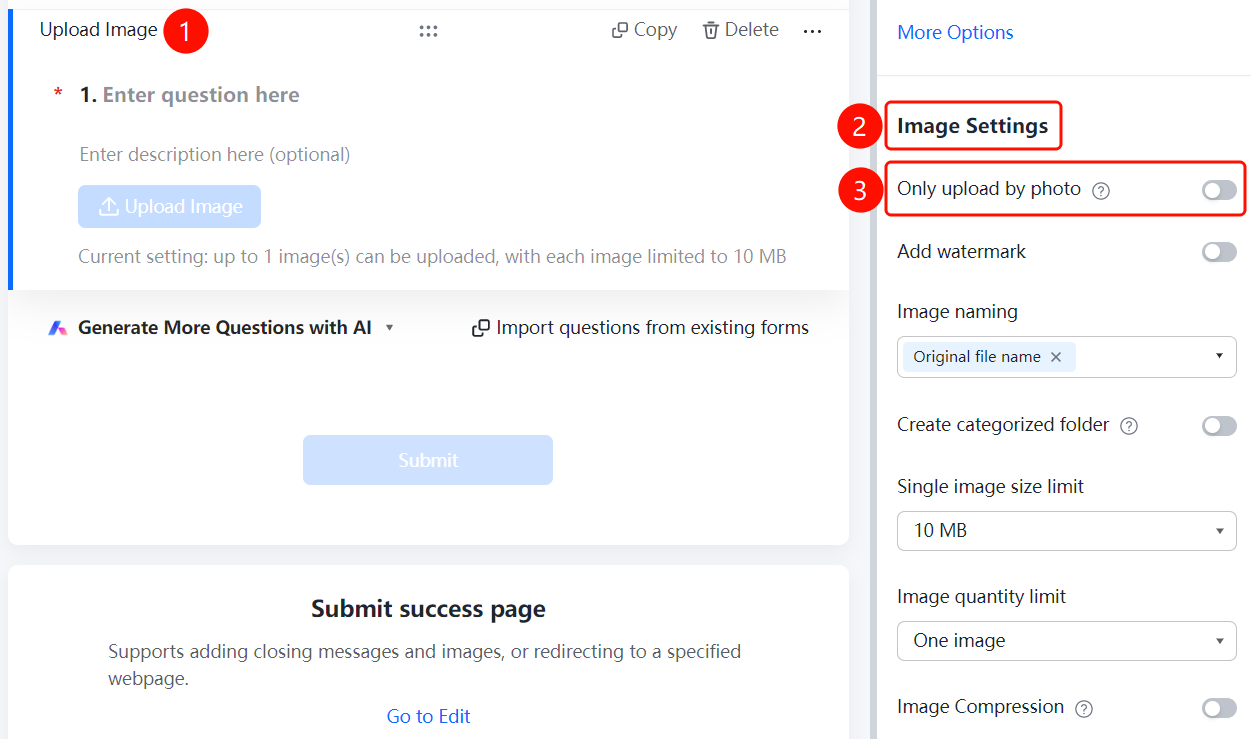
Image Question → "Image Settings" → "Camera-Only Upload" toggle
- Click the added image question
- In the right-side "Image Settings" panel, turn on the "Camera-Only Upload" toggle
- After enabling, respondents can only upload images by taking a photo and cannot select from the album
Setting Add Watermark
Feature Entry
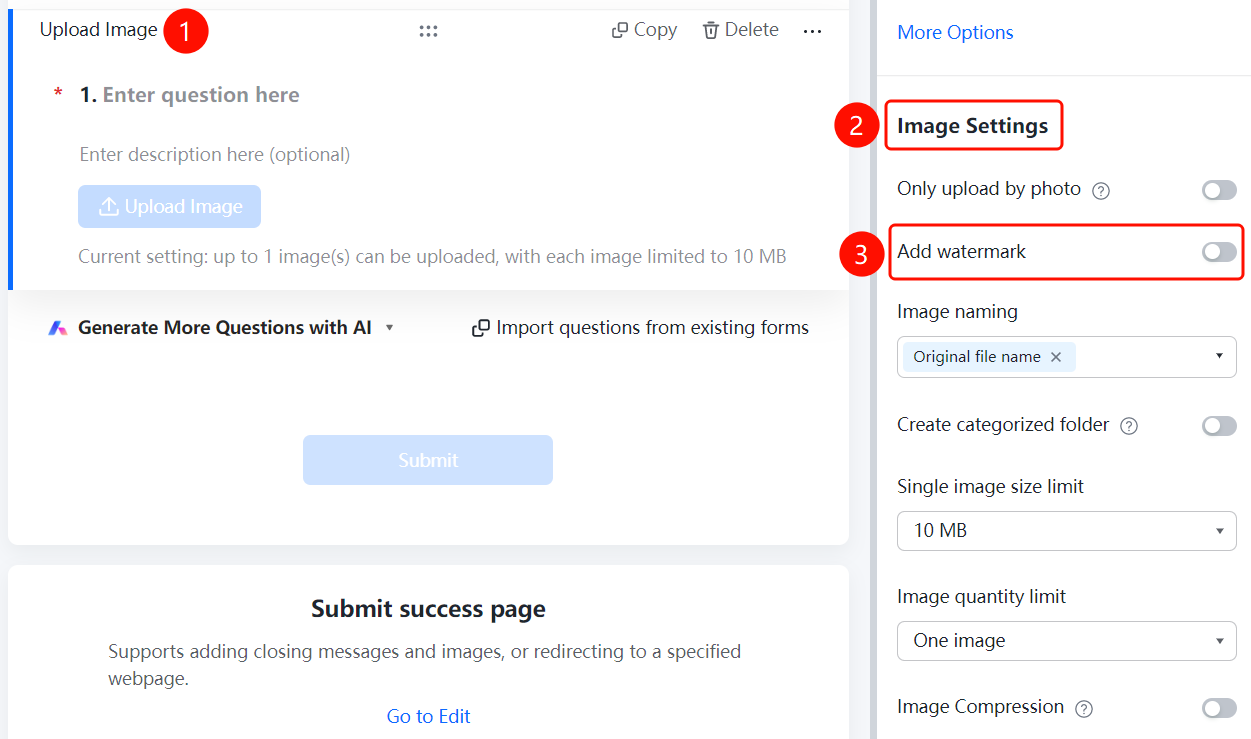
Image Question → "Image Settings" → "Add Watermark" toggle
- Click the added image question
- In the right-side "Image Settings" panel, turn on the "Add Watermark" toggle
- After enabling, uploaded images will automatically have Add Watermark information
Setting Image Naming Method
Feature Entry
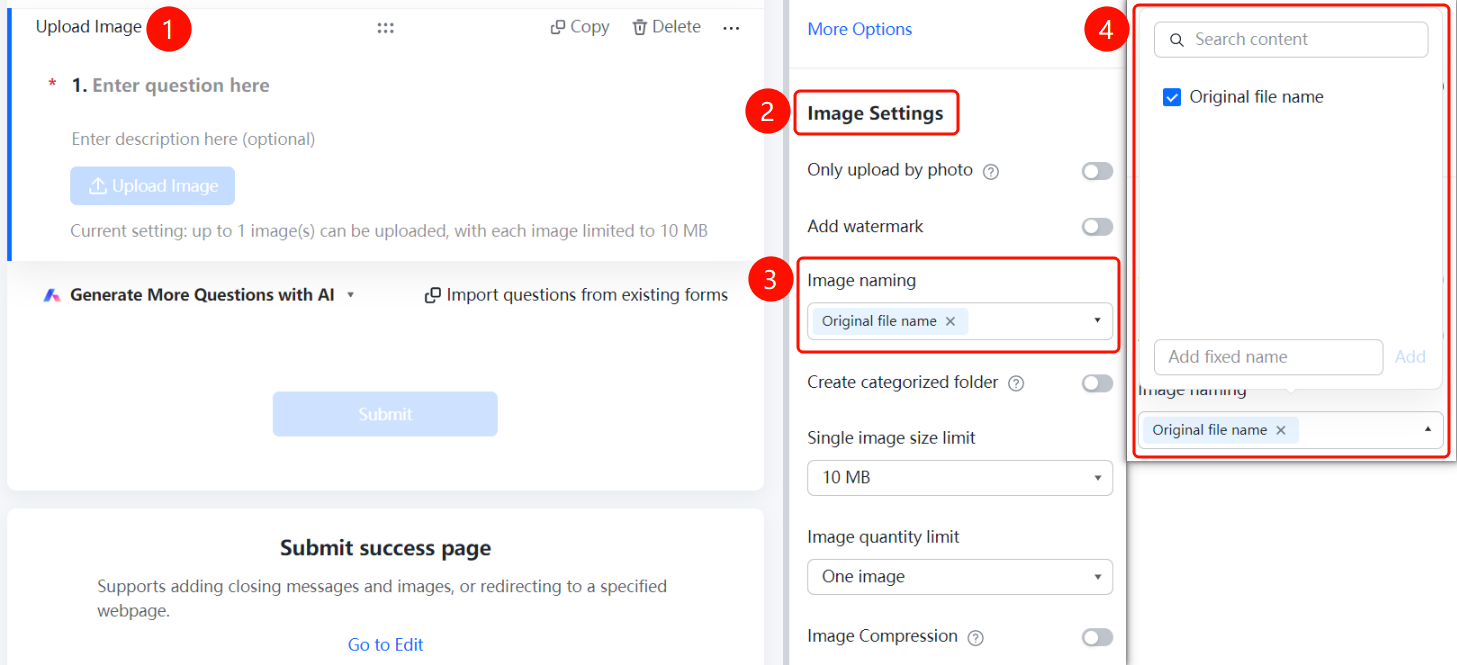
Image Question → "Image Settings" → "Image Naming Method" dropdown menu
- Click the added image question
- In the right-side "Image Settings" panel, click the "Image Naming Method" dropdown menu
- Select the naming method: "Original File Name" or "Add custom Fixed Naming"
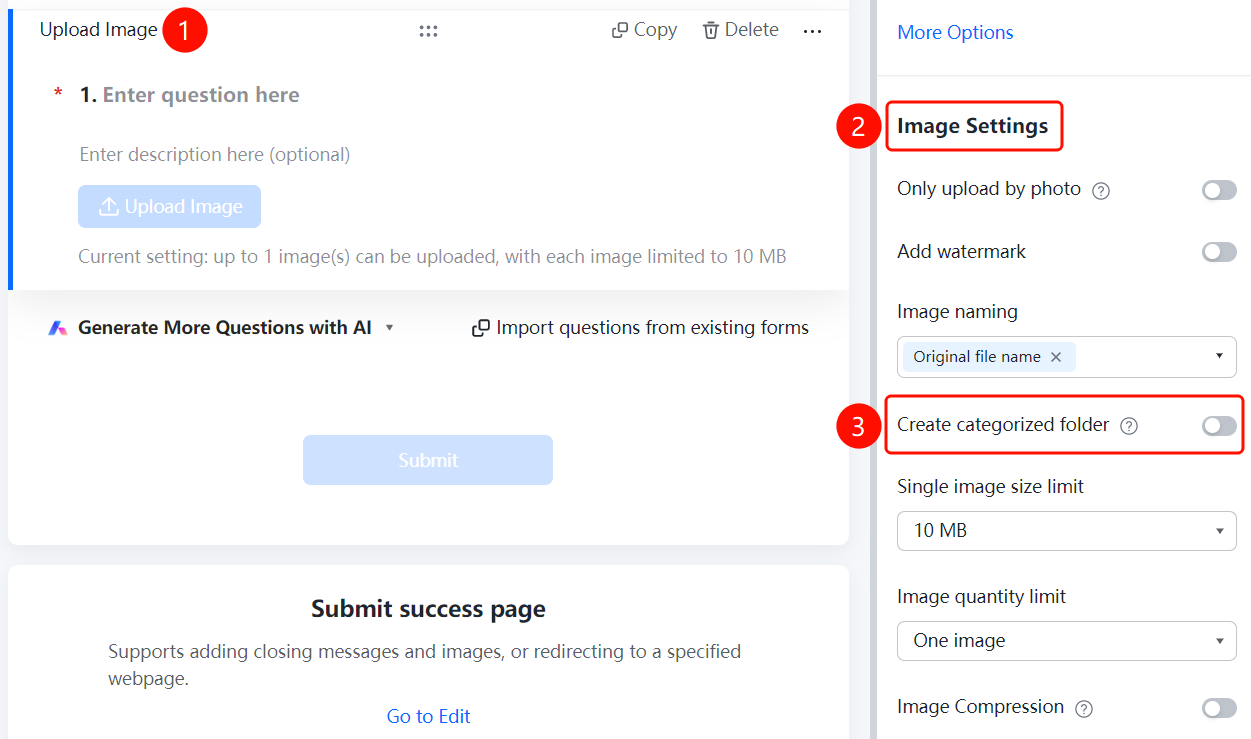
Setting Create Category Folders
Feature Entry
Image Question → "Image Settings" → "Create Category Folders" toggle
- Click the added image question
- In the right-side "Image Settings" panel, turn on the "Create Category Folders" toggle
- After enabling, the system will automatically create category folders to store images by respondent
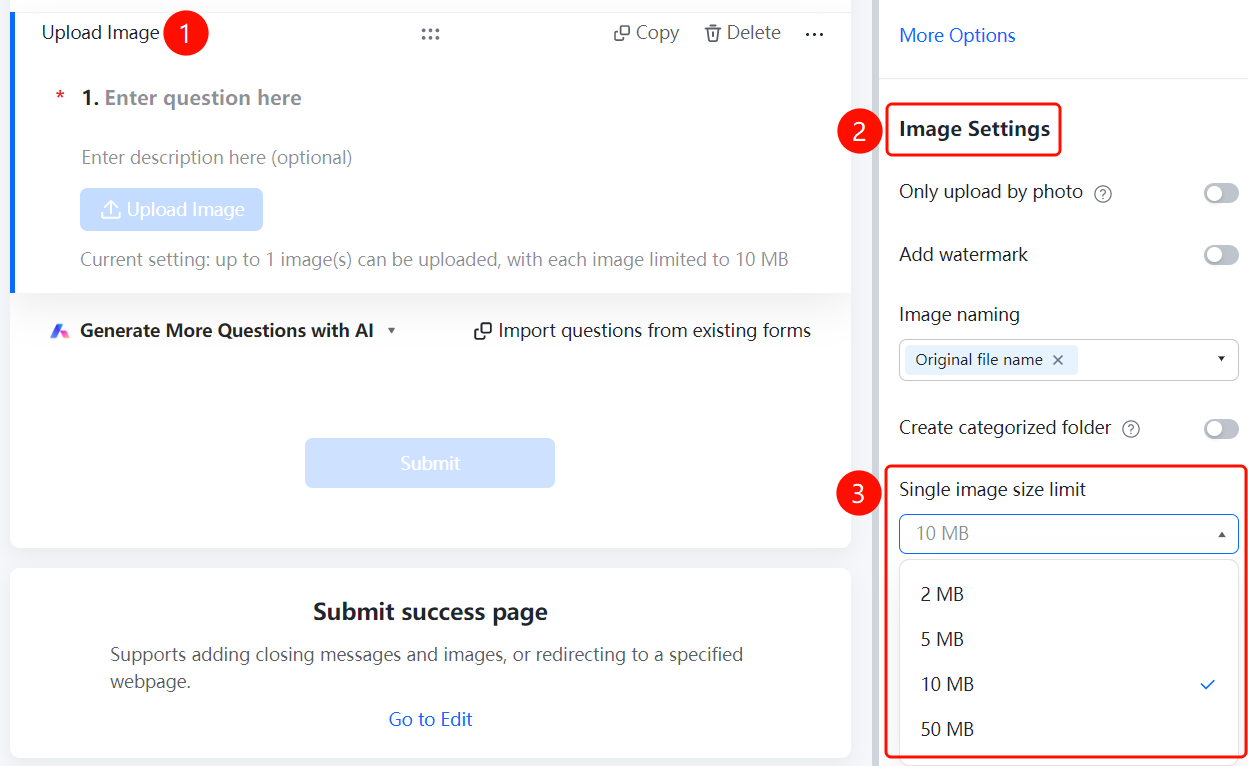
Setting Single Image Size Limit
Feature Entry
Image Question → "Image Settings" → "Single Image Size Limit" dropdown menu
- Click the added image question
- In the right-side "Image Settings" panel, click the "Single Image Size Limit" dropdown menu
- Select the allowed size limit: 2M, 5M, 10M, or 50M
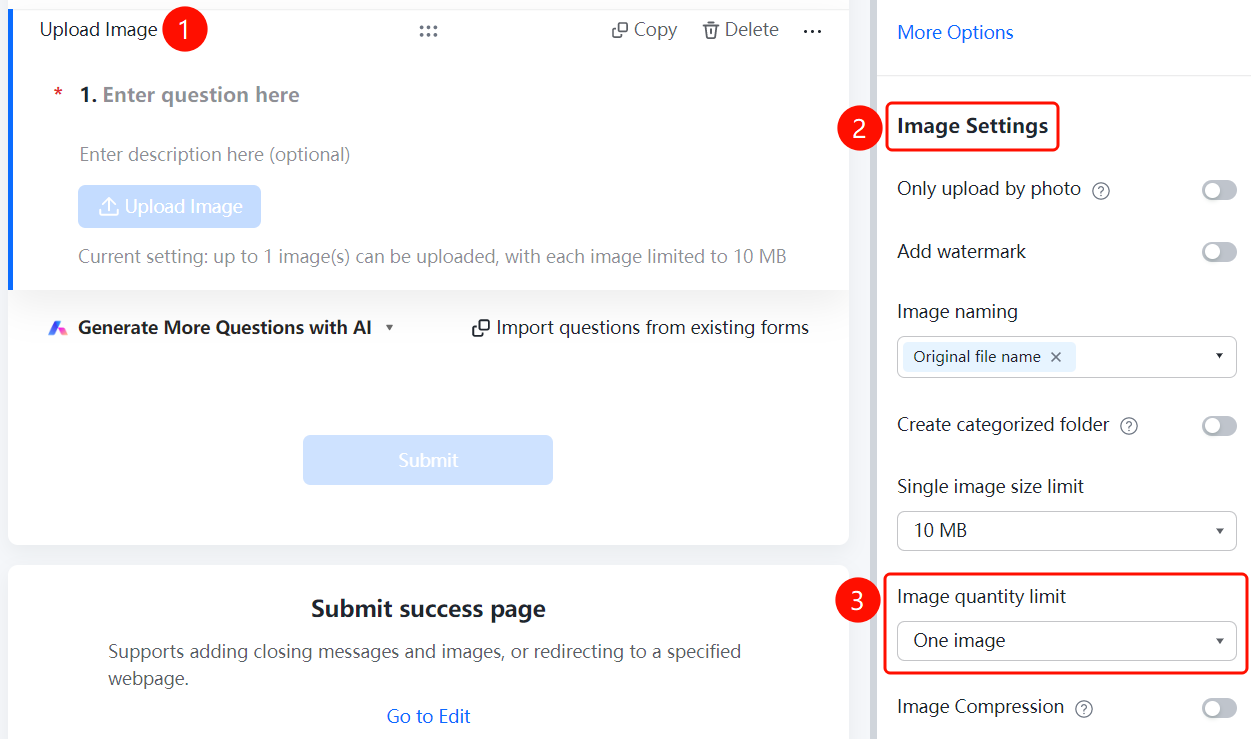
Setting Image Quantity Limit
Feature Entry
Image Question → "Image Settings" → "Image Quantity Limit" dropdown menu
- Click the added image question
- In the right-side "Image Settings" panel, click the "Image Quantity Limit" dropdown menu
- Select the allowed number of images to upload
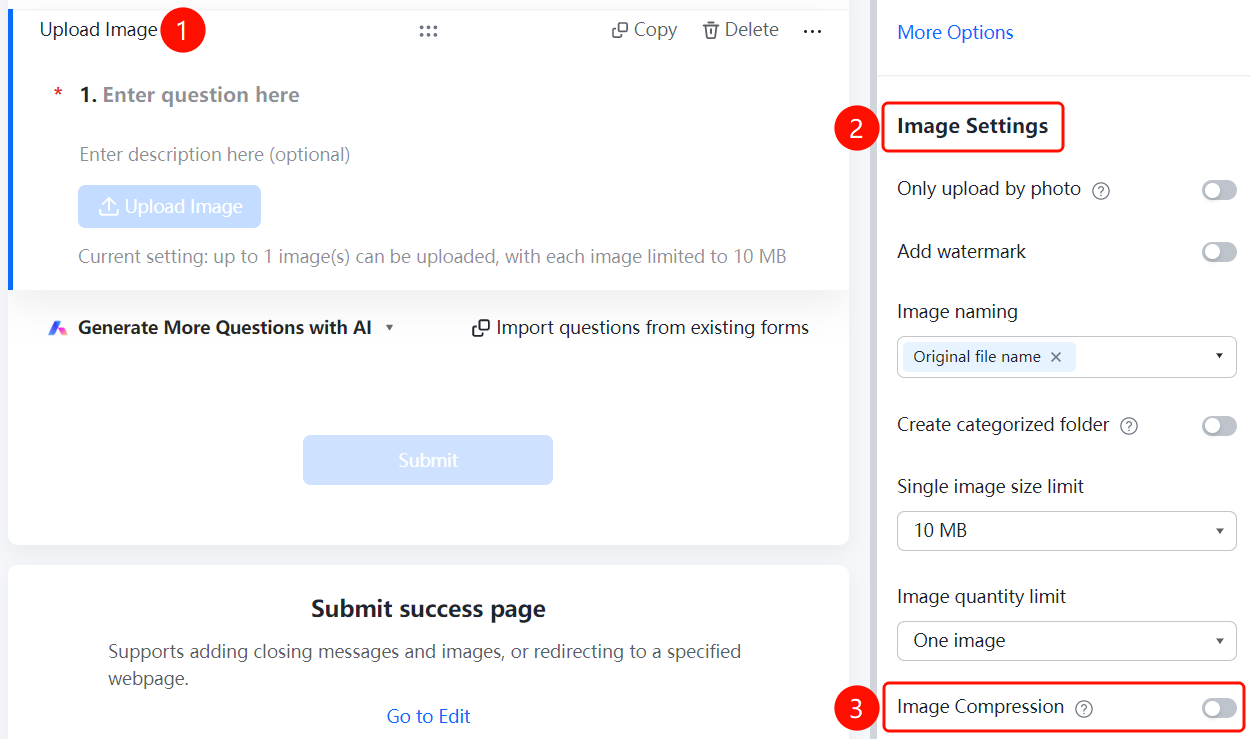
Setting Compress Image
Feature Entry
Image Question → "Image Settings" → "Compress Image" toggle
- Click the added image question
- In the Image Settings panel on the right, enable the Compress Image toggle
- After enabling, uploaded images will be automatically compressed to save storage space
FAQ
Q1: How to restrict respondents to only upload images by taking a photo?
- Solution: Click the image question, and in the Image Settings panel, enable the "Camera Only" toggle. After enabling, respondents can only upload images by taking a photo.
Q2: Does the image question support uploading multiple images?
- Solution: Yes. In the Image Settings panel, click the "Image Quantity Limit" dropdown menu and select the desired number of images.
Q3: How to Add Watermark to uploaded images?
- Solution: Click the image question, and in the Image Settings panel, enable the Add Watermark toggle. After enabling, uploaded images will automatically have watermark information added.
Notes
- The maximum size limit for a single image can be set to 50M. It is recommended to set it reasonably based on actual needs.
- Enabling the Compress Image feature can effectively reduce the storage space occupied by images.
- The feature of creating category folders can help admins better manage collected images.