Feature Summary
Fill settings are used to control the form's filling method and restriction conditions, including features such as sign in verification, anonymous filling, response limits, fill count, brand logo, and participant count display.
Feature Description
| Feature Dimension | Description |
|---|---|
| Membership Restriction | No membership restriction |
| Version Restriction | No version restriction |
Operation Steps
Set Fill Requires Sign In
Feature Entry
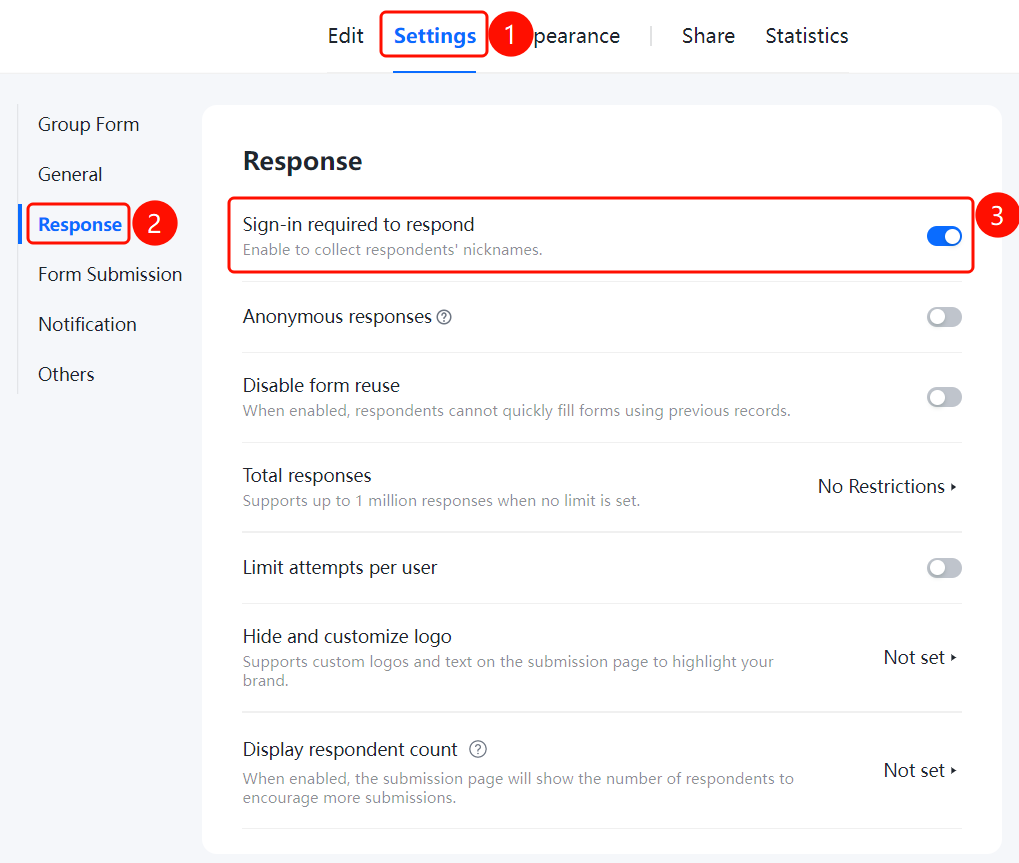
"Settings" tab → "Fill Settings" → "Fill Requires Sign In" toggle
- Click the top "Settings" tab
- Click "Fill Settings" in the left menu
- Turn on the "Fill Requires Sign In" toggle
- After enabling, the filler's nickname information can be collected
Set Anonymous Filling
Feature Entry
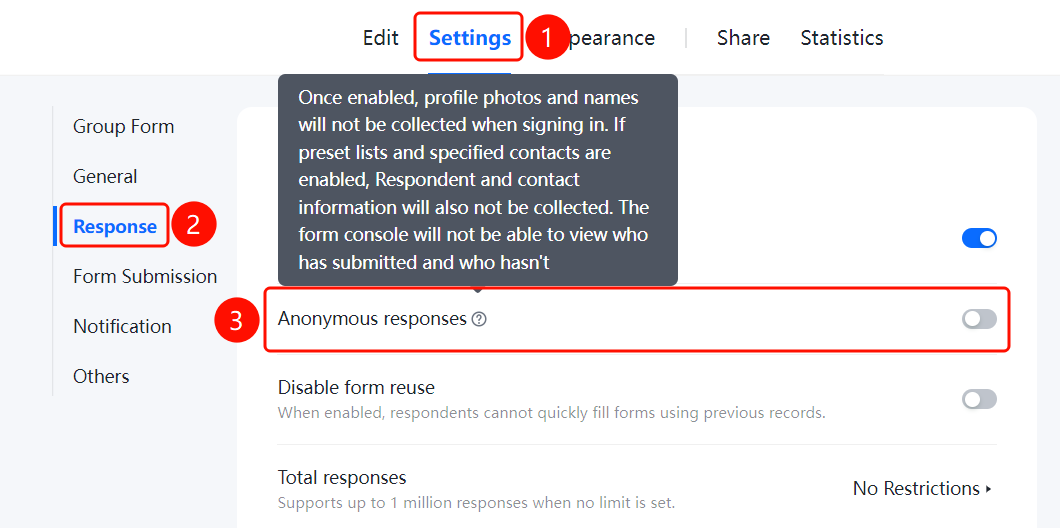
"Settings" tab → "Fill Settings" → "Anonymous Filling" toggle
- Click the top "Settings" tab
- Click "Fill Settings" in the left menu
- Turn on the "Anonymous Filling" toggle
- After enabling, the filler's identity cannot be known, and the filler's profile picture and nickname cannot be automatically collected
Set Disable form reuse
Feature Entry
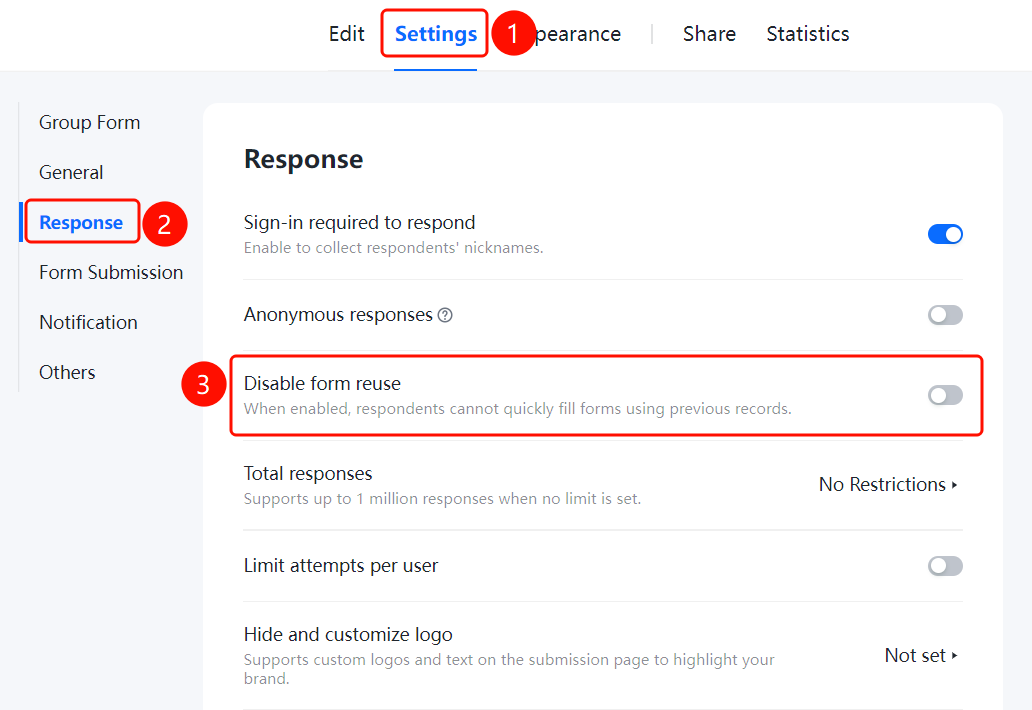
"Settings" tab → "Fill Settings" → "Disable form reuse" toggle
- Click the top "Settings" tab
- Click "Fill Settings" in the left menu
- Turn on the "Disable form reuse" toggle
- After enabling, fillers will not be able to use this feature for quick filling
Set Total Responses
Feature Entry
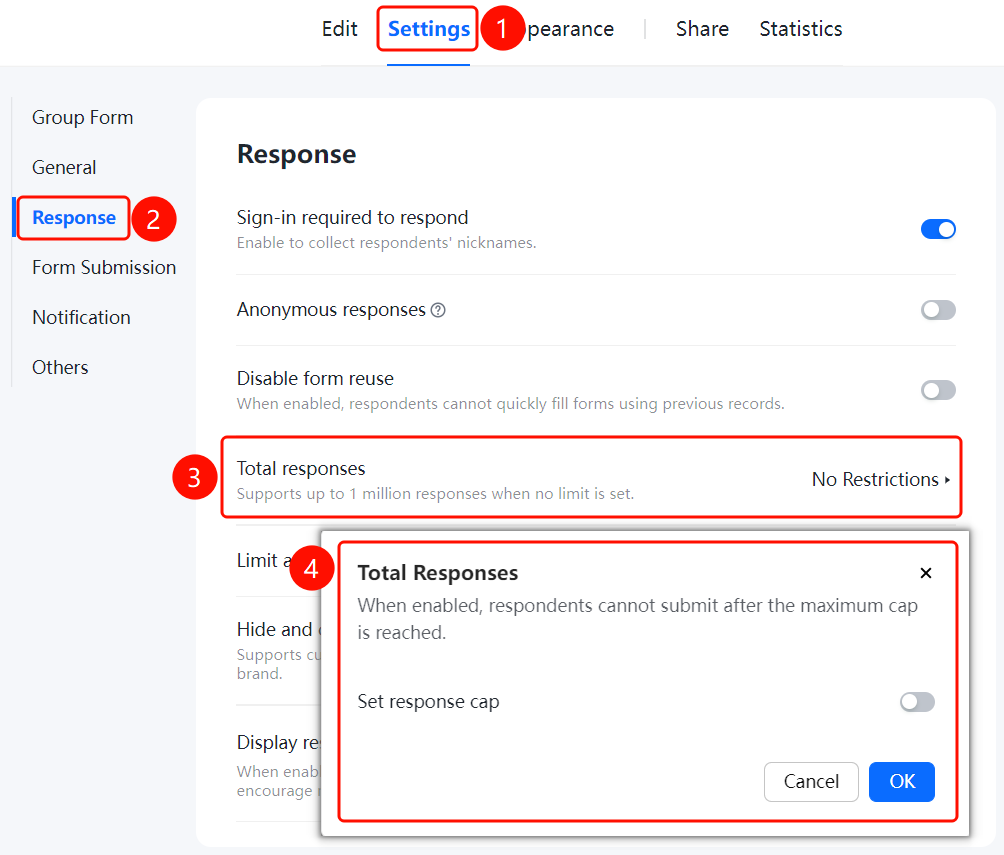
"Settings" tab → "Fill Settings" → "Total Responses"
- Click the top "Settings" tab
- Click "Fill Settings" in the left menu
- Click the "Total Responses" option
- In the pop-up panel, turn on the "Limit Total Responses" toggle and set the quantity
- After exceeding the maximum limit, fillers will not be able to submit
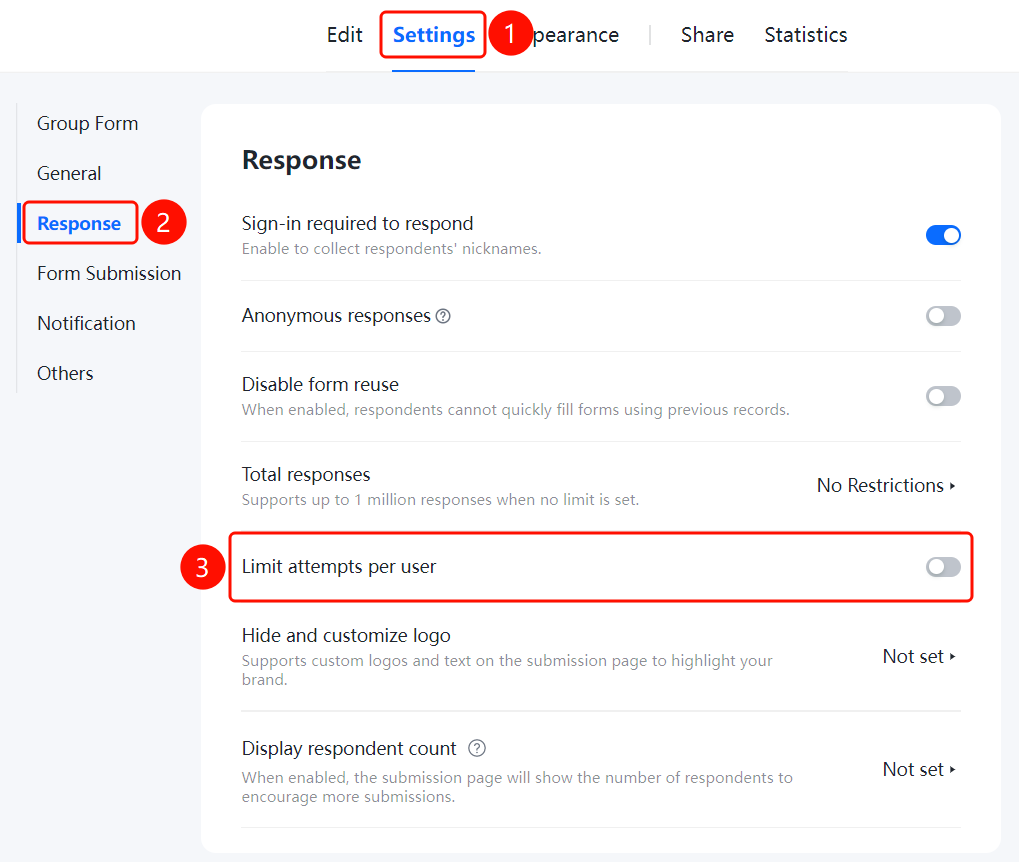
Limit Fill Count Per User
Feature Entry
"Settings" tab → "Fill Settings" → "Limit Fill Count Per User" toggle
- Click the top "Settings" tab
- Click "Fill Settings" in the left menu
- Turn on the "Limit Fill Count Per User" toggle
- After enabling, each user can be restricted to filling only a specified number of times
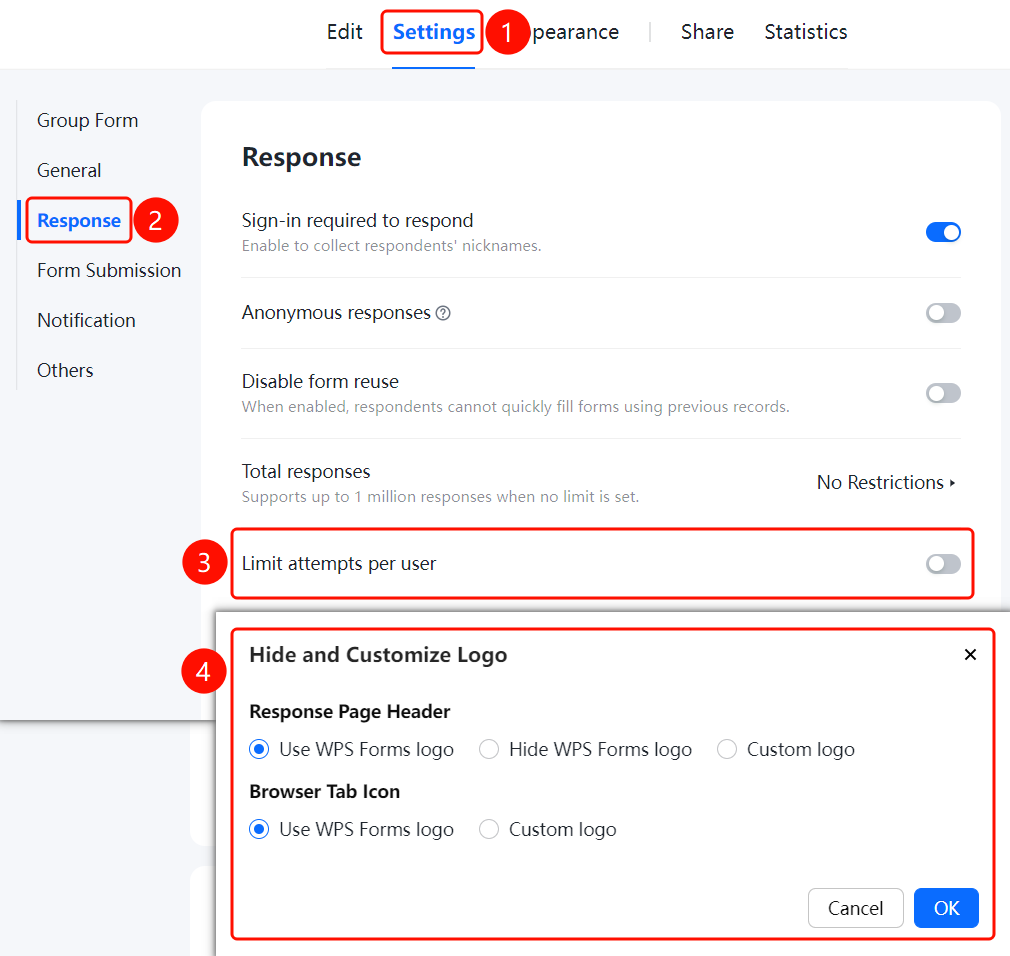
Hide and Custom Logo
Feature Entry
"Settings" tab → "Fill Settings" → "Hide and Custom Logo"
- Click the top "Settings" tab
- Click "Fill Settings" in the left menu
- Click the "Hide and Custom Logo" option
- In the pop-up panel, set the logo display method for the fill page navigation bar and computer browser tab
- Click the "Confirm" button to save the settings
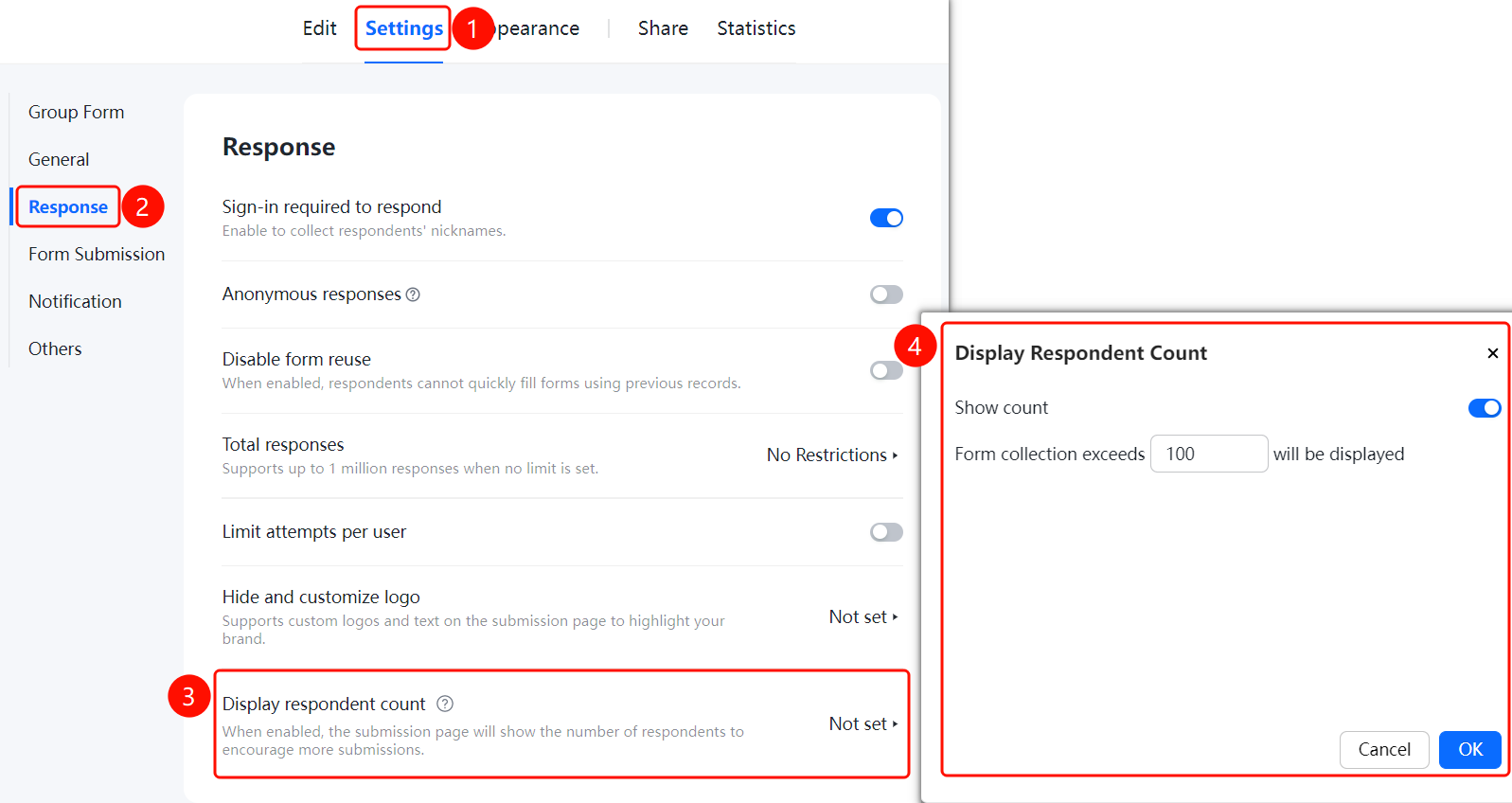
Display Participant Count
Feature Entry
"Settings" tab → "Fill Settings" → "Display Participant Count"
- Click the top "Settings" tab
- Click "Fill Settings" in the left menu
- Click the "Display Participant Count" option
- In the pop-up panel, turn on the "Display Count" toggle
- Set to display when the number of collected form responses exceeds the specified quantity
- Click the "Confirm" button to save the settings
FAQ
Q1: What is the purpose of enabling "Require sign in to fill out"?
- Solution: After enabling this feature, the nicknames of respondents will be collected, making it easier for the form Admin to identify them.
Q2: Can "Anonymous filling" and "Require sign in to fill out" be enabled at the same time?
- Solution: No. When anonymous filling is enabled, the identity of the respondent cannot be known, which is mutually exclusive with the "Require sign in to fill out" feature.
Q3: How to limit the form to collect only a certain number of responses?
- Solution: In the fill settings, click "Total responses", enable the "Limit total responses" toggle, and set the desired number. Once the limit is exceeded, respondents will be unable to submit.
Notes
- When the total response limit is not enabled, the maximum number of responses can reach one million.
- Enabling the hide and custom logo features can help highlight the organization's brand image.
- The feature to display the number of participants can encourage more people to fill out the form.