Feature Summary
The fill-in-the-blank question is used to collect text content entered by respondents, supporting settings such as format restrictions, character limits, disallowing duplicates, and blocklists.
Feature Description
| Feature Dimension | Description |
|---|---|
| Membership Restriction | No membership restriction |
| Version Restriction | No version restriction |
Steps
Adding a Fill-in-the-Blank Question
Feature Entry
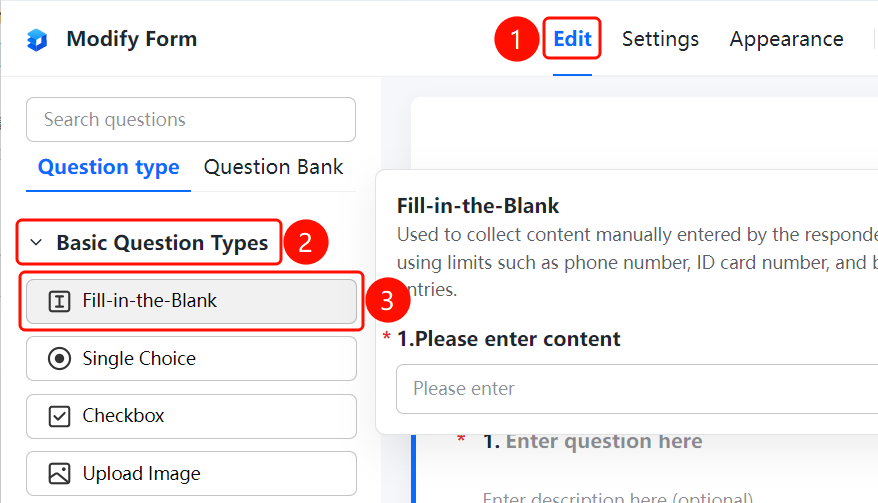
「Edit」 tab → 「Question Types」 tab → 「Basic Types」 → 「Fill-in-the-Blank」 button
- Click the top 「Edit」 tab
- In the left panel, expand the 「Basic Types」 area
- Click the 「Fill-in-the-Blank」 button to add a fill-in-the-blank question to the form
Setting Format Restrictions
Feature Entry
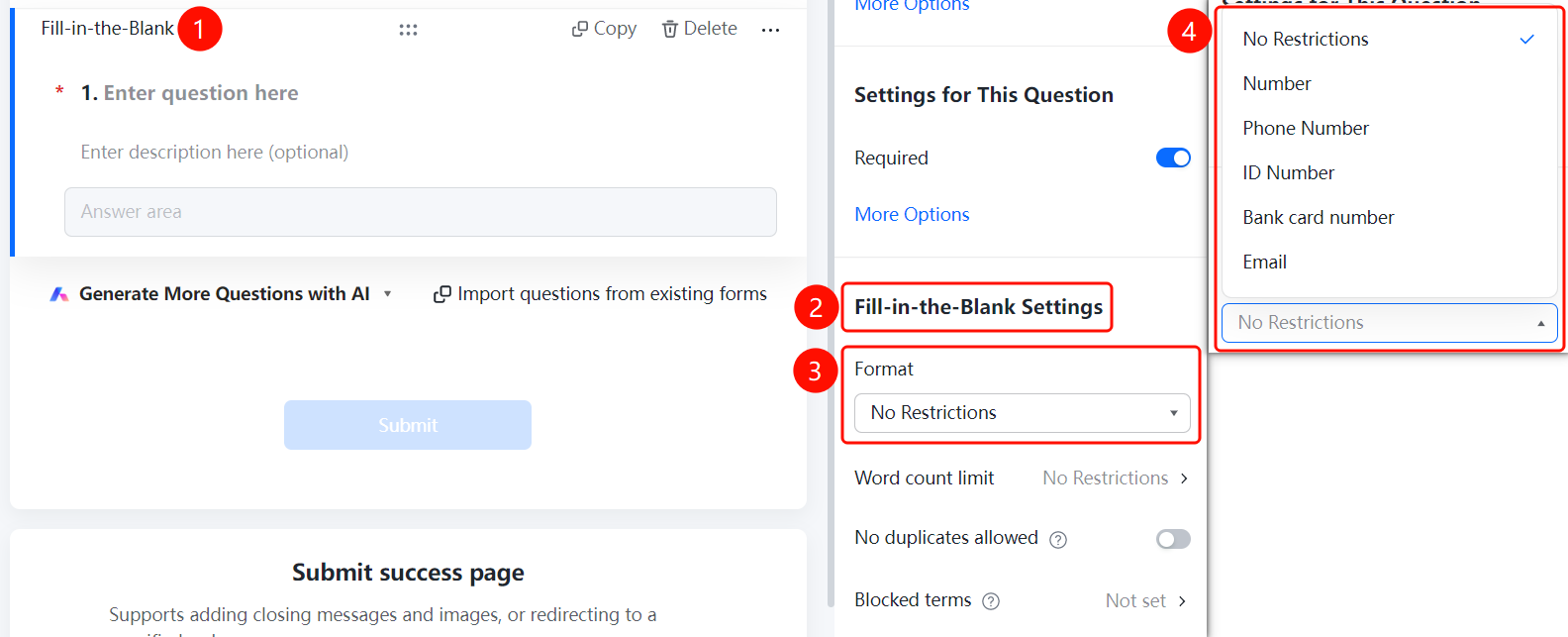
Fill-in-the-Blank → 「Fill-in Settings」 → 「Format Restriction」
- Click the added fill-in-the-blank question
- In the right-side 「Fill-in Settings」 panel, click the 「Format Restriction」 dropdown
- Select a format: None, Number, Phone Number, ID Number, Bank Card Number, Email
Setting Character Limit
Feature Entry
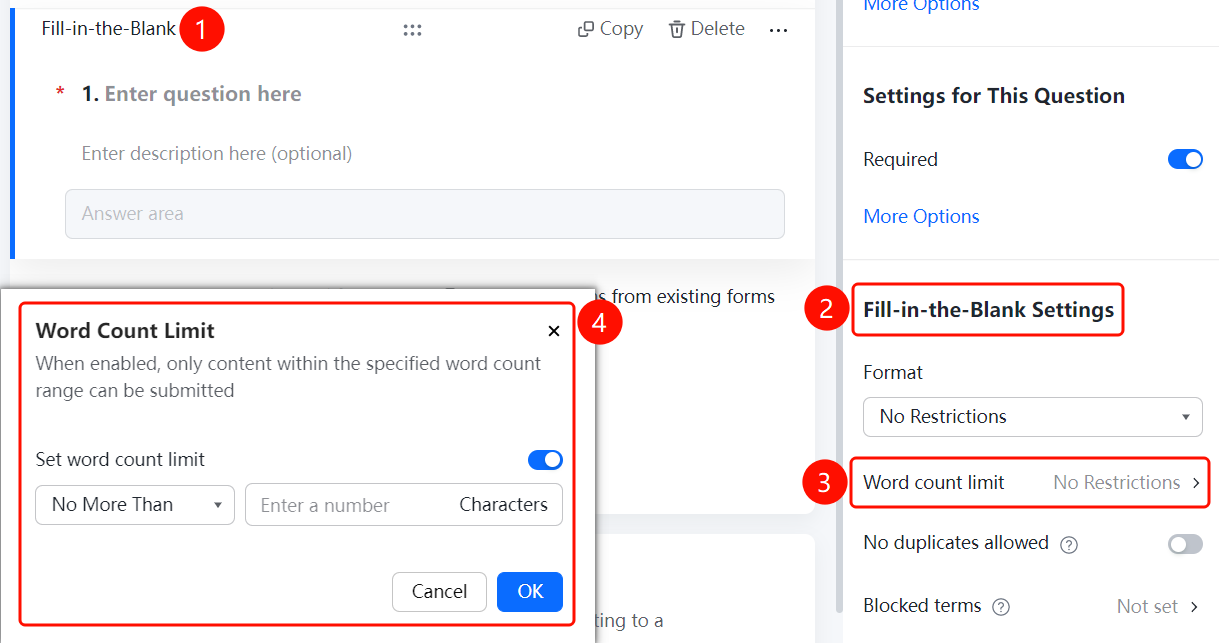
Fill-in-the-Blank → 「Fill-in Settings」 → 「Character Limit」
- Click the added fill-in-the-blank question
- In the right-side 「Fill-in Settings」 panel, click the 「Character Limit」 option
- In the pop-up panel, enable the 「Set Character Limit」 toggle
- Set the minimum and maximum character limits
Setting Disallow Duplicates
Feature Entry
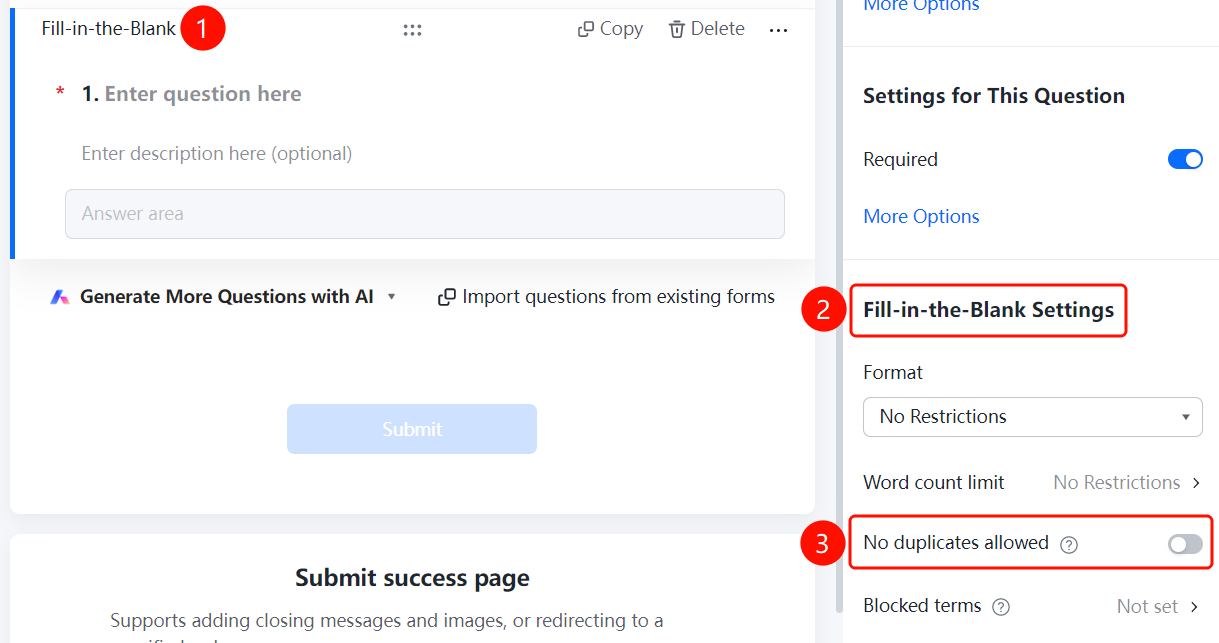
Fill-in-the-Blank → 「Fill-in Settings」 → 「Disallow Duplicates」
- Click the added fill-in-the-blank question
- In the right-side 「Fill-in Settings」 panel, find the 「Disallow Duplicates」 option
- After enabling the toggle, identical content cannot be submitted repeatedly
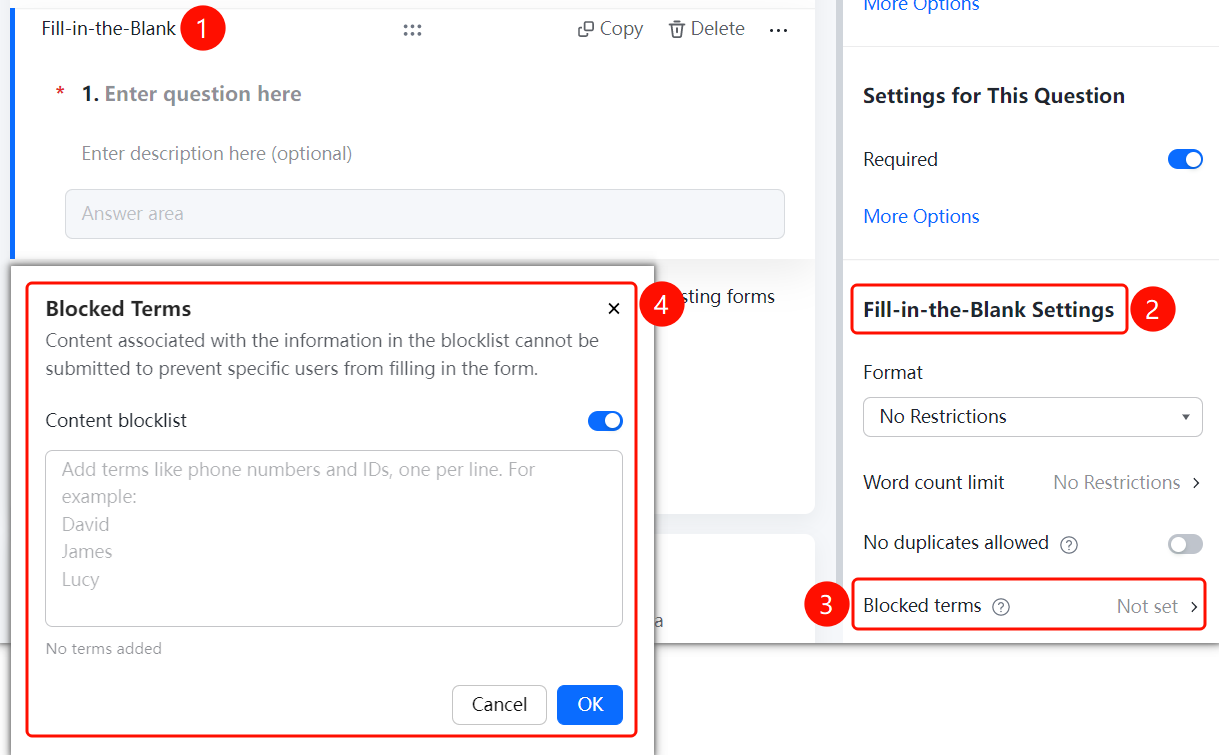
Setting Prohibited Content
Feature Entry
Fill-in-the-Blank → 「Fill-in Settings」 → 「Prohibited Content」
- Click the added fill-in-the-blank question
- In the right-side 「Fill-in Settings」 panel, click the 「Prohibited Content」 option
- Enable the 「Content Blocklist」 toggle
- Add prohibited content, one entry per line
- Click the 「Confirm」 button to save
FAQ
Q1: What are the options for format restrictions?
- Solution: Multiple formats are supported, including None, Number, Phone Number, ID Number, Bank Card Number, and Email.
Q2: How to set the character limit?
- Solution: Enable the setting in the character limit panel, where you can customize the minimum and maximum character limits.
Q3: What is the purpose of the blocklist?
- Solution: Content in the blocklist cannot be submitted, effectively preventing specific content from being filled in.
Notes
- Format restrictions will automatically verify whether the input content complies with the specifications
- It is recommended to set format restrictions appropriately based on the purpose of the question