Feature Summary
Multi-segment fill-in is used to collect multiple pieces of content entered by respondents, suitable for scenarios where multiple blanks need to be filled in within a single paragraph.
Feature Description
| Feature Dimension | Description |
|---|---|
| Membership Restriction | No membership restriction |
| Version Restriction | No version restriction |
Operation Steps
Adding Multi-Segment Fill-in
Feature Entry
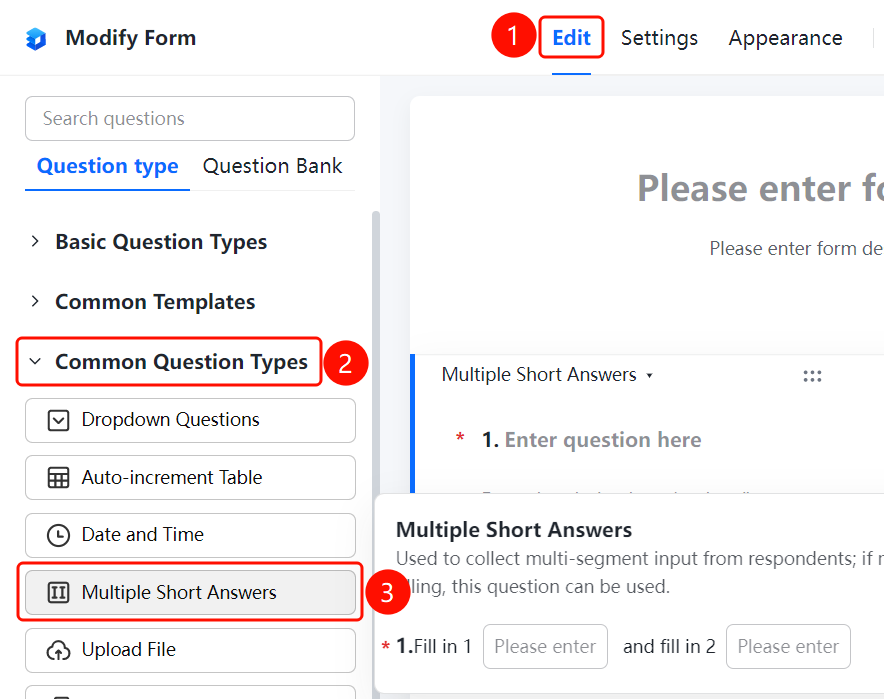
"Edit" tab → "Question Types" tab → "Common Question Types" → "Multi-Segment Fill-in" button
- Click the top "Edit" tab
- Expand the "Common Question Types" area in the left panel
- Click the "Multi-Segment Fill-in" button to add the multi-segment fill-in to the form
- Set the fill-in content in the right editing area, and click "+ Insert Fill-in Marker" to add more fill-in positions
FAQ
Q1: What is the difference between multi-segment fill-in and regular fill-in-the-blank?
- Solution: Multi-segment fill-in allows setting multiple fill-in positions within a single paragraph, suitable for scenarios requiring continuous entry of multiple pieces of information.
Q2: How to insert a new fill-in marker?
- Solution: In the multi-segment fill-in editing area, click the "+ Insert Fill-in Marker" button to insert a new fill-in position at the current location.
Q3: Can the position of fill-in markers be adjusted?
- Solution: Yes, the position of fill-in markers within the paragraph can be adjusted by dragging or cursor positioning.
Notes
- Multi-segment fill-in is suitable for scenarios requiring multiple fill-ins, such as contract templates and agreement signing
- Each fill-in marker can be independently set as required or optional