Feature Summary
The gender question is a preset template question type that allows respondents to select from preset gender options. It supports features such as setting a default answer, option quotas, referencing Sheets data, adding input boxes, displaying poll results, and shuffling option order.
Feature Description
| Feature Dimension | Description |
|---|---|
| Membership Restriction | No membership restriction |
| Version Restriction | No version restriction |
Steps
Adding a Gender Question
Feature Entry
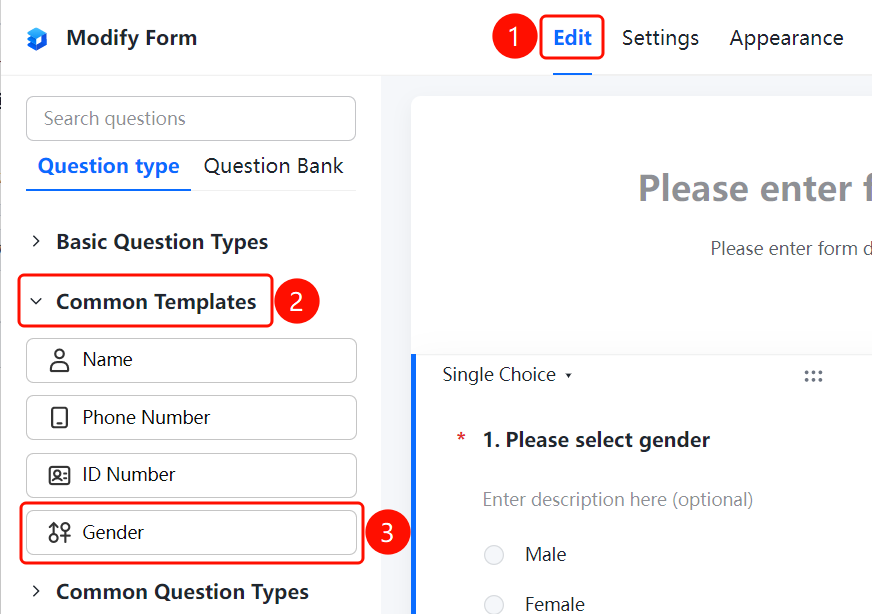
「Edit」 tab → 「Common Templates」 → 「Gender」 button
- Click the top 「Edit」 tab
- Expand the 「Common Templates」 area in the left panel
- Click the 「Gender」 button to add the gender question to the form
- The system automatically presets the gender options: Male, Female
Setting a Default Answer
Feature Entry
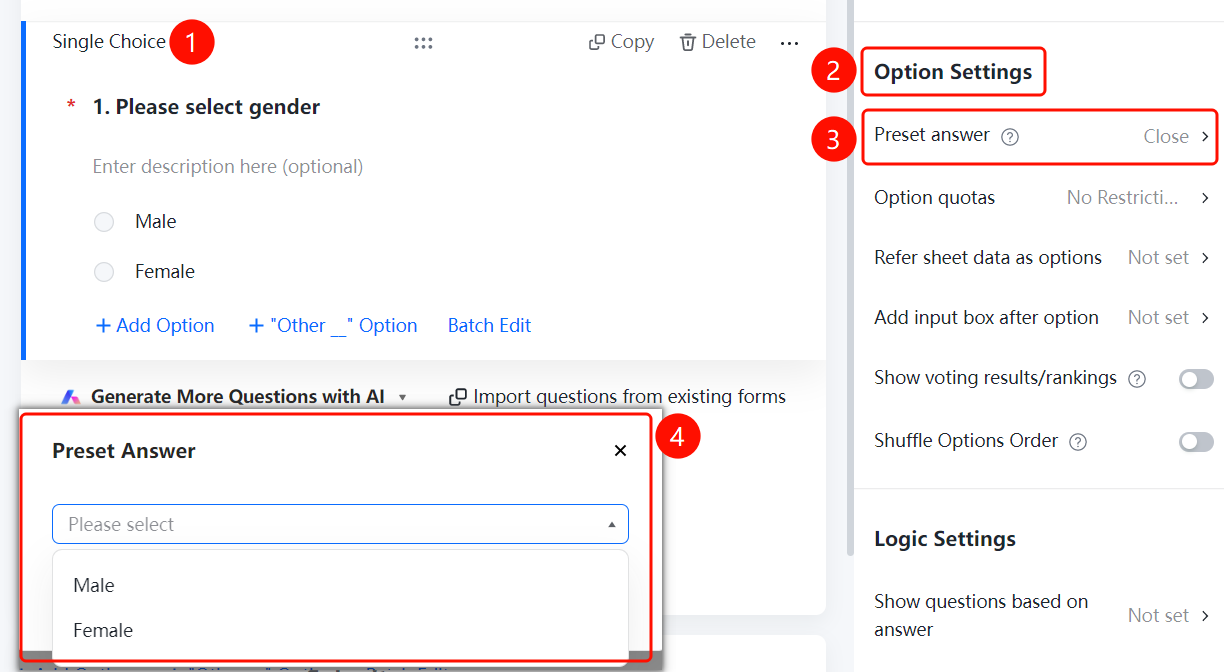
Gender question → 「Option Settings」 → 「Default Answer」 option
- Click the added gender question
- In the right 「Option Settings」 panel, click the 「Default Answer」 option
- In the pop-up dropdown, select the gender option you want to set as default
Setting Option Quotas
Feature Entry
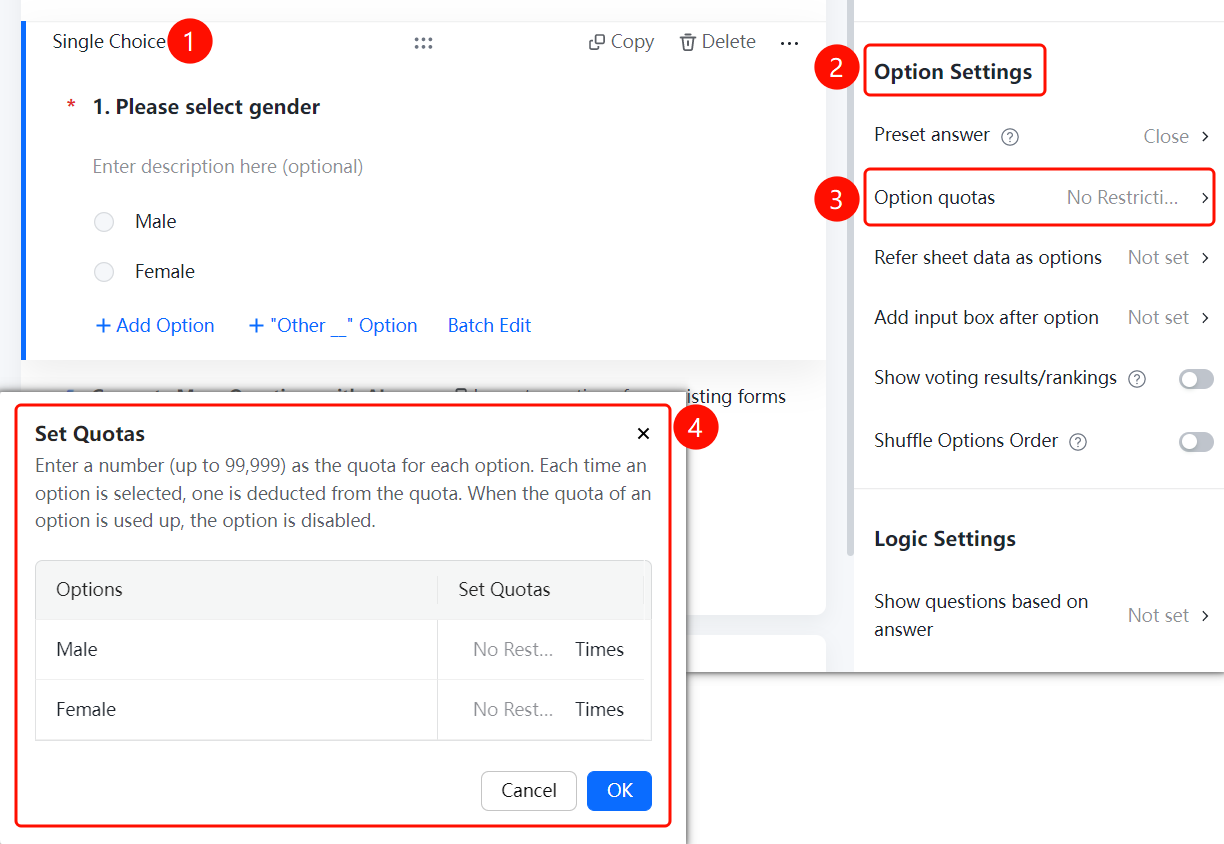
Gender question → 「Option Settings」 → 「Option Quotas」 option
- Click the added gender question
- In the right 「Option Settings」 panel, click the 「Option Quotas」 option
- In the pop-up panel, set the quota for each gender option (maximum 99999)
- Click the 「Confirm」 button to complete the setting
Referencing Sheets Data as Options
Feature Entry
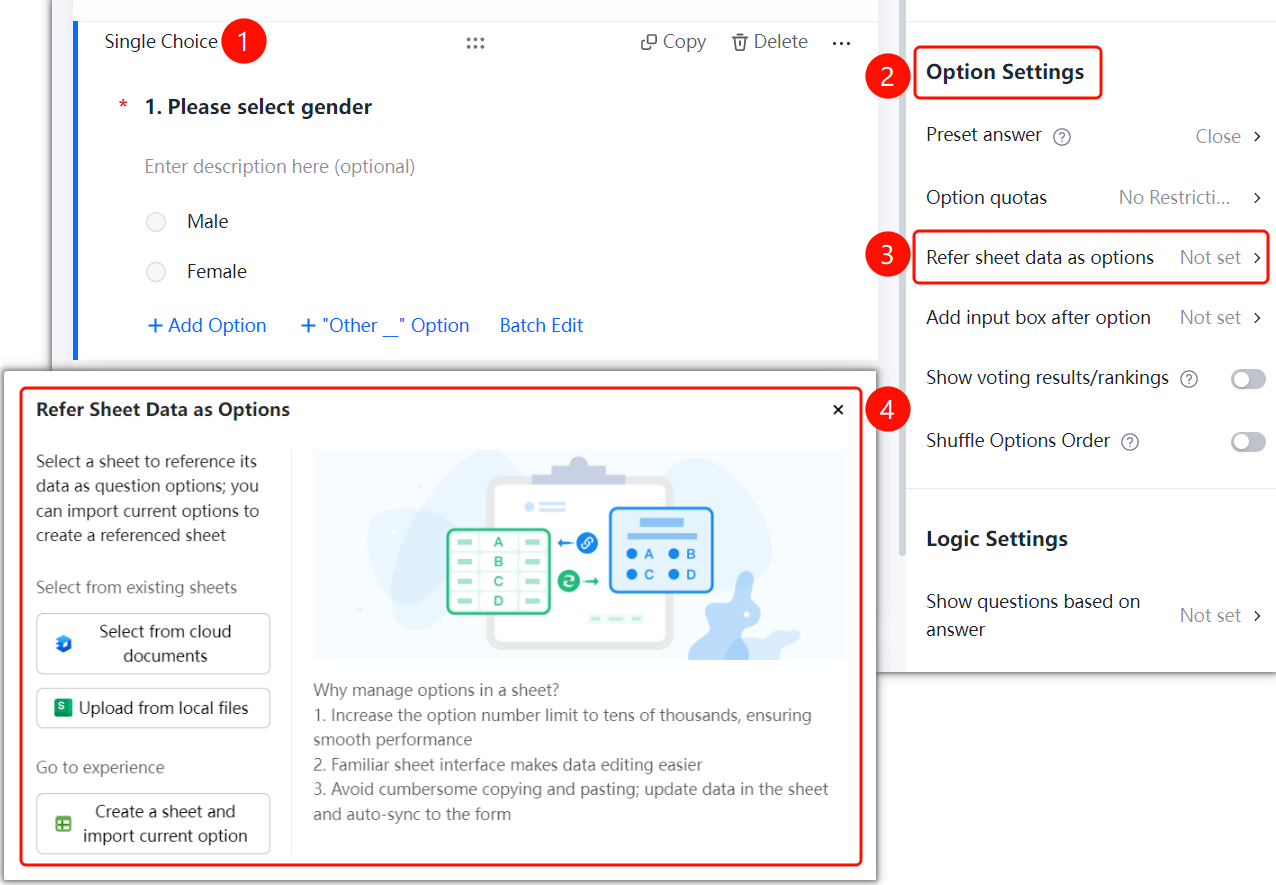
Gender question → 「Option Settings」 → 「Reference Sheets Data as Options」 option
- Click the added gender question
- In the right 「Option Settings」 panel, click the 「Reference Sheets Data as Options」 option
- In the pop-up panel, select the Sheets source: 「Select from Cloud Document」, 「Upload from Local File」, or 「Create New Sheet and Import Current Options」
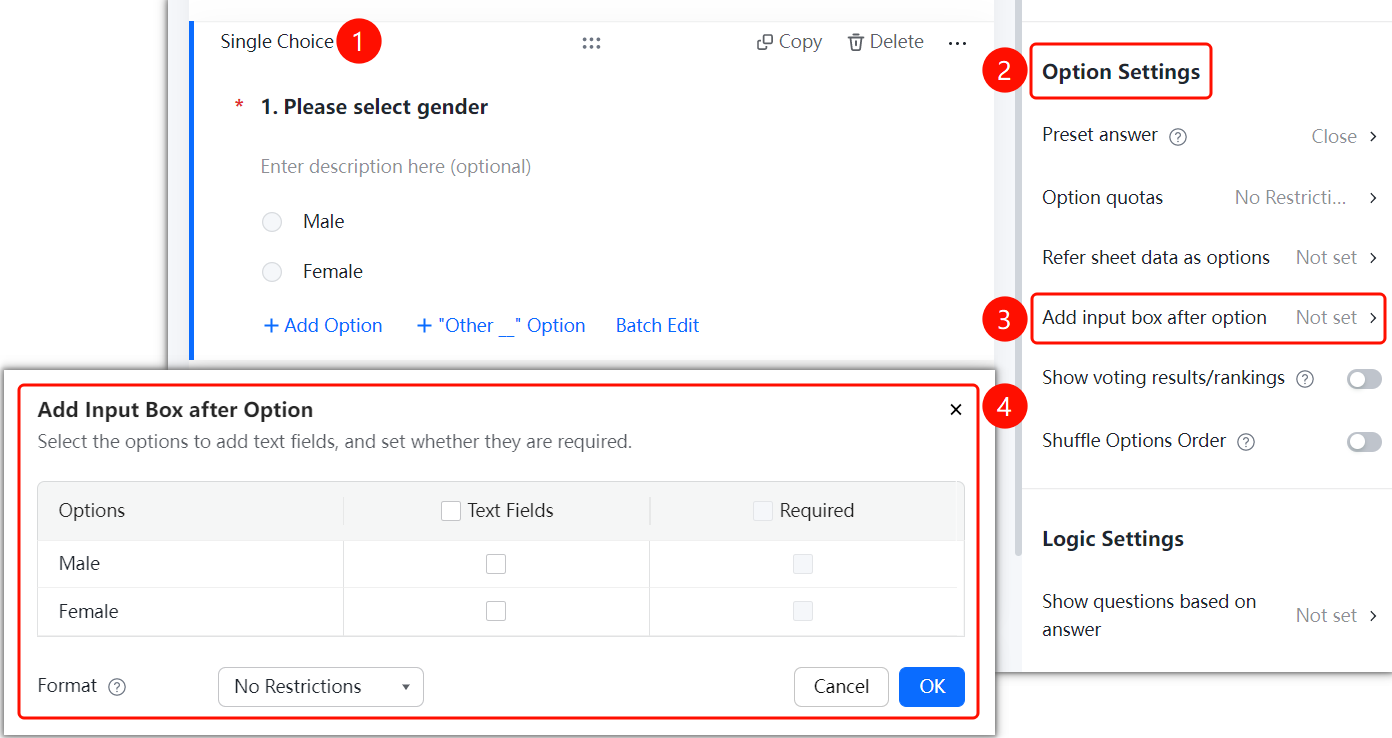
Adding an Input Box After an Option
Feature Entry
Gender question → 「Option Settings」 → 「Add Input Box After Option」 option
- Click the added gender question
- In the right 「Option Settings」 panel, click the 「Add Input Box After Option」 option
- In the pop-up panel, check the gender options for which you want to add an input box
- Set whether the input box is required and the input content format restriction
- Click the 「Confirm」 button to complete the setting
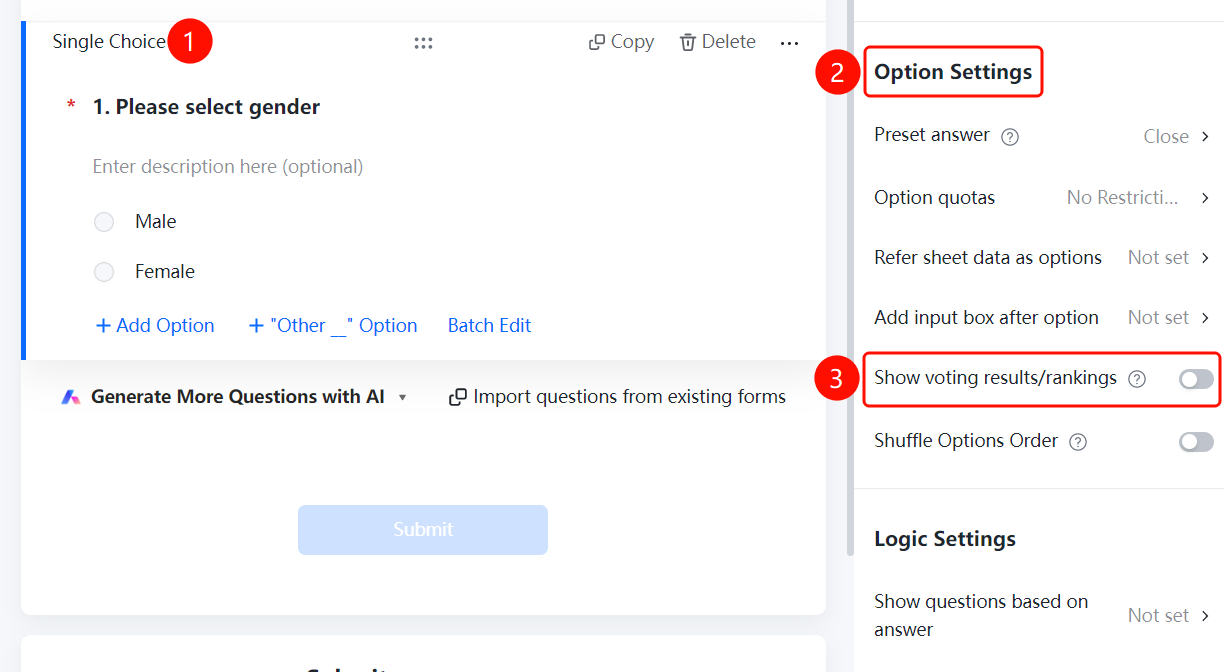
Displaying Poll Results/Leaderboard
Feature Entry
Gender question → 「Option Settings」 → 「Display Poll Results/Leaderboard」 toggle
- Click the added gender question
- In the right 「Option Settings」 panel, turn on the 「Display Poll Results/Leaderboard」 toggle
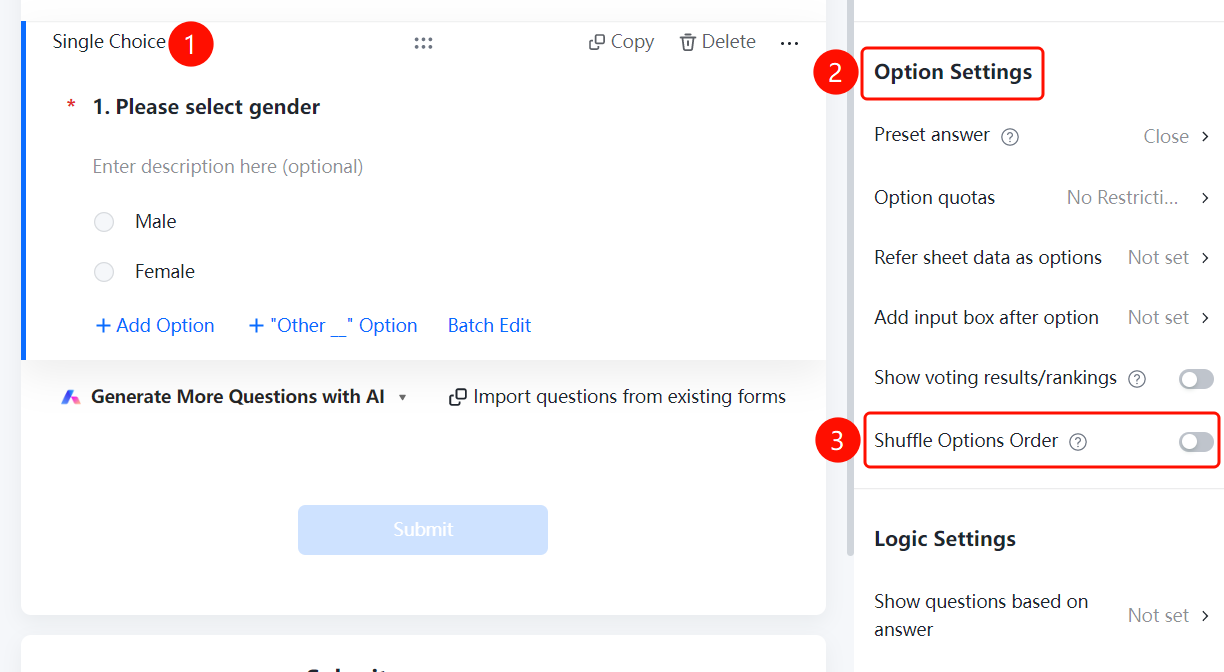
Shuffling Option Order
Feature Entry
Gender question → 「Option Settings」 → 「Shuffle Option Order」 toggle
- Click the added gender question
- In the right 「Option Settings」 panel, turn on the 「Shuffle Option Order」 toggle
FAQ
Q1: Can I customize the gender options for the gender question?
- Solution: Yes. After clicking the gender question, you can customize the gender option content via the "Add Option" or "Batch Edit" feature.
Q2: What is the difference between a gender question and a single-choice question?
- Solution: The gender question is a preset template question type with common gender options pre-configured for quick addition; a single-choice question requires manually adding option content.
Q3: How to modify the option names of a gender question?
- Solution: Click the gender question, then directly click the option name in the options area to edit and modify it.
Notes
- The gender question is preset with two options, Male and Female, by default, which can be added or removed based on actual needs.
- When "Shuffle Option Order" is enabled, the order of options will be randomly arranged for each respondent.
- When referencing Sheets data as options, you can customize more gender classification options.