Feature Summary
The handwritten signature feature is used to collect respondents' handwritten signatures, which can serve as confirmation credentials. It supports settings such as watermarks, naming methods, and category folders.
Feature Description
| Feature Dimension | Description |
|---|---|
| Membership Restriction | No membership restriction |
| Version Restriction | No version restriction |
Steps
Add Handwritten Signature
Feature Entry
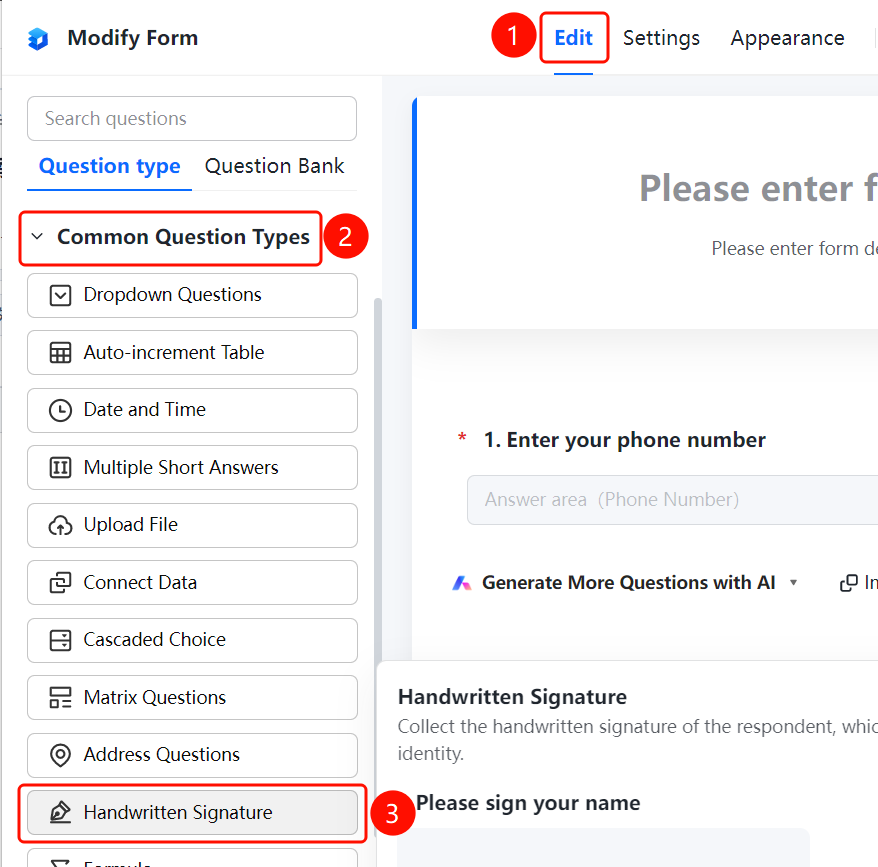
"Edit" tab → "Question Type" tab → "Common Question Types" → "Handwritten Signature" button
- Click the "Edit" tab at the top
- Expand the "Common Question Types" area in the left panel
- Click the "Handwritten Signature" button to add a handwritten signature question to the form
Add Watermark
Feature Entry
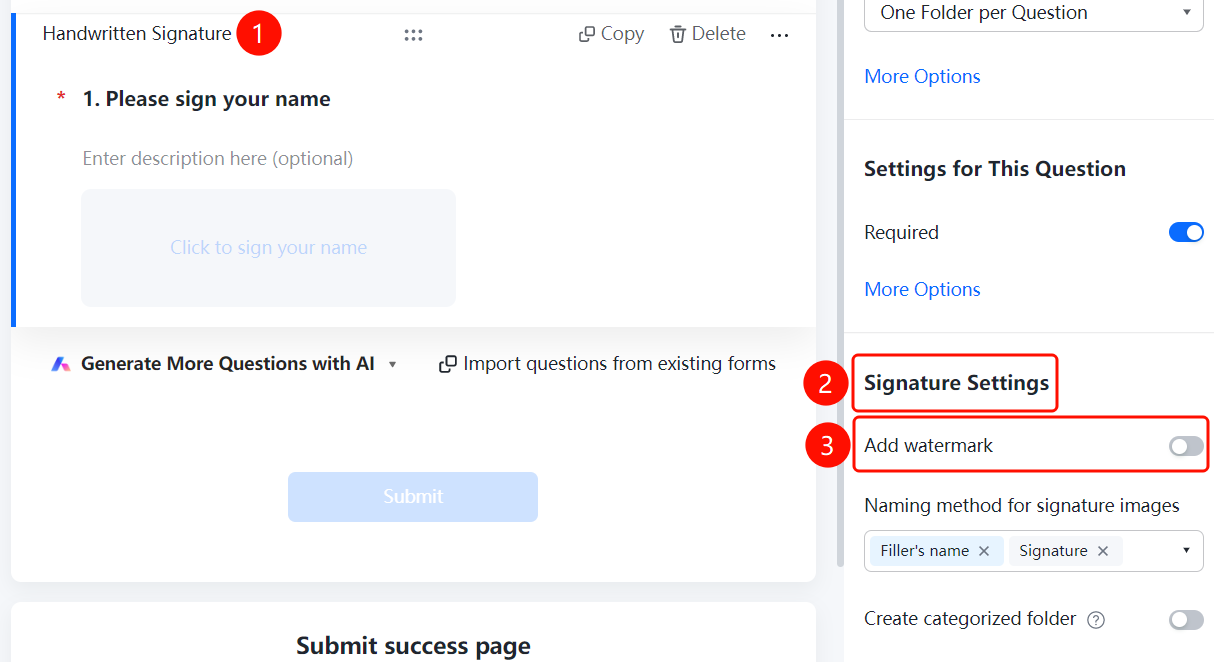
Handwritten Signature → "Signature Settings" → "Add Watermark"
- Click the added handwritten signature question
- In the "Signature Settings" panel on the right, turn on the "Add Watermark" switch
- After enabling, the signature image will automatically have a watermark added
Set Signature Image Naming Method
Feature Entry
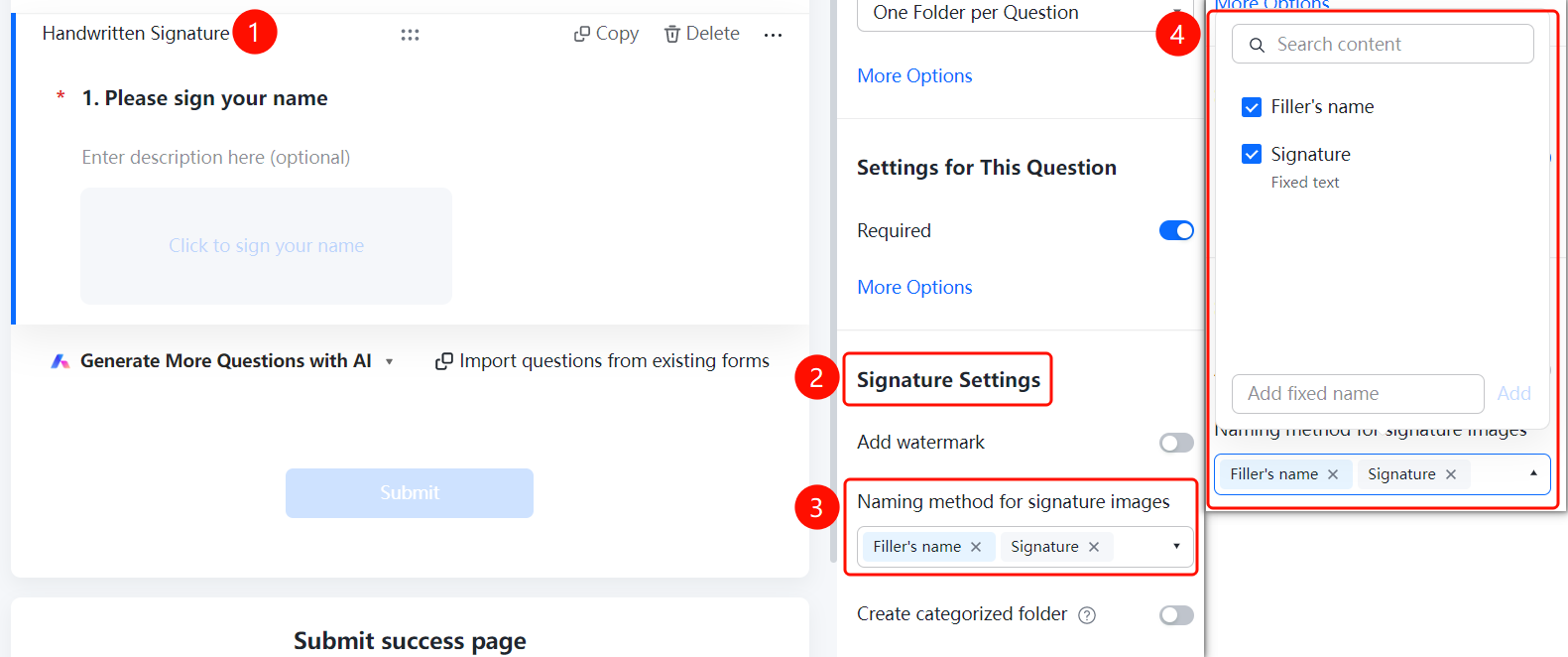
Handwritten Signature → "Signature Settings" → "Signature Image Naming Method"
- Click the added handwritten signature question
- In the "Signature Settings" panel on the right, click the "Signature Image Naming Method" dropdown
- Select a naming method: respondent nickname, signature, fixed text, etc.
- You can add a custom fixed name
Create Category Folder
Feature Entry
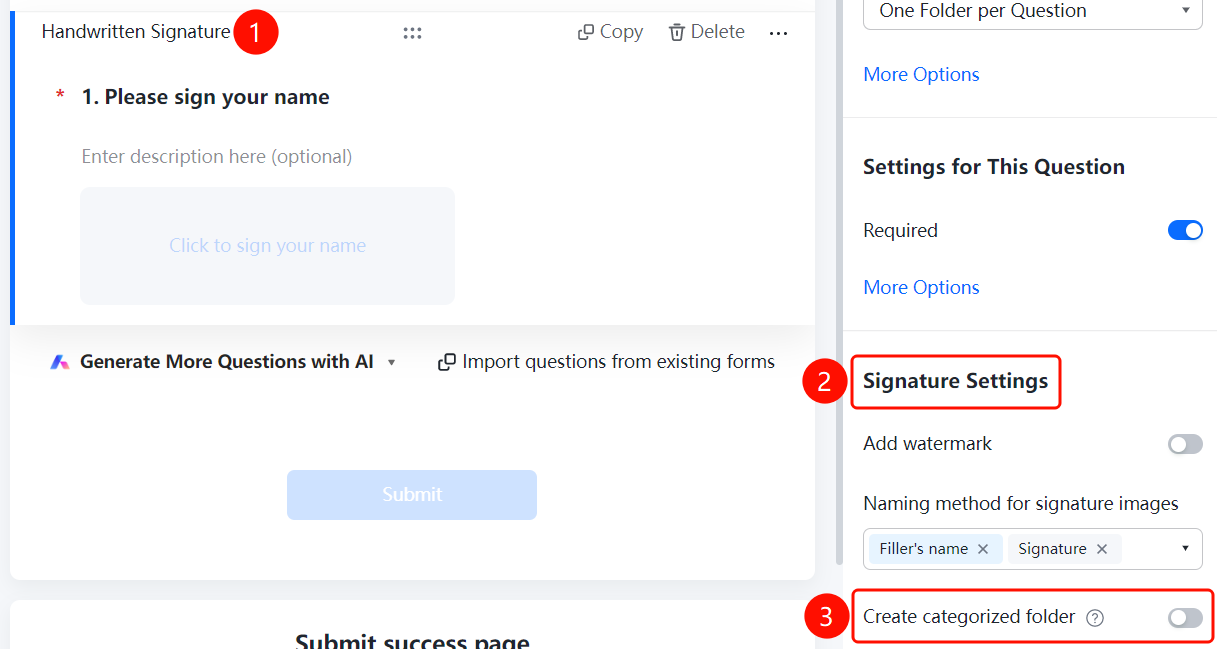
Handwritten Signature → "Signature Settings" → "Create Category Folder"
- Click the added handwritten signature question
- In the "Signature Settings" panel on the right, turn on the "Create Category Folder" switch
- After enabling, folders will be automatically created according to the folder naming method
- Collected signatures will be categorized and aggregated into the corresponding folders
FAQ
Q1: What is the purpose of handwritten signatures?
- Solution: Handwritten signatures can be used to collect confirmation credentials, suitable for scenarios requiring signatures such as contract signing and approval confirmation.
Q2: How are signature images named?
- Solution: You can select a naming method in the signature settings, supporting combinations such as respondent nickname, signature, and fixed text.
Q3: How to categorize and manage signatures?
- Solution: After enabling "Create Category Folder", the system will automatically create folders according to the naming method and categorize and aggregate signatures.
Notes
- Add Watermark can prevent signature images from being misused
- It is recommended to enable the Create Category Folder feature to facilitate managing a large number of signatures