Feature Summary
The Poll single-choice feature allows selecting one poll option from a set of options. It is commonly used for voting and selection scenarios. After submission, you can view the poll results and leaderboard.
Feature Description
| Feature Dimension | Description |
|---|---|
| Membership Restriction | No membership restriction |
| Version Restriction | No version restriction |
Steps
Adding a Poll Single-Choice Question
Feature Entry
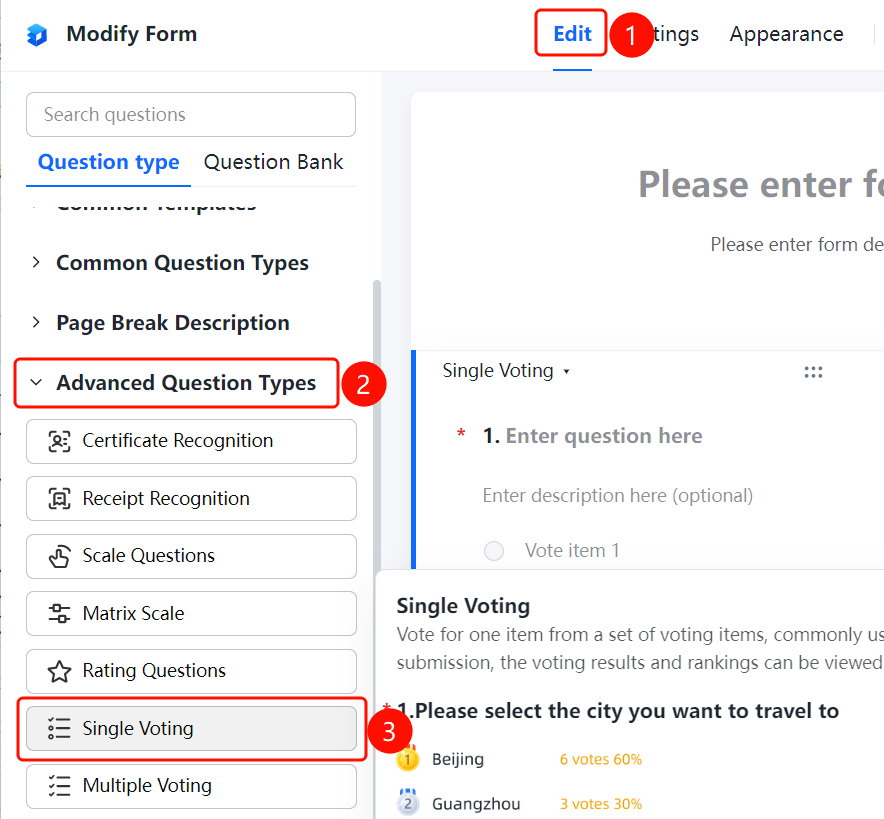
「Edit」tab → 「Question Type」tab → 「Advanced Question Types」→ 「Poll Single-Choice」button
- Click the top 「Edit」 tab
- Expand the 「Advanced Question Types」 area in the left panel
- Click the 「Poll Single-Choice」 button to add the poll single-choice question to the form
Adding an Input Field After an Option
Feature Entry
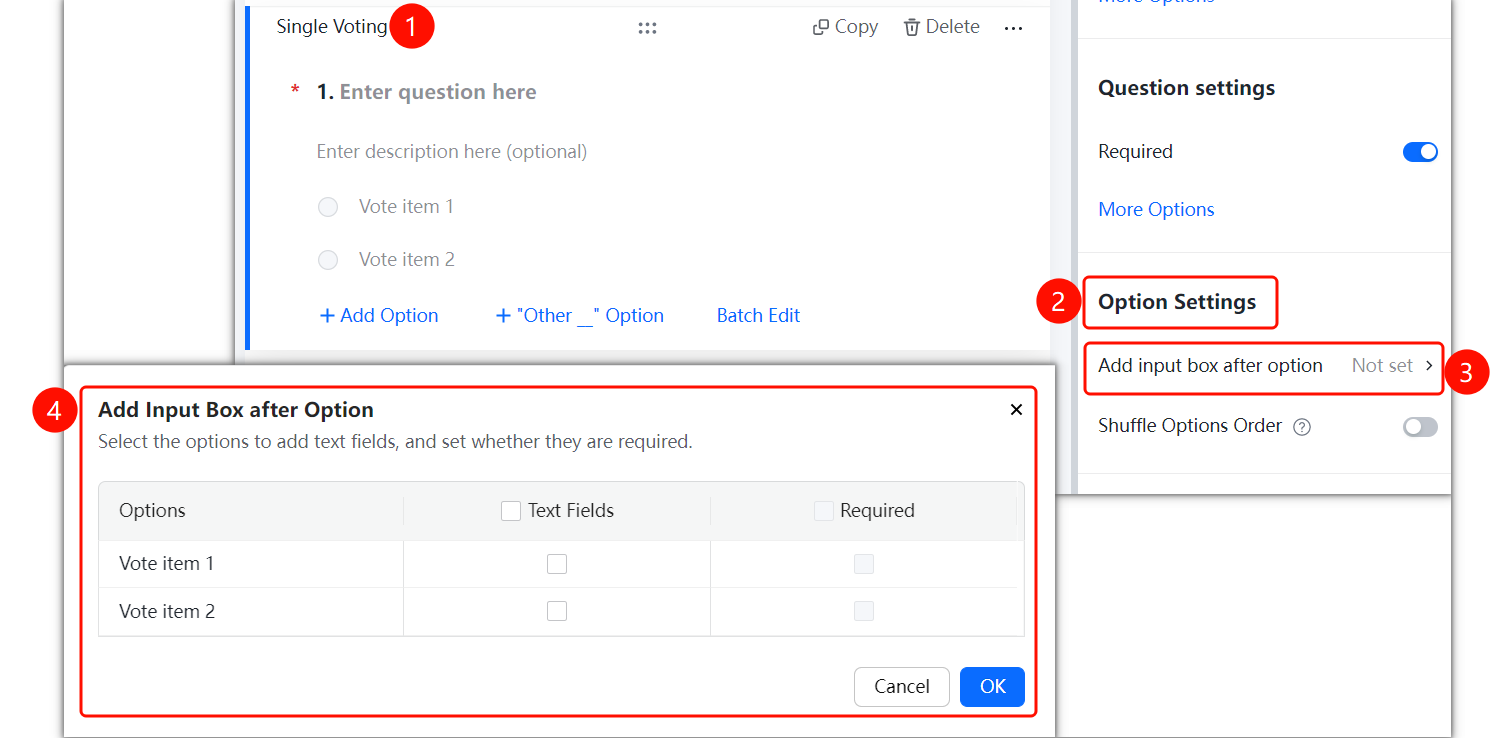
Poll Single-Choice → 「Option Settings」→ 「Add Input Field After Option」
- Click the added poll single-choice question
- In the right-side 「Option Settings」 panel, click the 「Add Input Field After Option」 option
- In the pop-up panel, check the options that need an input field added
- Set whether the input field is required, and click the 「Confirm」 button to save
Shuffling Option Order
Feature Entry
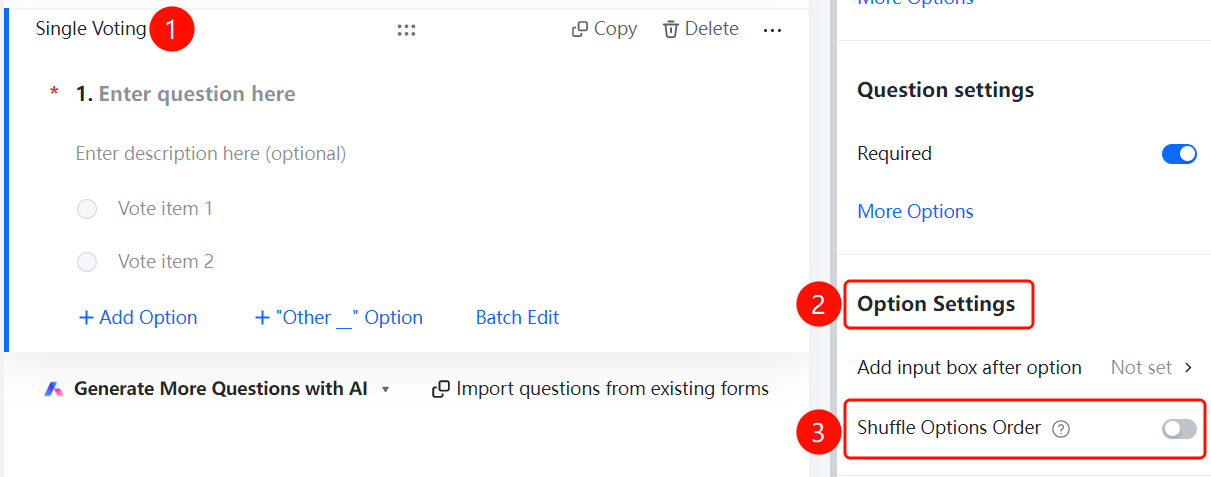
Poll Single-Choice → 「Option Settings」→ 「Shuffle Option Order」
- Click the added poll single-choice question
- In the right-side 「Option Settings」 panel, find the 「Shuffle Option Order」 option
- After turning on the switch, respondents will see the shuffled option order
Setting Up Question Association
Feature Entry
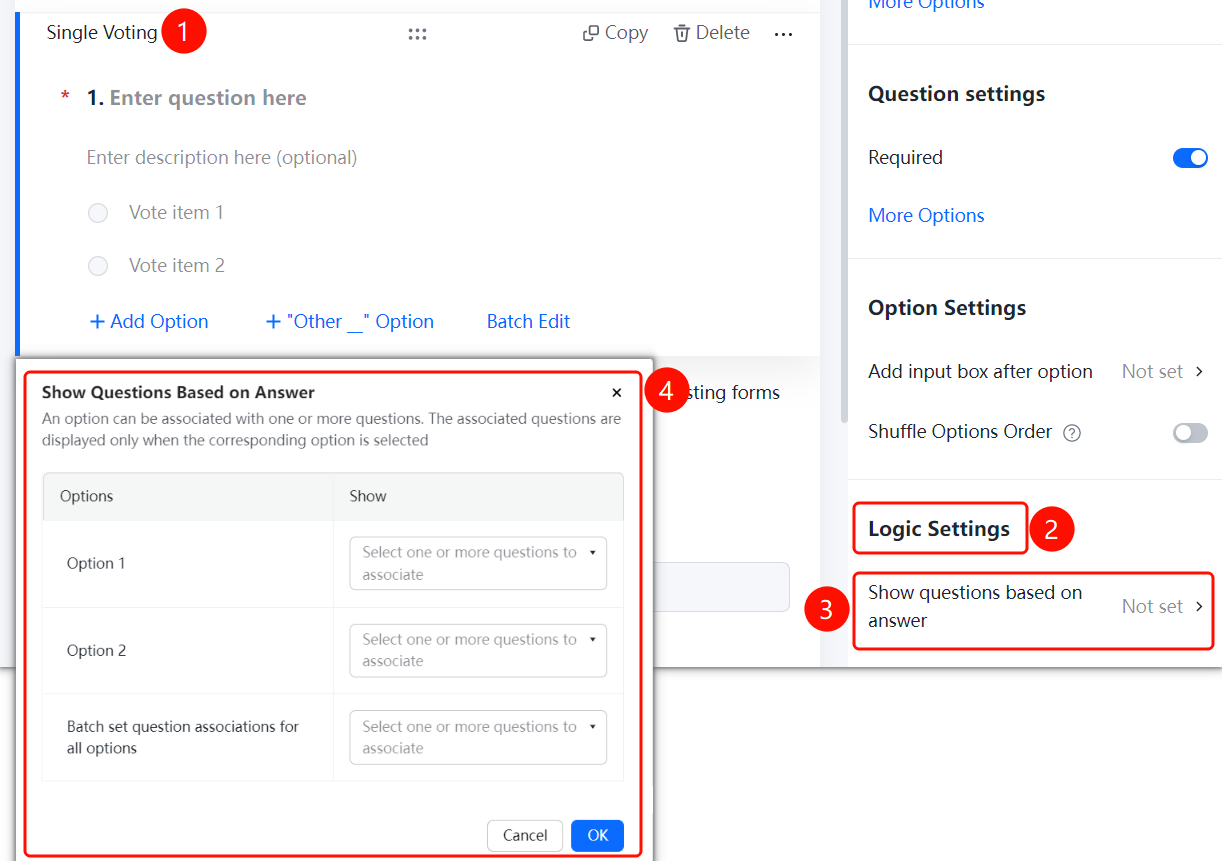
Poll Single-Choice → 「Logic Settings」→ 「Question Association」
- Click the added poll single-choice question
- In the right-side 「Logic Settings」 panel, click the 「Question Association」 option
- In the pop-up 「Set Question Association」panel, set the associated question for each option
- When a respondent selects a specific option, the associated question will be displayed
FAQ
Q1: What is the difference between Poll Single-Choice and regular Single-Choice?
- Solution: Poll Single-Choice supports viewing poll results and leaderboards, making it suitable for voting and selection scenarios.
Q2: Can I view the poll results?
- Solution: Yes, after submission, respondents can view the poll results and the poll leaderboard.
Q3: How do I set up question association?
- Solution: In Logic Settings, click Question Association, set the associated question for each option to achieve conditional display.
Notes
- In Poll Single-Choice, each respondent can only select one poll option
- Enabling Shuffle Option Order can avoid the influence of option order on poll results