Feature Summary
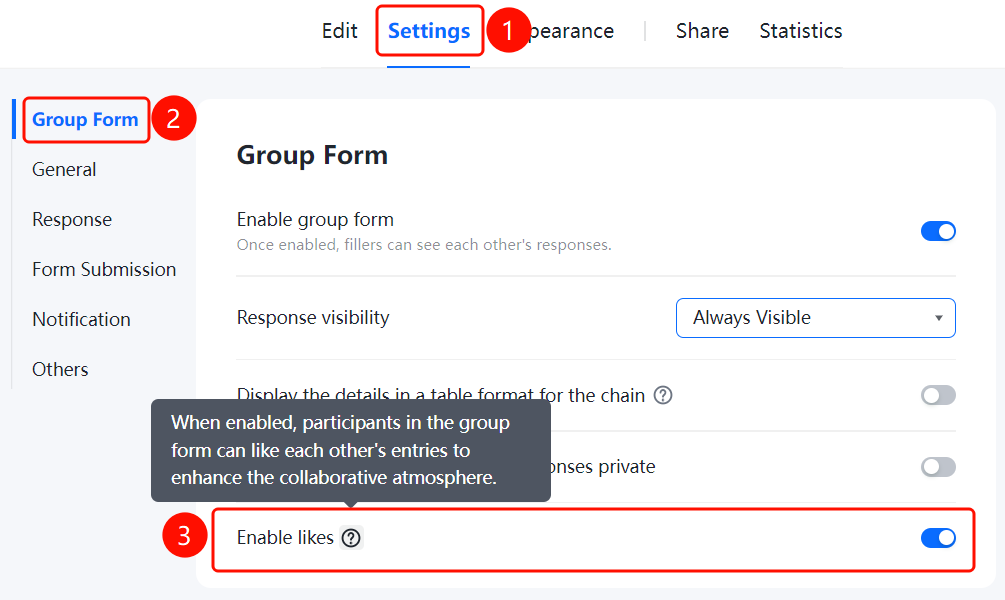
Group Form settings are used to control the Group Form feature of the form, including enabling Group Form, detail display mode, Sheets display, privacy settings, and like feature configurations.
Feature Description
| Feature Dimension | Description |
|---|---|
| Membership Restriction | No membership restriction |
| Version Restriction | No version restriction |
Operation Steps
Enable Group Form
Feature Entry
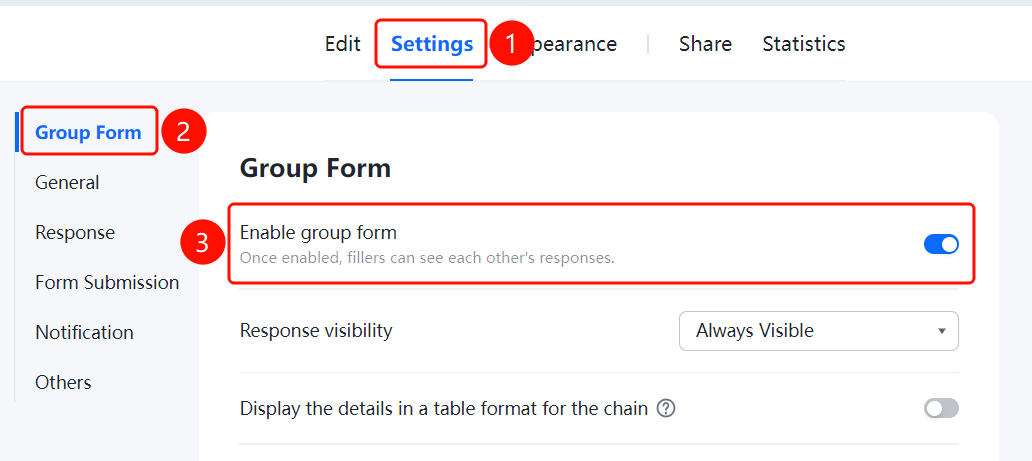
「Settings」 tab → 「Group Form Settings」 → 「Enable Group Form」 toggle
- Click the top 「Settings」 tab
- Click 「Group Form Settings」 in the left menu
- Turn on the 「Enable Group Form」 toggle
- After enabling, respondents will be able to see each other's submitted content
Set Group Form Detail Display
Feature Entry
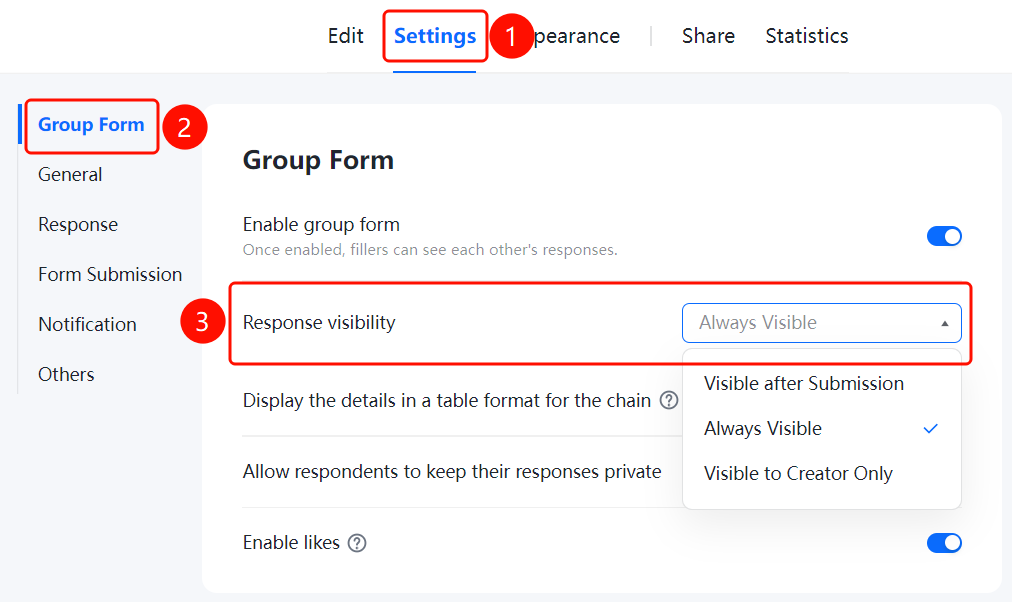
「Settings」 tab → 「Group Form Settings」 → 「Group Form Detail Display」 dropdown menu
- Click the top 「Settings」 tab
- Click 「Group Form Settings」 in the left menu
- Click the 「Group Form Detail Display」 dropdown menu
- Select the display mode: 「Visible only after participating in Group Form」, 「Visible before and after participating in Group Form」, or 「Visible only to creator」
Set to Display Group Form Details in Sheets
Feature Entry
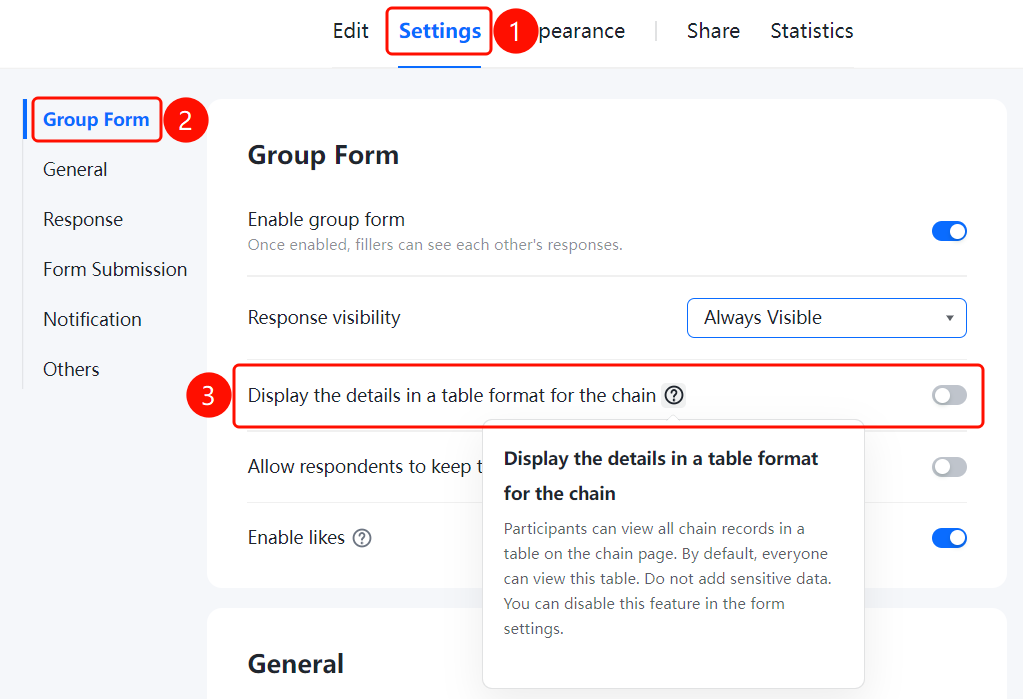
「Settings」 tab → 「Group Form Settings」 → 「Display Group Form Details in Sheets」 toggle
- Click the top 「Settings」 tab
- Click 「Group Form Settings」 in the left menu
- Turn on the 「Display Group Form Details in Sheets」 toggle
- After enabling, participants can open the Sheets on the Group Form page to view all Group Form Records
Set to Allow Participants Not to Make Group Form Records Public
Feature Entry
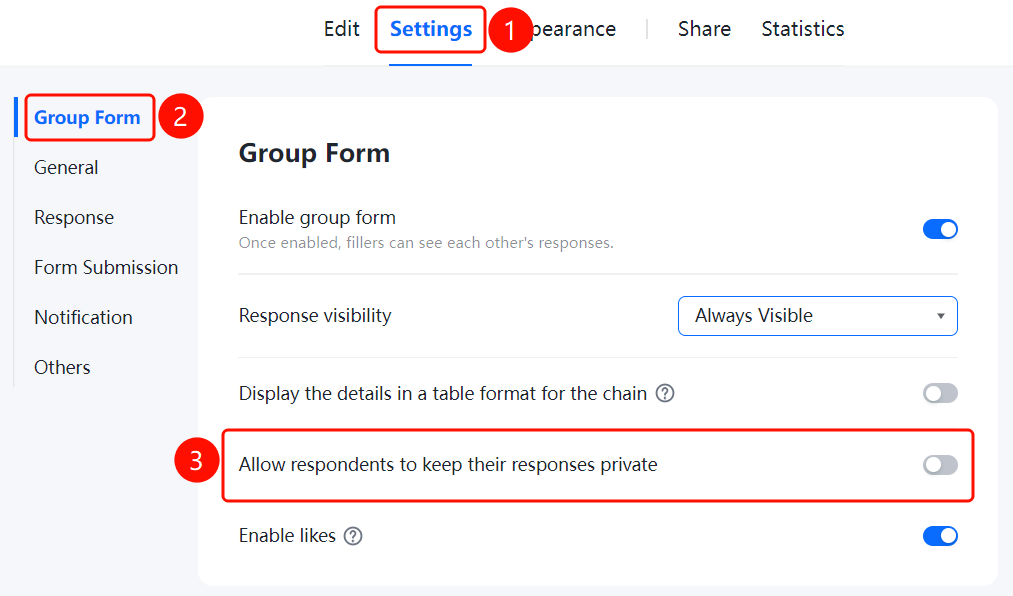
「Settings」 tab → 「Group Form Settings」 → 「Allow participants not to make Group Form Records public」 toggle
- Click the top 「Settings」 tab
- Click 「Group Form Settings」 in the left menu
- Turn on the 「Allow participants not to make Group Form Records public」 toggle
- After enabling, participants can choose not to make their Group Form Records public
Set to Allow Likes
Feature Entry
「Settings」 tab → 「Group Form Settings」 → 「Allow likes」 toggle
- Click the top 「Settings」 tab
- Click 「Group Form Settings」 in the left menu
- Turn on the 「Allow likes」 toggle
- After enabling, Group Form participants will be allowed to like other people's Group Form Records, enhancing the Group Form atmosphere
FAQ
Q1: After enabling Group Form, can respondents see each other's content?
- Solution: After enabling Group Form, respondents will be able to see each other's submitted content. The specific visible range can be set through 「Group Form Detail Display」.
Q2: How to set Group Form Records to be visible only to the creator?
- Solution: In Group Form settings, click the 「Group Form Detail Display」 dropdown menu and select 「Visible only to creator」.
Q3: What should be noted when displaying Group Form details in Sheets?
- Solution: After enabling, participants can open the Sheets on the Group Form page to view all Group Form Records. This Sheets defaults to can view for everyone, please do not add sensitive data.
Notes
- After enabling Group Form, respondents will be able to see each other's submitted content
- For the feature of displaying Group Form details in Sheets, do not add sensitive data, as it defaults to can view for everyone
- The allow likes feature can enhance the interactive atmosphere of the Group Form