Feature Summary
The Submission Success Page feature supports customizing the content displayed after form submission, allowing you to add a closing message and image, or redirect to a specified webpage.
Feature Description
| Feature Dimension | Description |
|---|---|
| Membership Restriction | No membership restriction |
| Version Restriction | No version restriction |
Steps
Setting Up the Submission Success Page
Feature Entry
"Submission Success Page" → "Edit" button → "After Submission" panel
- Locate the "Submission Success Page" area on the form editing page
- Click the "Edit" button
- In the "After Submission" panel, select the "Submission Success Page" tab
- Enter the closing message in the "Please enter a custom closing message" input box
- Click the "Confirm" button to save the settings
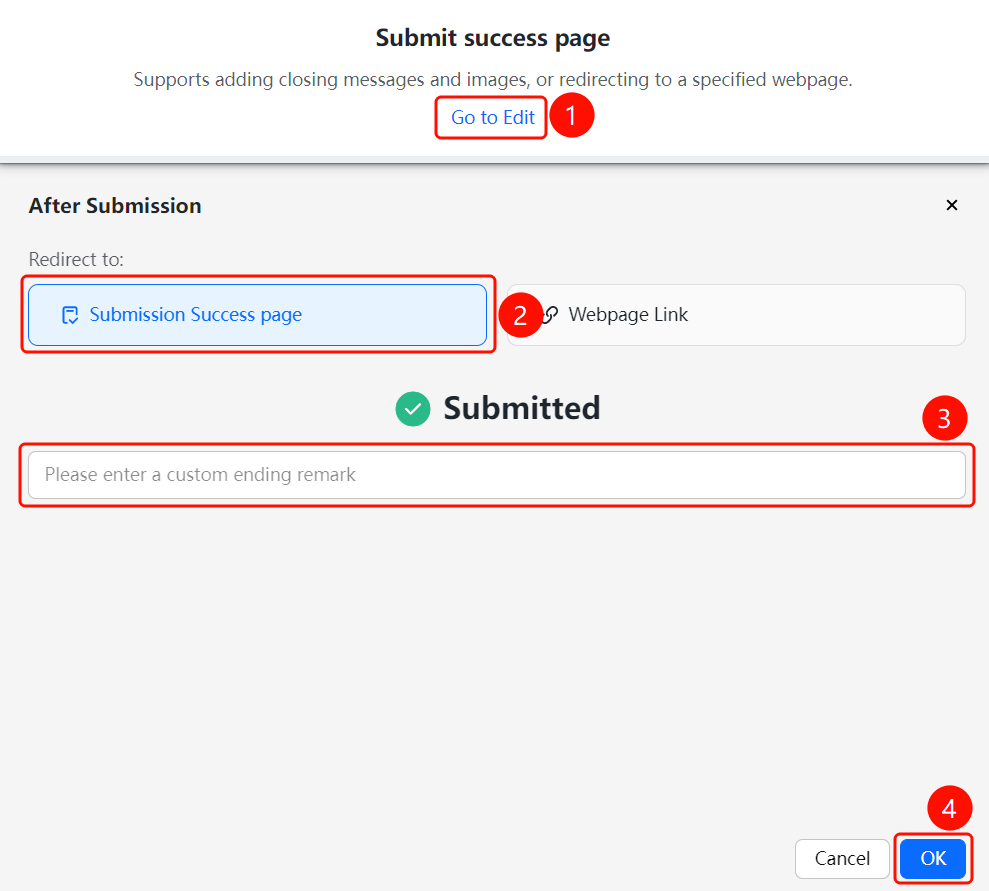
Setting Up Webpage Redirect
Feature Entry
"Submission Success Page" → "Edit" button → "After Submission" panel → "Web Link" tab
- Click the "Edit" button to open the "After Submission" panel
- Switch to the "Web Link" tab
- Enter the redirect URL in the "Link" input box
- Click the "Confirm" button to save the settings
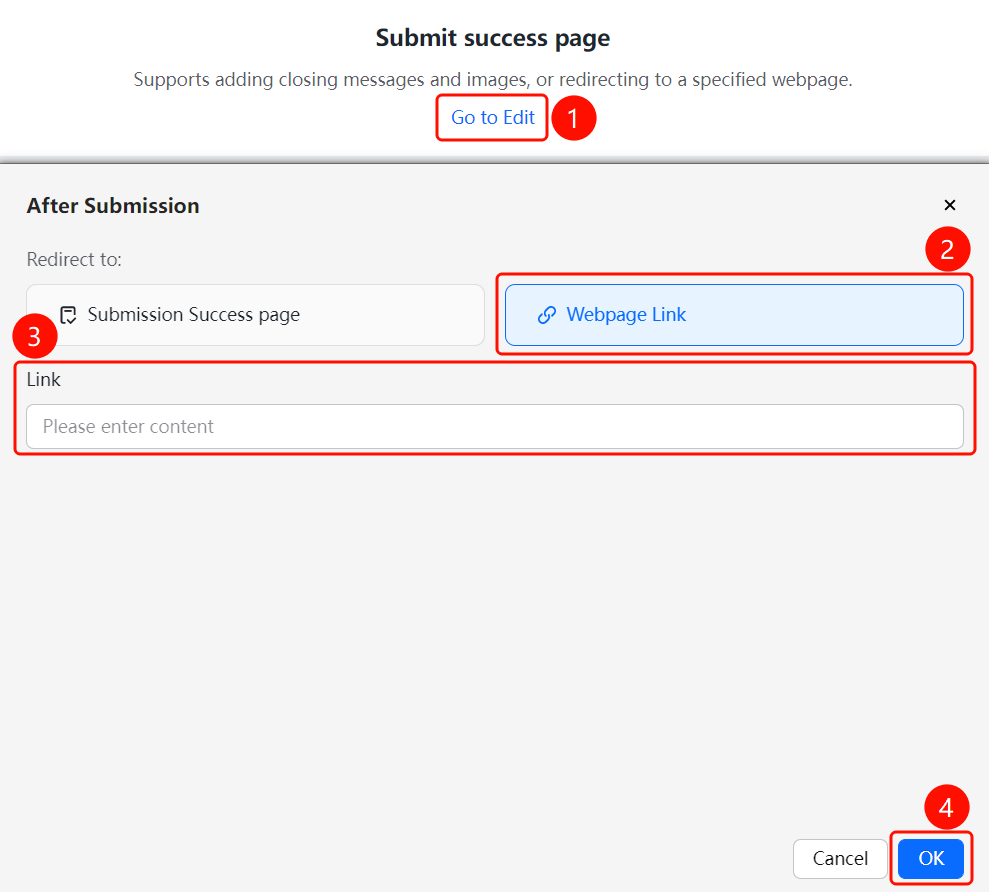
FAQ
Q1: What content does the Submission Success Page support?
- Solution: The Submission Success Page supports a custom closing message, image display, and can also be set to redirect to a specified web link.
Q2: What are the restrictions for web link redirects?
- Solution: The web link feature is a limited-time free feature. After the respondent submits the form, it will automatically redirect to the specified web link.
Q3: What content can the closing message include?
- Solution: The closing message supports text input and can be used to display thank-you notes, follow-up instructions, and other content.
Notes
- Submission Success Page and Web Link are mutually exclusive; only one can be active at a time
- The web link feature is a limited-time free feature and may have usage restrictions