Feature Summary
The submit button settings feature supports customizing the style and number of form submit buttons, and enables a multi-button submission mode.
Feature Description
| Feature Dimension | Description |
|---|---|
| Membership Restriction | No membership restriction |
| Version Restriction | No version restriction |
Steps
Setting Submit Buttons
Feature Entry
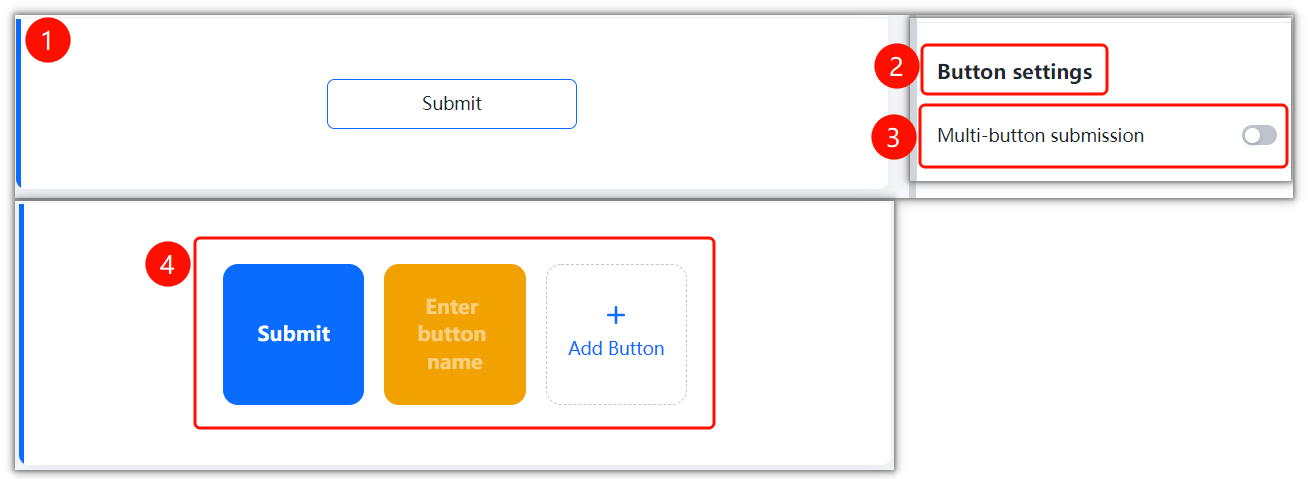
Form bottom → "Submit" button → "Button Settings" panel
- Find the "Submit" button at the bottom of the form editing page
- Click to enter the "Button Settings" panel
- Turn on the "Multi-Button Submission" toggle
- In the button preview area, you can add and customize multiple submit buttons
- Click "+ Add Button" to add a new button, and enter the button name to complete the setup
FAQ
Q1: What is the purpose of multi-button submission?
- Solution: Multi-button submission allows setting multiple submit options, suitable for forms that need to perform different actions based on different scenarios.
Q2: How many submit buttons can be set?
- Solution: Multiple submit buttons are supported, and each button can have its name and style set independently.
Q3: Can the color of the submit button be changed?
- Solution: Yes, different button colors and styles can be selected in the button settings panel.
Notes
- Multi-button submission is suitable for scenarios where different processing flows need to be distinguished
- It is recommended that button names be concise and clear for easy understanding by respondents