Feature Summary
The post-submission feature supports generating a response QR code after a respondent submits the form, which can be used for scenarios such as scanning to view submission details, scanning to check in, and scanning to supplement submissions.
Feature Description
| Feature Dimension | Description |
|---|---|
| Membership Restriction | No membership restriction |
| Version Restriction | No version restriction |
Steps
Enabling Post-Submission Response QR Code Generation
Feature Entry
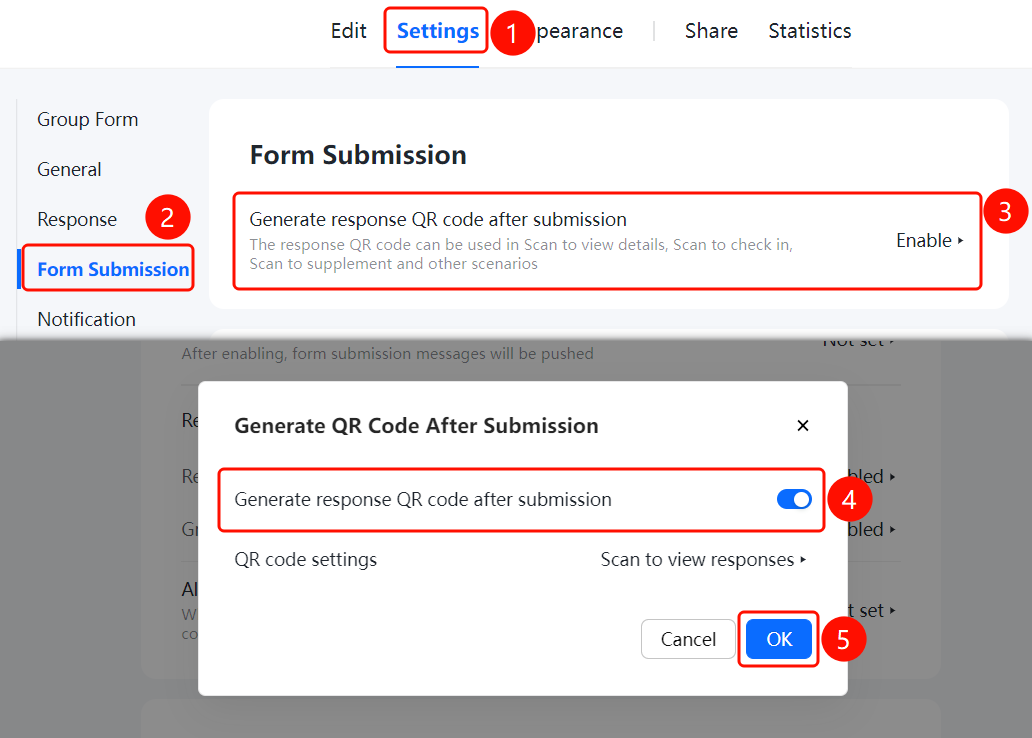
「Settings」 tab → 「Post-Submission」 → 「Generate Response QR Code After Submission」
- Click the 「Settings」 tab at the top
- Click 「Post-Submission」 in the left menu
- Find the 「Generate Response QR Code After Submission」 option and click 「Enable」
- In the pop-up panel, turn on the 「Generate Response QR Code After Submission」 toggle
- Click the 「Confirm」 button to save the settings
Configuring QR Code Settings
Feature Entry
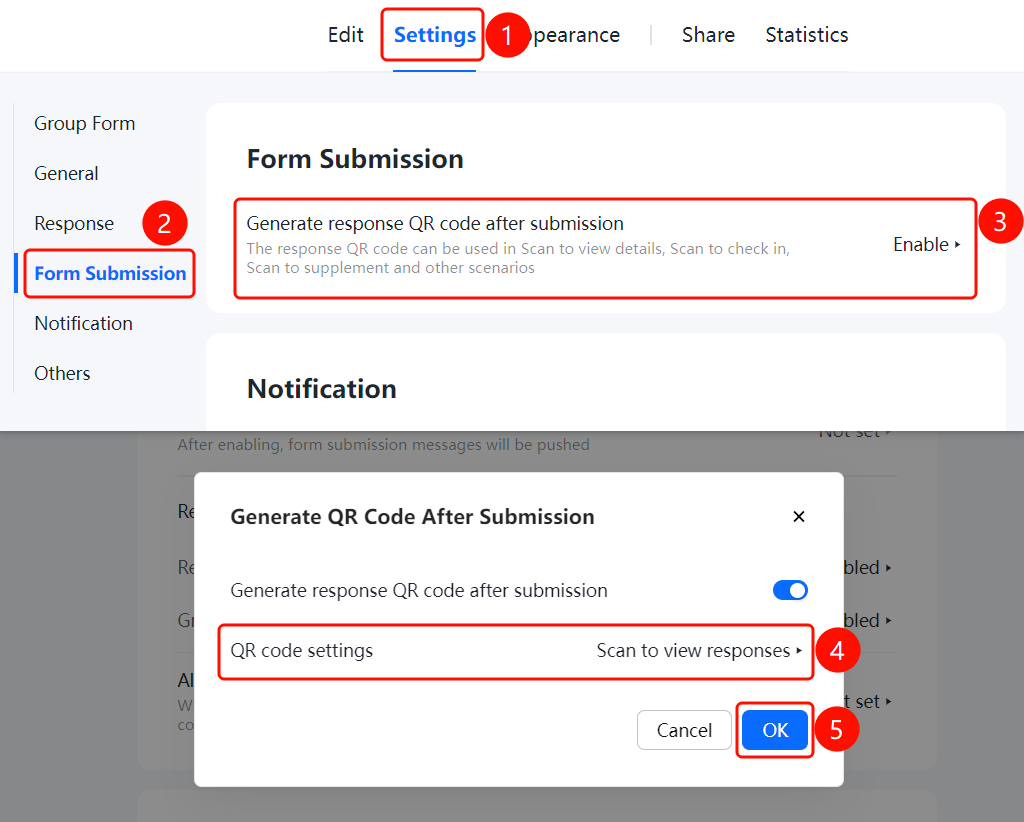
「Generate Response QR Code After Submission」 panel → 「QR Code Settings」 option
- In the 「Generate Response QR Code After Submission」 panel
- Click the 「QR Code Settings」 option
- Select the purpose of the QR code, such as 「Scan to View Response Content」
- Click the 「Confirm」 button to complete the configuration
FAQ
Q1: What is the purpose of the response QR code?
- Solution: The response QR code can be used for various scenarios such as scanning to view submission details, scanning to check in, and scanning to supplement submissions.
Q2: Where is the QR code displayed?
- Solution: After the feature is enabled, the response QR code will be automatically displayed after the respondent submits the form.
Q3: Can the purpose of the QR code be modified?
- Solution: Yes, the purpose and related configurations of the QR code can be modified in the QR code settings.
Notes
- After enabling the response QR code feature, the QR code will be automatically displayed after the respondent submits the form.
- The purpose of the QR code can be flexibly configured based on actual business needs.