Feature Summary
Informed Consent is a preset template question type used to have respondents confirm that they have understood the relevant precautions and agree to abide by the rules. It supports features such as setting preset answers, option quotas, referencing Sheets data, adding input boxes, displaying Poll results, shuffling option order, and question association.
Feature Description
| Feature Dimension | Description |
|---|---|
| Membership Restriction | No membership restriction |
| Version Restriction | No version restriction |
Operation Steps
Add Informed Consent Question
Feature Entry
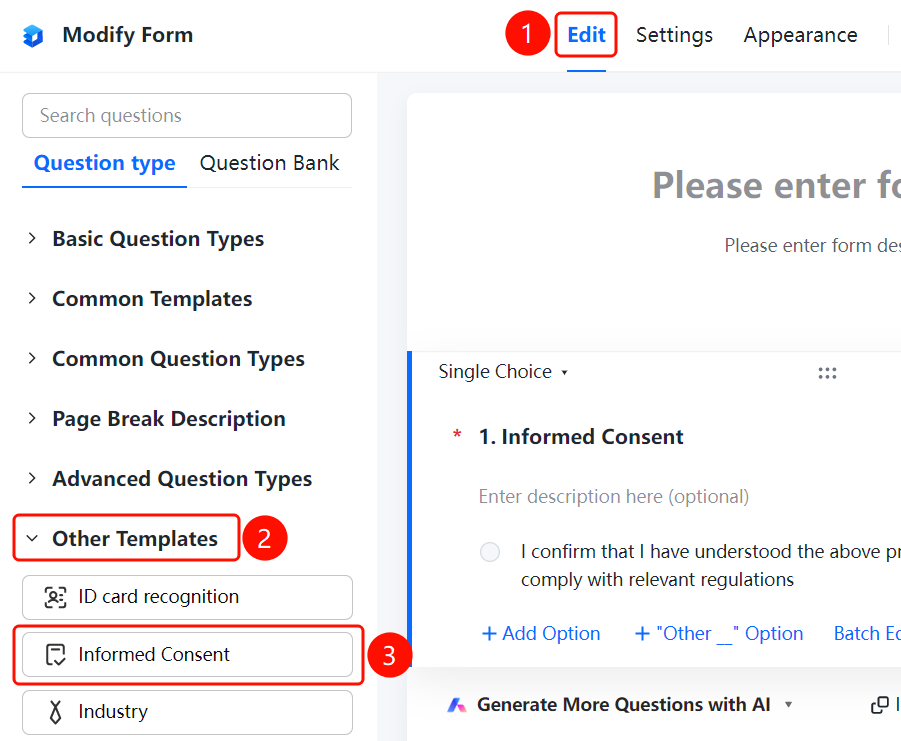
「Edit」tab → 「Other Templates」 → 「Informed Consent」button
- Click the top 「Edit」 tab
- Expand the 「Other Templates」 area in the left panel
- Click the 「Informed Consent」 button to add the informed consent question to the form
- System preset option: I confirm that I have understood the above precautions and will strictly abide by the relevant regulations
Set Preset Answer
Feature Entry
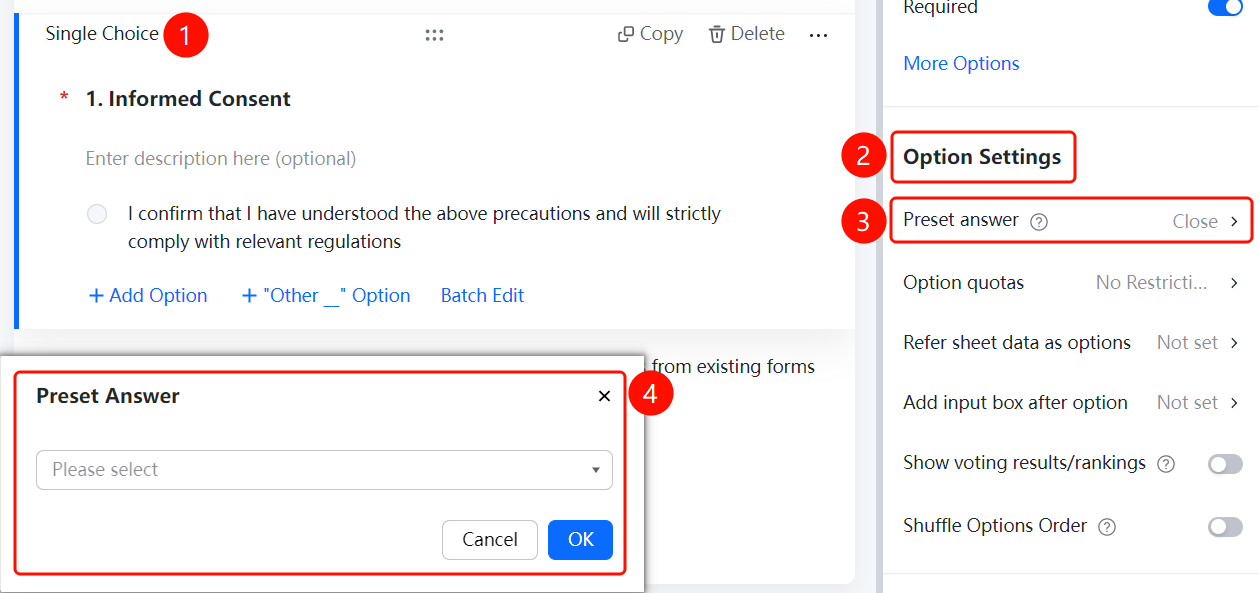
Informed Consent → 「Option Settings」 → 「Preset Answer」option
- Click the added informed consent question
- Click the 「Preset Answer」 option in the right 「Option Settings」 panel
- After setting the default option, if the respondent makes no changes, the default value will be submitted as the respondent's data
Set Option Quota
Feature Entry
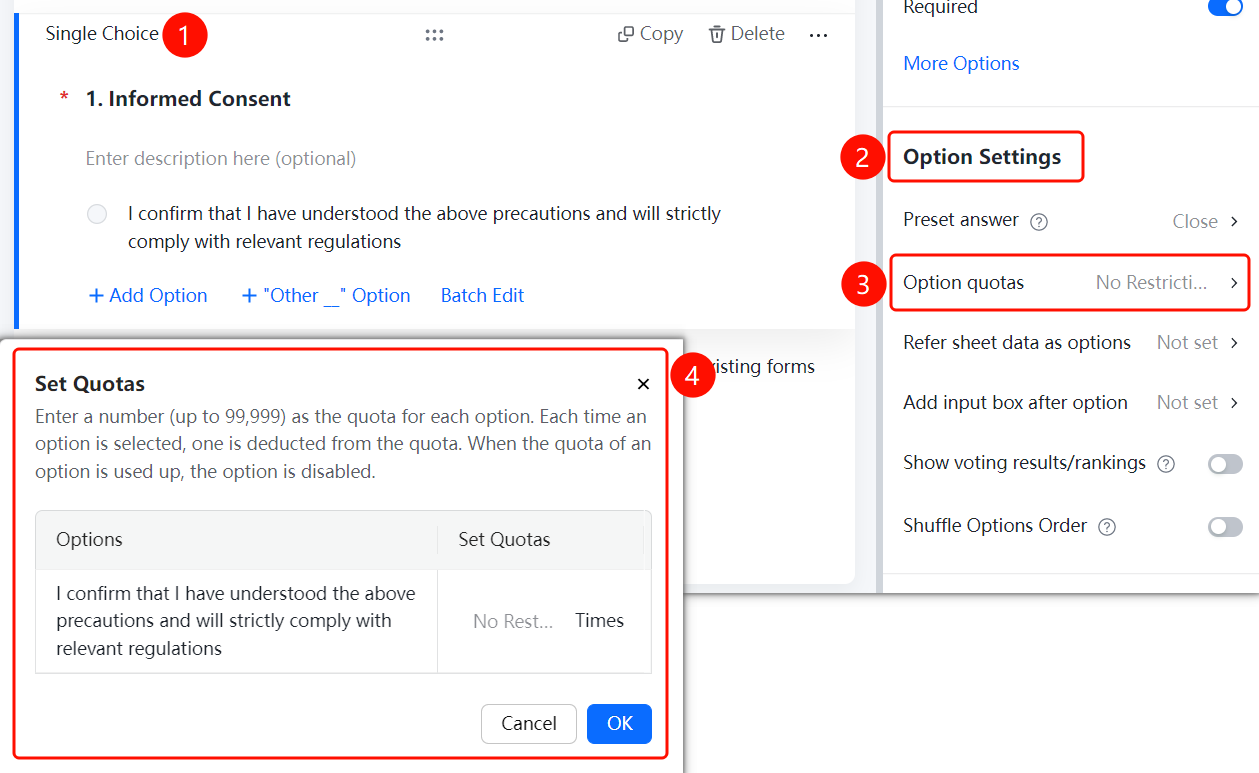
Informed Consent → 「Option Settings」 → 「Option Quota」option
- Click the added informed consent question
- Click the 「Option Quota」 option in the right 「Option Settings」 panel
- Set the option quota quantity in the pop-up panel (maximum can be set to 99999)
- Click the 「Confirm」 button to complete the setting
Reference Sheets Data as Options
Feature Entry
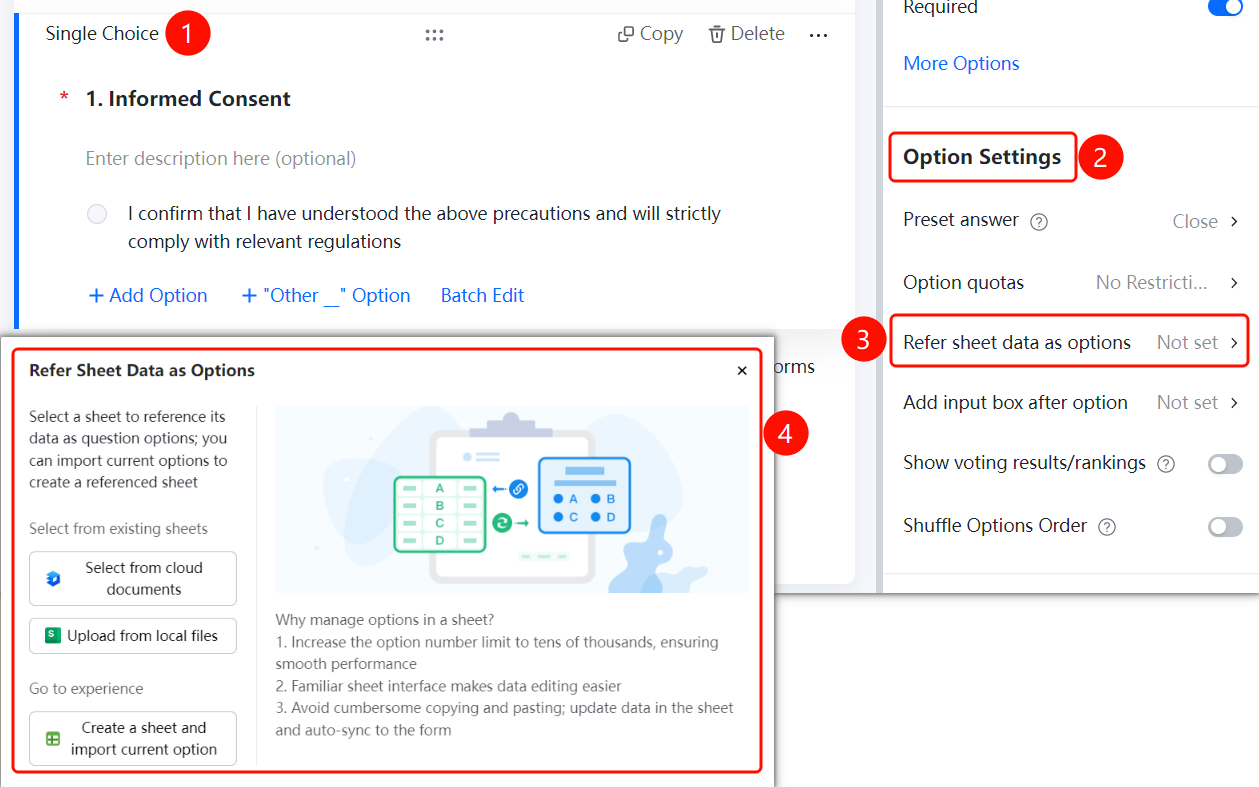
Informed Consent → 「Option Settings」 → 「Reference Sheets Data as Options」option
- Click the added informed consent question
- Click the 「Reference Sheets Data as Options」 option in the right 「Option Settings」 panel
- Select the Sheets source in the pop-up panel: 「Select from Cloud Document」, 「Upload from Local File」, or 「Create New Sheets and Import Current Options」
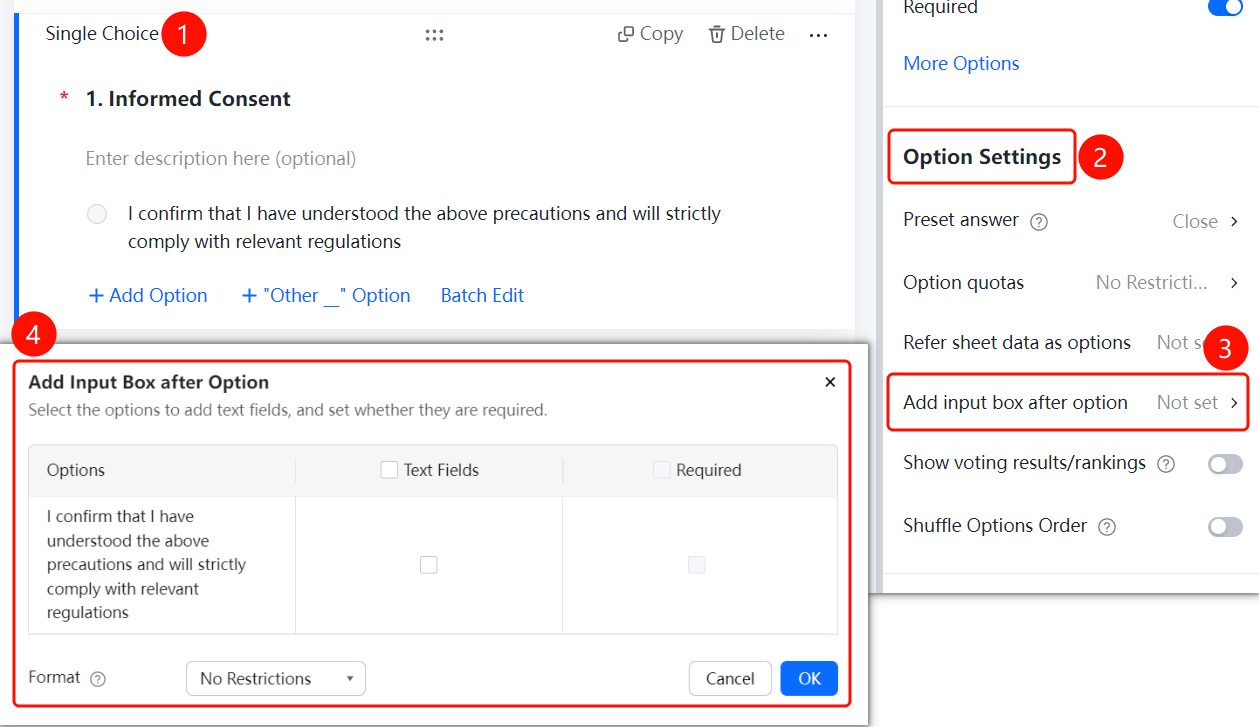
Add Input Box After Option
Feature Entry
Informed Consent → 「Option Settings」 → 「Add Input Box After Option」option
- Click the added informed consent question
- Click the 「Add Input Box After Option」 option in the right 「Option Settings」 panel
- In the pop-up panel, check the options that need an input box added
- Set whether the input box is required and the input content format restrictions
- Click the 「Confirm」 button to complete the setting
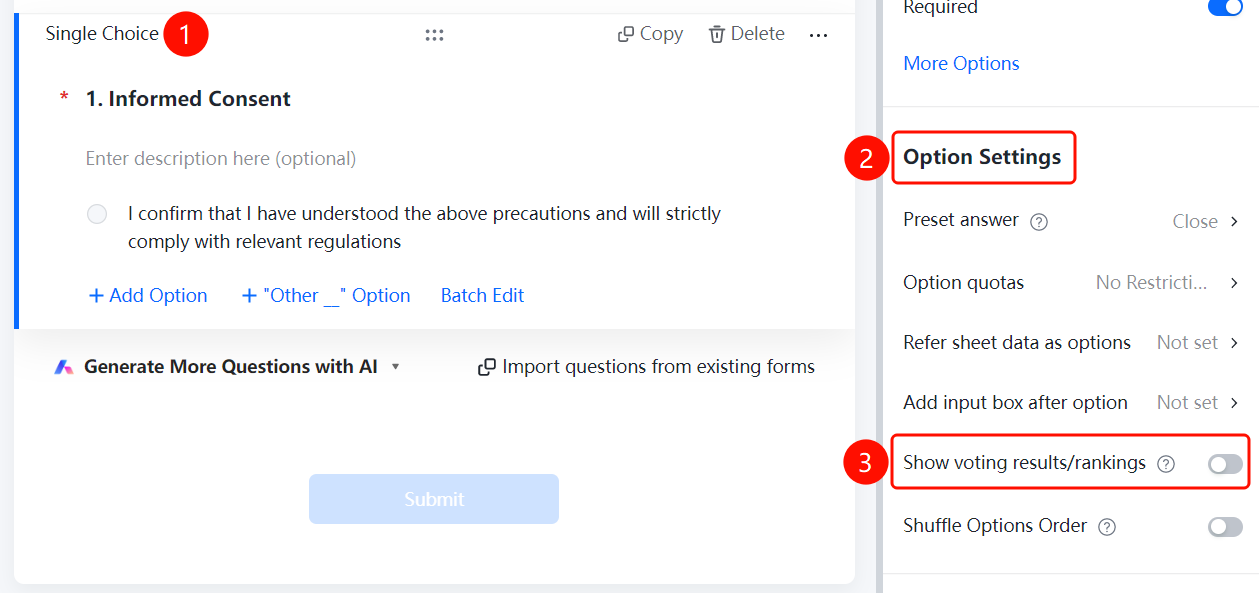
Show Poll Results/Leaderboard
Feature Entry
Informed Consent → 「Option Settings」 → 「Show Poll Results/Leaderboard」toggle
- Click the added informed consent question
- Turn on the 「Show Poll Results/Leaderboard」 toggle in the right 「Option Settings」 panel
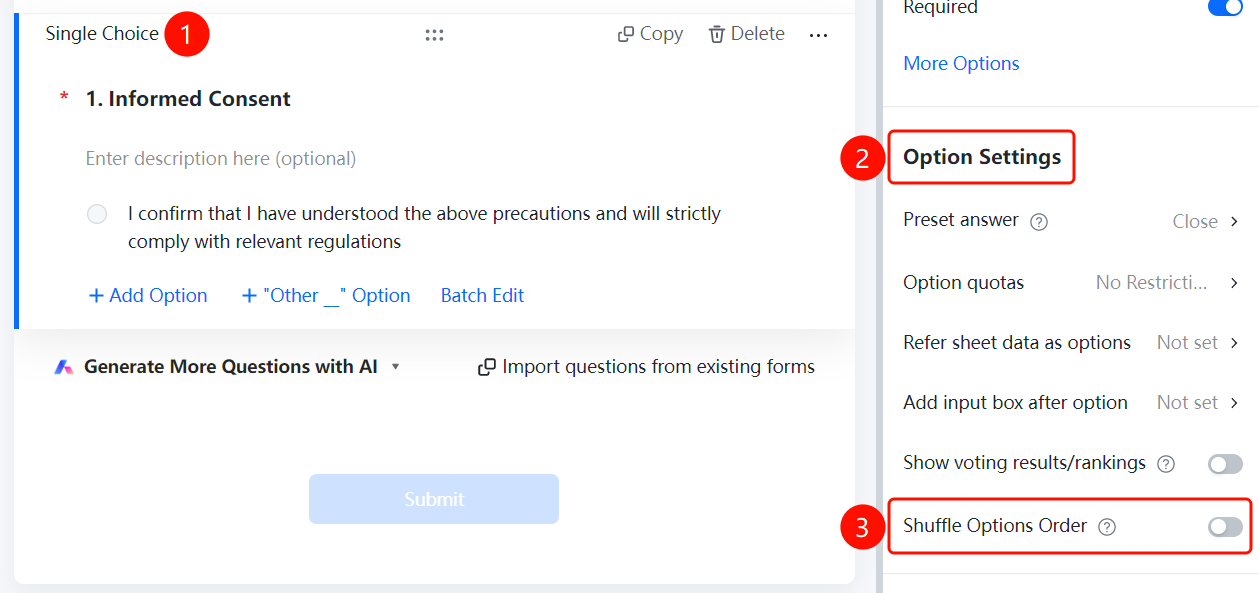
Shuffle Option Order
Feature Entry
Informed Consent → 「Option Settings」 → 「Shuffle Option Order」toggle
- Click the added informed consent question
- Turn on the 「Shuffle Option Order」 toggle in the right 「Option Settings」 panel
- After turning it on, respondents will see the shuffled option order
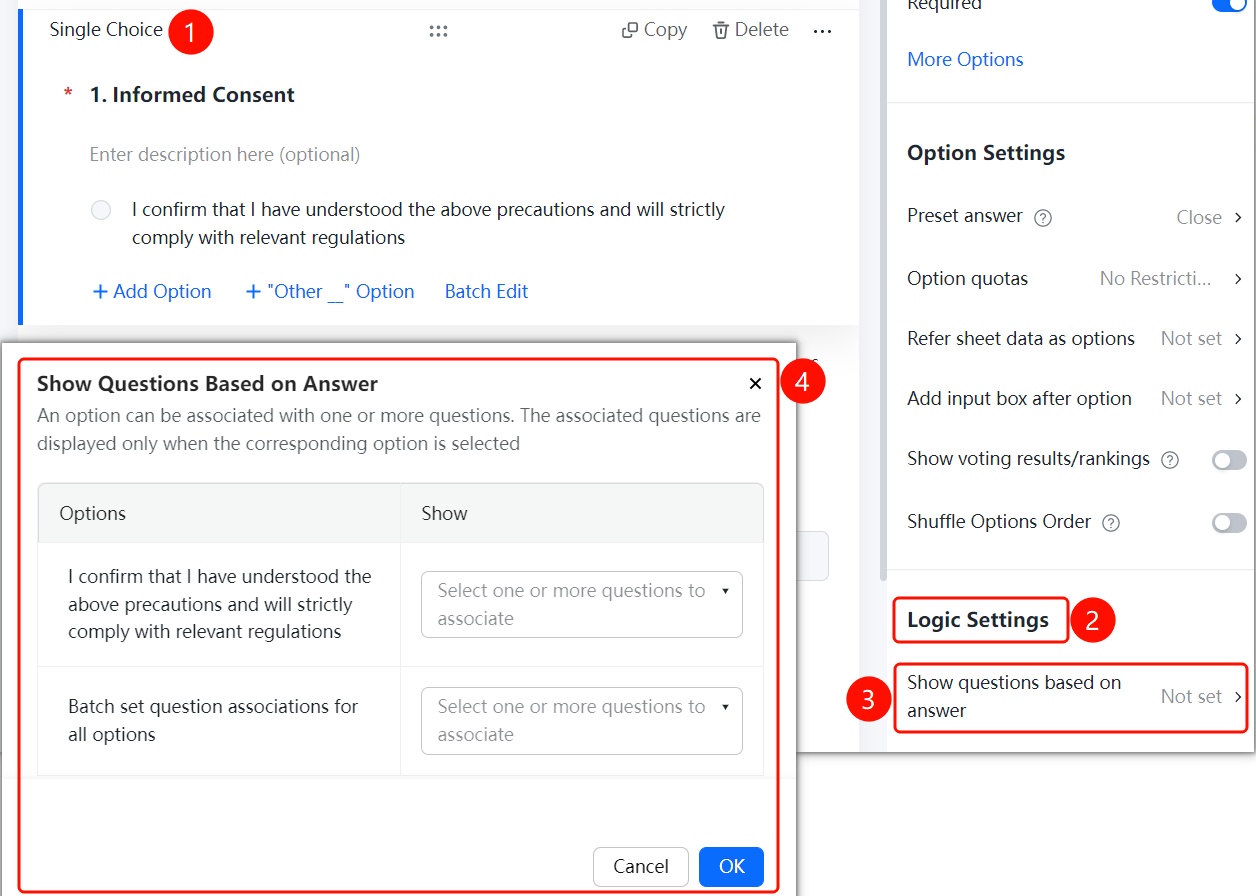
Set Question Association
Feature Entry
Informed Consent → 「Logic Settings」 → 「Question Association」option
- Click the added informed consent question
- Click the 「Question Association」 option in the right 「Logic Settings」 panel
- In the pop-up panel, set the associated question for each option
- When the respondent selects the specified option, the associated question will be displayed
- Click the 「Confirm」 button to complete the setting
FAQ
Q1: What scenarios are informed consent questions suitable for?
- Solution: Informed consent questions are suitable for scenarios where respondents need to confirm that they have understood the relevant precautions and agree to abide by the rules, such as event registration confirmation, agreement signing, etc.
Q2: Can respondents modify the preset answer after it is set?
- Solution: Yes. After setting the preset answer, if the respondent makes no changes, the default value will be submitted as the respondent's data; the respondent can still manually modify the option.
Q3: What is the purpose of the question association feature?
- Solution: The question association feature allows the associated question to be displayed only when the respondent selects the specified option, achieving a conditional display effect.
Notes
- The informed consent question has a default confirmation option preset, and the option content can be modified according to actual needs
- After turning on shuffle option order, the option order seen by each respondent will be randomly arranged
- The question association feature requires other questions to exist in the form to be set