Feature Summary
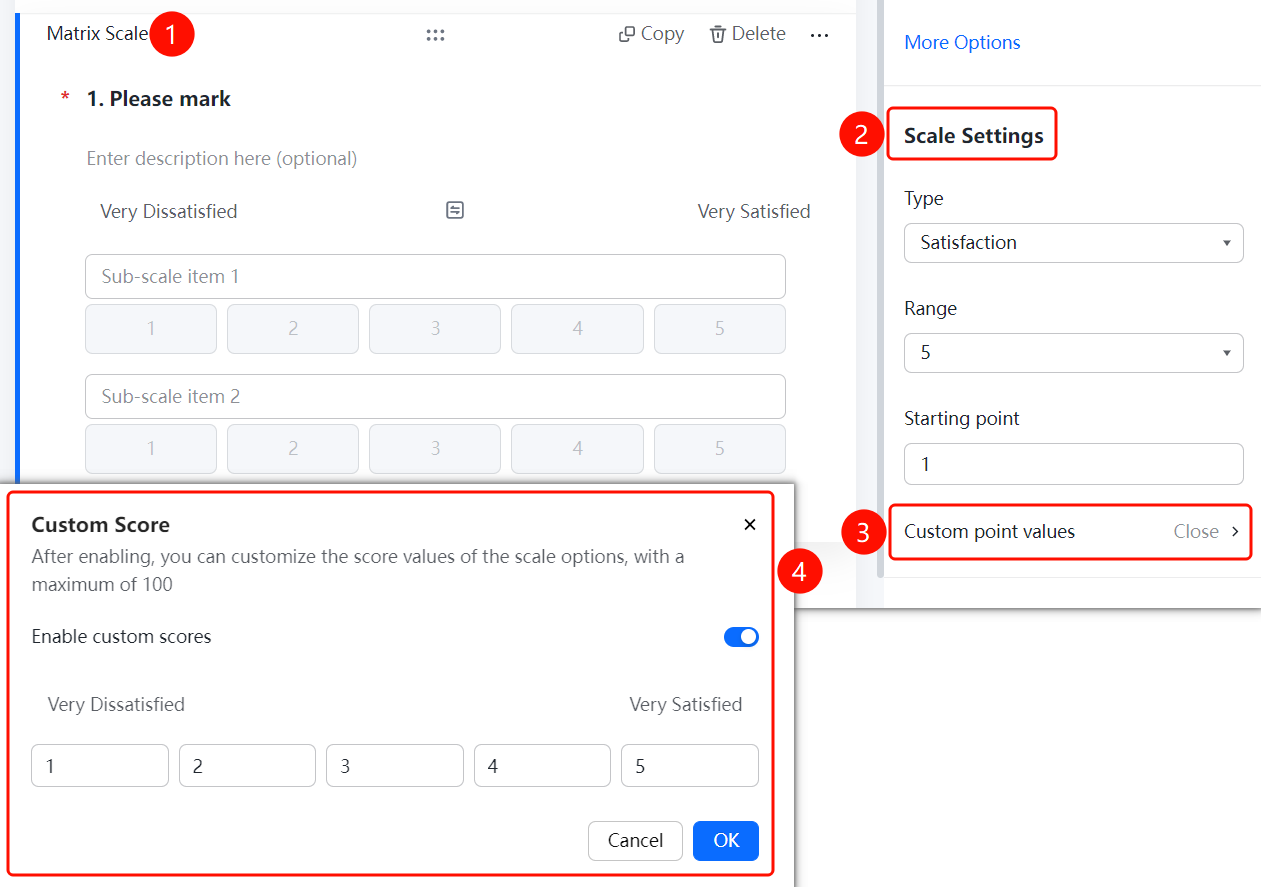
The matrix/rating scale is used to list multiple items together for scoring, NPS surveys, or satisfaction surveys. It is commonly used in scenarios such as voting and elections. It supports setting the scale type, scale level, starting value, and custom score values.
Feature Description
| Feature Dimension | Description |
|---|---|
| Membership Restriction | No membership restriction |
| Version Restriction | No version restriction |
Operation Steps
Add a Matrix/Rating Scale Question
Feature Entry
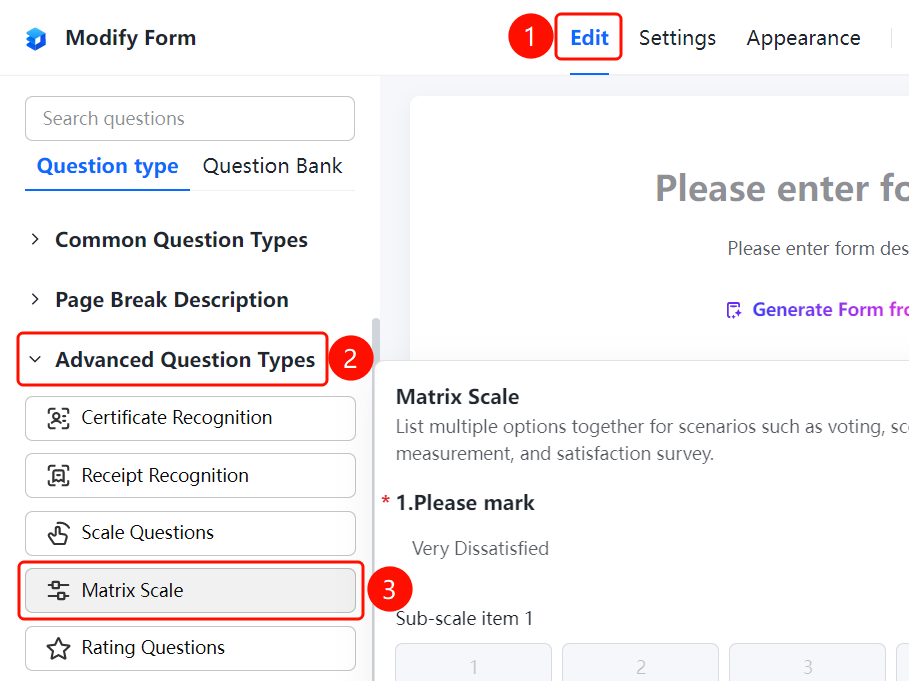
「Edit」 tab → 「Advanced Question Types」 → 「Matrix/Rating Scale」 button
- Click the top 「Edit」 tab
- Expand the 「Advanced Question Types」 area in the left panel
- Click the 「Matrix/Rating Scale」 button to add a matrix/rating scale question to the form
- The system automatically adds sub-scale items. You can click 「Add Sub-scale Item」 to continue adding
Set Scale Type
Feature Entry
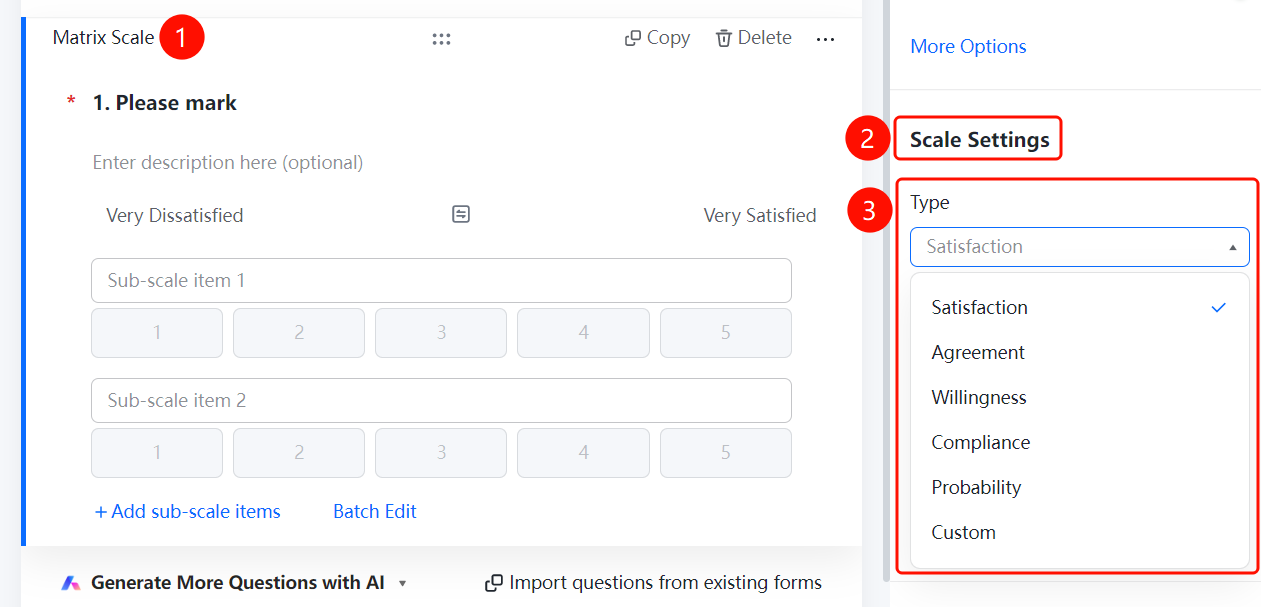
Matrix/Rating Scale → 「Scale Settings」 → 「Scale Type」 dropdown menu
- Click the added matrix/rating scale question
- In the right-side 「Scale Settings」 panel, click the 「Scale Type」 dropdown menu
- Select the scale type: 「Satisfaction」, 「Agreement」, 「Willingness」, 「Conformity」, 「Likelihood」, or 「Custom」
Set Range
Feature Entry
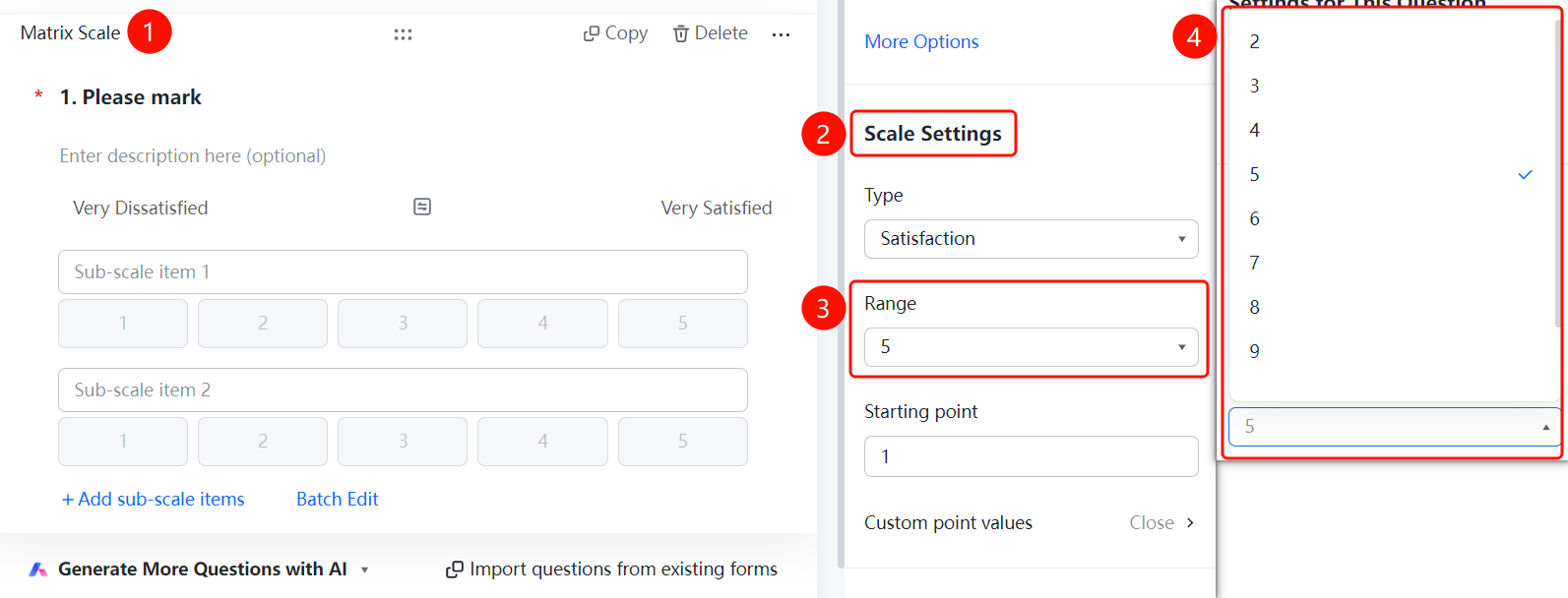
Matrix/Rating Scale → 「Scale Settings」 → 「Range」 dropdown menu
- Click the added matrix/rating scale question
- In the right-side 「Scale Settings」 panel, click the 「Range」 dropdown menu
- Select the number of scale levels
Set Starting Value
Feature Entry
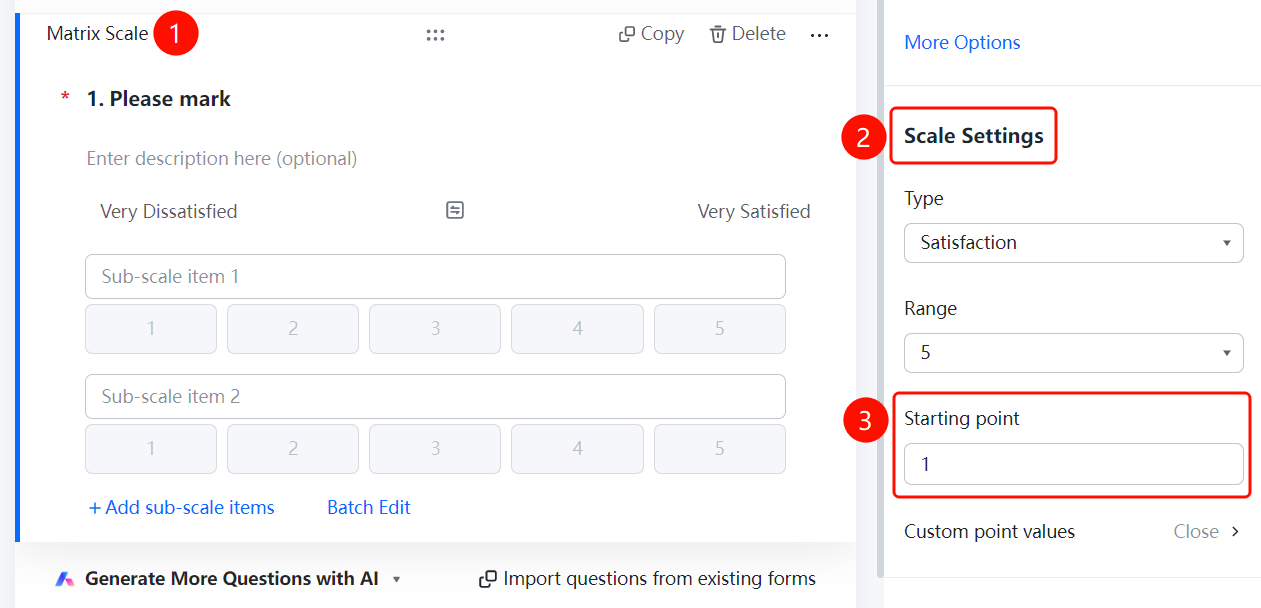
Matrix/Rating Scale → 「Scale Settings」 → 「Starting Value」 input box
- Click the added matrix/rating scale question
- In the right-side 「Scale Settings」 panel, click the 「Starting Value」 input box
- Enter the starting value of the scale (e.g., 1)
Set Custom Score Values
Feature Entry
Matrix/Rating Scale → 「Scale Settings」 → 「Custom Score Values」 option
- Click the added matrix/rating scale question
- In the right-side 「Scale Settings」 panel, click the 「Custom Score Values」 option
- In the pop-up panel, turn on the 「Enable Custom Scores」 switch
- Set custom score values for each scale level (maximum value not exceeding 100)
- Click the 「Confirm」 button to complete the setting
FAQ
Q1: What scenarios is the matrix/rating scale suitable for?
- Solution: The matrix/rating scale is suitable for scenarios where multiple items are listed together for scoring, NPS surveys, or satisfaction surveys. It is commonly used in voting, elections, satisfaction surveys, questionnaire surveys, etc.
Q2: What are the available options for scale type?
- Solution: The scale type supports six types: Satisfaction, Agreement, Willingness, Conformity, Likelihood, and Custom. You can choose based on actual needs.
Q3: How to customize the score value for each scale level?
- Solution: In the 「Scale Settings」 panel, click 「Custom Score Values」, turn on the 「Enable Custom Scores」 switch, and then you can set custom score values for each scale level, with the maximum value not exceeding 100.
Notes
- Scale level setting supports 2-9 levels. You can choose the appropriate number of levels based on actual needs.
- The starting value defaults to 1 and can be modified as needed.
- Custom score values must not exceed 100. Please set them reasonably.