Feature Summary
Auto-Numbering automatically generates a unique number for each submission record, such as serial numbers, order numbers, product numbers, etc. It supports settings for auto-counting, fixed text, submission date, referencing questions, and connectors.
Feature Description
| Feature Dimension | Description |
|---|---|
| Membership Restriction | No membership restriction |
| Version Restriction | No version restriction |
Operation Steps
Add Auto-Numbering Question
Feature Entry
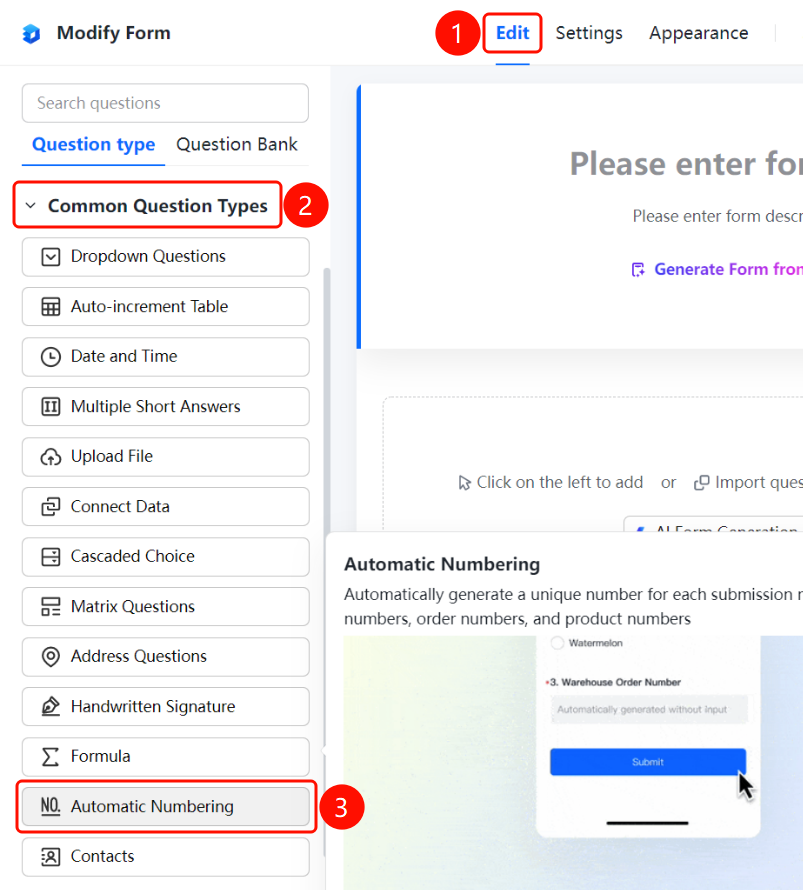
「Edit」tab → 「Common Question Types」 → 「Auto-Numbering」 button
- Click the 「Edit」 tab at the top
- Expand the 「Common Question Types」 area in the left panel
- Click the 「Auto-Numbering」 button to add the auto-numbering question to the form
Set Auto-Counting
Feature Entry
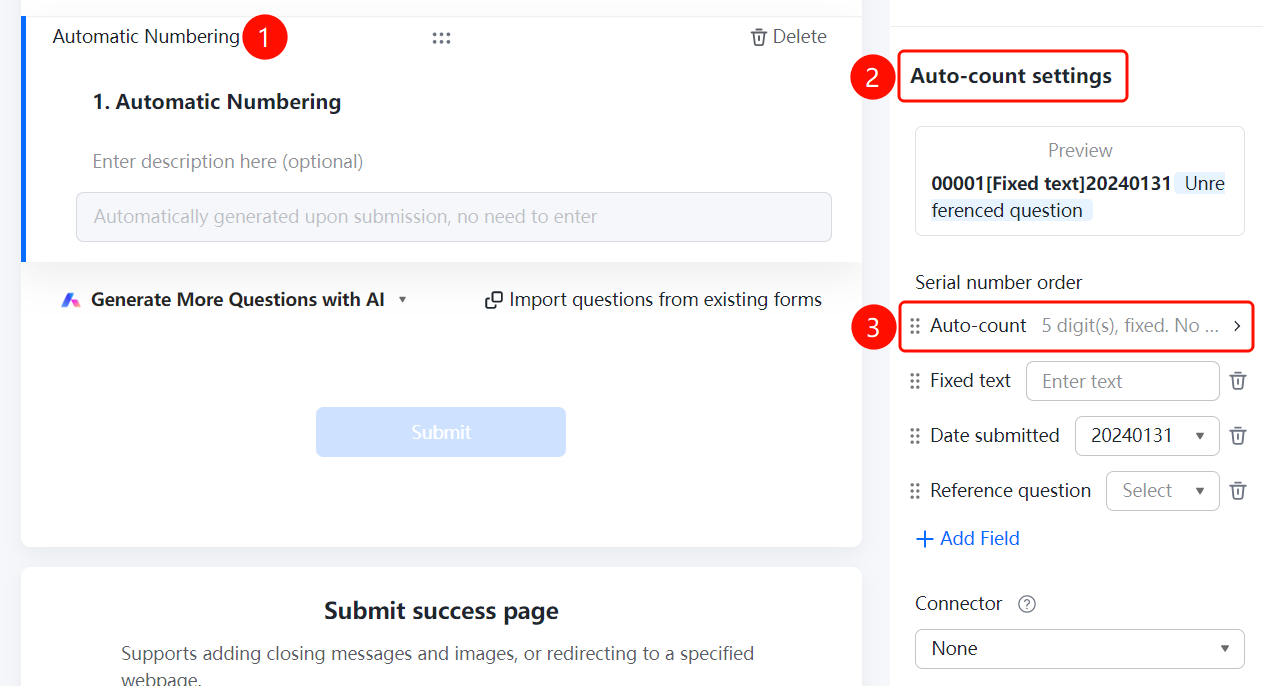
Auto-Numbering → 「Auto-Numbering Settings」 → 「Auto-Counting」 option
- Click the added auto-numbering question
- In the right 「Auto-Numbering Settings」 panel, click the 「Auto-Counting」 option
- In the pop-up panel, set parameters such as number of digits, fixed digits, starting value, and reset cycle
- The number range is 00001~99999
- Click the 「Confirm」 button to complete the settings
Set Fixed Text
Feature Entry
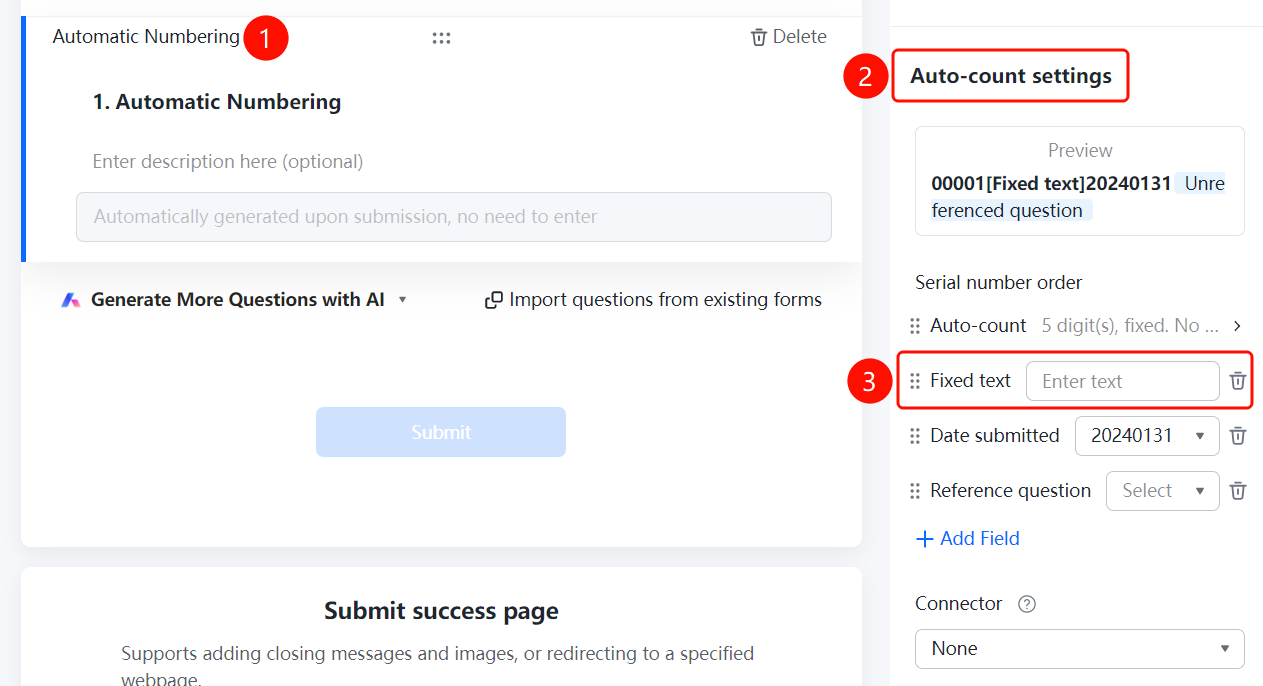
Auto-Numbering → 「Auto-Numbering Settings」 → 「Fixed Text」 input box
- Click the added auto-numbering question
- In the right 「Auto-Numbering Settings」 panel, click the 「Fixed Text」 input box
- Enter the fixed text content to be displayed in the number
Set Submission Date
Feature Entry
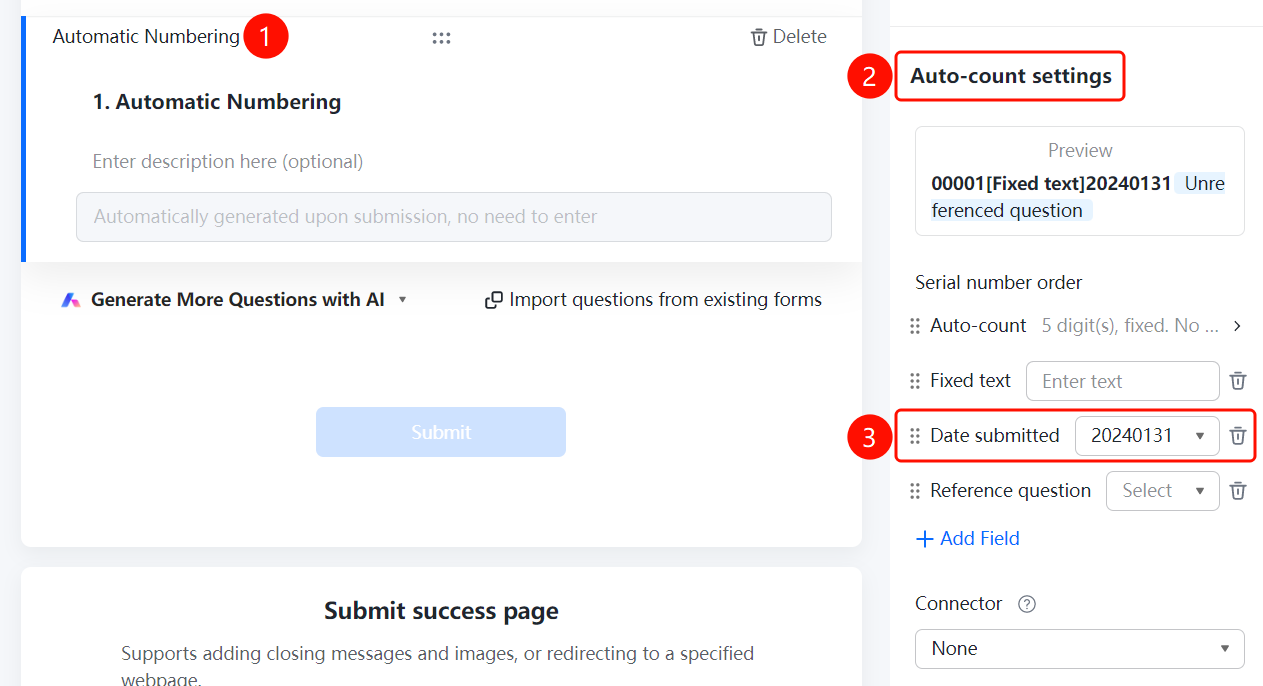
Auto-Numbering → 「Auto-Numbering Settings」 → 「Submission Date」 dropdown menu
- Click the added auto-numbering question
- In the right 「Auto-Numbering Settings」 panel, click the 「Submission Date」 dropdown menu
- Select the date format (e.g., 20240131)
Set Reference Question
Feature Entry
Auto-Numbering → 「Auto-Numbering Settings」 → 「Reference Question」 dropdown menu
- Click the added auto-numbering question
- In the right 「Auto-Numbering Settings」 panel, click the 「Reference Question」 dropdown menu
- Select the form question to be referenced
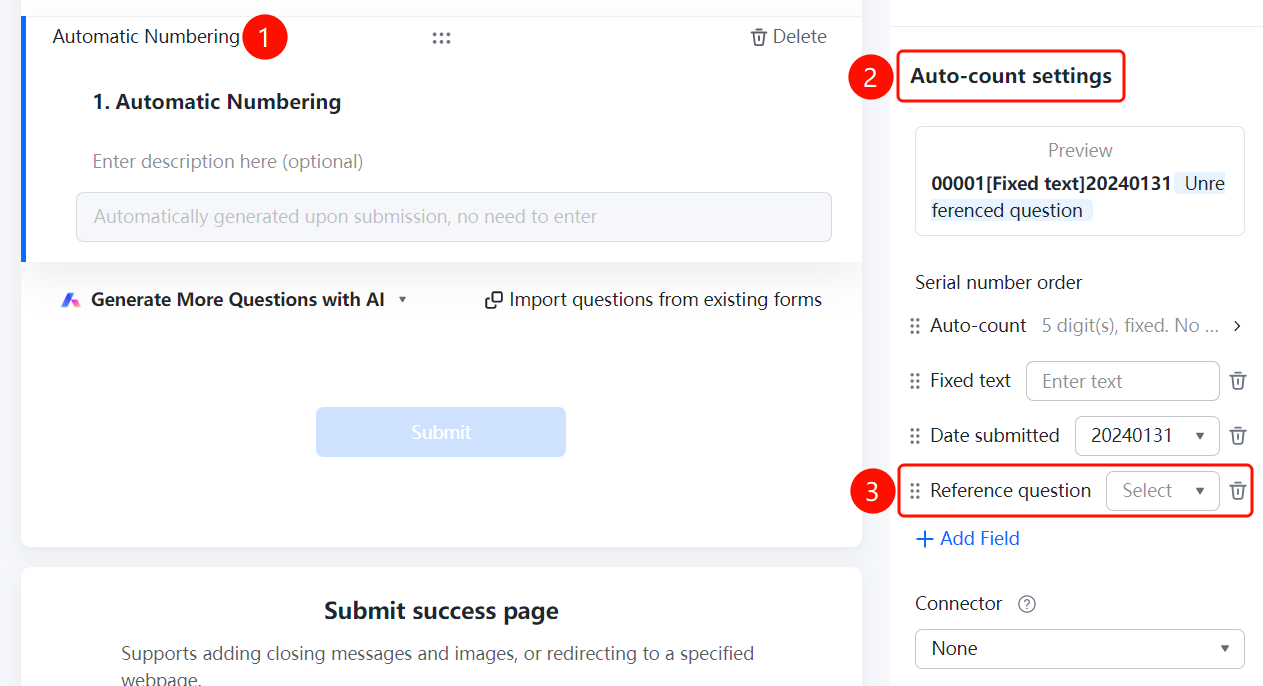
Add Field
Feature Entry
Auto-Numbering → 「Auto-Numbering Settings」 → 「+ Add Field」 button
- Click the added auto-numbering question
- In the right 「Auto-Numbering Settings」 panel, click the 「+ Add Field」 button
- Select the field type to add: 「Fixed Text」, 「Submission Date」, or 「Reference Form Question」
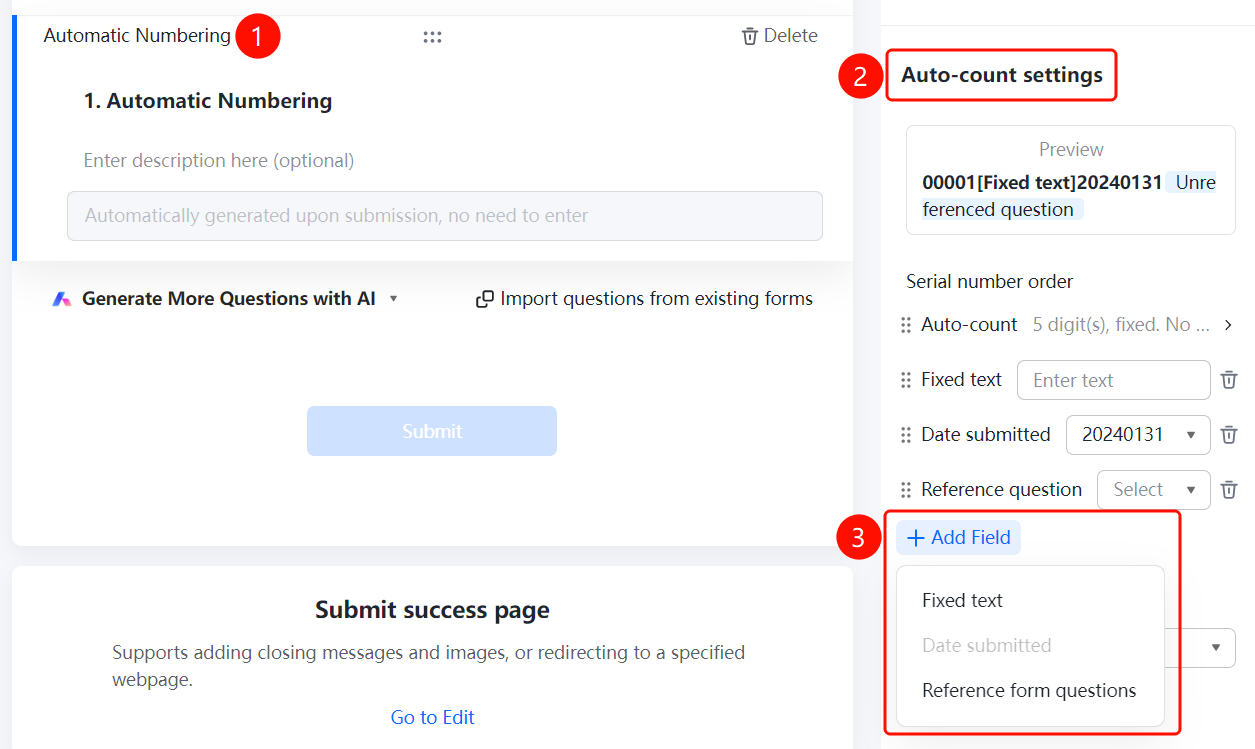
Set Connector
Feature Entry
Auto-Numbering → 「Auto-Numbering Settings」 → 「Connector」 dropdown menu
- Click the added auto-numbering question
- In the right 「Auto-Numbering Settings」 panel, click the 「Connector」 dropdown menu
- Select the connector type: 「None」, 「/」, 「- (Hyphen)」, or 「_ (Underscore)」
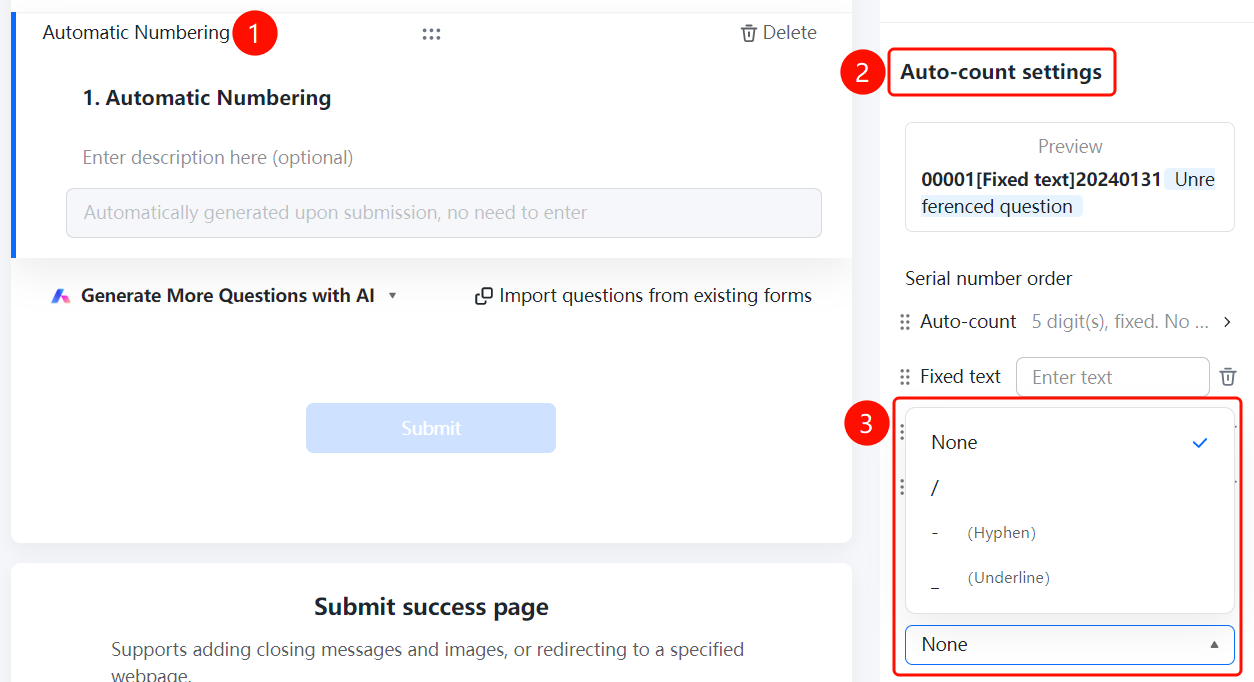
FAQ
Q1: What scenarios is Auto-Numbering suitable for?
- Solution: Auto-Numbering is suitable for scenarios where a unique number needs to be generated for each submission record, such as serial numbers, order numbers, product numbers, work order numbers, etc.
Q2: What happens when the number reaches the maximum value?
- Solution: If the number has reached the maximum value, you can set the behavior for continued submissions, supporting either continuous increment or resetting the number.
Q3: How to customize the number format?
- Solution: By combining fields such as auto-counting, fixed text, submission date, and reference questions, and setting connectors, various number formats can be customized.
Notes
- The number range is 00001~99999, supporting the setting of digit count and starting value
- The reset cycle supports daily, weekly, monthly, or no reset
- Connectors are used to separate fields in the number and can be selected based on requirements