Feature Summary
The auto-increment table feature allows respondents to dynamically add multiple rows of data, supports setting minimum and maximum fillable rows, and is suitable for batch collection of structured data.
Feature Description
| Feature Dimension | Description |
|---|---|
| Membership Restriction | No membership restriction |
| Version Restriction | No version restriction |
Operation Steps
Adding an Auto-Increment Table
Feature Entry
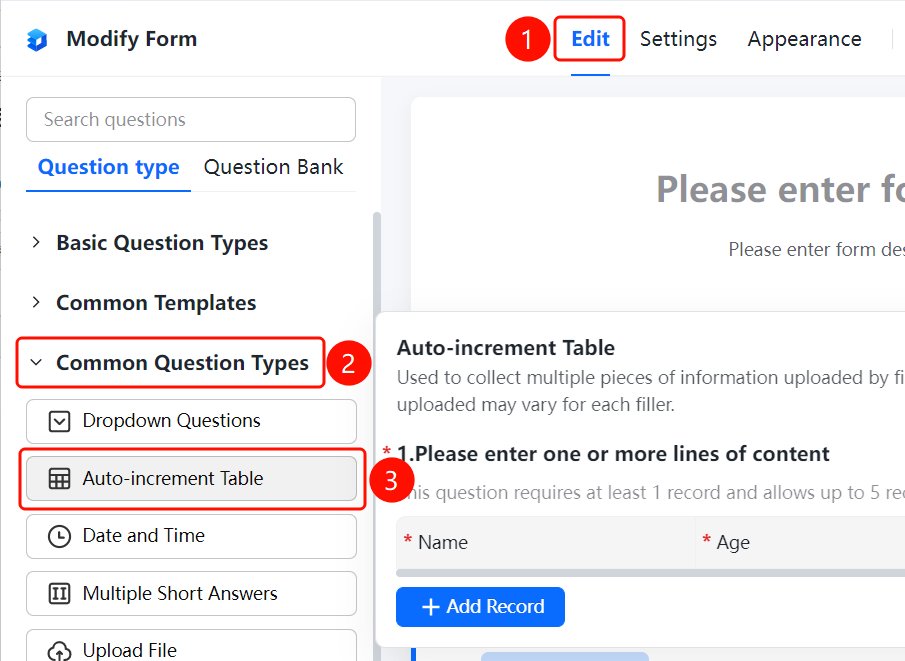
「Edit」 tab → 「Question Types」 tab → 「Common Question Types」 → 「Auto-Increment Table」 button
- Click the 「Edit」 tab at the top
- Expand the 「Common Question Types」 area in the left panel
- Click the 「Auto-Increment Table」 button to add an auto-increment table to the form
- Set the table column names (e.g., Name, Age, Gender) in the right editing area
- Respondents can dynamically add data rows via the 「+ Add a Record」 button
Setting Table Row Count
Feature Entry
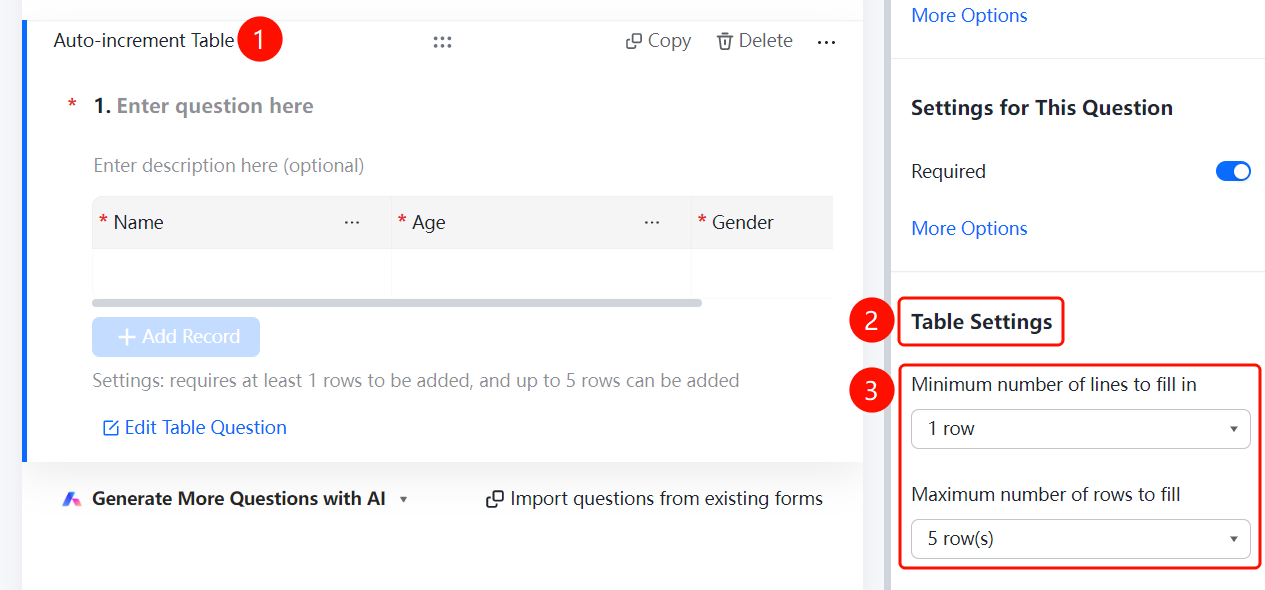
Auto-Increment Table → 「Table Settings」 panel
- Click the added auto-increment table
- In the 「Table Settings」 panel, set the 「Minimum Fillable Rows」 (default 1 row)
- Set the 「Maximum Fillable Rows」 (default 5 rows)
- Click 「Edit Table Questions」 to modify the question content of the table columns
FAQ
Q1: What is the maximum number of rows that can be added to an auto-increment table?
- Solution: The maximum fillable rows for an auto-increment table can be customized in the table settings, with a default maximum of 5 rows.
Q2: Can a minimum number of fillable rows be set?
- Solution: Yes, you can set the minimum fillable rows in the table settings to ensure that respondents submit at least a certain amount of data.
Q3: Can table columns be modified?
- Solution: Yes, clicking the 「Edit Table Questions」 button allows you to modify the names and question content of the table columns.
Notes
- The auto-increment table is suitable for batch collection of structured data such as personnel information and material lists
- It is recommended to set the minimum and maximum fillable rows reasonably based on actual needs