Feature Summary
The question association feature is used to set up linkage relationships between options and questions. Associated questions will only be displayed when the respondent selects the specified option.
Feature Description
| Feature Dimension | Description |
|---|---|
| Membership Restrictions | No membership restrictions |
| Version Restrictions | No version restrictions |
Operation Steps
Setting Up Question Association
Feature Entry
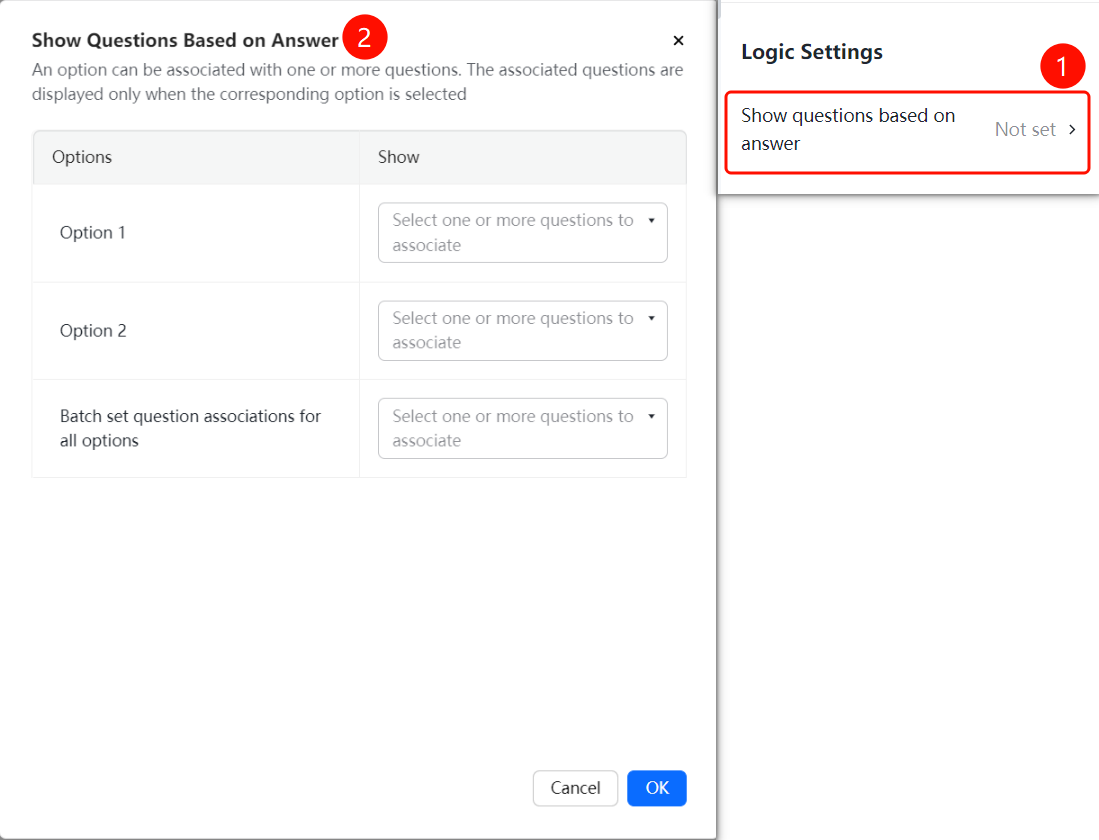
Question → "Logic Settings" → "Question Association" option
- Click the question you need to set up association for
- In the "Logic Settings" panel on the right, click the "Question Association" option
- In the pop-up "Set Question Association" panel, set up associated questions for each option
- You can select the questions to associate via the dropdown menu (multiple selections supported)
- You can also use the "Batch Set Question Association for All Options" shortcut
- Click the "Confirm" button to complete the setup
FAQ
Q1: What is the purpose of question association?
- Solution: Question association can dynamically show or hide related questions based on the respondent's selections, enabling conditional logic for the form.
Q2: Can one option be associated with multiple questions?
- Solution: Yes, each option supports association with multiple questions. When the respondent selects that option, all associated questions will be displayed.
Q3: How to batch set up question association?
- Solution: In the "Set Question Association" panel, use the "Batch Set Question Association for All Options" feature to set the same associated questions for all options at once.
Notes
- The target questions to be associated must be created first before setting up question association
- Associated questions are hidden by default and will only be displayed when the corresponding option is selected