Feature Summary
Common Settings are used to control core configuration features of forms, such as fill-out time, permissions, collection cycles, pausing collection, response modification, and approval.
Feature Description
| Feature Dimension | Description |
|---|---|
| Member Restriction | No member restriction |
| Version Restriction | No version restriction |
Operation Steps
Set Validity Period
Feature Entry
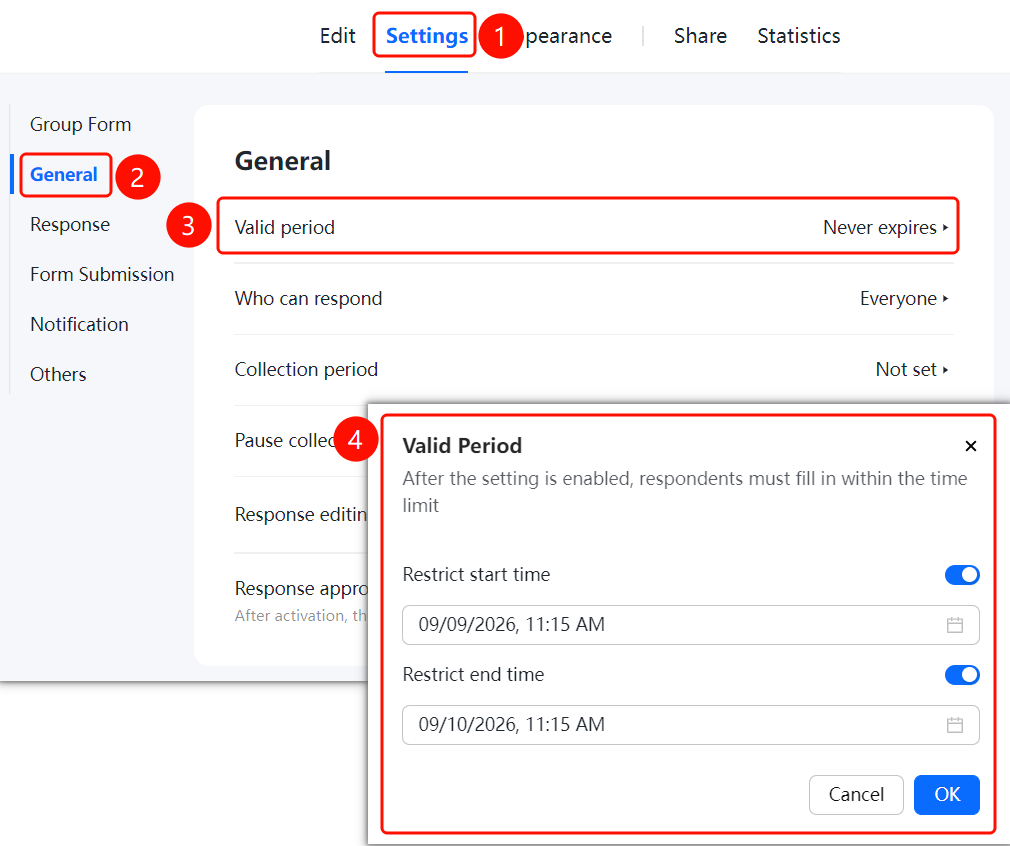
「Settings」 tab → 「General」 → 「Validity Period」 option
- Click the top 「Settings」 tab
- Click 「General」 in the left panel
- Click 「Valid period」 (currently 「Never expires」)
- In the pop-up window, enable 「Restrict Start Time」 and 「Restrict End Time」, and set the specific time
- After enabling the settings, fillers can only fill normally within the limited time. Click 「OK」 to save
Set Who can respond
Feature Entry
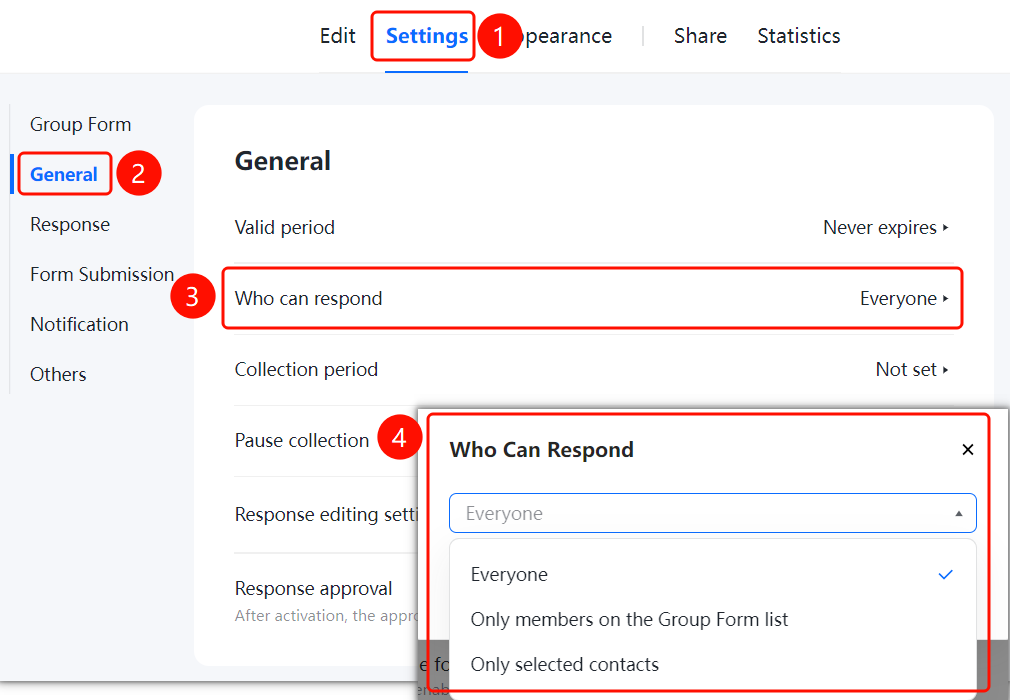
「Settings」 tab → 「General」 → 「Who can respond」 option
- Click the top 「Settings」 tab
- Click 「General」 in the left panel
- Click 「Who can respond」 (currently 「Everyone」)
- Select fill permission: 「Everyone」, 「Only members on the Group Form list」 or 「Only selected contacts」
Set Collection period
Feature Entry
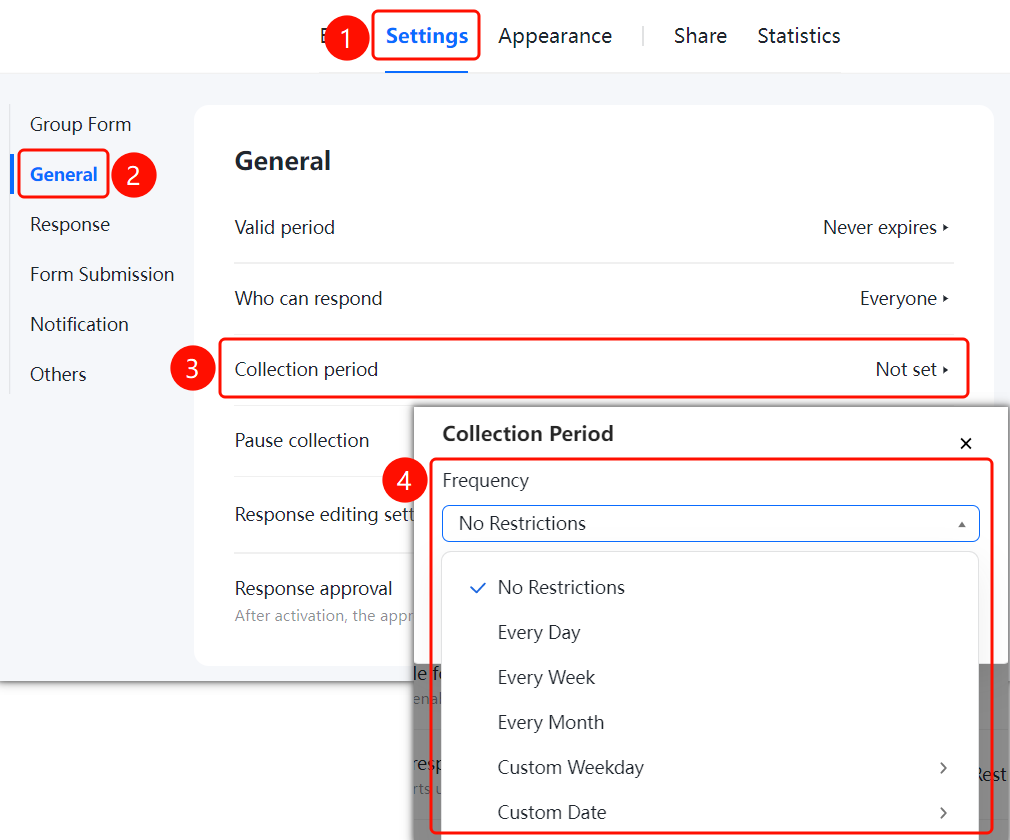
「Settings」 tab → 「General」 → 「Collection period」 option
- Click the top 「Settings」 tab
- Click 「General」 in the left panel
- Click 「Collection period」 (currently 「Not Set」)
- Select cycle type: No Restrictions, Every Day, Every Week,Every Month or custom date
Set Pause Collection
Feature Entry
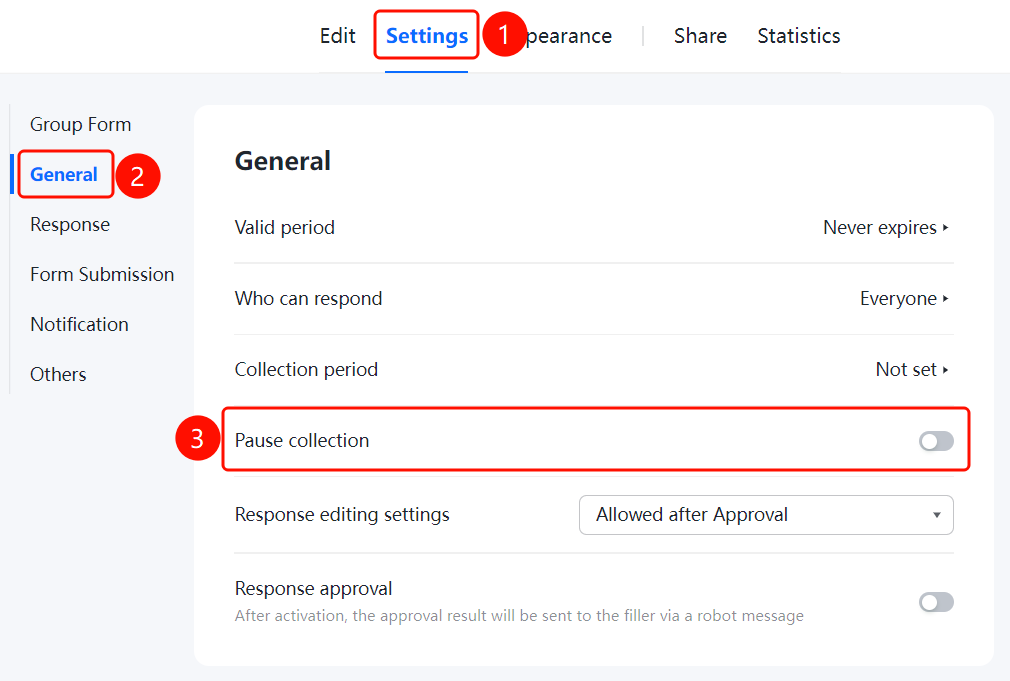
「Settings」 tab → 「General」 → 「Pause Collection」 toggle
- Click the top 「Settings」 tab
- Click 「General」 in the left panel
- Turn on the 「Pause Collection」 toggle
- After enabling, Group Form will pause collection and fillers cannot submit
Set Response editing Settings
Feature Entry
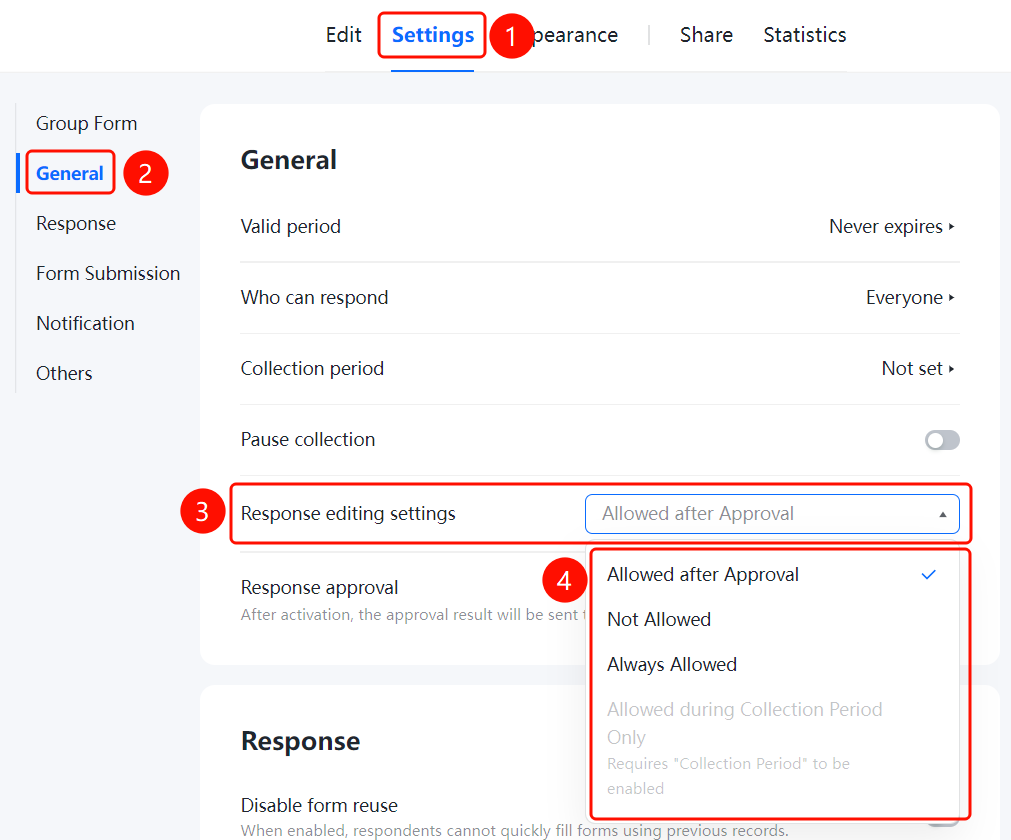
「Settings」 tab → 「General」 → 「Response editing Settings」 option
- Click the top 「Settings」 tab
- Click 「General」 in the left panel
- Click 「Response editing Settings」 option
- Select modify permission: Allow afteer Approval, Not Allowed, Always allowed, or Allow during Collection Period Only
Set Response Approval
Feature Entry
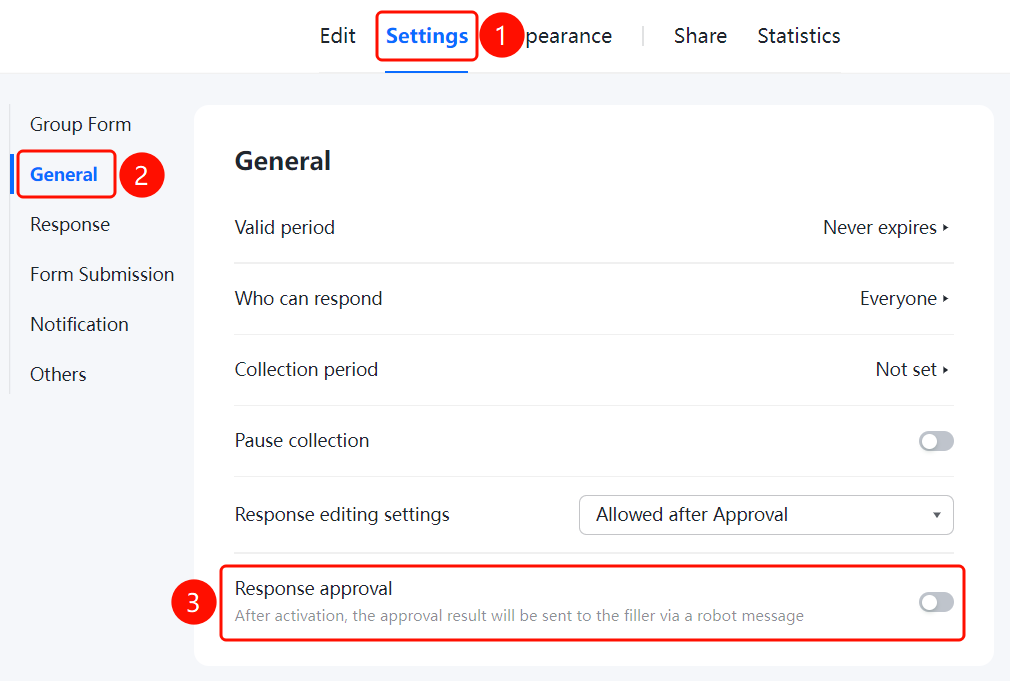
「Settings」 tab → 「General」 → 「Response Approval」 toggle
- Click the top 「Settings」 tab
- Click 「Common Settings」 in the left panel
- Turn on the 「Response Approval」 toggle
- After enabling, the approval result will be sent to the filler via bot message
FAQ
Q1: How do I set the form to be valid only during a specific time period?
- Solution: Click "Fill-out Validity Period" in Common Settings, turn on the "Limit Start Time" and "Limit End Time" switches, and set the specific times.
Q2: What are the requirements for the "Only allow modification within the collection cycle" option in the respondent response modification settings?
- Solution: You must first enable the "Collection Cycle" setting before you can select this option. Respondents can only modify their submitted responses within the collection cycle.
Q3: What happens after enabling response approval?
- Solution: Once enabled, responses submitted by respondents must go through approval, and the approval results will be sent to respondents via Bot notifications.
Notes
- Once the fill-out validity period is set, respondents will not be able to submit responses outside the specified time range.
- The collection cycle supports periodic collection by day, week, month, or custom dates.
- The "Only allow modification within the collection cycle" option requires the collection cycle setting to be enabled first.