Feature Summary
The dropdown question allows respondents to select an option from a dropdown list. When there are many options, the dropdown menu is collapsed by default and expands when clicked, avoiding taking up too much space and keeping the form clean and visually appealing.
Feature Description
| Feature Dimension | Description |
|---|---|
| Membership Restriction | No membership restriction |
| Version Restriction | No version restriction |
Operation Steps
Adding a Dropdown Question
Feature Entry
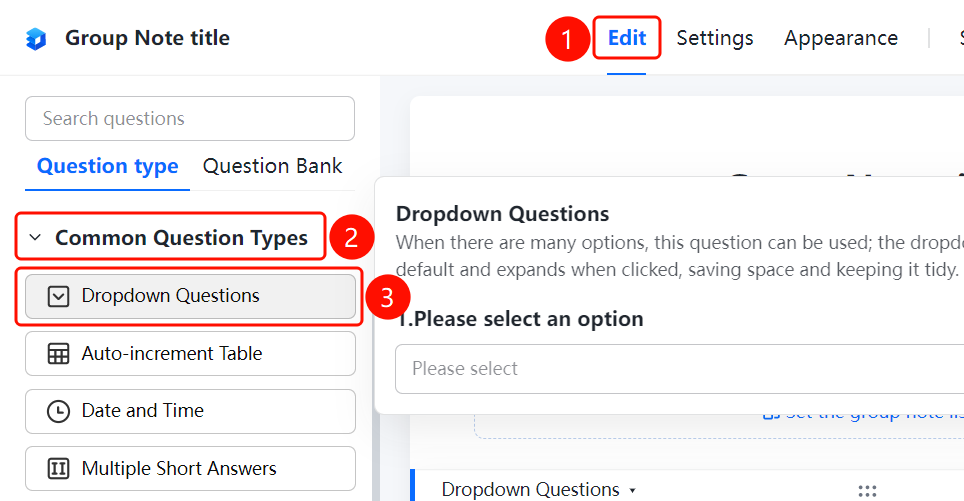
「Edit」 tab → 「Common Question Types」 → 「Dropdown」 button
- Click the top 「Edit」 tab
- Expand the 「Common Question Types」 area in the left panel
- Click the 「Dropdown」 button to add a dropdown question to the Group Form
- Enter the question content in the question editing area, add options (such as 「Option 1」, 「Option 2」), and you can click 「Add Option」, 「Batch Edit」 or 「"Other" Option」 to manage options
Setting a Preset Answer
Feature Entry
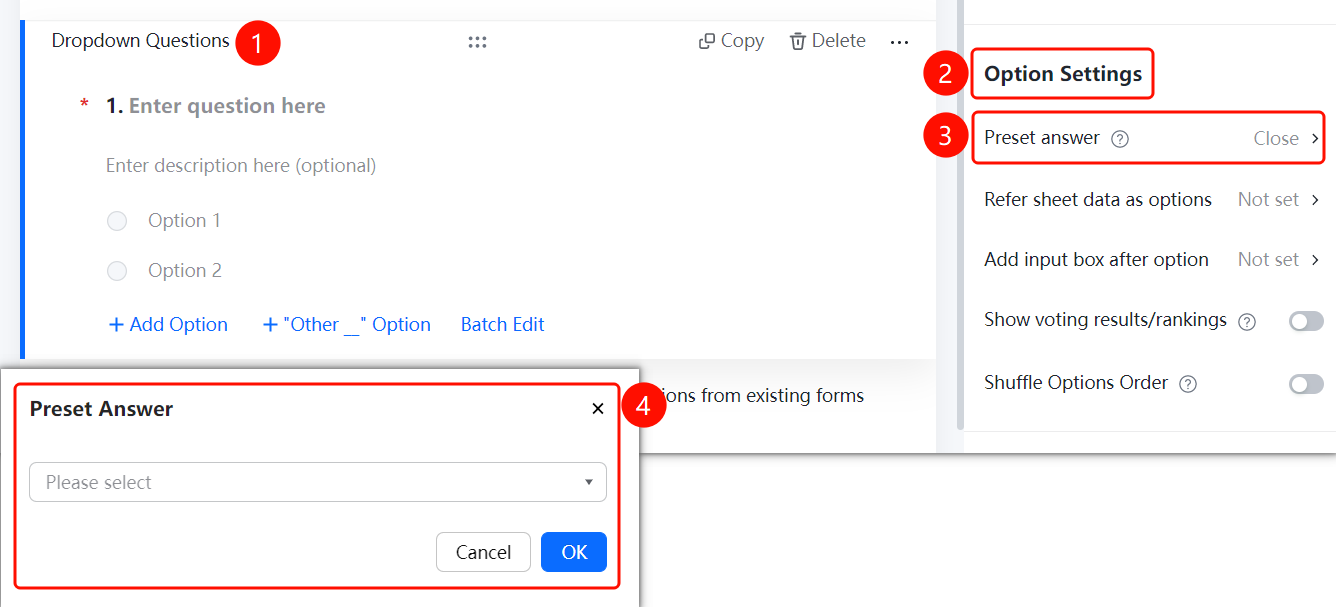
Dropdown question → 「Option Settings」 → 「Preset Answer」 option
- Click the added dropdown question
- In the right 「Option Settings」 panel, click the 「Preset Answer」 option
- Select the default answer in the pop-up dropdown box
Referencing Sheets Data as Options
Feature Entry
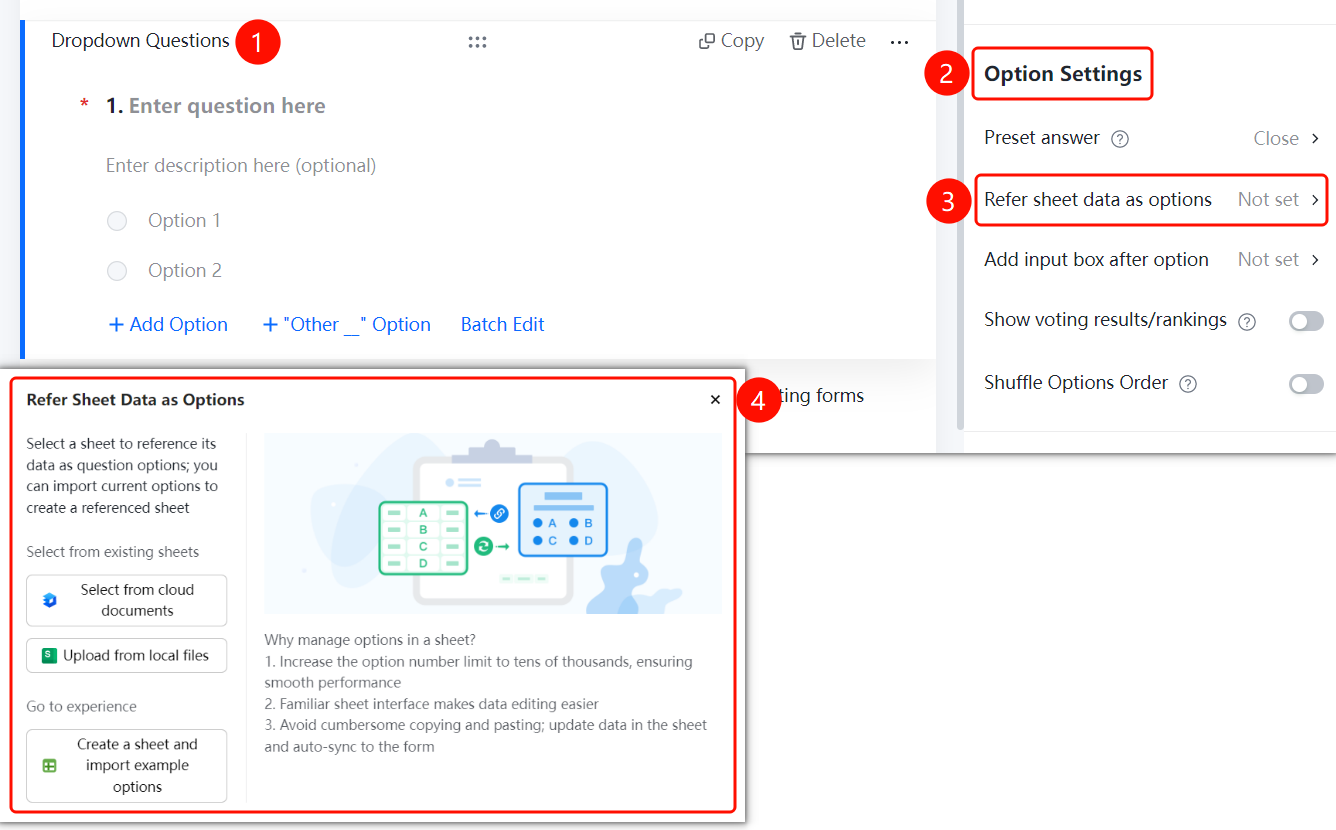
Dropdown question → 「Option Settings」 → 「Reference Sheets data as options」 option
- Click the added dropdown question
- In the right 「Option Settings」 panel, click the 「Reference Sheets data as options」 option
- Select source: Choose from cloud documents / Upload from local file / Create new Sheets
Adding an Input Box After an Option
Feature Entry
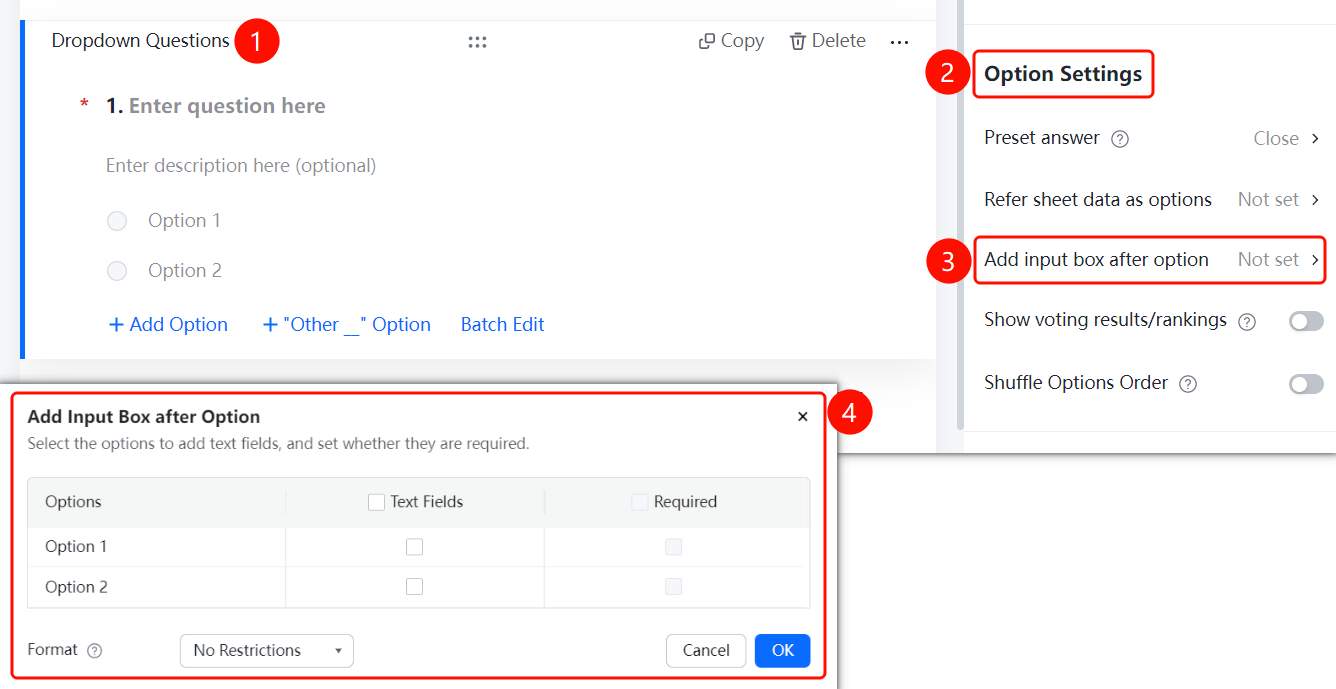
Dropdown question → 「Option Settings」 → 「Add input box after option」 option
- Click the added dropdown question
- In the right 「Option Settings」 panel, click the 「Add input box after option」 option
- Check the options that need an input box and set the required rules
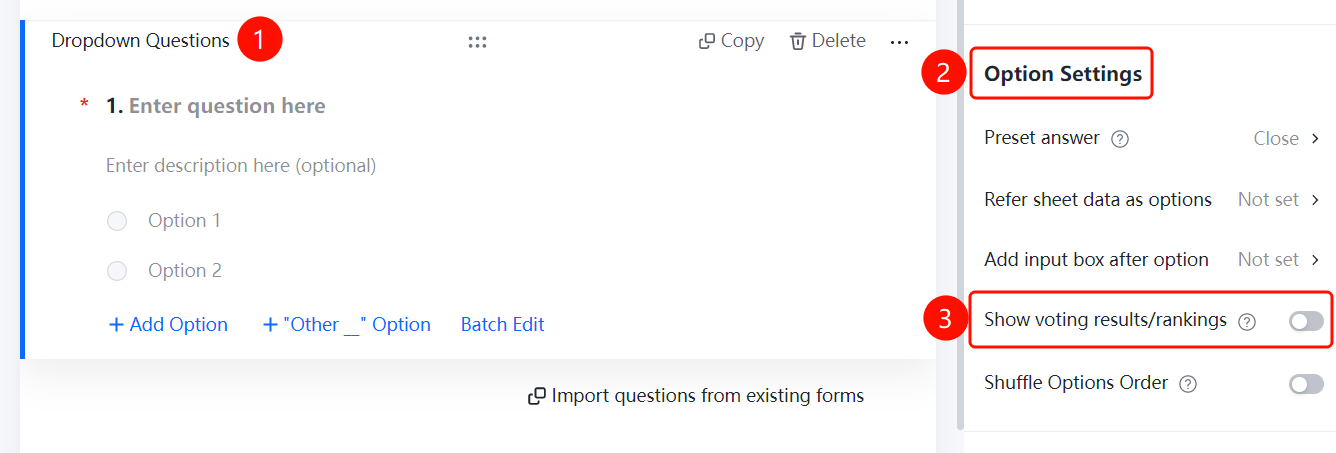
Displaying Poll Results / Leaderboard
Feature Entry
Dropdown question → 「Option Settings」 → 「Display Poll results / Leaderboard」 toggle
- Click the added dropdown question
- In the right 「Option Settings」 panel, turn on the 「Display Poll results / Leaderboard」 toggle
Shuffling Option Order
Feature Entry
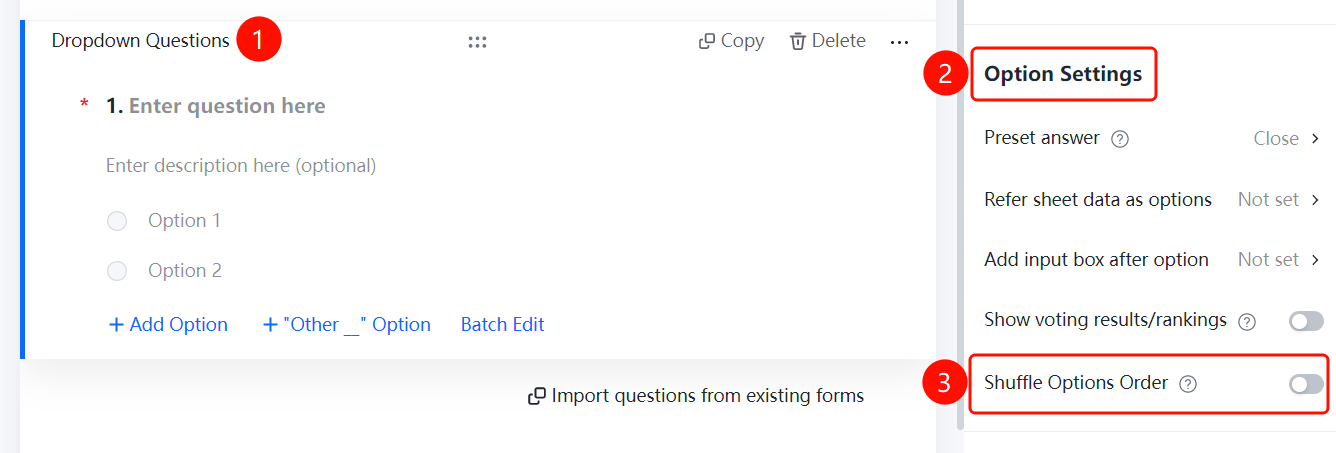
Dropdown question → 「Option Settings」 → 「Shuffle option order」 toggle
- Click the added dropdown question
- In the right 「Option Settings」 panel, turn on the 「Shuffle option order」 toggle
FAQ
Q1: How to set a default option for a dropdown question?
- Solution: Click the dropdown question, click 「Preset Answer」 in the 「Option Settings」 panel, and select the default option from the pop-up dropdown box.
Q2: Can a dropdown question reference Sheets data as options?
- Solution: Yes. Click the dropdown question, click 「Reference Sheets data as options」 in the 「Option Settings」 panel, and you can choose from cloud documents or upload a Sheets file from local storage.
Q3: How to allow respondents to enter custom content after selecting an option?
- Solution: Click the dropdown question, click 「Add input box after option」 in the 「Option Settings」 panel, and check the options that need an input box.
Notes
- Dropdown questions support adding multiple options, which can be managed via 「Add Option」 or 「Batch Edit」
- After turning on 「Shuffle option order」, the order of options seen by each respondent will be randomly arranged