Feature Summary
When there are many questions, inserting page breaks can divide the questions into different pages. This allows respondents to focus more attentively on the relevant questions, improving filling efficiency.
Feature Description
| Feature Dimension | Description |
|---|---|
| Membership Restriction | No membership restriction |
| Version Restriction | No version restriction |
Operation Steps
Insert Page Break
Feature Entry
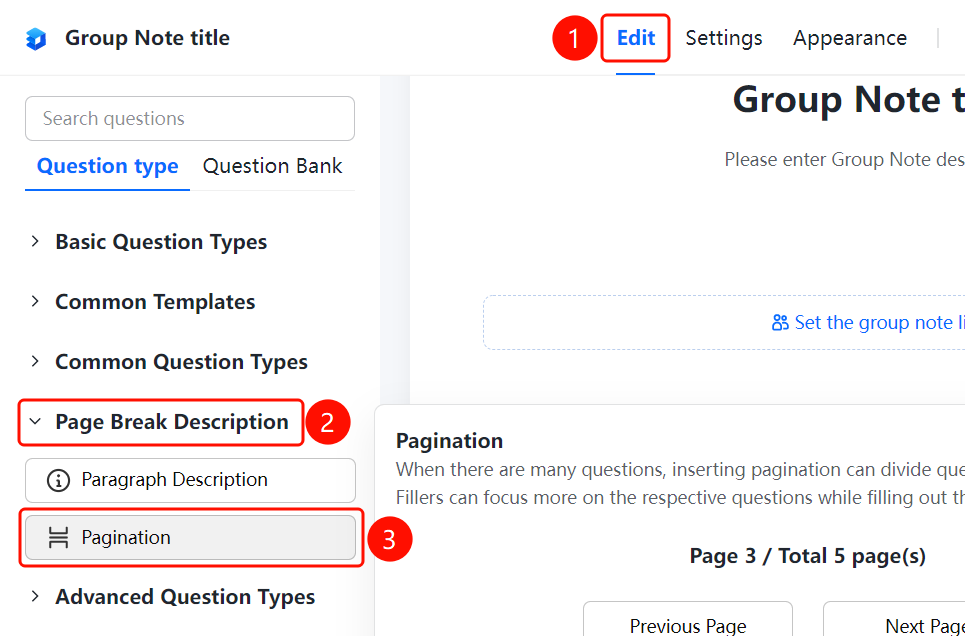
「Edit」 tab → 「Question Type」 → 「Page Break」 option
- Click the top 「Edit」 tab
- Expand the 「Page Break description」 area in the left panel
- Click the 「Page Break」 option to insert a page break between questions
- Respondents will see page navigation, such as "Page 3/5", and click 「Previous Page」 or 「Next Page」 to switch pages
FAQ
Q1: When should I use page breaks?
- Solution: When the form has many questions, it is recommended to use page breaks to divide questions into different pages, preventing respondents from seeing too many questions on one page and experiencing fatigue.
Q2: How do respondents switch pages after page breaks are inserted?
- Solution: Respondents can see the page navigation at the bottom of the form and click the "Previous Page" or "Next Page" button to switch pages.
Q3: Can I set the number of questions per page?
- Solution: Yes. In the editing page, insert page breaks between questions. The questions between each page break constitute one page, which can be freely adjusted as needed.
Notes
- Page breaks help respondents fill in more attentively and improve filling efficiency
- You can add descriptive text for the page in the "Page Description"