Feature Summary
The image question is used to collect images uploaded by respondents. It supports setting image quantity, size limits, and image formats. Respondents can upload images and add text descriptions.
Feature Description
| Feature Dimension | Description |
|---|---|
| Membership Restriction | No membership restriction |
| Version Restriction | No version restriction |
Operation Steps
Adding an Image Question
Feature Entry
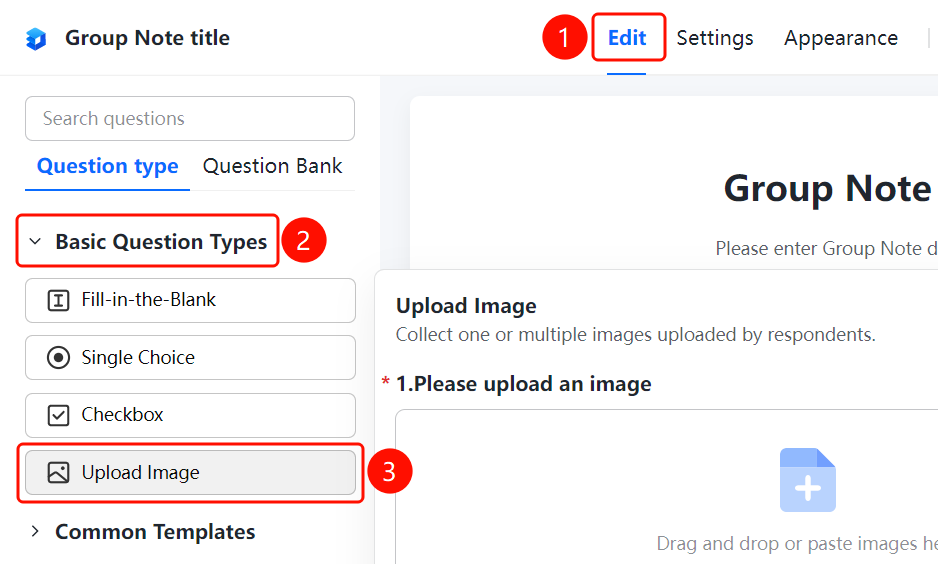
「Edit」 tab → 「Basic Question Types」 → 「Image Question」 button
- Click the top 「Edit」 tab
- Expand the 「Basic Question Types」 area in the left panel
- Click the 「Image Question」 button to add the image question to the Group Form
- Enter the question content in the question editing area, such as "Image Question Example"
- Respondents click 「Upload Image」 to upload images. The current setting shows 「Upload up to 1 image, within 10MB per image」
Setting Camera-Only Upload
Feature Entry
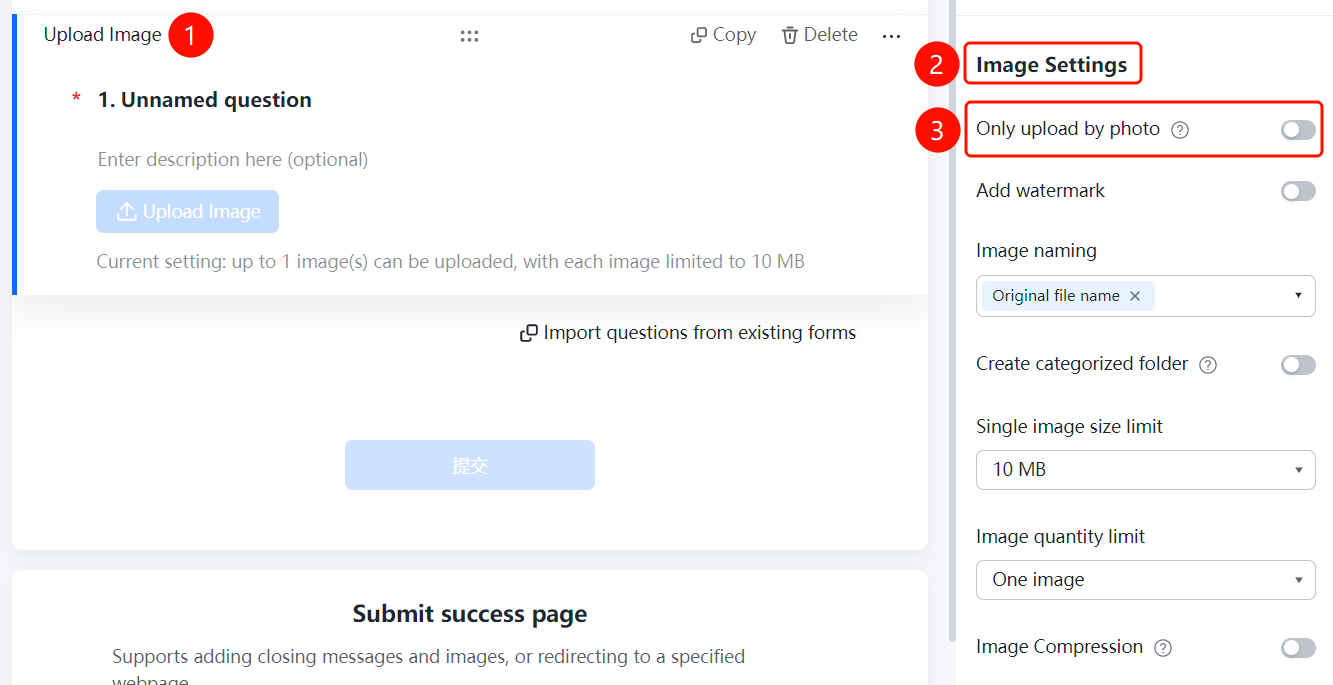
Image Question → 「Image Settings」 → 「Camera-Only Upload」 toggle
- Click the added image question
- In the right-side 「Image Settings」 panel, turn on the 「Camera-Only Upload」 toggle
- After enabling, respondents can only upload images by taking photos
Setting Add Watermark
Feature Entry
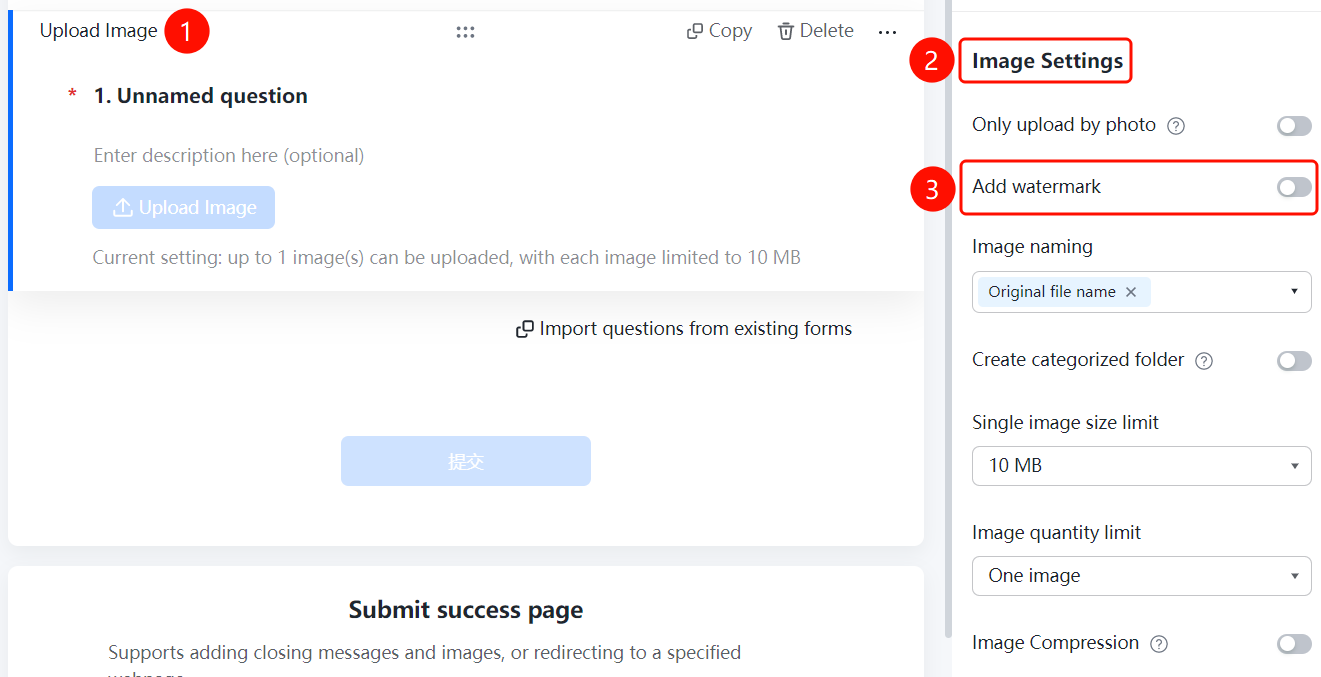
Image Question → 「Image Settings」 → 「Add Watermark」 option
- Click the added image question
- In the right-side 「Image Settings」 panel, click the 「Add Watermark」 option
Setting Image Naming Method
Feature Entry
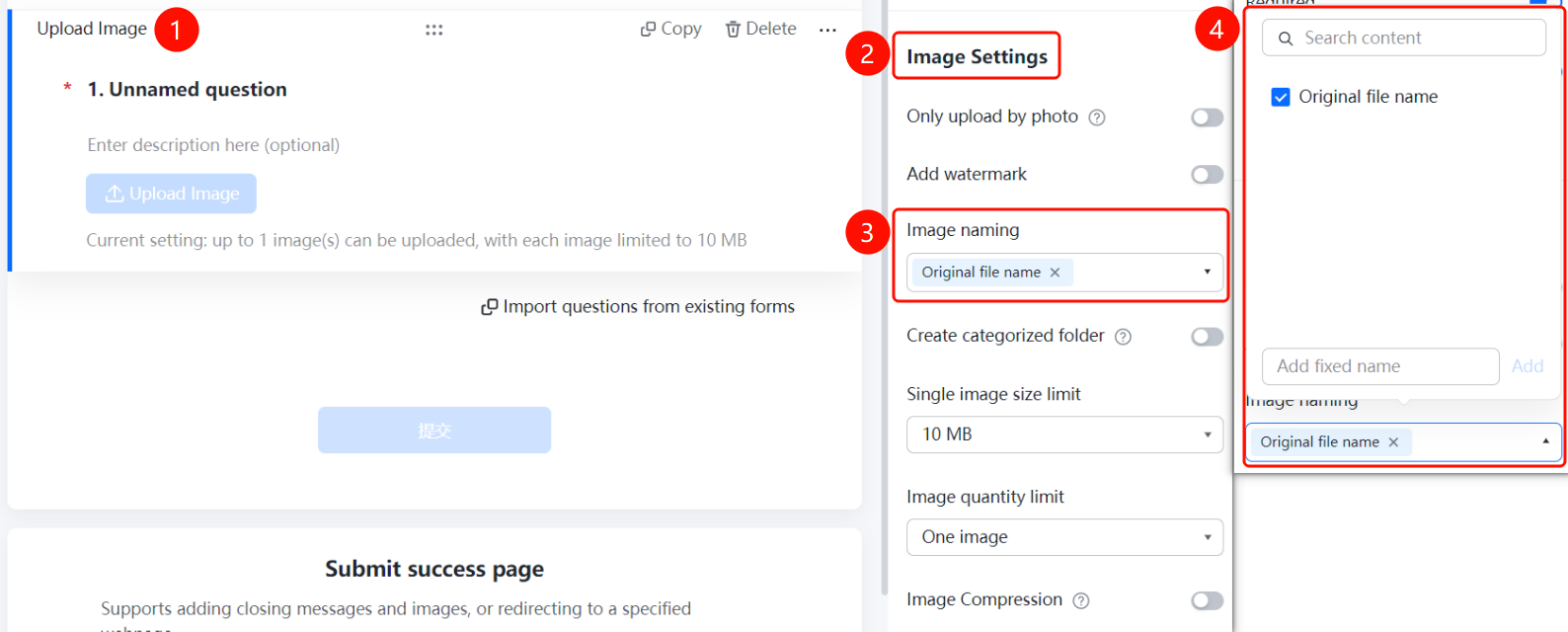
Image Question → 「Image Settings」 → 「Image Naming Method」 option
- Click the added image question
- In the right-side 「Image Settings」 panel, click 「Image Naming Method」 (currently displayed as 「Original File Name ×」)
- Select a naming method or click 「Add Custom Fixed Naming」 to add a custom rule
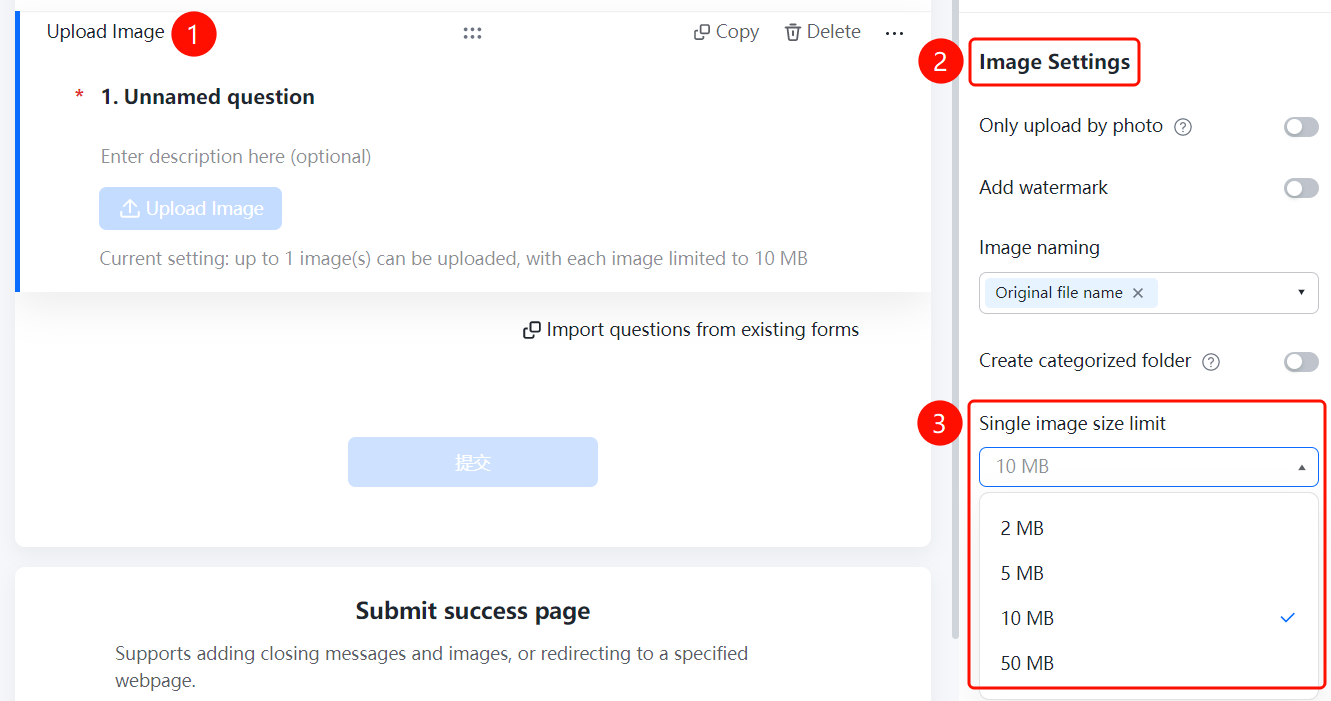
Setting Single Image Size Limit
Feature Entry
Image Question → 「Image Settings」 → 「Single Image Size Limit」 option
- Click the added image question
- In the right-side 「Image Settings」 panel, click 「Single Image Size Limit」 (currently 「10M」)
- Select the allowed size limit
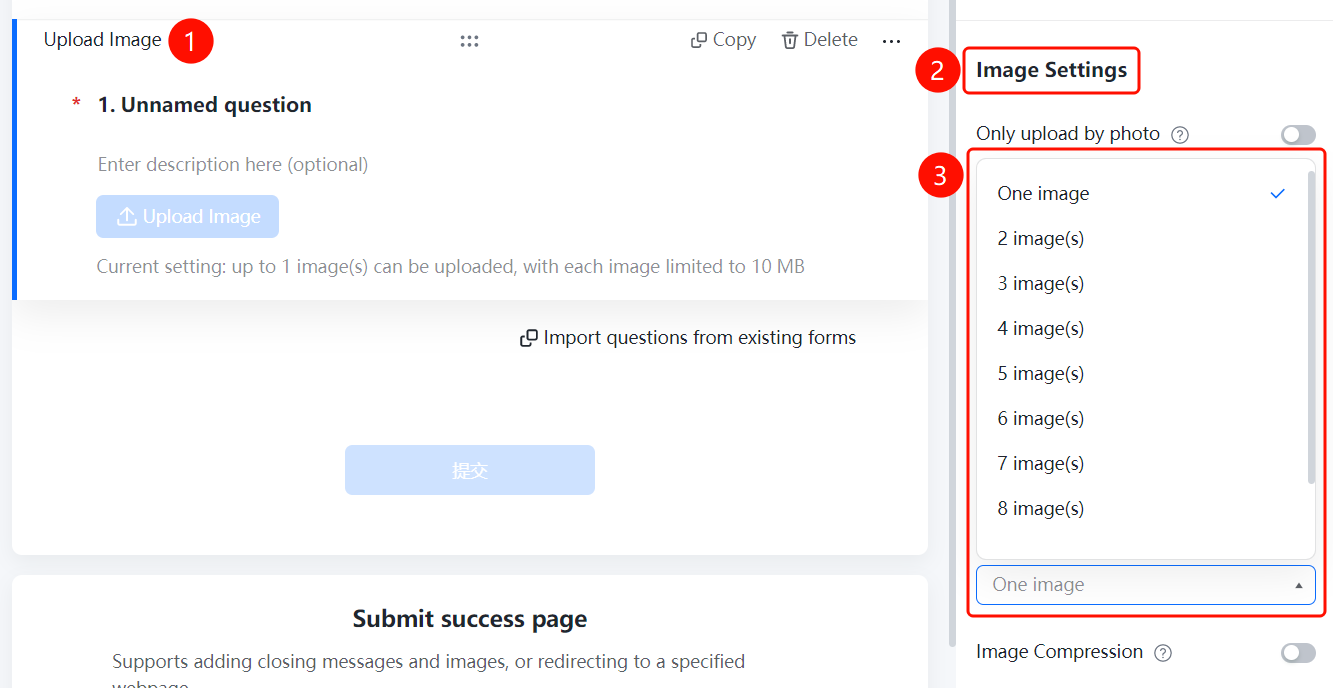
Setting Image Quantity Limit
Feature Entry
Image Question → 「Image Settings」 → 「Image Quantity Limit」 option
- Click the added image question
- In the right-side 「Image Settings」 panel, click 「Image Quantity Limit」 (currently 「1 image」)
- Select the allowed number of images to upload
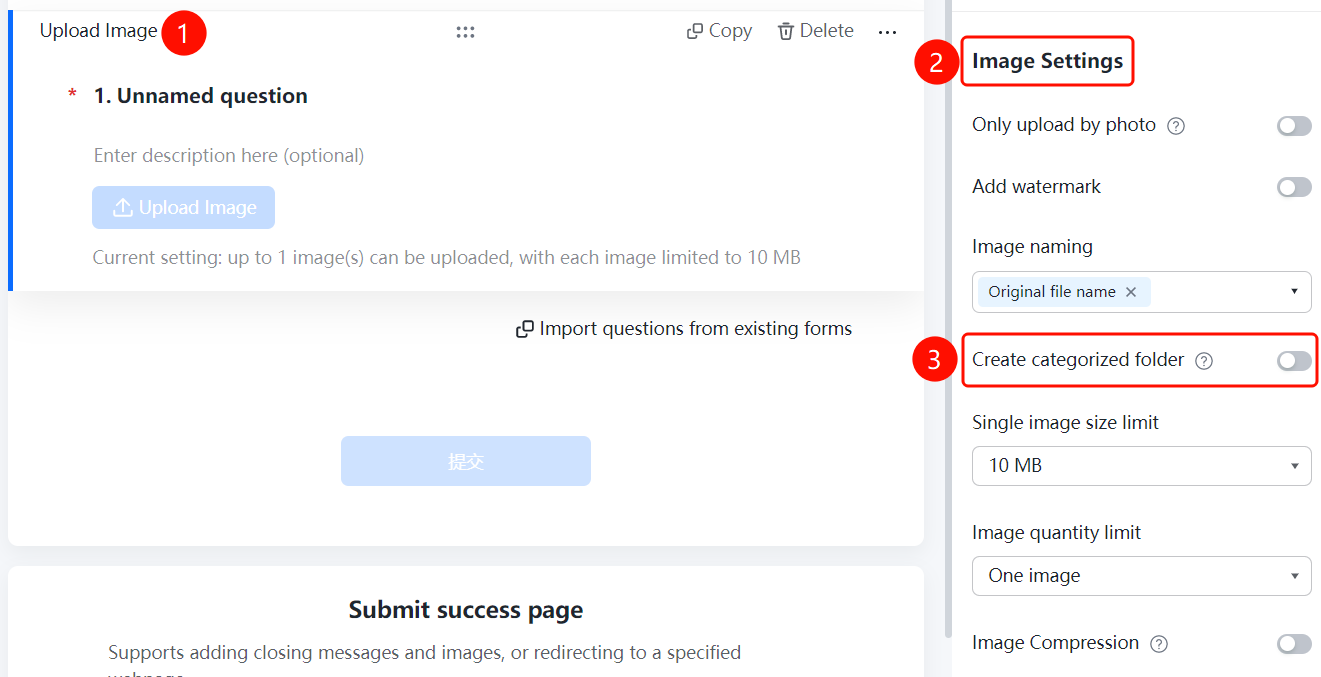
Enabling Create Category Folder
Feature Entry
Image Question → 「Image Settings」 → 「Create Category Folder」 toggle
- Click the added image question
- In the right-side 「Image Settings」 panel, turn on the 「Create Category Folder」 toggle
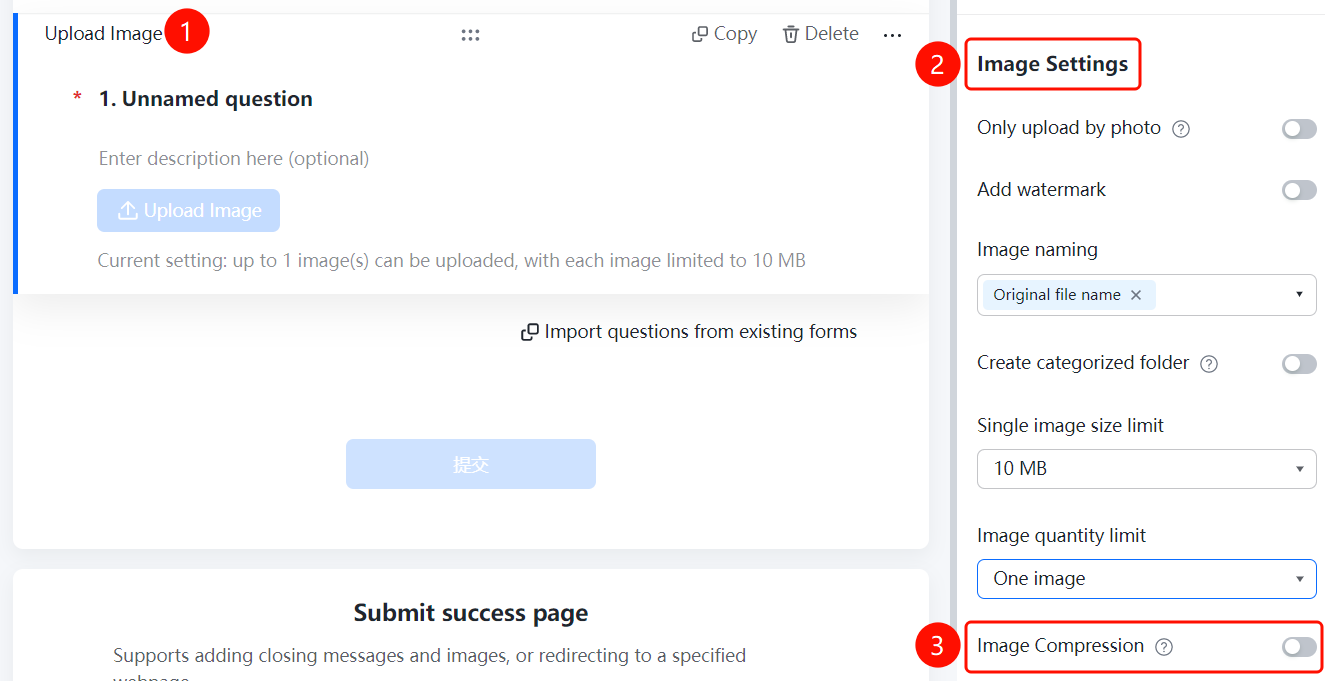
Setting Compress Image
Feature Entry
Image Question → 「Image Settings」 → 「Compress Image」 toggle
- Click the added image question
- In the right-side 「Image Settings」 panel, turn on the 「Compress Image」 toggle
FAQ
Q1: How many images can be uploaded for an image question?
- Solution: Click the image question, and set the "Image Quantity" in "Image Settings" to limit the maximum number of images that can be uploaded.
Q2: How to limit the size and format of uploaded images?
- Solution: Click the image question, and set "Image Size Limit" and "Image Format" respectively in "Image Settings".
Q3: How are uploaded images saved and managed?
- Solution: After turning on the "Save Uploaded Images" toggle, you can view them on the data statistics page; turning on "Create Category Folder" allows you to categorize and manage images.
Notes
- The image question is suitable for scenarios where images need to be collected
- It is recommended to set reasonable image quantity and size limits