Feature Summary
Submission settings are used to configure the submission rules of a Group Form, including preventing the reuse of the previous submission record, limiting the total number of responses, limiting the number of submissions per user, hiding and customizing the logo, and displaying the number of participants.
Feature Description
| Feature Dimension | Description |
|---|---|
| Member Limit | No member limit |
| Version Limit | No version limit |
Steps
Prevent Reuse of the Previous Submission Record
Feature Entry
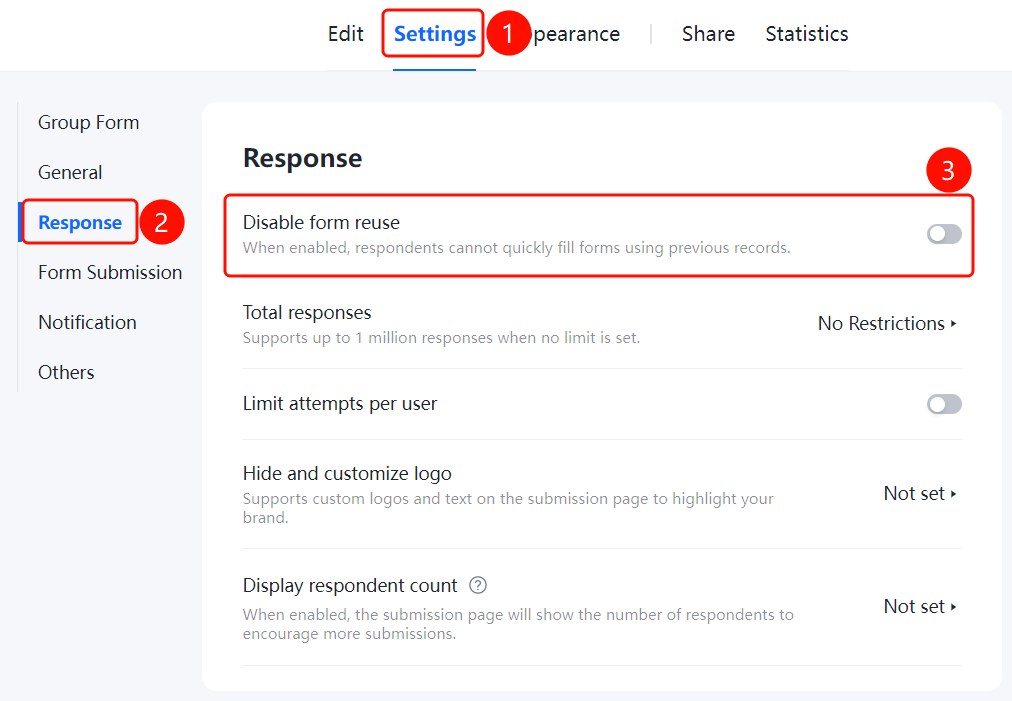
"Settings" tab → "Response" → "Disable form reuse" switch
- Click the Settings tab at the top.
- Click Response in the left panel.
- Turn on the Disable form reuse switch.
- Once enabled, submitters will not be able to use this feature for quick submission.
Set the Total Number of Responses
Feature Entry
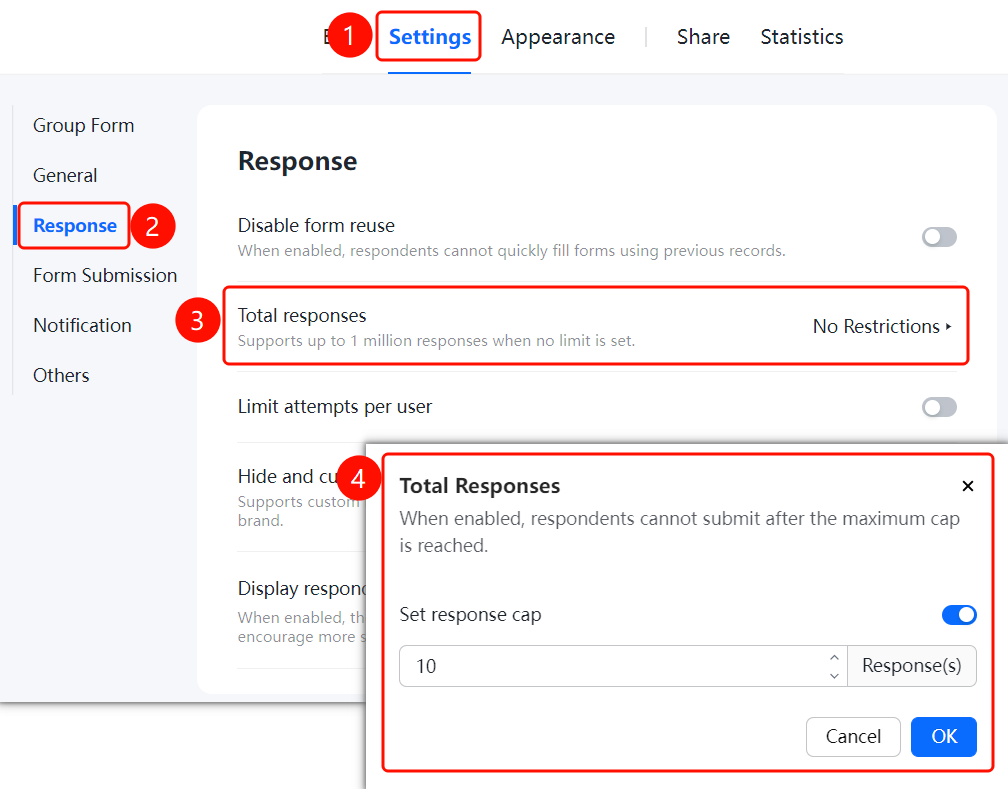
"Settings" tab → "Response" → "Total Responses" option
- Click the Settings tab at the top.
- Click Response in the left panel.
- Click Total Responses (currently set to No Limit; up to millions of responses are supported when no limit is enabled).
- In the pop-up window, enable Limit Total Responses and set the maximum limit.
- Once the limit is enabled, submitters will not be able to submit after the maximum limit is exceeded.
Limit the Number of Submissions per User
Feature Entry
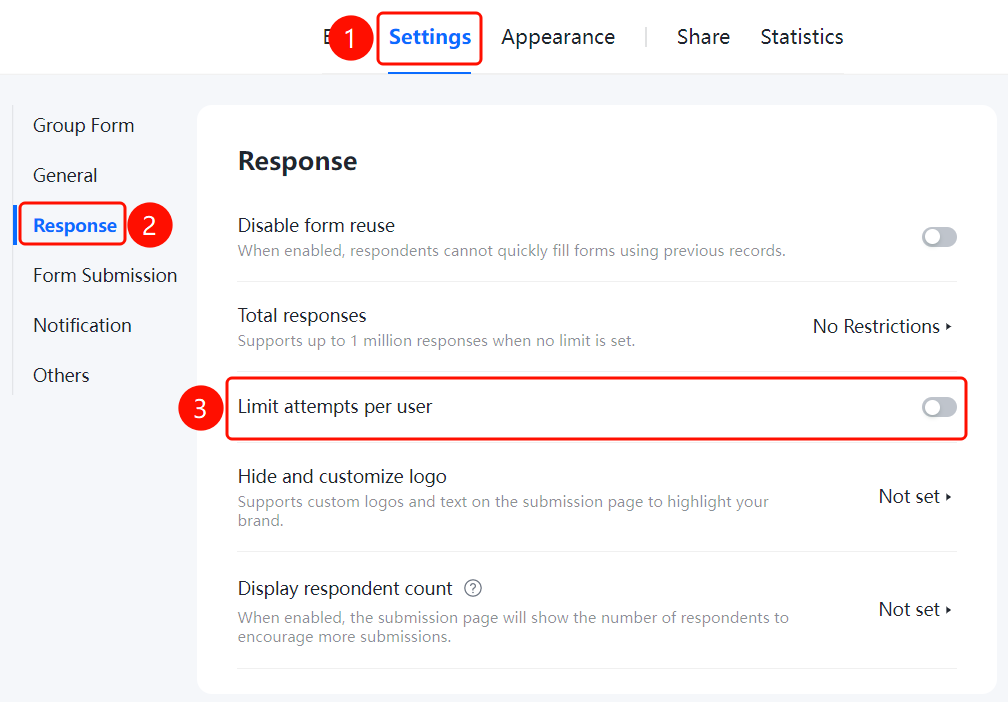
"Settings" tab → "Response" → "Limit Submissions per User" option
- Click the Settings tab at the top.
- Click Response in the left panel.
- Click Limit Submissions per User (currently set to Not Set).
- Set the number of submissions allowed for each user.
Hide and Customize Logo
Feature Entry
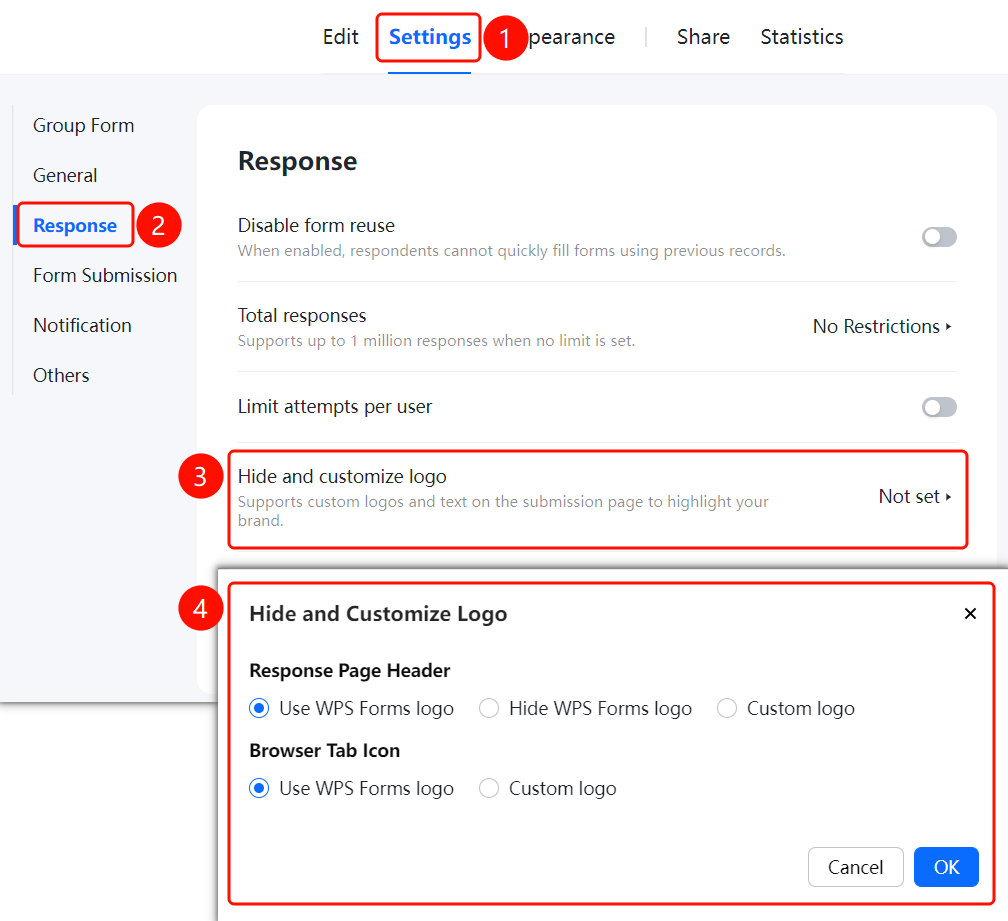
"Settings" tab → "Response" → "Hide and Customize Logo" option
- Click the Settings tab at the top.
- Click Response in the left panel.
- Click Hide and Customize Logo (currently set to Not Set).
- You can customize the logo and text on the submission page to highlight your organization's brand image.
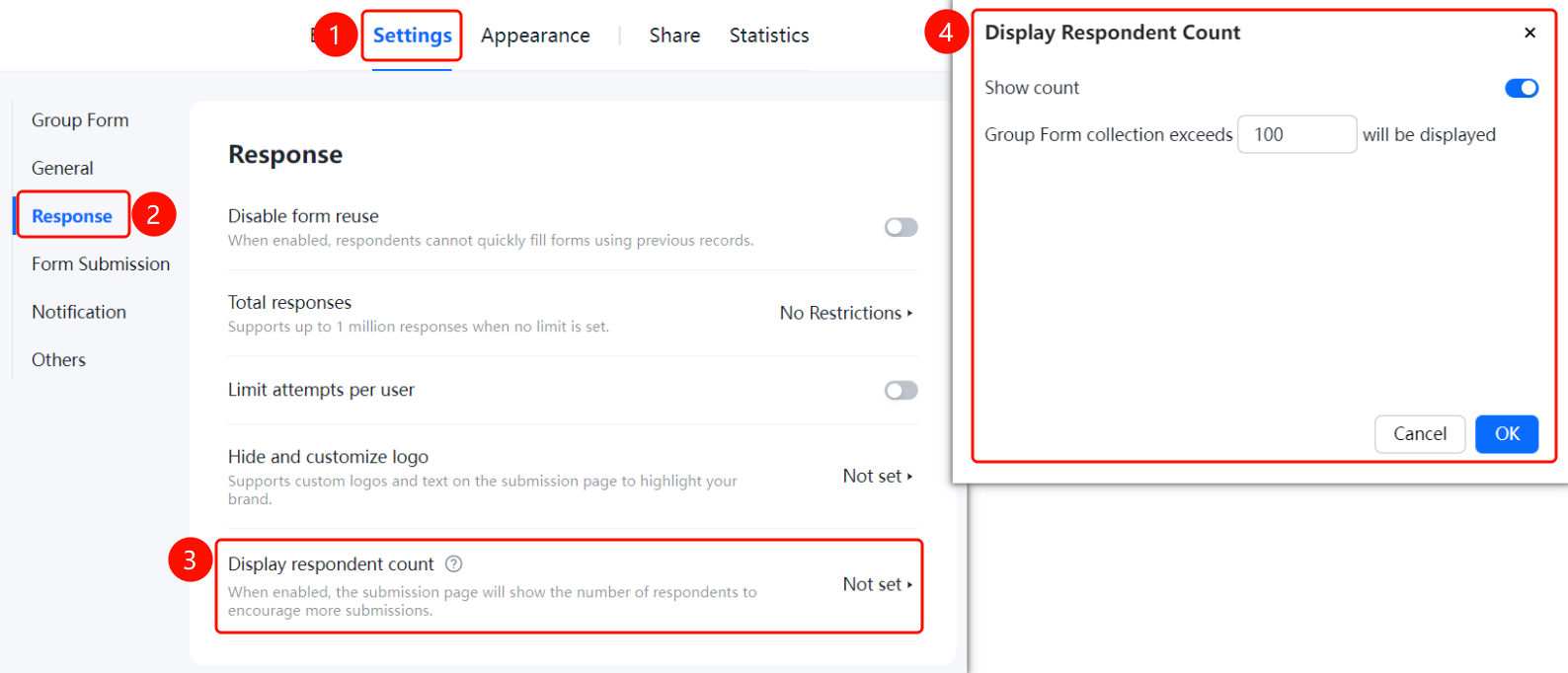
Display the Number of Participants
Feature Entry
"Settings" tab → "Response" → "Display Number of Participants" option
- Click the Settings tab at the top.
- Click Response in the left panel.
- Click Display Number of Participants (currently set to Not Set).
- Once enabled, the submission page will display the number of participants to encourage more people to submit.
FAQ
Q1: How do I limit the total number of responses for a Group Form?
- Solution: Go to "Settings" → "Submission Settings", click "Total Responses", enable "Limit Total Responses", and set a limit. Submitters will not be able to submit once the limit is exceeded.
Q2: How do I customize the logo and text on the submission page?
- Solution: Go to "Settings" → "Submission Settings", click "Hide and Customize Logo", and customize the logo and text to highlight your organization's brand image.
Q3: How do I display the number of participants?
- Solution: Go to "Settings" → "Submission Settings" and enable "Display Number of Participants". The submission page will then display the number of participants to encourage more submissions.
Notes
- Up to millions of responses are supported when there is no limit on the total number of responses.
- Displaying the number of participants can effectively boost submission engagement.